
Backup Complete Computer - Create an Image Backup

How to Create a System Image Backup in Windows 7

   Information
A system image is an exact copy of a drive. By default, a system image includes the drives required for Windows to run. A system image would include all NTFS formatted partitions with an operating system installed on it (ex: C ), as well as the System Reserved partition. These system partitions cannot be unselected. It also includes Windows and your system settings, programs, and files. You can use a system image to restore the contents of your computer if your hard disk or computer ever stops working. When you restore your computer from a system image, it's a complete restoration—you can't choose individual items to restore, and all of your current programs, system settings, and files are replaced with the contents of the system image.

This tutorial will show you how to create a system image (clone) backup of the entire hard drive or partition that Windows 7 is on, and any other selected drive or partition. You can use this image to be able to do a system image recovery to restore the hard drive or partition at boot back to the way it was at the time the backup image was created.

If you want to include additional drives in the system image, you can manually create a system image. If you manually create a system image, it can be saved on a USB flash drive, CDs, DVDs, or a hard drive.

If a system image was created through Windows Backup instead with the Include a System Image of Drives box checked, you can set Windows to retain as many system images as it has space for on the backup disk or to only keep the most recent system image.

   Note
Keeping different versions of system images

If you're saving your system images on an internal or external drive, or on CDs or DVDs, you can keep several versions of system images. On internal and external hard drives, older system images will be deleted when the drive runs out of space. To help conserve disk space, you can manually delete older system images.

Backup images are saved as backup periods in this format at the selected saved to location like the example below.

drive letter:\WindowsImageBackup\computer name\Backup YYYY-MM-DD HHMMSS

For example, if your computer name is Computer, your backup image location is on hard disk or partition (network or local) D: , and you backed up on 11/22/2008 at 1:00:50 PM (It uses 24 hour time), then that backup image would be located in the folder below.
D:\WindowsImageBackup\Computer\Backup 2008-11-22 130050
If you're saving your system images in a network location, you can only keep the most current system image for each computer. If you have an existing system image for a computer and are creating a new one for the same computer, the new system image will overwrite the existing one.


   Tip
If you want to keep multiple system image versions on the same drive or partition, then you can use either method below to do so.

METHOD ONE:
Change the maximum space used for system images on the drive letter you are saving the Windows Backup to by changing the maximum space used by System Protection for the same drive letter. This is the same setting.

You do not have to have System Protection turned on for the drive letter, but do need to adjust the maximum space to what you like.

The size of a system image can be quite large since it will include all system drives in the image by default plus any drives you have included. If you want to keep multiple system images, be sure to increase the max size accordingly.

METHOD TWO:

1. Navigate to the backup location above for where you saved a system image that you want to keep before creating a new system image.

2. Right click, or press and hold, on the WindowsImageBackup folder, and click/tap on Rename.

3. Rename it to something like WindowsImageBackup-Copy-1, press Enter, and click//tap on Yes if prompted by UAC.
NOTE: This way you can just easily change the 1 an the end of the name to 2, 3, 4, etc... for each new system image that you make a copy of.

4. You now have a different system image version that you can leave at this location to be able to keep multiple versions.


warnsmall.png
NOTE: When you want to restore a system image in a renamed WindowsImageBackup-Copy-1 folder in the future, then you must rename the current WindowsImageBackup folder first, then rename the WindowsImageBackup-Copy-1 folder back to WindowsImageBackup in order to be able to restore it. The WindowsImageBackup folder must be in the root directory of the drive, and not within another folder.

   Warning

  • Windows 7 can only include drives formatted with the NTFS file system in the system image.
  • Windows 7 cannot include the partition or drive that you are saving the backup image to in the image.
  • All "system" or "boot" drives/partitions are included in the system image by default, so you will not be able to save the system image to a system or boot drive/partition.
  • If you are saving the system image to a HDD or partition, then you can only save the system image on a separate hard drive (recommended) or partition than what Windows 7 is installed on. It cannot be saved to the C: drive.
  • Only the Windows 7 Professional, Ultimate, and Enterprise editions can backup to a network location.
  • You cannot restore a 64-bit Windows 7 backup image on a 32-bit system.
  • You cannot restore a 64-bit Windows 7 backup image with a 32 bit Windows 7 installation DVD or recovery partition, or the other way around. You must use the same 32-bit or 64-bit Windows 7 installation DVD or recovery partition as the backup image is.
  • A system image that was created on a computer using EFI cannot be restored on a computer using BIOS. It can only be restored on a computer using EFI.
  • When restoring a system image from a dynamic volume, the disks on your computer cannot be formatted to match the layout of the disks on the backup. To have full functionality, select a volume (partition) on a basic disk as your backup location instead.
  • I would recommend to create a system image on a separate HDD, or a separate partition on a separate HDD, for the best reliability to restore from it. CDs or DVDs are just not as reliable. A scratch one just one of them could ruin the whole image.


Here's How:
1. Open the Control Panel (icons view).

2. Click on the Backup and Restore icon.

3. Click on the Create a system image link. (See screenshot below)
Step1.jpg
4. If prompted by UAC, click on Yes.

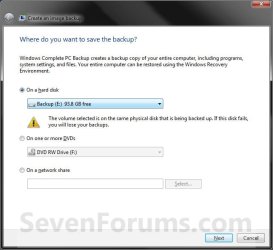
5. Select the location to where you would like to save the backup image at, and click on the Next button. (See screenshot below)
NOTE: See the Warning box at the top of the tutorial. Only the Windows 7 Professional, Ultimate, and Enterprise editions can backup to a network location.
Step2.jpg
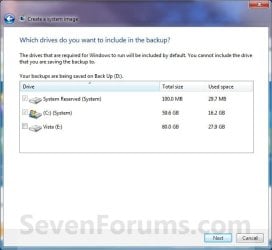
6. If available, check any additional hard drives or partitions (ex: Vista) that you would like to include in the backup image with the Windows 7 (System and C: ) partition or hard drive, and click on the Next button. (See screenshot below)
NOTE: See the WARNING box at the top of the tutorial. If you do not want to add any additional hard drives or partitions, then just leave the others unchecked. You will not see this, if you do not have any other OS installed other than Windows 7.
Step3.jpg
7. Click on the Start backup button. (See screenshot below)
Step4.jpg
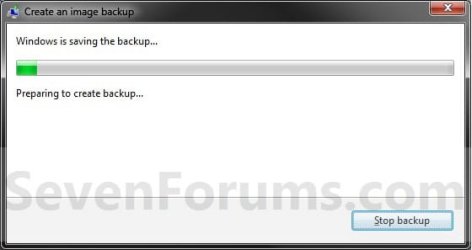
8. You will now see this window. (See screenshot below)
NOTE: If you wish to stop creating the backup image during this point, click on the Stop backup, Stop, and Close buttons.
Step5.jpg
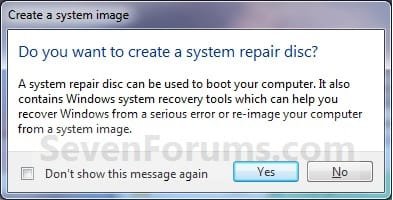
9. When it is finished you will see this create a System Repair disc pop-up window. Click on No. (See screenshot below)
NOTE: For how to always hide or show this message, see this tutorial.
Step7.jpg
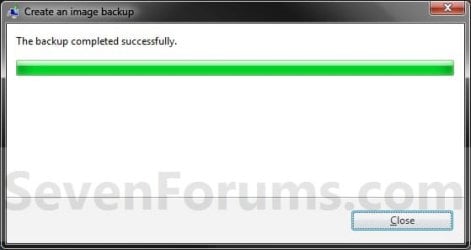
10. Click on the Close button. (See screenshot below)
Step8.jpg
11. Close the Backup and Restore window. (See screenshot below step 3)
That's it,
Shawn


Last edited:
I wish I had a spare empty HDD lying around to try this new Easeus software for complete replacement HDD recovery. If anyone tries it then it's worth a quick post.
 

My Computer

Computer type
PC/Desktop
Computer Manufacturer/Model Number
Own build
OS
Windows 7x64 Home Premium SP1
CPU
Intel i7 2600k
Motherboard
ASUS P8Z68 Deluxe
Memory
G.Skill Ripjaws (DDR3-1600) 2x4GB
Graphics Card(s)
Nvidia GeForce GTS 450; Intel HD Graphics 3000(GT2+)
Monitor(s) Displays
Dell Ultrasharp IPS panel U2311H, Samsung SyncMaster P2350
Screen Resolution
1920x1080
Hard Drives
Samsung 850 Pro SSD 256GB, Samsung SSD 840 120GB, Seagates 1TB Barracuda ST31000528AS x2
PSU
Seasonic M12II 520W
Case
Lian Li Lancool PC-K60
Cooling
Case: 1x120mm, 3x140mm CPU: Hyper 212+
Keyboard
Logitech MK520 (wireless)
Mouse
Logitech MK520
Internet Speed
6-7 Mbps
Antivirus
Norton Security Premium, Malwarebytes on 2 (MSE on 3rd PC)
Browser
FireFox
Other Info
Audio: Logitech Z523 2.1
Haven't tried that - but have done o/s partition backup and restore.

Restored to a smaller partition - very fast.

It worked extremely well.:D
 

My Computers

System One System Two

  • Computer type
    PC/Desktop
    OS
    7 X64
    CPU
    i5 8400
    Motherboard
    gigabyte b365m ds3h
    Memory
    2x8gb 3200mhz
    Hard Drives
    various
    PSU
    pure power 11 400w cm
    Case
    Coolermaster
    Cooling
    cryorig m9i
  • Computer type
    PC/Desktop
    OS
    7x64
    CPU
    g5400
    Motherboard
    ga b365m ds3h
    Memory
    8gb ddr4 2400
    PSU
    xfx pro 450w
Hi Brink and all,

I have been saving my W7 system images to DVDs, but I want to start saving them to an external hard drive. I have never used an external hard drive before for any reason, so that might explain if my questions seem basic! :o

1) When I connect my new external drive to my USB port, will the system image tool recognize that, and if not, what do I need to do?
2) The BestBuy guy told me that I will need to "format my new external drive" before use. What, and how do I format my new drive to accept the W7 system image?
3) Lastly, do I keep multiple images on this new external drive, or do I overwrite the existing one each time? Will the W7 image tool ask me those questions when making a new image, or not?

Thanks in advance for any help! I read through most of the 45 pages, but didn't find my exact answers. If you could be specific on your answers and include any steps that some might think are basic, I would greatly appreciate it!! :D
 

My Computer

OS
Windows 7 Home Premium x64 SP1
1. Usually yes. Nowadays the drives come formatted. Just check that it is NTFS and not Fat32.
2. See above. But if you need to format, just right click on it in Computer. You'll see.
3. You can use win7 imaging, but I think that is not such a good idea. Use Paragon or Macrium instead (the free versions). They will put as many images on your external as you like. No need to rename or jump thru other hops.

Once you get to it and have chosen an imaging program, we will be glad to answer specific questions. Here is a video tutorial I made for starters: http://www.sevenforums.com/tutorials/73828-imaging-free-macrium.html?ltr=I
 

My Computer

Computer Manufacturer/Model Number
HP, Dell, Gateway, Toshiba - 4 laptops and 2 desktops
OS
Vista, Windows7, Mint Mate, Zorin, Windows 8
CPU
from 1.6GHz Duo to i7
Monitor(s) Displays
2x HP w2207
Hard Drives
5x HDD, 7x SSD, 12x Externals
Keyboard
with trackball - no mices
Mouse
Trackball mice
Internet Speed
DSL 6000
1) Yes
2) Make it NTFS (probably will be already). Otherwise use Windows "Disk Management" there's a tutorial on it.
3) For Windows imaging you get a folder [WindowsImageBackup]. Windows will be this exact name when looking for or making images. To make another image simply rename the folder to anything else you like eg. [WindowsImageBackup_8_10_11] then go ahead and make another [WindowsImageBackup]. To use the old image rename it back to [WindowsImageBackup].

Other good free products to try are free Macrium Reflect and EaseUs Todo V3.

You can keep different images from different vendors on the same HDD.
I suggest you give them all a try and see what suites you. You can also easily "mount" the made images and look around them.
 

My Computer

Computer type
PC/Desktop
Computer Manufacturer/Model Number
Own build
OS
Windows 7x64 Home Premium SP1
CPU
Intel i7 2600k
Motherboard
ASUS P8Z68 Deluxe
Memory
G.Skill Ripjaws (DDR3-1600) 2x4GB
Graphics Card(s)
Nvidia GeForce GTS 450; Intel HD Graphics 3000(GT2+)
Monitor(s) Displays
Dell Ultrasharp IPS panel U2311H, Samsung SyncMaster P2350
Screen Resolution
1920x1080
Hard Drives
Samsung 850 Pro SSD 256GB, Samsung SSD 840 120GB, Seagates 1TB Barracuda ST31000528AS x2
PSU
Seasonic M12II 520W
Case
Lian Li Lancool PC-K60
Cooling
Case: 1x120mm, 3x140mm CPU: Hyper 212+
Keyboard
Logitech MK520 (wireless)
Mouse
Logitech MK520
Internet Speed
6-7 Mbps
Antivirus
Norton Security Premium, Malwarebytes on 2 (MSE on 3rd PC)
Browser
FireFox
Other Info
Audio: Logitech Z523 2.1
Cool, thanks guys! I have the new drive sitting next to me and will give it a try this weekend. I'm going to use the on-board W7 tool first, and once I get comfortable with it, I'll look into the other programs you suggested.
 

My Computer

OS
Windows 7 Home Premium x64 SP1
Remember, taking an image is easy. Recovering with an image is another story. That is why you always have to test whether the recovery really works.
 

My Computer

Computer Manufacturer/Model Number
HP, Dell, Gateway, Toshiba - 4 laptops and 2 desktops
OS
Vista, Windows7, Mint Mate, Zorin, Windows 8
CPU
from 1.6GHz Duo to i7
Monitor(s) Displays
2x HP w2207
Hard Drives
5x HDD, 7x SSD, 12x Externals
Keyboard
with trackball - no mices
Mouse
Trackball mice
Internet Speed
DSL 6000
How would I test it without overriding my current setup?
 

My Computer

OS
Windows 7 Home Premium x64 SP1
Hello Darryl,

If you had an extra HDD, you could unplug your current Windows 7 HDD, and test to see if you could do the system image recovery to the extra HDD.
 

My Computer

Computer type
PC/Desktop
Computer Manufacturer/Model Number
Self built custom
OS
64-bit Windows 11 Pro for Workstations
CPU
Intel i7-8700K OC'd to 5 GHz
Motherboard
ASUS ROG Maximus XI Formula Z390
Memory
64 GB (4x16GB) G.SKILL TridentZ RGB DDR4 3600 MHz
Graphics Card(s)
ASUS ROG-STRIX-GTX1080TI-O11G-GAMING
Sound Card
Integrated
Monitor(s) Displays
2 x Samsung Odyssey G7 27"
Screen Resolution
2560x1440
Hard Drives
1TB Samsung 990 PRO M.2,
4TB Samsung 990 PRO PRO M.2,
TerraMaster F8 SSD Plus NAS
PSU
Seasonic Prime Titanium 850W
Case
Thermaltake Core P3
Cooling
Corsair Hydro H115i
Keyboard
Logitech wireless K800
Mouse
Logitech MX Master 4
Internet Speed
2 Gb/s Download and 100 Mb/s Upload
Antivirus
Malwarebyte Anti-Malware Premium
Browser
Google Chrome
Other Info
Logitech Z625 speaker system,
Logitech BRIO 4K Pro webcam,
HP Color LaserJet Pro MFP M477fdn,
APC SMART-UPS RT 1000 XL - SURT1000XLI,
Galaxy S23 Plus phone
Hello Darryl,

If you had an extra HDD, you could unplug your current Windows 7 HDD, and test to see if you could do the system image recovery to the extra HDD.
I think doing this is a great idea. Not only can you test out your imaging software options with an acid test, you know how to make a new HDD when your old one eventually dies.
 

My Computer

Computer type
PC/Desktop
Computer Manufacturer/Model Number
Own build
OS
Windows 7x64 Home Premium SP1
CPU
Intel i7 2600k
Motherboard
ASUS P8Z68 Deluxe
Memory
G.Skill Ripjaws (DDR3-1600) 2x4GB
Graphics Card(s)
Nvidia GeForce GTS 450; Intel HD Graphics 3000(GT2+)
Monitor(s) Displays
Dell Ultrasharp IPS panel U2311H, Samsung SyncMaster P2350
Screen Resolution
1920x1080
Hard Drives
Samsung 850 Pro SSD 256GB, Samsung SSD 840 120GB, Seagates 1TB Barracuda ST31000528AS x2
PSU
Seasonic M12II 520W
Case
Lian Li Lancool PC-K60
Cooling
Case: 1x120mm, 3x140mm CPU: Hyper 212+
Keyboard
Logitech MK520 (wireless)
Mouse
Logitech MK520
Internet Speed
6-7 Mbps
Antivirus
Norton Security Premium, Malwarebytes on 2 (MSE on 3rd PC)
Browser
FireFox
Other Info
Audio: Logitech Z523 2.1
You can get a 99% assurance by testing the image of a test partition. I have made a little guideline for a Macrium test which you could follow.


I usually make a test as follows (takes less than 30 minutes):

1. I shrink 2GBs from C and create a 2GB partition
2. I move some data into that partition - just anything
3. I take an image of this partition
4. I delete a file or folder from the partition
5. I restore the partition from the image
6. If the deleted file/folder is back, I know it worked.
7. I delete the 2GB partition and return the space to C
 

My Computer

Computer Manufacturer/Model Number
HP, Dell, Gateway, Toshiba - 4 laptops and 2 desktops
OS
Vista, Windows7, Mint Mate, Zorin, Windows 8
CPU
from 1.6GHz Duo to i7
Monitor(s) Displays
2x HP w2207
Hard Drives
5x HDD, 7x SSD, 12x Externals
Keyboard
with trackball - no mices
Mouse
Trackball mice
Internet Speed
DSL 6000
Is there an easy way to make an exact clone of your entire system drive to another? For situations like when you are upgrading a hard drive, etc.
 

My Computer

OS
Mac OSX
Hello Taiyoyuden,

This tutorial could easily be used for that purpose just as well. :)
  • Create a system image on a HDD or partition other than the one you are using as the new HDD.
  • Replace the HDD.
  • Do a system image recovery to the new HDD using the system image you just created.
Hope this helps,
Shawn
 

My Computer

Computer type
PC/Desktop
Computer Manufacturer/Model Number
Self built custom
OS
64-bit Windows 11 Pro for Workstations
CPU
Intel i7-8700K OC'd to 5 GHz
Motherboard
ASUS ROG Maximus XI Formula Z390
Memory
64 GB (4x16GB) G.SKILL TridentZ RGB DDR4 3600 MHz
Graphics Card(s)
ASUS ROG-STRIX-GTX1080TI-O11G-GAMING
Sound Card
Integrated
Monitor(s) Displays
2 x Samsung Odyssey G7 27"
Screen Resolution
2560x1440
Hard Drives
1TB Samsung 990 PRO M.2,
4TB Samsung 990 PRO PRO M.2,
TerraMaster F8 SSD Plus NAS
PSU
Seasonic Prime Titanium 850W
Case
Thermaltake Core P3
Cooling
Corsair Hydro H115i
Keyboard
Logitech wireless K800
Mouse
Logitech MX Master 4
Internet Speed
2 Gb/s Download and 100 Mb/s Upload
Antivirus
Malwarebyte Anti-Malware Premium
Browser
Google Chrome
Other Info
Logitech Z625 speaker system,
Logitech BRIO 4K Pro webcam,
HP Color LaserJet Pro MFP M477fdn,
APC SMART-UPS RT 1000 XL - SURT1000XLI,
Galaxy S23 Plus phone
+ to Brinks response.
I've done it a few times. Quite straightforward (unless Murphy's hanging around).
Just stick the new HDD in alone before the reimage. It can be new straight out of the bag. Just ensure it is the same size or larger than the original.
 

My Computer

Computer type
PC/Desktop
Computer Manufacturer/Model Number
Own build
OS
Windows 7x64 Home Premium SP1
CPU
Intel i7 2600k
Motherboard
ASUS P8Z68 Deluxe
Memory
G.Skill Ripjaws (DDR3-1600) 2x4GB
Graphics Card(s)
Nvidia GeForce GTS 450; Intel HD Graphics 3000(GT2+)
Monitor(s) Displays
Dell Ultrasharp IPS panel U2311H, Samsung SyncMaster P2350
Screen Resolution
1920x1080
Hard Drives
Samsung 850 Pro SSD 256GB, Samsung SSD 840 120GB, Seagates 1TB Barracuda ST31000528AS x2
PSU
Seasonic M12II 520W
Case
Lian Li Lancool PC-K60
Cooling
Case: 1x120mm, 3x140mm CPU: Hyper 212+
Keyboard
Logitech MK520 (wireless)
Mouse
Logitech MK520
Internet Speed
6-7 Mbps
Antivirus
Norton Security Premium, Malwarebytes on 2 (MSE on 3rd PC)
Browser
FireFox
Other Info
Audio: Logitech Z523 2.1
So I finally changed my User Profile default location from my C: (SSD) to the E: (HDD) using one of Brink's tutorials. Thanks. Now I would like to create another System Image to bail me out again, just in case.

Should the WindowsImageBackup folder be in its own partition? In hindsight, I'm wondering if I should have partitioned my HDD before I changed the User folder's default location (to look like Users E:, Backups F: )Because as it is now both the Users profiles and the WindowsImageBackup folder are at the root of E:.

Reason I ask is that in the beginning of the tutorial it warns that Windows 7 cannot create a system image which includes the partition or drive (E: ) that I'm saving to. System and User profiles no matter where they are located are included in the image...right?

Sorry I'm a noob...thanks.

ps. what's the difference between making a backup and creating restore points?
 

My Computer

OS
Windows 7 Home Premium 64-bit
CPU
i5 2500K
Motherboard
Asus P8Z68-V PRO
Memory
Corsair Vengeance 8GB
Graphics Card(s)
Sapphire Radeon HD6850
Hard Drives
Crucial M4 SSD 64GB
Seagate Barracuda 1TB
PSU
Corsair HX750
Case
Antec 300
Cooling
Stock
Keyboard
Microsoft Ergonomic
Mouse
5 year old Logitech MX518
Hello MV,

Yeah, it would be best to save the system image backup to a separate HDD that is different than the HDD your Windows 7 partition and the partition that you keep your user profile folders are on. This way you will be able to include both locations in the system image backup. Plus, whatever partitions or HDDs that are included in the system image backup will be formatted to be able to do a system image recovery to them.

A system image backup is a complete clone of the HDD(s) and/or partition(s) that you include in the image backup down to everything on them, and the layout and size of the partitions on them. When doing a system image recovery, the image backup will be restored to the HDD(s) exactly how it was when it was created. This is useful if you need to restore Windows 7 and the included HDD(s) back to how they were when the system image was created due to say a complete unfixable failure.

A restore point is part of system protection. It creates a backup of only the Windows 7 system files and registry. It does not include your user folders and files, and is not a complete backup of the HDD or Windows 7. A restore point is helpful to create right before say installing programs or drivers, or making changes to the system (Windows 7). This way if what you just did messes up Windows 7, you may be able to do a system restore to go back to a restore point dated before what you did to undo it. It's basically helpful as a quick fix to try and avoid having to reinstall Windows 7.

Either one is helpful, but both should be used. In case a system restore fails, you always have a system image backup as a fallback to recover with. :)
 

My Computer

Computer type
PC/Desktop
Computer Manufacturer/Model Number
Self built custom
OS
64-bit Windows 11 Pro for Workstations
CPU
Intel i7-8700K OC'd to 5 GHz
Motherboard
ASUS ROG Maximus XI Formula Z390
Memory
64 GB (4x16GB) G.SKILL TridentZ RGB DDR4 3600 MHz
Graphics Card(s)
ASUS ROG-STRIX-GTX1080TI-O11G-GAMING
Sound Card
Integrated
Monitor(s) Displays
2 x Samsung Odyssey G7 27"
Screen Resolution
2560x1440
Hard Drives
1TB Samsung 990 PRO M.2,
4TB Samsung 990 PRO PRO M.2,
TerraMaster F8 SSD Plus NAS
PSU
Seasonic Prime Titanium 850W
Case
Thermaltake Core P3
Cooling
Corsair Hydro H115i
Keyboard
Logitech wireless K800
Mouse
Logitech MX Master 4
Internet Speed
2 Gb/s Download and 100 Mb/s Upload
Antivirus
Malwarebyte Anti-Malware Premium
Browser
Google Chrome
Other Info
Logitech Z625 speaker system,
Logitech BRIO 4K Pro webcam,
HP Color LaserJet Pro MFP M477fdn,
APC SMART-UPS RT 1000 XL - SURT1000XLI,
Galaxy S23 Plus phone
More system image questions

Thanks Brink..
OK currently:
The SSD is C: with the system files
HDD is E: with the system USERS files

If I add another partition F: to the data drive to hold the backup folders, will the system imaging process ignore the F: partition?

Wondering if I'm going thru too much trouble making system images at this point of setting up the new computer. Right now I installed Windows 7 and all current drivers, made an image of that. Moved the default location for profiles, installed Firefox (because I couldn't open any files downloaded by IE(?))...thinking of making another image. Still need to install MSOffice, some CAD programs, a couple games...

Should I just use restore points until after I get all my main programs installed?
 

My Computer

OS
Windows 7 Home Premium 64-bit
CPU
i5 2500K
Motherboard
Asus P8Z68-V PRO
Memory
Corsair Vengeance 8GB
Graphics Card(s)
Sapphire Radeon HD6850
Hard Drives
Crucial M4 SSD 64GB
Seagate Barracuda 1TB
PSU
Corsair HX750
Case
Antec 300
Cooling
Stock
Keyboard
Microsoft Ergonomic
Mouse
5 year old Logitech MX518
Yeah, I would recommend to use restore points until you are finished with installing programs and adjusting your settings, then create a system image.

Unless selected, system image should ignore the F: drive while creating a image backup. However, you would need to make sure that you exclude (step 9 below) the F: partition when doing a system image recovery to avoid it from getting formatted or deleted.

http://www.sevenforums.com/tutorials/675-system-image-recovery.html
 

My Computer

Computer type
PC/Desktop
Computer Manufacturer/Model Number
Self built custom
OS
64-bit Windows 11 Pro for Workstations
CPU
Intel i7-8700K OC'd to 5 GHz
Motherboard
ASUS ROG Maximus XI Formula Z390
Memory
64 GB (4x16GB) G.SKILL TridentZ RGB DDR4 3600 MHz
Graphics Card(s)
ASUS ROG-STRIX-GTX1080TI-O11G-GAMING
Sound Card
Integrated
Monitor(s) Displays
2 x Samsung Odyssey G7 27"
Screen Resolution
2560x1440
Hard Drives
1TB Samsung 990 PRO M.2,
4TB Samsung 990 PRO PRO M.2,
TerraMaster F8 SSD Plus NAS
PSU
Seasonic Prime Titanium 850W
Case
Thermaltake Core P3
Cooling
Corsair Hydro H115i
Keyboard
Logitech wireless K800
Mouse
Logitech MX Master 4
Internet Speed
2 Gb/s Download and 100 Mb/s Upload
Antivirus
Malwarebyte Anti-Malware Premium
Browser
Google Chrome
Other Info
Logitech Z625 speaker system,
Logitech BRIO 4K Pro webcam,
HP Color LaserJet Pro MFP M477fdn,
APC SMART-UPS RT 1000 XL - SURT1000XLI,
Galaxy S23 Plus phone
Another system drive?

I'm now attempting to redo my Backups through Win7 Pro Backup and Restore feature, and then have auto-backup set up on a weekly basis.

When I go into Creating System Image, the choices are mandatory: C: system, C: system reserved, and now R: system !!

So what gives here -- why is my data disk suddenly flagged as a system disk ? ..if I have to now include it there won't be enough space on my external HDD to accommodate the (now) huge image.

Hmm.. could it have something to do with moving My Documents, Pictures, Videos, etc. over to the larger data disk? (the C: drive in on a much smaller SSD, which I just wanted for basic OS and so can't accommodate a lot of that other stuff)
 

My Computer

Computer Manufacturer/Model Number
Custom
OS
Windows 7 Ultimate x64
CPU
AMD Athlon II x4 630
Motherboard
Asus M4A785TD-V EVO
Memory
G.Skill 4 gb
Graphics Card(s)
integrated ATI 4200
Sound Card
integrated
Monitor(s) Displays
Asus VH242 23"
Hard Drives
Kingston SSD 64gb (OS)
Seagate HDD 1t (data1) +
Seagate HDD 1t (data2) ..originally controller RAID 1
PSU
Antec 750w
Case
Assa Helios 910
Cooling
OEM + case fans
Hmm.. could it have something to do with moving My Documents, Pictures, Videos, etc. over to the larger data disk? (the C: drive in on a much smaller SSD, which I just wanted for basic OS and so can't accommodate a lot of that other stuff)
That's it. Win7 imaging always grabs everything that they think is part of the system.

If you want to image the C: partition only, use free Macrium. It is a lot better imaging product anyhow. http://www.sevenforums.com/tutorials/73828-imaging-free-macrium.html?ltr=I
 

My Computer

Computer Manufacturer/Model Number
HP, Dell, Gateway, Toshiba - 4 laptops and 2 desktops
OS
Vista, Windows7, Mint Mate, Zorin, Windows 8
CPU
from 1.6GHz Duo to i7
Monitor(s) Displays
2x HP w2207
Hard Drives
5x HDD, 7x SSD, 12x Externals
Keyboard
with trackball - no mices
Mouse
Trackball mice
Internet Speed
DSL 6000
Back
Top