Backup Complete Computer - Create an Image Backup

How to Create a System Image Backup in Windows 7

   Information
A system image is an exact copy of a drive. By default, a system image includes the drives required for Windows to run. A system image would include all NTFS formatted partitions with an operating system installed on it (ex: C ), as well as the System Reserved partition. These system partitions cannot be unselected. It also includes Windows and your system settings, programs, and files. You can use a system image to restore the contents of your computer if your hard disk or computer ever stops working. When you restore your computer from a system image, it's a complete restoration—you can't choose individual items to restore, and all of your current programs, system settings, and files are replaced with the contents of the system image.

This tutorial will show you how to create a system image (clone) backup of the entire hard drive or partition that Windows 7 is on, and any other selected drive or partition. You can use this image to be able to do a system image recovery to restore the hard drive or partition at boot back to the way it was at the time the backup image was created.

If you want to include additional drives in the system image, you can manually create a system image. If you manually create a system image, it can be saved on a USB flash drive, CDs, DVDs, or a hard drive.

If a system image was created through Windows Backup instead with the Include a System Image of Drives box checked, you can set Windows to retain as many system images as it has space for on the backup disk or to only keep the most recent system image.

   Note
Keeping different versions of system images

If you're saving your system images on an internal or external drive, or on CDs or DVDs, you can keep several versions of system images. On internal and external hard drives, older system images will be deleted when the drive runs out of space. To help conserve disk space, you can manually delete older system images.

Backup images are saved as backup periods in this format at the selected saved to location like the example below.

drive letter:\WindowsImageBackup\computer name\Backup YYYY-MM-DD HHMMSS

For example, if your computer name is Computer, your backup image location is on hard disk or partition (network or local) D: , and you backed up on 11/22/2008 at 1:00:50 PM (It uses 24 hour time), then that backup image would be located in the folder below.
D:\WindowsImageBackup\Computer\Backup 2008-11-22 130050
If you're saving your system images in a network location, you can only keep the most current system image for each computer. If you have an existing system image for a computer and are creating a new one for the same computer, the new system image will overwrite the existing one.


   Tip
If you want to keep multiple system image versions on the same drive or partition, then you can use either method below to do so.

METHOD ONE:
Change the maximum space used for system images on the drive letter you are saving the Windows Backup to by changing the maximum space used by System Protection for the same drive letter. This is the same setting.

You do not have to have System Protection turned on for the drive letter, but do need to adjust the maximum space to what you like.

The size of a system image can be quite large since it will include all system drives in the image by default plus any drives you have included. If you want to keep multiple system images, be sure to increase the max size accordingly.

METHOD TWO:

1. Navigate to the backup location above for where you saved a system image that you want to keep before creating a new system image.

2. Right click, or press and hold, on the WindowsImageBackup folder, and click/tap on Rename.

3. Rename it to something like WindowsImageBackup-Copy-1, press Enter, and click//tap on Yes if prompted by UAC.
NOTE: This way you can just easily change the 1 an the end of the name to 2, 3, 4, etc... for each new system image that you make a copy of.

4. You now have a different system image version that you can leave at this location to be able to keep multiple versions.


warnsmall.png
NOTE: When you want to restore a system image in a renamed WindowsImageBackup-Copy-1 folder in the future, then you must rename the current WindowsImageBackup folder first, then rename the WindowsImageBackup-Copy-1 folder back to WindowsImageBackup in order to be able to restore it. The WindowsImageBackup folder must be in the root directory of the drive, and not within another folder.

   Warning

  • Windows 7 can only include drives formatted with the NTFS file system in the system image.
  • Windows 7 cannot include the partition or drive that you are saving the backup image to in the image.
  • All "system" or "boot" drives/partitions are included in the system image by default, so you will not be able to save the system image to a system or boot drive/partition.
  • If you are saving the system image to a HDD or partition, then you can only save the system image on a separate hard drive (recommended) or partition than what Windows 7 is installed on. It cannot be saved to the C: drive.
  • Only the Windows 7 Professional, Ultimate, and Enterprise editions can backup to a network location.
  • You cannot restore a 64-bit Windows 7 backup image on a 32-bit system.
  • You cannot restore a 64-bit Windows 7 backup image with a 32 bit Windows 7 installation DVD or recovery partition, or the other way around. You must use the same 32-bit or 64-bit Windows 7 installation DVD or recovery partition as the backup image is.
  • A system image that was created on a computer using EFI cannot be restored on a computer using BIOS. It can only be restored on a computer using EFI.
  • When restoring a system image from a dynamic volume, the disks on your computer cannot be formatted to match the layout of the disks on the backup. To have full functionality, select a volume (partition) on a basic disk as your backup location instead.
  • I would recommend to create a system image on a separate HDD, or a separate partition on a separate HDD, for the best reliability to restore from it. CDs or DVDs are just not as reliable. A scratch one just one of them could ruin the whole image.


Here's How:
1. Open the Control Panel (icons view).

2. Click on the Backup and Restore icon.

3. Click on the Create a system image link. (See screenshot below)
Step1.jpg
4. If prompted by UAC, click on Yes.

5. Select the location to where you would like to save the backup image at, and click on the Next button. (See screenshot below)
NOTE: See the Warning box at the top of the tutorial. Only the Windows 7 Professional, Ultimate, and Enterprise editions can backup to a network location.
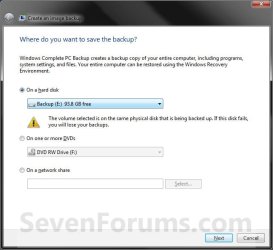
Step2.jpg
6. If available, check any additional hard drives or partitions (ex: Vista) that you would like to include in the backup image with the Windows 7 (System and C: ) partition or hard drive, and click on the Next button. (See screenshot below)
NOTE: See the WARNING box at the top of the tutorial. If you do not want to add any additional hard drives or partitions, then just leave the others unchecked. You will not see this, if you do not have any other OS installed other than Windows 7.
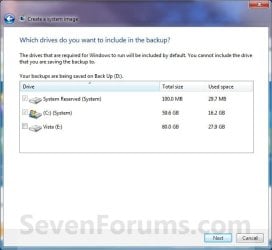
Step3.jpg
7. Click on the Start backup button. (See screenshot below)
Step4.jpg
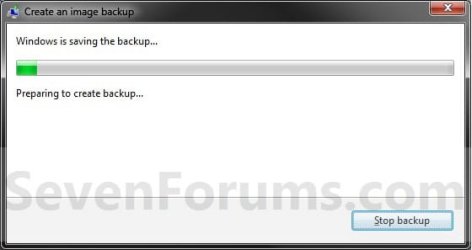
8. You will now see this window. (See screenshot below)
NOTE: If you wish to stop creating the backup image during this point, click on the Stop backup, Stop, and Close buttons.
Step5.jpg
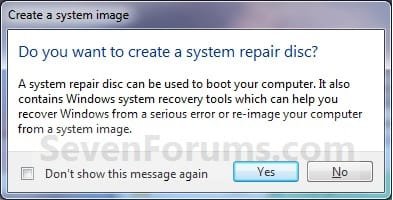
9. When it is finished you will see this create a System Repair disc pop-up window. Click on No. (See screenshot below)
NOTE: For how to always hide or show this message, see this tutorial.
Step7.jpg
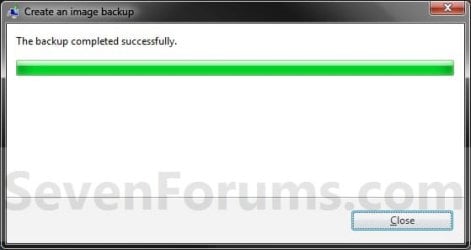
10. Click on the Close button. (See screenshot below)
Step8.jpg
11. Close the Backup and Restore window. (See screenshot below step 3)
That's it,
Shawn


Last edited:
Ok, I watched the video on running Macrium. Looks like it will do the imaging just fine.

I would like to take it a step further by regularly scheduling a backup.

In the past I used Acronis to do that with their incremental backup option. It worked well ..for a while ..until I needed it and the Recovery disk could no longer recognize the appropriate Acronis backups to work with -- what a PITA that was :eek:

So this time, with a new computer I thought I'd instead use the Win7 B&R feature ..but now I've run into the problem I mentioned in my last post (wants to also bu the data drive). So... how to get Macrium to either do an incremental or differential backup, or automatically delete some scheduled full system backups so my bu disk won't fill up?
 

My Computer

Computer Manufacturer/Model Number
Custom
OS
Windows 7 Ultimate x64
CPU
AMD Athlon II x4 630
Motherboard
Asus M4A785TD-V EVO
Memory
G.Skill 4 gb
Graphics Card(s)
integrated ATI 4200
Sound Card
integrated
Monitor(s) Displays
Asus VH242 23"
Hard Drives
Kingston SSD 64gb (OS)
Seagate HDD 1t (data1) +
Seagate HDD 1t (data2) ..originally controller RAID 1
PSU
Antec 750w
Case
Assa Helios 910
Cooling
OEM + case fans
Free Macrium does not do incrementals or diiferentials - only the pro version does. But I like full backups anyhow better. Then you have one self contained file per image that you can delete any time when you have too many.

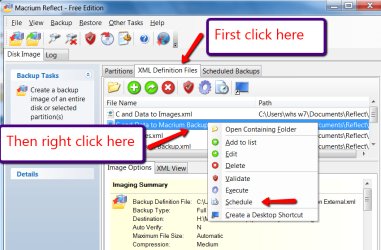
For scheduling, see picture
 

Attachments

  • 2011-12-01_1622.png
    2011-12-01_1622.png
    157.3 KB · Views: 190

My Computer

Computer Manufacturer/Model Number
HP, Dell, Gateway, Toshiba - 4 laptops and 2 desktops
OS
Vista, Windows7, Mint Mate, Zorin, Windows 8
CPU
from 1.6GHz Duo to i7
Monitor(s) Displays
2x HP w2207
Hard Drives
5x HDD, 7x SSD, 12x Externals
Keyboard
with trackball - no mices
Mouse
Trackball mice
Internet Speed
DSL 6000
I understand that process -- thanks.

Ok, I can't do incremental/differentials with Macrium free.
With all the other stuff I have to keep on top of, I just need bu's to run in the background and at the same time no jamb up my HDD space.

Hmm... in my fuzzy mind I recall that my son had set up my old computer with some sort of batch file so that earliest old bu's would be purged on the last day of the month ..new ones would then manufacture until the end of the next month, and so on.. Any ideas on how that could still be accomplished?
 

My Computer

Computer Manufacturer/Model Number
Custom
OS
Windows 7 Ultimate x64
CPU
AMD Athlon II x4 630
Motherboard
Asus M4A785TD-V EVO
Memory
G.Skill 4 gb
Graphics Card(s)
integrated ATI 4200
Sound Card
integrated
Monitor(s) Displays
Asus VH242 23"
Hard Drives
Kingston SSD 64gb (OS)
Seagate HDD 1t (data1) +
Seagate HDD 1t (data2) ..originally controller RAID 1
PSU
Antec 750w
Case
Assa Helios 910
Cooling
OEM + case fans
With the batch file your son made I cannot help you. But Macrium will tell you when it does not find enough space. You can then delete the old files.

I use two 640GB external disks for the images - I alternate between them for extra safety. I rarely run out of space.
 

My Computer

Computer Manufacturer/Model Number
HP, Dell, Gateway, Toshiba - 4 laptops and 2 desktops
OS
Vista, Windows7, Mint Mate, Zorin, Windows 8
CPU
from 1.6GHz Duo to i7
Monitor(s) Displays
2x HP w2207
Hard Drives
5x HDD, 7x SSD, 12x Externals
Keyboard
with trackball - no mices
Mouse
Trackball mice
Internet Speed
DSL 6000
With the batch file your son made I cannot help you. But Macrium will tell you when it does not find enough space. You can then delete the old files.

I use two 640GB external disks for the images - I alternate between them for extra safety. I rarely run out of space.


Ok, thanks none the less :)

I guess I may have to either go back to my retail Acronis, or spring for at least the Macrium Standard edition if I want more automation.
 

My Computer

Computer Manufacturer/Model Number
Custom
OS
Windows 7 Ultimate x64
CPU
AMD Athlon II x4 630
Motherboard
Asus M4A785TD-V EVO
Memory
G.Skill 4 gb
Graphics Card(s)
integrated ATI 4200
Sound Card
integrated
Monitor(s) Displays
Asus VH242 23"
Hard Drives
Kingston SSD 64gb (OS)
Seagate HDD 1t (data1) +
Seagate HDD 1t (data2) ..originally controller RAID 1
PSU
Antec 750w
Case
Assa Helios 910
Cooling
OEM + case fans
Just an FYI for people who have Maxtor and Seagate drives, you can get a paired down version of Acronis home backup for free from the Seagate website. All that seems to be required is to have a Seagate or Maxtor drive as one of the hard drives on your computer.

It will do disk images, plus regular non-disk image type backups including incremental backups.

For non-disk images it is much faster than Windows Backup.

It will also generate bootable restore media.

Probably not a detail that belongs in the FAQ/tutorial because it is brand specific, but it is a big enhancement over the usual drive imaging utilities drive vendors provide.
 

My Computer

Computer Manufacturer/Model Number
Dell Studio XPS 435T (aka Dell 9000)
OS
Windows Home Premium 64-bit
CPU
Core i7-960
Motherboard
Dell 0x501h (a03) BIOS A16
Memory
12 GB triple channel DDR3 PC3-8500F (7-7-7-20)
Graphics Card(s)
MSI N460GTX Hawk (nVidia 460GTX)
Sound Card
Integrated Realtek HD Audio
Monitor(s) Displays
LG E2350 digital
Screen Resolution
1920 X 1028 (DPI Medium - 125%)
Hard Drives
Intel SSD 520 with 240 GB
Samsung HD745JJ - 700 GB
WDC Caviar Black WD1502FAEX
Case
Dell full desktop
Cooling
Fan and air
Keyboard
Microsoft Natural Ergonomic Keyboard 4000
Mouse
Logitech Performance Mouse MX
Internet Speed
10 Gbps
Other Info
I also have an old Dell Dimension 8200.
Hi Brink, this is what I see when trying to do this:

alqkon.png


Do I need to make a 2nd Partition to make a Backup Image?
 

My Computer

Computer type
PC/Desktop
Computer Manufacturer/Model Number
Novatech iRush Pro
OS
Windows 7 Ultimate SP1 - 64 Bit
CPU
Intel Core i5 2500k
Motherboard
Foxconn H67M-S/H67M-V/H67
Memory
2x4GB DDR3 1333Hz
Graphics Card(s)
Ati Radeon 6770
Sound Card
None
Monitor(s) Displays
Samsung S22B150
Screen Resolution
1920x1080
Hard Drives
2x500GB
PSU
500W
Cooling
Fan
Keyboard
HP KU0316
Mouse
Wireless Logitech M185
Internet Speed
20MB/s
Antivirus
Avast Free
Browser
Google Chrome
Other Info
Logitech M185 Mouse
KU-M316 Keyboard
Hello Infinite, and welcome to Seven Forums.

You will only be able to save a system image backup onto a separate physical HDD than any HDD or partition that you have included in the system image. :(
 

My Computer

Computer type
PC/Desktop
Computer Manufacturer/Model Number
Self built custom
OS
64-bit Windows 11 Pro for Workstations
CPU
Intel i7-8700K OC'd to 5 GHz
Motherboard
ASUS ROG Maximus XI Formula Z390
Memory
64 GB (4x16GB) G.SKILL TridentZ RGB DDR4 3600 MHz
Graphics Card(s)
ASUS ROG-STRIX-GTX1080TI-O11G-GAMING
Sound Card
Integrated
Monitor(s) Displays
2 x Samsung Odyssey G7 27"
Screen Resolution
2560x1440
Hard Drives
1TB Samsung 990 PRO M.2,
4TB Samsung 990 PRO PRO M.2,
TerraMaster F8 SSD Plus NAS
PSU
Seasonic Prime Titanium 850W
Case
Thermaltake Core P3
Cooling
Corsair Hydro H115i
Keyboard
Logitech wireless K800
Mouse
Logitech MX Master 4
Internet Speed
2 Gb/s Download and 100 Mb/s Upload
Antivirus
Malwarebyte Anti-Malware Premium
Browser
Google Chrome
Other Info
Logitech Z625 speaker system,
Logitech BRIO 4K Pro webcam,
HP Color LaserJet Pro MFP M477fdn,
APC SMART-UPS RT 1000 XL - SURT1000XLI,
Galaxy S23 Plus phone
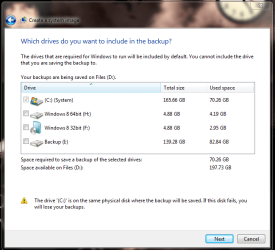
when I have to select the partitions that I want to backup, the system reserved doesn't appear, do I have to assign a letter first?
 

Attachments

  • Capture.PNG
    Capture.PNG
    141.8 KB · Views: 223

My Computer

OS
windows 7
Hello Irakli,

It doesn't appear that you have a "System Reserved" partition. Could you post a screenshot of your Disk Management (diskmgmt.msc) window showing all of your HDDs' layout to see if you do or not?
 

My Computer

Computer type
PC/Desktop
Computer Manufacturer/Model Number
Self built custom
OS
64-bit Windows 11 Pro for Workstations
CPU
Intel i7-8700K OC'd to 5 GHz
Motherboard
ASUS ROG Maximus XI Formula Z390
Memory
64 GB (4x16GB) G.SKILL TridentZ RGB DDR4 3600 MHz
Graphics Card(s)
ASUS ROG-STRIX-GTX1080TI-O11G-GAMING
Sound Card
Integrated
Monitor(s) Displays
2 x Samsung Odyssey G7 27"
Screen Resolution
2560x1440
Hard Drives
1TB Samsung 990 PRO M.2,
4TB Samsung 990 PRO PRO M.2,
TerraMaster F8 SSD Plus NAS
PSU
Seasonic Prime Titanium 850W
Case
Thermaltake Core P3
Cooling
Corsair Hydro H115i
Keyboard
Logitech wireless K800
Mouse
Logitech MX Master 4
Internet Speed
2 Gb/s Download and 100 Mb/s Upload
Antivirus
Malwarebyte Anti-Malware Premium
Browser
Google Chrome
Other Info
Logitech Z625 speaker system,
Logitech BRIO 4K Pro webcam,
HP Color LaserJet Pro MFP M477fdn,
APC SMART-UPS RT 1000 XL - SURT1000XLI,
Galaxy S23 Plus phone
Hello Irakli,

It doesn't appear that you have a "System Reserved" partition. Could you post a screenshot of your Disk Management (diskmgmt.msc) window showing all of your HDDs' layout to see if you do or not?


yes there was but previously I assigned a letter so I think it didn't recognize any more, I reinstalled windows and it can see now. thanks for the replay.
 

My Computer

OS
windows 7
I'm happy to hear that you got it sorted. :)
 

My Computer

Computer type
PC/Desktop
Computer Manufacturer/Model Number
Self built custom
OS
64-bit Windows 11 Pro for Workstations
CPU
Intel i7-8700K OC'd to 5 GHz
Motherboard
ASUS ROG Maximus XI Formula Z390
Memory
64 GB (4x16GB) G.SKILL TridentZ RGB DDR4 3600 MHz
Graphics Card(s)
ASUS ROG-STRIX-GTX1080TI-O11G-GAMING
Sound Card
Integrated
Monitor(s) Displays
2 x Samsung Odyssey G7 27"
Screen Resolution
2560x1440
Hard Drives
1TB Samsung 990 PRO M.2,
4TB Samsung 990 PRO PRO M.2,
TerraMaster F8 SSD Plus NAS
PSU
Seasonic Prime Titanium 850W
Case
Thermaltake Core P3
Cooling
Corsair Hydro H115i
Keyboard
Logitech wireless K800
Mouse
Logitech MX Master 4
Internet Speed
2 Gb/s Download and 100 Mb/s Upload
Antivirus
Malwarebyte Anti-Malware Premium
Browser
Google Chrome
Other Info
Logitech Z625 speaker system,
Logitech BRIO 4K Pro webcam,
HP Color LaserJet Pro MFP M477fdn,
APC SMART-UPS RT 1000 XL - SURT1000XLI,
Galaxy S23 Plus phone
Hi Brink
I'm here to whine again. :D

I didn't notice anything about, how to verify if your backup image is valid.
A backup is no use if it's corrupted.

Perhaps a section could be added explaining that procedure (or a link to another tutorial, if one already exists). :)
The issue has just popped up on a thread I'm reading.
 

My Computer

Computer type
PC/Desktop
Computer Manufacturer/Model Number
n/a
OS
W7 Ultimate SP1, LM19.2 MATE, W10 Home 1703, W10 Pro 1703 VM, #All 64 bit
CPU
AMD Phenom II x6 1100T, 3.3 GHz
Motherboard
ASUS M4A88T-M/USB3 (AM3)
Memory
12GB DDR3 1333 G-Skill (4GB x 2), G-Skill (2GB x 2)
Graphics Card(s)
NVIDIA GeForce GTX 660
Sound Card
Realtek?
Monitor(s) Displays
Samsung S23B350
Screen Resolution
1920x1080
Hard Drives
WD Green 2TB (SATA), WD Green 3TB (SATA), WD Blue 4TB (SATA), WD Blue 6TB (SATA)
PSU
Cooler Master
Case
Antec GX300 Tower
Cooling
3x Antec TRICOOL 120mm Fans
Mouse
Wired Optical
Internet Speed
DSL
Antivirus
Avast
Browser
Pale Moon (64 bit)
Other Info
2018-12-27 Upgraded HDDs
2015-12-10 Upgraded case, graphics card, storage
2015-08-15 Upgraded motherboard & RAM
2015-07-15 Upgraded LM17.1 to LM17.2
Hello Lehnerus,

You have the The backup completed successfully message (step 10) if the system image was successfully created. Unfortunately, there isn't any real way to verify if a system image is valid or works or not unless you actually do a system image recovery to test it. :(

However, if someone is not able to do a system image recovery with a system image, then one of the tutorials below would be a good workaround to either try and restore it or at least recover any needed files from the image.
How to Restore your System with a Broken Windows 7 System Image

How to Extract Files from Windows 7 System Image using Virtual PC

How to Extract Windows 7 System Image Files Using Disk Management
 

My Computer

Computer type
PC/Desktop
Computer Manufacturer/Model Number
Self built custom
OS
64-bit Windows 11 Pro for Workstations
CPU
Intel i7-8700K OC'd to 5 GHz
Motherboard
ASUS ROG Maximus XI Formula Z390
Memory
64 GB (4x16GB) G.SKILL TridentZ RGB DDR4 3600 MHz
Graphics Card(s)
ASUS ROG-STRIX-GTX1080TI-O11G-GAMING
Sound Card
Integrated
Monitor(s) Displays
2 x Samsung Odyssey G7 27"
Screen Resolution
2560x1440
Hard Drives
1TB Samsung 990 PRO M.2,
4TB Samsung 990 PRO PRO M.2,
TerraMaster F8 SSD Plus NAS
PSU
Seasonic Prime Titanium 850W
Case
Thermaltake Core P3
Cooling
Corsair Hydro H115i
Keyboard
Logitech wireless K800
Mouse
Logitech MX Master 4
Internet Speed
2 Gb/s Download and 100 Mb/s Upload
Antivirus
Malwarebyte Anti-Malware Premium
Browser
Google Chrome
Other Info
Logitech Z625 speaker system,
Logitech BRIO 4K Pro webcam,
HP Color LaserJet Pro MFP M477fdn,
APC SMART-UPS RT 1000 XL - SURT1000XLI,
Galaxy S23 Plus phone
Fair enough

I use Macrium Reflect and it has a separate "Verify" function. :)
 

My Computer

Computer type
PC/Desktop
Computer Manufacturer/Model Number
n/a
OS
W7 Ultimate SP1, LM19.2 MATE, W10 Home 1703, W10 Pro 1703 VM, #All 64 bit
CPU
AMD Phenom II x6 1100T, 3.3 GHz
Motherboard
ASUS M4A88T-M/USB3 (AM3)
Memory
12GB DDR3 1333 G-Skill (4GB x 2), G-Skill (2GB x 2)
Graphics Card(s)
NVIDIA GeForce GTX 660
Sound Card
Realtek?
Monitor(s) Displays
Samsung S23B350
Screen Resolution
1920x1080
Hard Drives
WD Green 2TB (SATA), WD Green 3TB (SATA), WD Blue 4TB (SATA), WD Blue 6TB (SATA)
PSU
Cooler Master
Case
Antec GX300 Tower
Cooling
3x Antec TRICOOL 120mm Fans
Mouse
Wired Optical
Internet Speed
DSL
Antivirus
Avast
Browser
Pale Moon (64 bit)
Other Info
2018-12-27 Upgraded HDDs
2015-12-10 Upgraded case, graphics card, storage
2015-08-15 Upgraded motherboard & RAM
2015-07-15 Upgraded LM17.1 to LM17.2
From what I have seen I would say it is safe to assume that you can encounter difficulties when you want to recover from a Windows7 image. And a corrupted image may be the least of your worries.

I use Macrium Reflect and it has a separate "Verify" function
Here you go !!!
 

My Computer

Computer Manufacturer/Model Number
HP, Dell, Gateway, Toshiba - 4 laptops and 2 desktops
OS
Vista, Windows7, Mint Mate, Zorin, Windows 8
CPU
from 1.6GHz Duo to i7
Monitor(s) Displays
2x HP w2207
Hard Drives
5x HDD, 7x SSD, 12x Externals
Keyboard
with trackball - no mices
Mouse
Trackball mice
Internet Speed
DSL 6000
The main thing about a Windows 7 system image backup is that when created, it should not be moved, renamed, touched, or looked at to funny. Doing so will most likely end with the system image getting corrupted and not being able to be fully restored.

Otherwise, they have always been reliable for me at least.
 

My Computer

Computer type
PC/Desktop
Computer Manufacturer/Model Number
Self built custom
OS
64-bit Windows 11 Pro for Workstations
CPU
Intel i7-8700K OC'd to 5 GHz
Motherboard
ASUS ROG Maximus XI Formula Z390
Memory
64 GB (4x16GB) G.SKILL TridentZ RGB DDR4 3600 MHz
Graphics Card(s)
ASUS ROG-STRIX-GTX1080TI-O11G-GAMING
Sound Card
Integrated
Monitor(s) Displays
2 x Samsung Odyssey G7 27"
Screen Resolution
2560x1440
Hard Drives
1TB Samsung 990 PRO M.2,
4TB Samsung 990 PRO PRO M.2,
TerraMaster F8 SSD Plus NAS
PSU
Seasonic Prime Titanium 850W
Case
Thermaltake Core P3
Cooling
Corsair Hydro H115i
Keyboard
Logitech wireless K800
Mouse
Logitech MX Master 4
Internet Speed
2 Gb/s Download and 100 Mb/s Upload
Antivirus
Malwarebyte Anti-Malware Premium
Browser
Google Chrome
Other Info
Logitech Z625 speaker system,
Logitech BRIO 4K Pro webcam,
HP Color LaserJet Pro MFP M477fdn,
APC SMART-UPS RT 1000 XL - SURT1000XLI,
Galaxy S23 Plus phone
Otherwise, they have always been reliable for me at least.
Yes me to.

But you never know regardless of the imaging program until you restore. Even then you may need to do some boot file fixes.

With Windows imaging you can "Attach" the image under Disk Manager. Browse your image and see if all looks well. At the very least you can pull files if you need to.

The bottom line is if you don't have confidence in an imaging utility then don't use it. There are a number of alternatives out there.
 

My Computer

Computer type
PC/Desktop
Computer Manufacturer/Model Number
Own build
OS
Windows 7x64 Home Premium SP1
CPU
Intel i7 2600k
Motherboard
ASUS P8Z68 Deluxe
Memory
G.Skill Ripjaws (DDR3-1600) 2x4GB
Graphics Card(s)
Nvidia GeForce GTS 450; Intel HD Graphics 3000(GT2+)
Monitor(s) Displays
Dell Ultrasharp IPS panel U2311H, Samsung SyncMaster P2350
Screen Resolution
1920x1080
Hard Drives
Samsung 850 Pro SSD 256GB, Samsung SSD 840 120GB, Seagates 1TB Barracuda ST31000528AS x2
PSU
Seasonic M12II 520W
Case
Lian Li Lancool PC-K60
Cooling
Case: 1x120mm, 3x140mm CPU: Hyper 212+
Keyboard
Logitech MK520 (wireless)
Mouse
Logitech MK520
Internet Speed
6-7 Mbps
Antivirus
Norton Security Premium, Malwarebytes on 2 (MSE on 3rd PC)
Browser
FireFox
Other Info
Audio: Logitech Z523 2.1
Shawn, apart from you I have only seen Karlsnooks and mjf say good things about Windows7 imaging. We were teaching Windows7 imaging as the preferred method at our computer club (over 800 members). There were so many complaints and systems that came to a screeching halt that we switched to Macrium. Have not seen a single complaint since. That tells me where to hang my hat.
 

My Computer

Computer Manufacturer/Model Number
HP, Dell, Gateway, Toshiba - 4 laptops and 2 desktops
OS
Vista, Windows7, Mint Mate, Zorin, Windows 8
CPU
from 1.6GHz Duo to i7
Monitor(s) Displays
2x HP w2207
Hard Drives
5x HDD, 7x SSD, 12x Externals
Keyboard
with trackball - no mices
Mouse
Trackball mice
Internet Speed
DSL 6000
I can't argue with that. I always say use what works best for you. :)
 

My Computer

Computer type
PC/Desktop
Computer Manufacturer/Model Number
Self built custom
OS
64-bit Windows 11 Pro for Workstations
CPU
Intel i7-8700K OC'd to 5 GHz
Motherboard
ASUS ROG Maximus XI Formula Z390
Memory
64 GB (4x16GB) G.SKILL TridentZ RGB DDR4 3600 MHz
Graphics Card(s)
ASUS ROG-STRIX-GTX1080TI-O11G-GAMING
Sound Card
Integrated
Monitor(s) Displays
2 x Samsung Odyssey G7 27"
Screen Resolution
2560x1440
Hard Drives
1TB Samsung 990 PRO M.2,
4TB Samsung 990 PRO PRO M.2,
TerraMaster F8 SSD Plus NAS
PSU
Seasonic Prime Titanium 850W
Case
Thermaltake Core P3
Cooling
Corsair Hydro H115i
Keyboard
Logitech wireless K800
Mouse
Logitech MX Master 4
Internet Speed
2 Gb/s Download and 100 Mb/s Upload
Antivirus
Malwarebyte Anti-Malware Premium
Browser
Google Chrome
Other Info
Logitech Z625 speaker system,
Logitech BRIO 4K Pro webcam,
HP Color LaserJet Pro MFP M477fdn,
APC SMART-UPS RT 1000 XL - SURT1000XLI,
Galaxy S23 Plus phone
Back
Top