Solved Backup Error code: 0x81000019

To start the original or reimaged Win7 partition, boot the Win7 DVD Repair console or Repair CD, mark Win7 partition Active: http://www.sevenforums.com/tutorials/71432-partition-mark-active.html

Close the Command Box, select Repair my Computer on second boot screen, accept any offered Repair. When Win7 doesn't start, boot back into Repair, click through to System Recovery Options list to http://www.sevenforums.com/tutorials/105541-startup-repair-run-3-separate-times.html or until Win7 starts.
 
Thanks but XP partition is already marked as active. Also I can boot into re-imaged 7/XP fine, it is running the back up that fails.
 
Last edited:

My Computer

OS
Windows 7 Ultimate x86 Retail
CPU
E8400 3012MHz
Motherboard
ASRock ConRoe1333-D667 R3.0
Memory
OCZ 4096MB
Graphics Card(s)
PNY Geforce 220 1GB
Sound Card
Onboard
Monitor(s) Displays
iiyama
Screen Resolution
Wide Screen
Hard Drives
Seagate 500GB
Western Digital 500GB
PSU
Antec 380W EarthWatts Green PSU 80plus Bronze Certified
Cooling
Noctua Low Profile NH-U9B
Marking XP or 7 as active makes no odds. Can still boot into 7 (& presumably XP.) Still no recreated System Reserved Partition for fully functioning Shadow Copy to run...
 

My Computer

OS
Windows 7 Ultimate x86 Retail
CPU
E8400 3012MHz
Motherboard
ASRock ConRoe1333-D667 R3.0
Memory
OCZ 4096MB
Graphics Card(s)
PNY Geforce 220 1GB
Sound Card
Onboard
Monitor(s) Displays
iiyama
Screen Resolution
Wide Screen
Hard Drives
Seagate 500GB
Western Digital 500GB
PSU
Antec 380W EarthWatts Green PSU 80plus Bronze Certified
Cooling
Noctua Low Profile NH-U9B
I would immediately mark the first partition on DISK0 Inactive or else swap the data cables between Disk0 and Disk1, as a repair will derail System boot files to first Active partition.

Here is what I would do to try to solve your problem:

When you have separate HD's it is always best to place each OS on a different HD with its own System boot files, then set the preferred OS as first to boot in BIOS setup, trigger the other OS when needed at boot by tapping the one-time BIOS Boot Menu key which almost every computer has.

CHeck now on your first boot screen or in your setup literature or Manual if you have such a key called also a BBS (Bios Boot Screen) key. If so, I would reimage XP to another HD, then recover the System Active boot files into Win7 by marking Win7 Active, deleting the same-HD XP partition, boot Win7 DVD Repair console or Repair CD to http://www.sevenforums.com/tutorials/105541-startup-repair-run-3-separate-times.html

You can mark Win7 Active from the XP partition first, or use Diskpart from the DVD: http://www.sevenforums.com/tutorials/71432-partition-mark-active.html
http://www.sevenforums.com/tutorials/119713-diskpart-pc-startup.html?ltr=D

Or you can use free Partition Wizard bootable CD to mark Win7 active, delete XP, even Resize Win7 partition to the left into the deleted XP partition space: Free Download Magic Partition Manager Software - Partition Wizard Online

If you do not have a one-time BIOS Boot Menu key for your mobo, then your options if you want to use separate HD's as suggested are to install EasyBCD 2.02 to Win7 once you start it up, then add XP on the Add OS tab to get a Dual Boot menu, or if you want to keep the partitioning you have now then I would mark Win7 partition Active and run the three Startup Repairs to start it up, then add XP using EasyBCD 2.02 so that Win7 is better configured to run its native backup.

 
OK, understood. I will ditch XP entirely as is not really needed.

I will have to unencrypt 7's BitLocker protected drive in order for Mini Tool Partition Wizard to expand into XP's free space. Either that or expand 7 from within Win native disk mgmt after deleting XP & marking 7 as active then run Startup Repair 3 times.

I will check out EasyBCD.

I guess need to back up System Reserved Partition in future.

Thanks!
 
Last edited:

My Computer

OS
Windows 7 Ultimate x86 Retail
CPU
E8400 3012MHz
Motherboard
ASRock ConRoe1333-D667 R3.0
Memory
OCZ 4096MB
Graphics Card(s)
PNY Geforce 220 1GB
Sound Card
Onboard
Monitor(s) Displays
iiyama
Screen Resolution
Wide Screen
Hard Drives
Seagate 500GB
Western Digital 500GB
PSU
Antec 380W EarthWatts Green PSU 80plus Bronze Certified
Cooling
Noctua Low Profile NH-U9B
OK, I was able to keep my current setup & not delete XP by booting recovery CD, affecting offered repair, then running Startup Repair till no further issues detected.

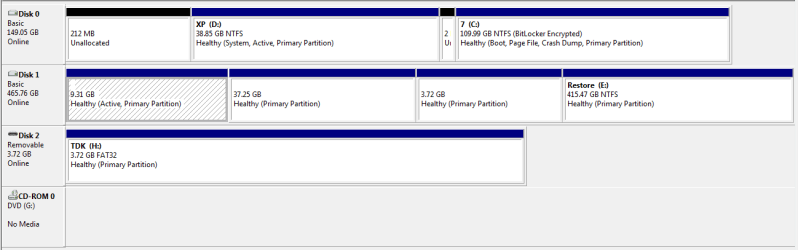
There is a new unallocated 26MB partition after XP's & preceeding 7's system volumes & another 200MB unallocated volume that I created before XP's Volume with Partition Wizard. I guess one of them is the fabled System Reserved Partition, though it is not marked as such. It must be one or the other, as backup is running as I speak.

EDIT: Actually both the 26MB & 200MB volumes are unallocated so neither are System Reserved. I have however unencrypted 7's volume so maybe that' s why I can now run backup?!?

I can then run:

Code:
bootrec /FixMbr
bootrec /FixBoot
bootrec /RebuildBcd

from Recovery CD's CLI & then XP will be on the boot menu again as "Earlier Version Of Windows".

I will keep XP/7 as primary HDD & use EasyBCD to add Ubuntu as a menu entry.

Many thanks!
 

My Computer

OS
Windows 7 Ultimate x86 Retail
CPU
E8400 3012MHz
Motherboard
ASRock ConRoe1333-D667 R3.0
Memory
OCZ 4096MB
Graphics Card(s)
PNY Geforce 220 1GB
Sound Card
Onboard
Monitor(s) Displays
iiyama
Screen Resolution
Wide Screen
Hard Drives
Seagate 500GB
Western Digital 500GB
PSU
Antec 380W EarthWatts Green PSU 80plus Bronze Certified
Cooling
Noctua Low Profile NH-U9B
There may be a problem with Bitlocker needing the System Reserved partition for its encryption function.

Please post back a screenshot of your maximized full Disk Mgmt drive map with listings, using Snipping Tool in Start Menu, so we can see if the 200mb took the System Active flag and is now serving as System Reserved partition. It should also place the Repair console on the F8 Advanced Boot Tools menu if so.

If not, do you want to construct the 200mb as System Reserved as we can give you the steps for that after looking it over since I believe it is required for BitLocker to create it's encryption file.
 
Well enabling BitLocker moved some system files to D (XP's) drive & marked as active. If I cannot run backup after encrypting C, then may need to create System Reserved Partition, if that is possible?
 

Attachments

  • Capture.PNG
    Capture.PNG
    31.8 KB · Views: 28

My Computer

OS
Windows 7 Ultimate x86 Retail
CPU
E8400 3012MHz
Motherboard
ASRock ConRoe1333-D667 R3.0
Memory
OCZ 4096MB
Graphics Card(s)
PNY Geforce 220 1GB
Sound Card
Onboard
Monitor(s) Displays
iiyama
Screen Resolution
Wide Screen
Hard Drives
Seagate 500GB
Western Digital 500GB
PSU
Antec 380W EarthWatts Green PSU 80plus Bronze Certified
Cooling
Noctua Low Profile NH-U9B

My Computer

Computer Manufacturer/Model Number
* BFK Customs *
OS
W 7 64-bit Ultimate
CPU
Intel Q9550 Yorkfield
Motherboard
ASUS P5Q Pro
Memory
8GB Dominator 8500C5D
Graphics Card(s)
ATI : XFX 5870
Sound Card
Realtek HD Audio 7-1
Monitor(s) Displays
1x 47" LCD HDMI & 3x 26" LCD HDMI
Screen Resolution
1920x1080P & 1920x1200
Hard Drives
1x 80GB Intel X25-M G2 SSD : 1x 500GB & 1x 640GB WD Caviar Black(s)
PSU
Corsair 620HX
Case
Cooler Master RC-690
Cooling
Tuniq Tower 120, 2x 140mm and 3x 120mm case fans
Keyboard
Microsoft 500
Mouse
Razer Diamondback 3G
Internet Speed
14 Mb/s
Other Info
1x Koutech 3Gb/s SATA HDD Hot Swap Rack
So I just create a new Simple Volume & label System Reserve, mark as active, then carry out several Recovery CD repairs till 7 boots?
 

My Computer

OS
Windows 7 Ultimate x86 Retail
CPU
E8400 3012MHz
Motherboard
ASRock ConRoe1333-D667 R3.0
Memory
OCZ 4096MB
Graphics Card(s)
PNY Geforce 220 1GB
Sound Card
Onboard
Monitor(s) Displays
iiyama
Screen Resolution
Wide Screen
Hard Drives
Seagate 500GB
Western Digital 500GB
PSU
Antec 380W EarthWatts Green PSU 80plus Bronze Certified
Cooling
Noctua Low Profile NH-U9B
So I just create a new Simple Volume & label System Reserve, mark as active, then carry out several Recovery CD repairs till 7 boots?


Yep, just don't allow it to have a drive letter when you format it.
 

My Computer

Computer Manufacturer/Model Number
* BFK Customs *
OS
W 7 64-bit Ultimate
CPU
Intel Q9550 Yorkfield
Motherboard
ASUS P5Q Pro
Memory
8GB Dominator 8500C5D
Graphics Card(s)
ATI : XFX 5870
Sound Card
Realtek HD Audio 7-1
Monitor(s) Displays
1x 47" LCD HDMI & 3x 26" LCD HDMI
Screen Resolution
1920x1080P & 1920x1200
Hard Drives
1x 80GB Intel X25-M G2 SSD : 1x 500GB & 1x 640GB WD Caviar Black(s)
PSU
Corsair 620HX
Case
Cooler Master RC-690
Cooling
Tuniq Tower 120, 2x 140mm and 3x 120mm case fans
Keyboard
Microsoft 500
Mouse
Razer Diamondback 3G
Internet Speed
14 Mb/s
Other Info
1x Koutech 3Gb/s SATA HDD Hot Swap Rack
Well hot diggity dang, if that was not what I wanted to know in the first place!

Thanks.

:D:):D
 

My Computer

OS
Windows 7 Ultimate x86 Retail
CPU
E8400 3012MHz
Motherboard
ASRock ConRoe1333-D667 R3.0
Memory
OCZ 4096MB
Graphics Card(s)
PNY Geforce 220 1GB
Sound Card
Onboard
Monitor(s) Displays
iiyama
Screen Resolution
Wide Screen
Hard Drives
Seagate 500GB
Western Digital 500GB
PSU
Antec 380W EarthWatts Green PSU 80plus Bronze Certified
Cooling
Noctua Low Profile NH-U9B
Well hot diggity dang, if that was not what I wanted to know in the first place!

Thanks.

:D:):D


My pleasure mate, glad I could help.
 

My Computer

Computer Manufacturer/Model Number
* BFK Customs *
OS
W 7 64-bit Ultimate
CPU
Intel Q9550 Yorkfield
Motherboard
ASUS P5Q Pro
Memory
8GB Dominator 8500C5D
Graphics Card(s)
ATI : XFX 5870
Sound Card
Realtek HD Audio 7-1
Monitor(s) Displays
1x 47" LCD HDMI & 3x 26" LCD HDMI
Screen Resolution
1920x1080P & 1920x1200
Hard Drives
1x 80GB Intel X25-M G2 SSD : 1x 500GB & 1x 640GB WD Caviar Black(s)
PSU
Corsair 620HX
Case
Cooler Master RC-690
Cooling
Tuniq Tower 120, 2x 140mm and 3x 120mm case fans
Keyboard
Microsoft 500
Mouse
Razer Diamondback 3G
Internet Speed
14 Mb/s
Other Info
1x Koutech 3Gb/s SATA HDD Hot Swap Rack
Wow, came here after failing to get Win7 Auto backup to work but after reading the above I have decided to get my security software to do the back up for me, a little more complicated than windows and I don't get the system image but I don't want to risk screwing up my computer again.

Any idea if MS is going to fix this issue in an update or the next service pack as I can imagine that most computers out there are not getting updated? There is no way I can comprehend half of what is said above, and to be honest, none of us should have to, this should be plug and play stuff.
 

My Computer

Computer Manufacturer/Model Number
Manufactured by the muppet who wrote this :)
OS
Windows 7 Ultimate x64
CPU
AMD Phenom 9850 Quad
Motherboard
ASUS Crosshair F' II
Memory
8GB Cosair Twin2X4096-6400C5
Graphics Card(s)
XFX GeForce GTX 280 * 3
Sound Card
Asus Xonar D2X
Monitor(s) Displays
Panasonic TX-P42V10B & 21" sony trinitron *2
Hard Drives
3* WD Caviar Blk 1TB 32MB SATA II RAID5 (1862.93GB)
&
1* WD Caviar Blk 1TB 32MB SATA II (931.41GB)
PSU
Corsair HX 1000W
Case
I dunno, box of some kind i think
Cooling
Noctua fans
Keyboard
Logitech G11
Mouse
Logitech MX Revolution
Internet Speed
lucky to get 6.9Meg out of 20
Hi, everyone.
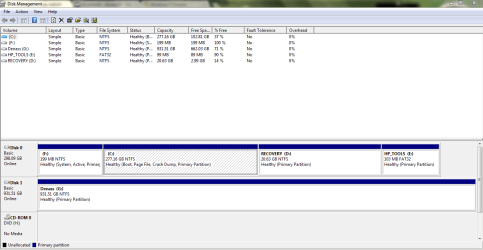
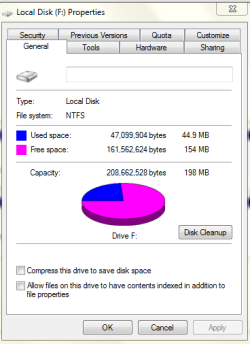
I have the same problem with backing up my system. It is giving me the same error code (Backup Error code: 0x81000019). However, my case is that I have more than 100MB free in my reserved partion. I thought of using the same method of troubleshooting suggested, but then I am not sure if the memory is my problem. Below is the screenshot of my disk management and the partition drive detail. What do u think, guys?
 

Attachments

  • Capture.PNG
    Capture.PNG
    114 KB · Views: 48
  • Capture1.PNG
    Capture1.PNG
    31.6 KB · Views: 28

My Computer

OS
windows 7 ultimate x64

My Computer

Computer Manufacturer/Model Number
* BFK Customs *
OS
W 7 64-bit Ultimate
CPU
Intel Q9550 Yorkfield
Motherboard
ASUS P5Q Pro
Memory
8GB Dominator 8500C5D
Graphics Card(s)
ATI : XFX 5870
Sound Card
Realtek HD Audio 7-1
Monitor(s) Displays
1x 47" LCD HDMI & 3x 26" LCD HDMI
Screen Resolution
1920x1080P & 1920x1200
Hard Drives
1x 80GB Intel X25-M G2 SSD : 1x 500GB & 1x 640GB WD Caviar Black(s)
PSU
Corsair 620HX
Case
Cooler Master RC-690
Cooling
Tuniq Tower 120, 2x 140mm and 3x 120mm case fans
Keyboard
Microsoft 500
Mouse
Razer Diamondback 3G
Internet Speed
14 Mb/s
Other Info
1x Koutech 3Gb/s SATA HDD Hot Swap Rack
Hi Bare Foot Kid,

I followed the tutorial and still was denied access to F: I tried using the command prompt, but says 'cannot find drive path', even though I have unchecked the 'hide extension for known file types'. There is no Attributes option with the drive, unlike the case of folders. Am I doing it wrong?
 

My Computer

OS
windows 7 ultimate x64
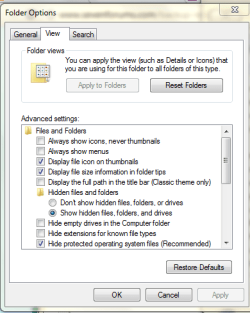
Go to Control Panel>Folder Options>View to unhide Hidden and System Files. Post back the contents of F.

How did it get a letter? It is not supposed to have one, as it can allow programs to write to it incorrectly.
 
I did that but still cant view the contents
 

Attachments

  • Capture.PNG
    Capture.PNG
    54.7 KB · Views: 9

My Computer

OS
windows 7 ultimate x64
You have not unchecked the box to hide Protected Operating System files.

What appears when you click on F in Computer?

How about if you click on the partition in Disk Mgmt and select Explore?

Next install free Partition Wizard, rightclick on F to Explore with it. Post back screenshot.
 
Back
Top