Solved Backup Error code: 0x81000019

I have 400 GB free space but same error

.....
Follow Gregs instructions. I was trying to correct the SR partition. As per Gregs advice, you won't need one. You should be able to create an image without one. A Guy

Windows backup says that the backup would need 113 GB.

The system drive does have a system reserved partition, the backup disk does not. Can't tell from the above discussion whether it should.

Can you help?
 

My Computer

OS
Windows 7 x64
What backup disk are you referring to? Is this another HD you've saved a Win7 backup image onto? And it doesn't have Sys Resrved?

Is SysReserved as it exists marked System and Active? If not it is a dead parrot.
 
Roger that. Been there done that. Got the hat. :o
 

My Computer

Computer Manufacturer/Model Number
HP DV7-4270us (lappy) / Custom Whitebox (desktop)
OS
7Ult x64
CPU
AMD Phenom II P960 / AMD Phenom II X4 925
Motherboard
HP 1641 / Gigabyte GA-880GM-USB3
Memory
4GB Elpidia PC3-10700 / 8GB G.Skill PC3-10700
Graphics Card(s)
ATI Mobility Radeon HD 6370 s / ATI Radeon HD 4250
Sound Card
IDT Hi Def (Beats Audio) / Realtek Hi Def
Monitor(s) Displays
Duh (Laptop) / Acer 211H
Hard Drives
Laptop 640GB (5400RPM)

Desktop 1.5TB (7200RPM)
PSU
Laptop HP / Antec EarthWatts EA-500D
Case
Laptop HP / HEC 63RABB Black Steel ATX Mid Tower
Cooling
HP Crap / ThermalTake
What backup disk are you referring to? Is this another HD you've saved a Win7 backup image onto? And it doesn't have Sys Resrved?

Is SysReserved as it exists marked System and Active? If not it is a dead parrot.

3 x 500 GB, all SATA (SATA II, I think). C: is W7-64 boot disk; D: is XP-32 (dual boot; not attempting to back up this disk). F: is the target disk for backup. In the past I have backed up onto F: using Windows Backup many times, but an attempt on 8/31/2011 failed as have all attempts since.

In the course of trying to figure what is going on, I re-formatted F: No "System Reserved" partition. According to W7, all partitions are "healthy."

F: has 396 GB free. The reason that the entire disk is not free is that one of my diagnosis efforts was to download and run Comodo 3.0. Results were ambiguous; got both success and failure messages. Have not deleted this backup yet since it is all I have and I cannot tell whether or not it is good.

Also cannot do a system restore or create a restore point; same error message.
 

My Computer

OS
Windows 7 x64
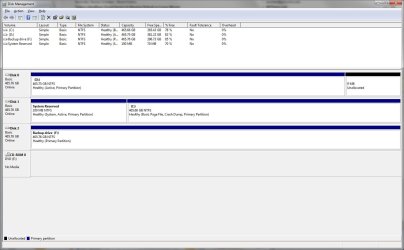
I suggest you post a full screen shot from Disk Management.
Because there are so many threads within this thread state your specific error message.
If F: is a data disk why what has "system reserved" got to do with this disk.

A screen shot will help.
--------------------------------
This thread should be made a sticky or new threads started
 

My Computer

Computer type
PC/Desktop
Computer Manufacturer/Model Number
Own build
OS
Windows 7x64 Home Premium SP1
CPU
Intel i7 2600k
Motherboard
ASUS P8Z68 Deluxe
Memory
G.Skill Ripjaws (DDR3-1600) 2x4GB
Graphics Card(s)
Nvidia GeForce GTS 450; Intel HD Graphics 3000(GT2+)
Monitor(s) Displays
Dell Ultrasharp IPS panel U2311H, Samsung SyncMaster P2350
Screen Resolution
1920x1080
Hard Drives
Samsung 850 Pro SSD 256GB, Samsung SSD 840 120GB, Seagates 1TB Barracuda ST31000528AS x2
PSU
Seasonic M12II 520W
Case
Lian Li Lancool PC-K60
Cooling
Case: 1x120mm, 3x140mm CPU: Hyper 212+
Keyboard
Logitech MK520 (wireless)
Mouse
Logitech MK520
Internet Speed
6-7 Mbps
Antivirus
Norton Security Premium, Malwarebytes on 2 (MSE on 3rd PC)
Browser
FireFox
Other Info
Audio: Logitech Z523 2.1
Concur, need the screenshot. A lot will depend upon how the Dual Boot is configured - are you using separate HD's wisely by dual booting via BIOS or interlocked them with Windows boot manager?

Why a SysReserved partition on a backup disk -thought you were referring to saving it using a backup that allows it to be deselected? And why is Comodo taking space on a data HD? Comodo can be problems, solved by changing to MSE or Avast 6 with Win7 firewall.

Thread is obviously hot in the google results for this error code, so best to keep it going.
 
Thread is obviously hot in the google results for this error code, so best to keep it going.
Definitely is very popular. Maybe Admin would like to make it a sticky.
 

My Computer

Computer type
PC/Desktop
Computer Manufacturer/Model Number
Own build
OS
Windows 7x64 Home Premium SP1
CPU
Intel i7 2600k
Motherboard
ASUS P8Z68 Deluxe
Memory
G.Skill Ripjaws (DDR3-1600) 2x4GB
Graphics Card(s)
Nvidia GeForce GTS 450; Intel HD Graphics 3000(GT2+)
Monitor(s) Displays
Dell Ultrasharp IPS panel U2311H, Samsung SyncMaster P2350
Screen Resolution
1920x1080
Hard Drives
Samsung 850 Pro SSD 256GB, Samsung SSD 840 120GB, Seagates 1TB Barracuda ST31000528AS x2
PSU
Seasonic M12II 520W
Case
Lian Li Lancool PC-K60
Cooling
Case: 1x120mm, 3x140mm CPU: Hyper 212+
Keyboard
Logitech MK520 (wireless)
Mouse
Logitech MK520
Internet Speed
6-7 Mbps
Antivirus
Norton Security Premium, Malwarebytes on 2 (MSE on 3rd PC)
Browser
FireFox
Other Info
Audio: Logitech Z523 2.1
Concur, need the screenshot.

Print screen for W7 form 2011-09-05.jpg

A lot will depend upon how the Dual Boot is configured - are you using separate HD's wisely by dual booting via BIOS or interlocked them with Windows boot manager?

Dunno. When I boot I get a black and white screen offering a choice (W7 is default).

I doubt that this has anything to do with it, though. I had c. 20 successful backups between creating the dual boot system in early May and the first that failed, which was 8/31.

I also had no trouble creating restore points and once did a successful system restore; see below.

Why a SysReserved partition on a backup disk -thought you were referring to saving it using a backup that allows it to be deselected?

There is not one. I only mentioned that fact because an earlier post in this thread mentioned the issue.

And why is Comodo taking space on a data HD? Comodo can be problems, solved by changing to MSE or Avast 6 with Win7 firewall.

Comodo is on the system disk, not the backup disk.

After several fails with Windows Backup, I tried doing one with Comodo 3.0 to see whether WB was the problem. 1st try failed. 2nd created a .cbu file, usefulness unknown. That is the only file now on F:, leaving 396 GB free.

Previous poster: Already reported the error codes:

-0x81000101 (time out), which I get for both backup and creating a restore point (see fr0gger's thread, about 9 from top as of this moment); and:
-0x81000019.
 

My Computer

OS
Windows 7 x64
It appears XP is booting off the System REserved partition since it's marked System Active. XP should not be marked Active in this case.

Did you install Win7 with XP plugged in and it started to a Dual Boot menu? It would have been better to unplug XP during Win7 install and then boot either via the BIOS Boot order or one-time BIOS BOot Menu key. This keeps the HD's independent to come and go as you please, wherease they are now interlocked by allowing Windows to configure the Dual Boot Menu.

I would unplug Win7 HD, run an XP Repair Install to get it booting on its own, then plug back in Win7, remove the XP listing in msconfig>Boot, boot preferred HD by setting it to boot first in BIOS setup, boot other HD using one-time BIOS BOot Menu key.

I would also plug Win7 HD into DIsk0 and XP into Disk1. Now you have the cleanest possible configuration.

If backup still fails, uninstall Comodo completely and install MS Security Essentials with the Win7 firewall.

If Win7 backup won't work then we can troubleshoot further or use the more highly recommended http://www.sevenforums.com/backup-restore/43219-image-your-system-free-macrium.html, Paragon 11 freeware or if you have WD/Seagate their premium Acronis cloning/imaging apps.
 
It appears XP is booting off the System REserved partition since it's marked System Active. XP should not be marked Active in this case.

Did you install Win7 with XP plugged in and it started to a Dual Boot menu? It would have been better to unplug XP during Win7 install and then boot either via the BIOS Boot order or one-time BIOS BOot Menu key. This keeps the HD's independent to come and go as you please, wherease they are now interlocked by allowing Windows to configure the Dual Boot Menu.

I already reported that I had 3.5 months trouble free after going to dual boot.
Why do you think dual boot has anything to do with it?


What I can do is list what changed on or slightly before 8/31:
-Windows Update and Adobe Flash Player update are on automatic.
-Since 8/31 I have run Primetest95 c. 6 times. In some runs one CPU or the other (can be either) makes no progress, or stops making progress after a while, or spontaneously resumes after making no progress for hours. Cold boot also gets both going. No actual errors. The fact that it can be either CPU says to me that it is not the CPU (E8400). The fact that it can resume not only on cold boot but also spontaneously says to me not mobo (P5Q Pro). So I think OS.
-Tried chkdsk and sfc /scannow, but both rejected: "You must be an administrator running a console session." I am admin (there is only one account). Dunno why command prompt might not qualify as a "console session."
-XP has not been booted since June.

I would unplug Win7 HD, run an XP Repair Install to get it booting on its own, then plug back in Win7.
Too dangerous.

Remove the XP listing in msconfig>Boot, boot preferred HD by setting it to boot first in BIOS setup, boot other HD using one-time BIOS BOot Menu key.
-Can remove XP from list.
-C: is already the first boot device.
-Does "one-time BIOS Boot Menu key' means the usual F8 (or is F12?) to interrupt boot? Will this work without XP repair install?

I would also plug Win7 HD into DIsk0 and XP into Disk1. Now you have the cleanest possible configuration.
Do you mean just switch the SATA cables?

If backup still fails, uninstall Comodo completely and install MS Security Essentials with the Win7 firewall.
I finally get this--you think I have Comodo anti-virus. Don't; hadn't heard of it until the above got me to look. I used Comodo backup as a check on whether Windows Backup was the source of my problem.

I use Symantec AV, plus Malwarebytes. Since 8/31 full AV scans that used to take 2-3 hours now take 30-40 hours. They do complete successfully. Symantec and Malwarebytes are updated manually every few days.

If Win7 backup won't work then we can troubleshoot further or use the more highly recommended http://www.sevenforums.com/backup-restore/43219-image-your-system-free-macrium.html, Paragon 11 freeware or if you have WD/Seagate their premium Acronis cloning/imaging apps.
Willing to attempt, but if I understand right we are not there yet.

 

My Computer

OS
Windows 7 x64
To find out what is causing the error, since it isn't free space on SysReserved, we need to strip out all of the possible causes, one of which is interference with Win7 boot by XP piggybacking on it. I gave you the steps to unlock the two - take em or leave em.

Try running Disk Check and SFC from DVD Repair console or Repair CD COmmand Line, accessed by pressing Shift + F10 at first screen after booting: SFC -SCANNOW Command SFC -SCANNOW Run in Command Prompt at Boot

You can try booting XP with one-time BIOS Boot Menu key which we can't provide since you have no system specs filled in at bottom left corner of your post. If it works, you can install EasyBCD (older versions are free) to delete XP listing from Edit OS Menu tab.

I would uninstall Symantec and replace it with MSE or Avast6 which is recommended by almost everyone here. This is one more possible problem that will be removed.

We have troubleshot dozens of these problems and they are reparable in some cases if OP is willing to strip out the known possible causes which are by now quite familar to us. You can also simply change imaging apps then watch closely for other symptoms which might be related.
 
I'd be looking at cleaning up restore points and shadow storage.
The system reserved has adequate shadow copy space but I'd also be looking at the shadow storage allocated on the backup drive and wiping it. This will delete old image versions if you use multiple difference imaging.
 

My Computer

Computer type
PC/Desktop
Computer Manufacturer/Model Number
Own build
OS
Windows 7x64 Home Premium SP1
CPU
Intel i7 2600k
Motherboard
ASUS P8Z68 Deluxe
Memory
G.Skill Ripjaws (DDR3-1600) 2x4GB
Graphics Card(s)
Nvidia GeForce GTS 450; Intel HD Graphics 3000(GT2+)
Monitor(s) Displays
Dell Ultrasharp IPS panel U2311H, Samsung SyncMaster P2350
Screen Resolution
1920x1080
Hard Drives
Samsung 850 Pro SSD 256GB, Samsung SSD 840 120GB, Seagates 1TB Barracuda ST31000528AS x2
PSU
Seasonic M12II 520W
Case
Lian Li Lancool PC-K60
Cooling
Case: 1x120mm, 3x140mm CPU: Hyper 212+
Keyboard
Logitech MK520 (wireless)
Mouse
Logitech MK520
Internet Speed
6-7 Mbps
Antivirus
Norton Security Premium, Malwarebytes on 2 (MSE on 3rd PC)
Browser
FireFox
Other Info
Audio: Logitech Z523 2.1
I'd be looking at cleaning up restore points and shadow storage.
The system reserved has adequate shadow copy space but I'd also be looking at the shadow storage allocated on the backup drive and wiping it. This will delete old image versions if you use multiple difference imaging.

No restore points. Following advice that fr0gger received in the thread on system restore timing out, I deleted them. As mentioned, cannot restore anyway due to one of the same errors backing backup.

Dunno what "multiple difference imaging" means (incremental backups?); cannot back up at all. What is "shadow storage?" Do you just mean wipe the disk?

Gregrocker,

Cannot remove W7 boot disk. Too dangerous.

Don't mind disabling XP--even permanently--but, as mentioned, I did not fully understand your instructions re this.

Thanks for the additional suggestions; will take me time to assimilate.

FWIW, looking even less likely than CPUs are cause; just completed a 48 hour test in which both made it all the way.
 

My Computer

OS
Windows 7 x64
I certainly don't mean wipe your disk.
It's a long shot but images and restore points need shadow storage to be available.
Go
Control panel > System > System properties protection> highlight drive >configure

Look to see how much space is currently used out of that allocated.
I don't rely on restore points and often delete the space.

By difference images I mean when you generally have imaging selected in your backup schedule and old images are saved through some VHD difference technique and stored in shadow storage. Windows is supposed to delete these when they fill up.

If imaging is your major objective I personally would now be looking at alternative like free Macrium Reflect and maybe the new free EaseUS v3 imaging/backup product.
 
Last edited:

My Computer

Computer type
PC/Desktop
Computer Manufacturer/Model Number
Own build
OS
Windows 7x64 Home Premium SP1
CPU
Intel i7 2600k
Motherboard
ASUS P8Z68 Deluxe
Memory
G.Skill Ripjaws (DDR3-1600) 2x4GB
Graphics Card(s)
Nvidia GeForce GTS 450; Intel HD Graphics 3000(GT2+)
Monitor(s) Displays
Dell Ultrasharp IPS panel U2311H, Samsung SyncMaster P2350
Screen Resolution
1920x1080
Hard Drives
Samsung 850 Pro SSD 256GB, Samsung SSD 840 120GB, Seagates 1TB Barracuda ST31000528AS x2
PSU
Seasonic M12II 520W
Case
Lian Li Lancool PC-K60
Cooling
Case: 1x120mm, 3x140mm CPU: Hyper 212+
Keyboard
Logitech MK520 (wireless)
Mouse
Logitech MK520
Internet Speed
6-7 Mbps
Antivirus
Norton Security Premium, Malwarebytes on 2 (MSE on 3rd PC)
Browser
FireFox
Other Info
Audio: Logitech Z523 2.1
I certainly don't mean wipe your disk.
It's a long shot but images and restore points need shadow storage to be available.
Go
Control panel > System > System properties > highlight drive >configure

....

Do you mean Control panel > system and security > system > advanced settings > system protection?

Protection is on for C: (W7 boot disk). Space used for restore points is zero; space allowed is all. Protection is off for other two disks.
 

My Computer

OS
Windows 7 x64
Are you saying you are ready to remove XP from the Dual Boot?

If so delete the XP listing on msconfig>Boot tab. You can then unplug the HD or format it in Disk Mgmt.

I concur with Michael that System Restore points should never have been turned off and should be kept on. These can help recover your Win7 without having to reinstall as we see frequently here. You need them now, in fact.

What are the exact listings under drives for SysRestore now?
 
Do you mean Control panel > system and security > system > advanced settings > system protection?

Protection is on for C: (W7 boot disk). Space used for restore points is zero; space allowed is all. Protection is off for other two disks.
I did mean get into "System protection" (by whatever route.
The backup (data) disk normally have protection off but going into "Configure" will show maximum usage. This is the maximum shadow copy storage space which imaging uses. Just check what's been allocated. As I said it's a long shot that it's set too small.

Just check this and then follow gregrocker's strand of thinking rather than bounce you around.
 

My Computer

Computer type
PC/Desktop
Computer Manufacturer/Model Number
Own build
OS
Windows 7x64 Home Premium SP1
CPU
Intel i7 2600k
Motherboard
ASUS P8Z68 Deluxe
Memory
G.Skill Ripjaws (DDR3-1600) 2x4GB
Graphics Card(s)
Nvidia GeForce GTS 450; Intel HD Graphics 3000(GT2+)
Monitor(s) Displays
Dell Ultrasharp IPS panel U2311H, Samsung SyncMaster P2350
Screen Resolution
1920x1080
Hard Drives
Samsung 850 Pro SSD 256GB, Samsung SSD 840 120GB, Seagates 1TB Barracuda ST31000528AS x2
PSU
Seasonic M12II 520W
Case
Lian Li Lancool PC-K60
Cooling
Case: 1x120mm, 3x140mm CPU: Hyper 212+
Keyboard
Logitech MK520 (wireless)
Mouse
Logitech MK520
Internet Speed
6-7 Mbps
Antivirus
Norton Security Premium, Malwarebytes on 2 (MSE on 3rd PC)
Browser
FireFox
Other Info
Audio: Logitech Z523 2.1
Thanks

Gregrocker and mjf,

Sorry for slow reply. My difficulties:

-Windows backup
-restore points
-slow application loading
-slow operation of Symantec AV
-links in Office documents not working

all resolved spontaneously about four days ago, before I could implement any of your suggestions (except mjf's to reset which drives had protection (which, once I understood it, was something I had already done).

Took me several days to run a zillion diagnostics but all check out.

My speculation at this point is that the cause was automatic update of something (Windows? Office? Adobe Flash Player?), and that whoever did it realized what they had done and fixed it in their next update. Admittedly a guess.

Thanks again.
 

My Computer

OS
Windows 7 x64
Backup and BIOS problems

Hi there,

Don't know if this thread is dead, but would really appreciate any help - I'm in a bit of a sticky situation:

I've read through the thread and have had similar problems. I've tried a couple of simple fixes (System reserved partition >40MB free space, couldn't extend it...) but I think I need to do the disk partition thing with the Partition Wizard disc.

However, I've been having some boot problems with my laptop: quite often, it won't start, and I'll need to run startup repair for several hours, or several times, for it to run again. More recently, I had to restore the system from the system image on my external HD.

I formatted the partition of my external HD as I though that might be the reason why it wasn't backing up. Now, though, I'm reluctant to turn off my computer and try the PW disc method in case it won't start up again at all (and I'll lose all my data as I don't have a system image).

Is there a risk my computer won't start up again if I turn it off and try to run PW? Is there another way to backup my files? Or should I just copy across the important files I can find and run PW anyway?

Thanks in advance for your help, amazing having this resource online!

Angus
 

My Computer

Computer Manufacturer/Model Number
Acer Aspire 5741
OS
Windows 7 Home Premium 64-bit

My Computer

Computer type
PC/Desktop
Computer Manufacturer/Model Number
Golden Mk. I.4
OS
Windows 10 Pro x64 ; Xubuntu x64
CPU
Intel i7 860 @ 2.80 GHz O/C'ed to 4.0GHz
Motherboard
Gigabyte P55A-UD3R Rev.1. Award BIOS F13
Memory
16GB Corsair Vengance DDR3 @ 661 MHz Dual Channel (9-9-9-24)
Graphics Card(s)
EVGA NVidia GTX 560 1024MB
Sound Card
Realtek Integrated
Monitor(s) Displays
Dual Samsung SyncMaster 2494HS
Screen Resolution
1920*1080 and 1920*1080
Hard Drives
1*Samsung 840 EVO 120GB SSD;
1*OCZ Vertex 2 60GB SSD;
2*Samsung F3 SpinPoint 1TB in RAID0;
1*Samsung F1 SpinPoint 1TB;
2*Western Digital 1TB External USB 3.0
1*Western Digital 500GB External USB 3.0
1*Seagate 500GB External USB 2.0
PSU
Thermaltake ToughPower QFan 750W
Case
Thermaltake Element S VK60001W2Z
Cooling
Corsair H60 Water Cooling, 2*230mm and 2*80mm case fans
Keyboard
Logitech G110
Mouse
Logitech MX518
Back
Top