Backup software for Win 7...

I made the Linux CD and it worked fine -- recognized my USB keyboard/mouse (I did get trapped in the MEM test when I was checking it out :confused: ). Anyway, I'm downloading the Win PE file now to have both types of recovery CD on hand. I also watched the video -- very informative, thanks whs.

I do have a question about creating a backup of my C drive (pretty much the only thing I'll be using this for). I have a new HP, which has the small, hidden boot partition (active) before my C (primary). The caveat about making sure the C drive isn't marked as active I understand; but I see no way to make sure that that has happened. Does the newer edition of Macrium I installed today take that into account automatically, so I don't have to worry about it?

If you image both partitions Macrium 5 will restore them both with the correct attributes and also the mbr by default. You can change this behavior but you have to dig into the options to do it.
 

My Computer

Computer type
Laptop
Computer Manufacturer/Model Number
Hewlett-Packard/G62-107SA Notebook
OS
Microsoft Windows 7 Home Premium 64-bit Service Pack 1
CPU
Intel(R) Core(TM) i3 CPU M 330 @ 2.13GHz
Motherboard
Hewlett-Packard 1425
Memory
8 GB DDR3
Graphics Card(s)
Intel(R) HD Graphics
Sound Card
Realtek High Definition Audio
Monitor(s) Displays
Builtin
Screen Resolution
1366 x 768 x 32 bits (4294967296 colors) @ 60 Hz
Hard Drives
250 GB SATA Hard Disk Drive 7200 rpm
2TB Seagate GoFlex USB 2 Drive
1TB Iomega Prestige USB 2 Drive
1.5TB Iomega Prestige USB 2 Drive (Samsung)
2TB WD MyBook Live NAS.
Mouse
Logitech Anywhere MX
Internet Speed
152 Mbs download 10 Mbs upload
Antivirus
Norton 360
Browser
Chrome
The small hidden partition you should really only image once and stick it away into a safe folder. That partition never changes - unless you decide to make a double boot. That image is only needed when your disk dies and you have to restore to a new disk.
 

My Computer

Computer Manufacturer/Model Number
HP, Dell, Gateway, Toshiba - 4 laptops and 2 desktops
OS
Vista, Windows7, Mint Mate, Zorin, Windows 8
CPU
from 1.6GHz Duo to i7
Monitor(s) Displays
2x HP w2207
Hard Drives
5x HDD, 7x SSD, 12x Externals
Keyboard
with trackball - no mices
Mouse
Trackball mice
Internet Speed
DSL 6000
@whs: I will do that (image the boot partition). But I'm still not clear -- in your video, you were using an older version of Macrium which had the option in the Create Image Wizard to select "Active" or "Primary." I see no such option in the version I installed today. It seems to be taken care of automatically (when I tried out the Restore CD, the C drive in the image was ID'd as only "Primary"). Just want to make sure this is indeed the case before I'm up the creek. ;)
 

My Computer

OS
Windows 7 Home Premium SP1 64bit
Hmm, Bruce you got me there. I never installed V5 because my 4.2 works so well. Kado may know. He is always up-to-date
 

My Computer

Computer Manufacturer/Model Number
HP, Dell, Gateway, Toshiba - 4 laptops and 2 desktops
OS
Vista, Windows7, Mint Mate, Zorin, Windows 8
CPU
from 1.6GHz Duo to i7
Monitor(s) Displays
2x HP w2207
Hard Drives
5x HDD, 7x SSD, 12x Externals
Keyboard
with trackball - no mices
Mouse
Trackball mice
Internet Speed
DSL 6000
OK, thanks. I do have the boot partition imaged and saved (took all of 1 second, lol).
 

My Computer

OS
Windows 7 Home Premium SP1 64bit
Yeah, that is an itty bitty partition.
 

My Computer

Computer Manufacturer/Model Number
HP, Dell, Gateway, Toshiba - 4 laptops and 2 desktops
OS
Vista, Windows7, Mint Mate, Zorin, Windows 8
CPU
from 1.6GHz Duo to i7
Monitor(s) Displays
2x HP w2207
Hard Drives
5x HDD, 7x SSD, 12x Externals
Keyboard
with trackball - no mices
Mouse
Trackball mice
Internet Speed
DSL 6000
Tics

Ver 5

On the screen where the disks are displayed, focus on your c: disk. That disk will show two partitions. If you notice there is a small Box for a check mark by each partition. The ones checked are backed up the ones unchecked are not included.
 

My Computer

Computer Manufacturer/Model Number
BGC (Bob's Garage Crew)
OS
win 7 X64 Ultimate SP1
CPU
I3770K
Motherboard
Asus P8Z77-V Deluxe
Memory
G Skill F3-14900CL9-4GBXL x 4
Graphics Card(s)
NVIDIA GeForce GTX670 + Intel 4000
Sound Card
Realtek HD 5.1 (MOB)
Monitor(s) Displays
Asus VW224T (1)
Screen Resolution
1920 x 1080
Hard Drives
SATA Corsair Force GT 2.5" 180GB (System) Sata 3
OCZ Vertex3 120GB
OCZ Vertex 2 120GB 2.5" SATA II
ST31000524AS 1000.2GB
WD15EARS (External)
PSU
CoolerMaster 1000 Watt
Case
CoolerMaster HAF X
Cooling
CPU -- CoolerMaster 520N
Keyboard
MS Wireless 3000 V2
Mouse
MS Wireless 3000 V2
Internet Speed
Cable
Antivirus
Norton Internet Security
Browser
IE9
Other Info
AMI Bios 1805
OC'd 3%
Question

WHS:

If you back up only the recovery partion to a file and then back up the other partition to another file. When it comes time to restore to a bare disk, Will you have to do two restores and in a particular oreder? I can see where it will save space and some amount of time, which is good. Maybe keep one copy of both partitions in the same file?
 

My Computer

Computer Manufacturer/Model Number
BGC (Bob's Garage Crew)
OS
win 7 X64 Ultimate SP1
CPU
I3770K
Motherboard
Asus P8Z77-V Deluxe
Memory
G Skill F3-14900CL9-4GBXL x 4
Graphics Card(s)
NVIDIA GeForce GTX670 + Intel 4000
Sound Card
Realtek HD 5.1 (MOB)
Monitor(s) Displays
Asus VW224T (1)
Screen Resolution
1920 x 1080
Hard Drives
SATA Corsair Force GT 2.5" 180GB (System) Sata 3
OCZ Vertex3 120GB
OCZ Vertex 2 120GB 2.5" SATA II
ST31000524AS 1000.2GB
WD15EARS (External)
PSU
CoolerMaster 1000 Watt
Case
CoolerMaster HAF X
Cooling
CPU -- CoolerMaster 520N
Keyboard
MS Wireless 3000 V2
Mouse
MS Wireless 3000 V2
Internet Speed
Cable
Antivirus
Norton Internet Security
Browser
IE9
Other Info
AMI Bios 1805
OC'd 3%
Answer

I found the answer in help. Look under
To preserve the source partition alignment either...
I don't believe it has to be done in any special order If you are doing a drag and drop.
 

My Computer

Computer Manufacturer/Model Number
BGC (Bob's Garage Crew)
OS
win 7 X64 Ultimate SP1
CPU
I3770K
Motherboard
Asus P8Z77-V Deluxe
Memory
G Skill F3-14900CL9-4GBXL x 4
Graphics Card(s)
NVIDIA GeForce GTX670 + Intel 4000
Sound Card
Realtek HD 5.1 (MOB)
Monitor(s) Displays
Asus VW224T (1)
Screen Resolution
1920 x 1080
Hard Drives
SATA Corsair Force GT 2.5" 180GB (System) Sata 3
OCZ Vertex3 120GB
OCZ Vertex 2 120GB 2.5" SATA II
ST31000524AS 1000.2GB
WD15EARS (External)
PSU
CoolerMaster 1000 Watt
Case
CoolerMaster HAF X
Cooling
CPU -- CoolerMaster 520N
Keyboard
MS Wireless 3000 V2
Mouse
MS Wireless 3000 V2
Internet Speed
Cable
Antivirus
Norton Internet Security
Browser
IE9
Other Info
AMI Bios 1805
OC'd 3%
@whs: I will do that (image the boot partition). But I'm still not clear -- in your video, you were using an older version of Macrium which had the option in the Create Image Wizard to select "Active" or "Primary." I see no such option in the version I installed today. It seems to be taken care of automatically (when I tried out the Restore CD, the C drive in the image was ID'd as only "Primary"). Just want to make sure this is indeed the case before I'm up the creek. ;)

I have only tried the PE non free version and there is an opportunity to change the partition properties. Once the partition has been selected for restore there is a link at the bottom of the screen called partition properties which allows you to modify the partition type and size. If you don't use that it defaults to the same properties as the backup. If I get the time later today I will set up a VM and see if there is a similar facility in the free version.

I haven't found an option not to restore the mbr yet.
 

My Computer

Computer type
Laptop
Computer Manufacturer/Model Number
Hewlett-Packard/G62-107SA Notebook
OS
Microsoft Windows 7 Home Premium 64-bit Service Pack 1
CPU
Intel(R) Core(TM) i3 CPU M 330 @ 2.13GHz
Motherboard
Hewlett-Packard 1425
Memory
8 GB DDR3
Graphics Card(s)
Intel(R) HD Graphics
Sound Card
Realtek High Definition Audio
Monitor(s) Displays
Builtin
Screen Resolution
1366 x 768 x 32 bits (4294967296 colors) @ 60 Hz
Hard Drives
250 GB SATA Hard Disk Drive 7200 rpm
2TB Seagate GoFlex USB 2 Drive
1TB Iomega Prestige USB 2 Drive
1.5TB Iomega Prestige USB 2 Drive (Samsung)
2TB WD MyBook Live NAS.
Mouse
Logitech Anywhere MX
Internet Speed
152 Mbs download 10 Mbs upload
Antivirus
Norton 360
Browser
Chrome
The small hidden partition you should really only image once and stick it away into a safe folder. That partition never changes - unless you decide to make a double boot. That image is only needed when your disk dies and you have to restore to a new disk.

It does change slightly over time but not sure if the changes are at all relevant since I have never restored it and have had no problems. Perhaps one particular file is updated on booting? :huh: :)
 

My Computer

Computer Manufacturer/Model Number
Compaq desktop
OS
Windows 7 x64 SP1
CPU
Athlon II x2 215
Memory
4.0 GB
Graphics Card(s)
Onboard
Sound Card
Creative SB X-Fi Titanium HD (nice)
Monitor(s) Displays
24" Dell LCD
Screen Resolution
1900 x 1200
Hard Drives
320 GB, 500 GB and 750 GB 7200 rpm
PSU
430w
Keyboard
USB
Mouse
USB
Internet Speed
approx 10 Mbps
Hmm, Bruce you got me there. I never installed V5 because my 4.2 works so well. Kado may know. He is always up-to-date

OK. I have been through the restore process using version 5.

1. The Linux rescue disk gives no opportunity to mark the partition. I guess that it uses the same as in the image. Similarly it always restores the mbr with no option to not do that.

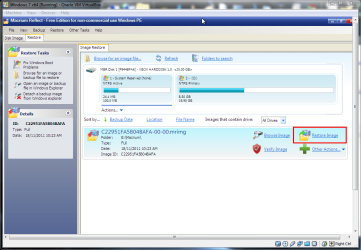
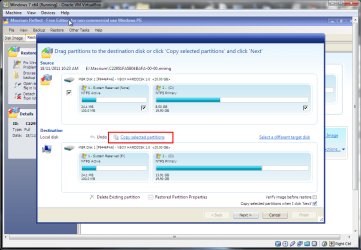
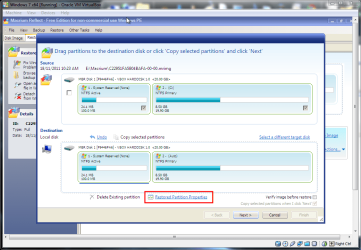
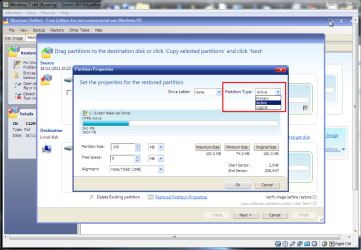
2. The WinPE rescue disk is much more flexible and allows the partitions to be marked and re-sized and to not restore the mbr if required. The options are well hidden so I have produced some screenshots.

screenshot55_2011-11-18.png

Click on Restore Image.

screenshot56_2011-11-18.png

Click on Copy Selected Partitions.

screenshot57_2011-11-18.png

Highlight a partition in the lower pane and click Partition properties.

screenshot58_2011-11-18.png

Here you can change the partition marking and size.

screenshot59_2011-11-18.png

After pressing Next you get to a summary screen. Press Advanced Options.

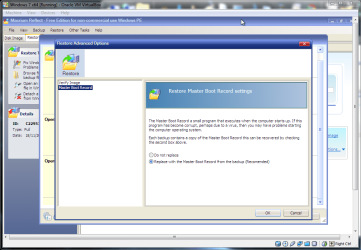
screenshot60_2011-11-18.png

Here you can select whether to rewrite the mbr.

I hope this helps.
 

My Computer

Computer type
Laptop
Computer Manufacturer/Model Number
Hewlett-Packard/G62-107SA Notebook
OS
Microsoft Windows 7 Home Premium 64-bit Service Pack 1
CPU
Intel(R) Core(TM) i3 CPU M 330 @ 2.13GHz
Motherboard
Hewlett-Packard 1425
Memory
8 GB DDR3
Graphics Card(s)
Intel(R) HD Graphics
Sound Card
Realtek High Definition Audio
Monitor(s) Displays
Builtin
Screen Resolution
1366 x 768 x 32 bits (4294967296 colors) @ 60 Hz
Hard Drives
250 GB SATA Hard Disk Drive 7200 rpm
2TB Seagate GoFlex USB 2 Drive
1TB Iomega Prestige USB 2 Drive
1.5TB Iomega Prestige USB 2 Drive (Samsung)
2TB WD MyBook Live NAS.
Mouse
Logitech Anywhere MX
Internet Speed
152 Mbs download 10 Mbs upload
Antivirus
Norton 360
Browser
Chrome
Screenshots help a lot, thanks. My drive has 4 partitions: the small boot partition, C (OS 250GB)), E (Storage 1.1TB), and, at the end, D (HP Recovery 10GB).

I made a disc image with only the boot and C partitions. I loaded the WinPE restore disc and I'm able to drag/drop both to the destination. Is this the same as "Copying partitions?" It seems to be. And there would be no need to set the properties for the restored partitions unless, for some reason, I needed to change what the image has saved, correct? Alternately, could I just drag/drop (copy?) only the C partition and not touch the boot partition? I still wouldn't have to set properties, right, because the C should only be flagged as Primary?

So what is the best method for backing up my C partition:

1) create a disc image with only the boot and C partitions, restoring both of them if need be;
2) create a partition image of only C, and restoring that (maybe using the Set Properties window to confirm it is only Primary).

#1 seems redundant, but safer. Perhaps I'm being too cautious. ;)
 

My Computer

OS
Windows 7 Home Premium SP1 64bit
WHS:

If you back up only the recovery partion to a file and then back up the other partition to another file. When it comes time to restore to a bare disk, Will you have to do two restores and in a particular oreder? I can see where it will save space and some amount of time, which is good. Maybe keep one copy of both partitions in the same file?
When you image e.g. with Free Macrium, the principle is simple. You image partitions, not whole drives. You can image several partitions in one go (just check all partitions that you want to image), but you can only restore them one by one. There is no specific order required. But each partition image will be a seperate file (VHD) which you can also mount if e.g. you just want to copy some stuff from it.

In case of a new bare disk, you have to, of course, define the partitions in the first place (e.g. with the bootable CD of Partition Wizard or with Diskpart). Those partitions must be the same size or bigger than the originating partitions).
 

My Computer

Computer Manufacturer/Model Number
HP, Dell, Gateway, Toshiba - 4 laptops and 2 desktops
OS
Vista, Windows7, Mint Mate, Zorin, Windows 8
CPU
from 1.6GHz Duo to i7
Monitor(s) Displays
2x HP w2207
Hard Drives
5x HDD, 7x SSD, 12x Externals
Keyboard
with trackball - no mices
Mouse
Trackball mice
Internet Speed
DSL 6000
Yes it is similar. The only difference is that it copies all partitions as a shortcut to dragging them individually.

Some people only backup the system partition once and then just the C partition after that. I personally have taken a different approach. I made an initial image of all partitions on the internal disk (4 in my case). I have kept that image in case I need to recover the recovery partition and HP tools. All other images I backup both System and C because if System does change then I have the latest version of both in the same backup and I can restore them at the same time. It only adds moments to the backup and restore. V5 unlike V4 allows you to restore more than one partition at a time.

As I have the paid for standard edition with incremental and differential imaging my backup sequence is.

1. Every Saturday at 21:00 a full Image.
2. Every day except Saturday at 21:00 a differential image.

This gives me the ability to restore back to the previous day at any time. I keep three full Images and their associated differentials. I don't use incremental images here because I don't really trust long incremental chains and they slow the restore process.

Because I'm paranoid about backups I also use Windows Imaging every Wednesday to a different backup drive. This of course just happens to coincide with any "Patch Tuesday" (Wednesday in the UK) updates.
 

My Computer

Computer type
Laptop
Computer Manufacturer/Model Number
Hewlett-Packard/G62-107SA Notebook
OS
Microsoft Windows 7 Home Premium 64-bit Service Pack 1
CPU
Intel(R) Core(TM) i3 CPU M 330 @ 2.13GHz
Motherboard
Hewlett-Packard 1425
Memory
8 GB DDR3
Graphics Card(s)
Intel(R) HD Graphics
Sound Card
Realtek High Definition Audio
Monitor(s) Displays
Builtin
Screen Resolution
1366 x 768 x 32 bits (4294967296 colors) @ 60 Hz
Hard Drives
250 GB SATA Hard Disk Drive 7200 rpm
2TB Seagate GoFlex USB 2 Drive
1TB Iomega Prestige USB 2 Drive
1.5TB Iomega Prestige USB 2 Drive (Samsung)
2TB WD MyBook Live NAS.
Mouse
Logitech Anywhere MX
Internet Speed
152 Mbs download 10 Mbs upload
Antivirus
Norton 360
Browser
Chrome
WHS:

If you back up only the recovery partion to a file and then back up the other partition to another file. When it comes time to restore to a bare disk, Will you have to do two restores and in a particular oreder? I can see where it will save space and some amount of time, which is good. Maybe keep one copy of both partitions in the same file?
When you image e.g. with Free Macrium, the principle is simple. You image partitions, not whole drives. You can image several partitions in one go (just check all partitions that you want to image), but you can only restore them one by one. There is no specific order required. But each partition image will be a seperate file (VHD) which you can also mount if e.g. you just want to copy some stuff from it.

In case of a new bare disk, you have to, of course, define the partitions in the first place (e.g. with the bootable CD of Partition Wizard or with Diskpart). Those partitions must be the same size or bigger than the originating partitions).

In V5 you can restore all partitions in the backup in one go.
 

My Computer

Computer type
Laptop
Computer Manufacturer/Model Number
Hewlett-Packard/G62-107SA Notebook
OS
Microsoft Windows 7 Home Premium 64-bit Service Pack 1
CPU
Intel(R) Core(TM) i3 CPU M 330 @ 2.13GHz
Motherboard
Hewlett-Packard 1425
Memory
8 GB DDR3
Graphics Card(s)
Intel(R) HD Graphics
Sound Card
Realtek High Definition Audio
Monitor(s) Displays
Builtin
Screen Resolution
1366 x 768 x 32 bits (4294967296 colors) @ 60 Hz
Hard Drives
250 GB SATA Hard Disk Drive 7200 rpm
2TB Seagate GoFlex USB 2 Drive
1TB Iomega Prestige USB 2 Drive
1.5TB Iomega Prestige USB 2 Drive (Samsung)
2TB WD MyBook Live NAS.
Mouse
Logitech Anywhere MX
Internet Speed
152 Mbs download 10 Mbs upload
Antivirus
Norton 360
Browser
Chrome
Thanks Kado for telling me. I am obviously not going with the times - LOL.
 

My Computer

Computer Manufacturer/Model Number
HP, Dell, Gateway, Toshiba - 4 laptops and 2 desktops
OS
Vista, Windows7, Mint Mate, Zorin, Windows 8
CPU
from 1.6GHz Duo to i7
Monitor(s) Displays
2x HP w2207
Hard Drives
5x HDD, 7x SSD, 12x Externals
Keyboard
with trackball - no mices
Mouse
Trackball mice
Internet Speed
DSL 6000
Thanks Kado for telling me. I am obviously not going with the times - LOL.

No problem Wolfgang. I think you need to consider upgrading soon.
 

My Computer

Computer type
Laptop
Computer Manufacturer/Model Number
Hewlett-Packard/G62-107SA Notebook
OS
Microsoft Windows 7 Home Premium 64-bit Service Pack 1
CPU
Intel(R) Core(TM) i3 CPU M 330 @ 2.13GHz
Motherboard
Hewlett-Packard 1425
Memory
8 GB DDR3
Graphics Card(s)
Intel(R) HD Graphics
Sound Card
Realtek High Definition Audio
Monitor(s) Displays
Builtin
Screen Resolution
1366 x 768 x 32 bits (4294967296 colors) @ 60 Hz
Hard Drives
250 GB SATA Hard Disk Drive 7200 rpm
2TB Seagate GoFlex USB 2 Drive
1TB Iomega Prestige USB 2 Drive
1.5TB Iomega Prestige USB 2 Drive (Samsung)
2TB WD MyBook Live NAS.
Mouse
Logitech Anywhere MX
Internet Speed
152 Mbs download 10 Mbs upload
Antivirus
Norton 360
Browser
Chrome
Yeah I know - I am a dilapidated Guru. On the other hand:" If it ain't broke, don't fix it".
 

My Computer

Computer Manufacturer/Model Number
HP, Dell, Gateway, Toshiba - 4 laptops and 2 desktops
OS
Vista, Windows7, Mint Mate, Zorin, Windows 8
CPU
from 1.6GHz Duo to i7
Monitor(s) Displays
2x HP w2207
Hard Drives
5x HDD, 7x SSD, 12x Externals
Keyboard
with trackball - no mices
Mouse
Trackball mice
Internet Speed
DSL 6000
Yeah I know - I am a dilapidated Guru. On the other hand:" If it ain't broke, don't fix it".

Let's not start the Win 7/ Win XP debate here. :roflmao:
 

My Computer

Computer type
Laptop
Computer Manufacturer/Model Number
Hewlett-Packard/G62-107SA Notebook
OS
Microsoft Windows 7 Home Premium 64-bit Service Pack 1
CPU
Intel(R) Core(TM) i3 CPU M 330 @ 2.13GHz
Motherboard
Hewlett-Packard 1425
Memory
8 GB DDR3
Graphics Card(s)
Intel(R) HD Graphics
Sound Card
Realtek High Definition Audio
Monitor(s) Displays
Builtin
Screen Resolution
1366 x 768 x 32 bits (4294967296 colors) @ 60 Hz
Hard Drives
250 GB SATA Hard Disk Drive 7200 rpm
2TB Seagate GoFlex USB 2 Drive
1TB Iomega Prestige USB 2 Drive
1.5TB Iomega Prestige USB 2 Drive (Samsung)
2TB WD MyBook Live NAS.
Mouse
Logitech Anywhere MX
Internet Speed
152 Mbs download 10 Mbs upload
Antivirus
Norton 360
Browser
Chrome
Back
Top