Backup User and System Files - Reset to Default Configuration

How to Reset Windows Backup Files Configuration in Windows 7 and Windows 8

   Information
This will show you how to reset the backup user and system files current configuration back to a default unconfigured state in Windows 7 and Windows 8.

You must be logged in as an administrator to reset Windows Backup.

   Note
This can be handy if you had deleted the current User and System Backup Files, and would like to reset this back to a default unconfigured state to not have the last backup information still displayed in Backup and Restore.

   Tip
Backup User and System Files will remain in a default unconfigured state until the next time you create a new User and System files backup.


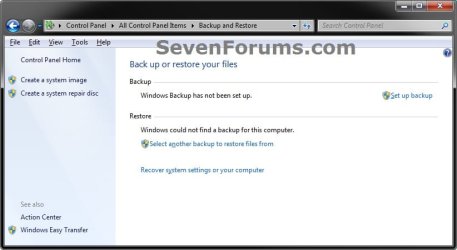
EXAMPLE: Backup User and System Files Configured and Reset
NOTE: The left screenshot is Backup with an existing backup configuration with the backup files deleted. The right screenshot is Backup reset to the default unconfigured state. Screen1.jpg

Default.jpg


OPTION ONE

To Reset Windows Backup to Default using a Reg File Download

1. Click/tap on the download button below to download the file below.
Reset_Back_Up_Files.reg

Download


2. Save the .reg file to your Desktop.

3. Double click/tap on the downloaded .reg file to merge it.

4. Click/tap on Run, Yes (UAC), Yes, and OK when prompted.

5. When done, you can delete the downloaded .reg file if you like.

6. If You Had Set an Automatic Backup Schedule
NOTE: This is to remove the automatic backup schedule from within Task Scheduler so that you will not get a "The last backup did not complete successfully" type message in Action Center. A) Press the Windows + R keys to open the Run dialog, type taskschd.msc, and press Enter.

B) If prompted by UAC, then click/tap on Yes.

C) In the left pane of Task Scheduler, double click/tap on Task Scheduler Library, Microsoft, and Windows to expand them, then select WindowsBackup. (see screenshot below) Task1.jpg
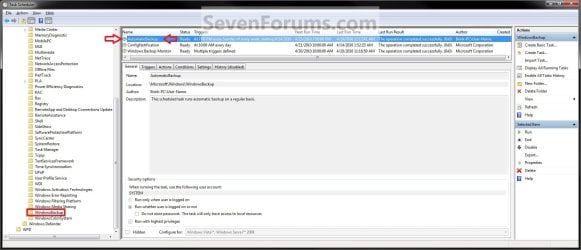
D) In the middle pane, right click/tap on only AutomaticBackup (if available), and click on Delete. (see screenshot above)
NOTE: If AutomaticBackup is not there, then you did not have a automatic backup schedule set.

E) Click/tap on OK to confirm deletion. (see screenshot below) Task2.jpg
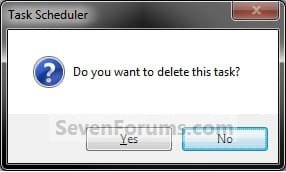
F) Close Task Scheduler.


OPTION TWO

To Reset Windows Backup to Default in Registry Editor

1. Press the Windows + R keys to open the Run dialog,, type regedit, and press Enter.

2. If prompted by UAC, then click/tap on Yes.

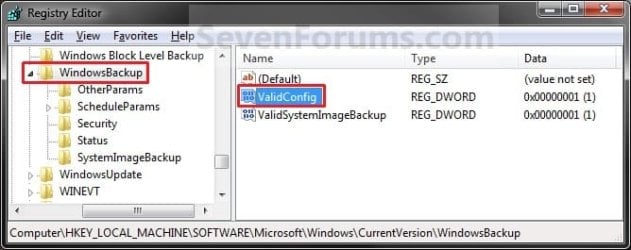
3. In regedit, navigate to the location below (see screenshot below) HKEY_LOCAL_MACHINE\SOFTWARE\Microsoft\Windows\CurrentVersion\WindowsBackup
Reg1.jpg
4. In the right pane, right click on ValidConfig and click/tap on Delete. (see screenshot above)

5. Click/tap on Yes to confirm deletion.

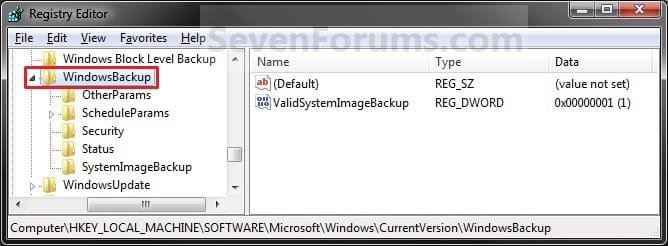
6. The registry will now look like this. (see screenshot below) Reg2.jpg
7. In the left pane, right click on ScheduleParams and click/tap on Delete. (see screenshot below) Reg3.jpg
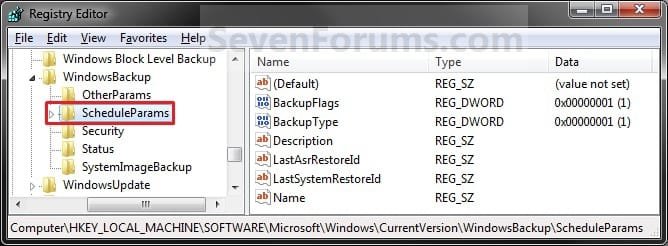
8. Click on Yes to confirm deletion.

9. In the left pane, right click on Security and click/tap on Delete. (see screenshot below) Reg4.jpg
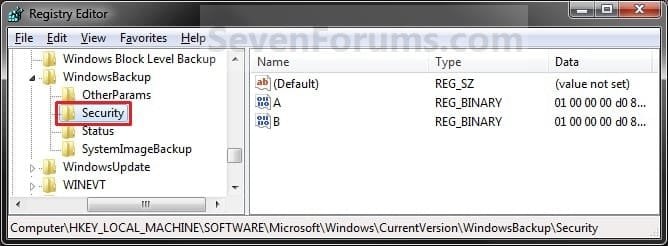
10. Click/tap on Yes to confirm deletion.

11. In the left pane, right click on Status and click/tap on Delete. (see screenshot below) Reg5.jpg
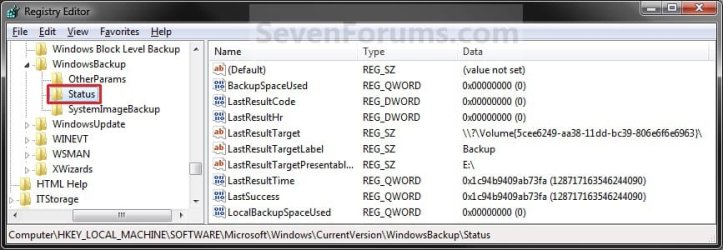
12. Click/tap on Yes to confirm deletion.

13. The registry will now look like this. (2ee screenshot below) Reg6.jpg
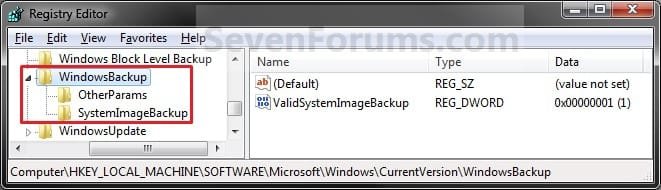
14. Close regedit.

15. If You Had Set a Automatic Backup Schedule
NOTE: This is to remove the automatic backup schedule from within Task Scheduler so that you will not get a "The last backup did not complete successfully" type message in Action Center. A) Press the Windows + R keys to open the Run dialog, type taskschd.msc, and press Enter.

B) If prompted by UAC, then click/tap on Yes if administrator or enter the administrator's password if standard user.

C) In the left pane of Task Scheduler, double click/tap on Task Scheduler Library, Microsoft, and Windows to expand them, then select WindowsBackup. (see screenshot below) Task1.jpg
D) In the middle pane, right click on only AutomaticBackup (if available), and click on Delete. (see screenshot above)
NOTE: If AutomaticBackup is not there, then you did not have a automatic backup schedule set.

E) Click/tap on OK to confirm deletion. (see screenshot below) Task2.jpg
F) Close Task Scheduler.
That's it,
Shawn


Attachments

Last edited:
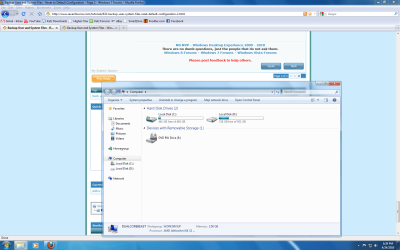
i did both reset thing and it no longer shows the space there, but still missing on my hard drive...you say delete the backups and like ive been saying i deleted them incorrectly and im gussing thats why i have the problem, i tried to unhid the folder but theres nothing there. so my way work, i cut and pasted my media that was in that drive, and brought it over to C drive, all remaining was that 32GB that seemed to wanna stay hidden or whatever, reformated drive. put back my media into that drive and probably solved.
 

Attachments

  • solved.png
    solved.png
    87.9 KB · Views: 1,042

My Computers My Computers

System One System Two

  • Computer type
    PC/Desktop
    Computer Manufacturer/Model Number
    PowerSpec G164
    OS
    WIN10
    CPU
    AMD Ryzen 5 3600 6-Core Processor 3.59 GHz
    Memory
    16.0 GB
    Internet Speed
    VERY FAST>>>!!!
  • Antivirus
    ESET Security Premium
Not sure what went wrong when you deleted it originally, but I'm happy to hear that you got it sorted Eldin. :)
 

My Computer My Computer

Computer type
PC/Desktop
Computer Manufacturer/Model Number
Self built custom
OS
64-bit Windows 11 Pro for Workstations
CPU
Intel i7-8700K OC'd to 5 GHz
Motherboard
ASUS ROG Maximus XI Formula Z390
Memory
64 GB (4x16GB) G.SKILL TridentZ RGB DDR4 3600 MHz
Graphics Card(s)
ASUS ROG-STRIX-GTX1080TI-O11G-GAMING
Sound Card
Integrated
Monitor(s) Displays
2 x Samsung Odyssey G7 27"
Screen Resolution
2560x1440
Hard Drives
1TB Samsung 990 PRO M.2,
4TB Samsung 990 PRO PRO M.2,
TerraMaster F8 SSD Plus NAS
PSU
Seasonic Prime Titanium 850W
Case
Thermaltake Core P3
Cooling
Corsair Hydro H115i
Keyboard
Logitech wireless K800
Mouse
Logitech MX Master 4
Internet Speed
2 Gb/s Download and 100 Mb/s Upload
Antivirus
Malwarebyte Anti-Malware Premium
Browser
Google Chrome
Other Info
Logitech Z625 speaker system,
Logitech BRIO 4K Pro webcam,
HP Color LaserJet Pro MFP M477fdn,
APC SMART-UPS RT 1000 XL - SURT1000XLI,
Galaxy S23 Plus phone
Reset_Back_Up_Files.reg

The download button for Reset_Back_Up_Files.reg is not working.


My Computer My Computer

Computer type
PC/Desktop
Computer Manufacturer/Model Number
OQO 2+
OS
Windows 8 Pro w/MC 32-bit
CPU
Intel Atom 1.86 GHz
Motherboard
OQO 2+
Memory
2 GB
Graphics Card(s)
Intel GMA 500
Sound Card
IDT
Monitor(s) Displays
LCD
Screen Resolution
800 x 480 (portable) 1280 x 1024 (docked)
Hard Drives
64 GB SSD
PSU
9 Ah Battery (portable) or OQO Brick (docked)
Case
Shirt Pocket Sized
Cooling
Tiny Fan
Keyboard
Slide out (portable) DiNovo Edge (docked)
Mouse
Eraser head (portable) Logitech Bluetooth (docked)
Internet Speed
WWAN or 802.11G (portable) T1 (docked)
Browser
IE 10
Other Info
DVD-RW OQO Docking Station
Hello Ron,

Thank you for letting me know. It seems to have been removed for some reason. It's added back and working again now. :)
 

My Computer My Computer

Computer type
PC/Desktop
Computer Manufacturer/Model Number
Self built custom
OS
64-bit Windows 11 Pro for Workstations
CPU
Intel i7-8700K OC'd to 5 GHz
Motherboard
ASUS ROG Maximus XI Formula Z390
Memory
64 GB (4x16GB) G.SKILL TridentZ RGB DDR4 3600 MHz
Graphics Card(s)
ASUS ROG-STRIX-GTX1080TI-O11G-GAMING
Sound Card
Integrated
Monitor(s) Displays
2 x Samsung Odyssey G7 27"
Screen Resolution
2560x1440
Hard Drives
1TB Samsung 990 PRO M.2,
4TB Samsung 990 PRO PRO M.2,
TerraMaster F8 SSD Plus NAS
PSU
Seasonic Prime Titanium 850W
Case
Thermaltake Core P3
Cooling
Corsair Hydro H115i
Keyboard
Logitech wireless K800
Mouse
Logitech MX Master 4
Internet Speed
2 Gb/s Download and 100 Mb/s Upload
Antivirus
Malwarebyte Anti-Malware Premium
Browser
Google Chrome
Other Info
Logitech Z625 speaker system,
Logitech BRIO 4K Pro webcam,
HP Color LaserJet Pro MFP M477fdn,
APC SMART-UPS RT 1000 XL - SURT1000XLI,
Galaxy S23 Plus phone
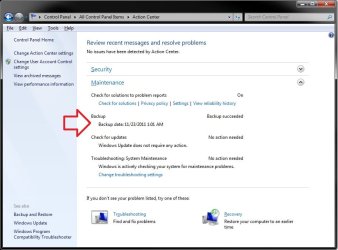
reset the Action Center for backups

I have not found a way to reset the Action Center for backups yet other than it being updated the next time that you do a backup. I'll keep looking into it and will update this tutorial and you if I find a way.
Are you guys talking about how to get rid of the red flag from the action center after you have rest the windows backup so default/not set up?

All I did was to open the action center (with the annoying red flag) and click on "do not show messages about Windows Backups" option.
The red flag went away & my end user was happy.
I figure that if we go back to using Windows backup in the future I can set the action center to start telling me messages about it again.

By the way - thank you for posting the solution to re-setting the backups - it was driving me crazy.
 

My Computer My Computer

OS
Windows 7 Professional 32 bit
Hello TakNanny, and welcome to Seven Forums.

Nar, it was for the backup time stamp at the location below instead. Thank you though. :)

Action-Center.jpg
 

My Computer My Computer

Computer type
PC/Desktop
Computer Manufacturer/Model Number
Self built custom
OS
64-bit Windows 11 Pro for Workstations
CPU
Intel i7-8700K OC'd to 5 GHz
Motherboard
ASUS ROG Maximus XI Formula Z390
Memory
64 GB (4x16GB) G.SKILL TridentZ RGB DDR4 3600 MHz
Graphics Card(s)
ASUS ROG-STRIX-GTX1080TI-O11G-GAMING
Sound Card
Integrated
Monitor(s) Displays
2 x Samsung Odyssey G7 27"
Screen Resolution
2560x1440
Hard Drives
1TB Samsung 990 PRO M.2,
4TB Samsung 990 PRO PRO M.2,
TerraMaster F8 SSD Plus NAS
PSU
Seasonic Prime Titanium 850W
Case
Thermaltake Core P3
Cooling
Corsair Hydro H115i
Keyboard
Logitech wireless K800
Mouse
Logitech MX Master 4
Internet Speed
2 Gb/s Download and 100 Mb/s Upload
Antivirus
Malwarebyte Anti-Malware Premium
Browser
Google Chrome
Other Info
Logitech Z625 speaker system,
Logitech BRIO 4K Pro webcam,
HP Color LaserJet Pro MFP M477fdn,
APC SMART-UPS RT 1000 XL - SURT1000XLI,
Galaxy S23 Plus phone
How to reset all backup settings

Hello.
I have several machines running windows 7 prof. I have configured all the backup to a shared folder on a server.I don't know what happens is that I can not manage the space in any machine and after selecting options to manage space are disabled. I don't know why it can make backup(\\server\security copies\usuxx) but it seems to lose backup location as you can see in this picture. How I can clean all traces of the copies on your computer to reconfigure the copy and start from scratch? Thanks.

767485
 

My Computer My Computer

OS
win 7
Hello Jopeme, :)

You should be able to do OPTION ONE on each PC to reset Windows Backup on each one.
 

My Computer My Computer

Computer type
PC/Desktop
Computer Manufacturer/Model Number
Self built custom
OS
64-bit Windows 11 Pro for Workstations
CPU
Intel i7-8700K OC'd to 5 GHz
Motherboard
ASUS ROG Maximus XI Formula Z390
Memory
64 GB (4x16GB) G.SKILL TridentZ RGB DDR4 3600 MHz
Graphics Card(s)
ASUS ROG-STRIX-GTX1080TI-O11G-GAMING
Sound Card
Integrated
Monitor(s) Displays
2 x Samsung Odyssey G7 27"
Screen Resolution
2560x1440
Hard Drives
1TB Samsung 990 PRO M.2,
4TB Samsung 990 PRO PRO M.2,
TerraMaster F8 SSD Plus NAS
PSU
Seasonic Prime Titanium 850W
Case
Thermaltake Core P3
Cooling
Corsair Hydro H115i
Keyboard
Logitech wireless K800
Mouse
Logitech MX Master 4
Internet Speed
2 Gb/s Download and 100 Mb/s Upload
Antivirus
Malwarebyte Anti-Malware Premium
Browser
Google Chrome
Other Info
Logitech Z625 speaker system,
Logitech BRIO 4K Pro webcam,
HP Color LaserJet Pro MFP M477fdn,
APC SMART-UPS RT 1000 XL - SURT1000XLI,
Galaxy S23 Plus phone
Back
Top