User Folders - Restore Default Icon

How to Restore Default User Folder Icons in Windows 7 and Windows 8

   Information
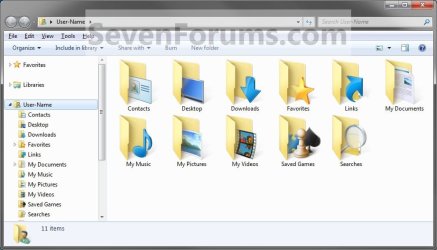
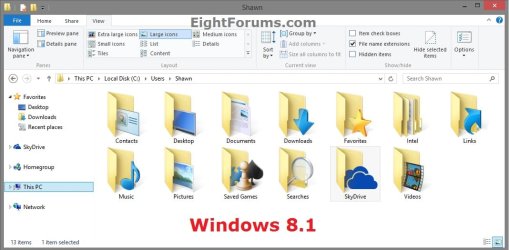
This tutorial will show you how to restore the default folder icon for all of your personal user folders icons in the Start Menu (Windows 7 only) and C:\Users\(user-name) locations in Windows 7 and Windows 8.


EXAMPLE: Default Personal User Folders IconsExample.jpg

Windows_8_1.jpg


OPTION ONE

To Restore Default User Name Profile Folder Icon
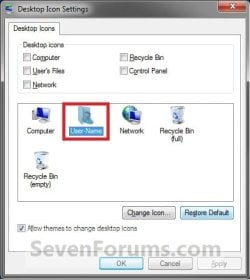
1. Open the change Desktop Icon Settings window. (See screenshot below)User-1.jpg

2. In the lower box, click/tap on your User Name folder to highlight it in blue. (See screenshot above)

3. Click/tap on the Restore Default button. (See screenshot above)A) Click/tap on Apply, and go to step 5 below.
NOTE: If it did not restore the default User Name folder icon, then proceed to step 4.
4. Click/tap on the Change Icon button. (See screenshot below step 1)A) If not already in the top line, click/tap on the Browse button, and navigate to C:\Windows\system32\imageres.dll. (See screenshot below)User-2.jpg

B) Select the default User Name folder icon, and click/tap on OK. (See highlighted in blue icon in the screenshot above)

5. Click/tap on OK. (See screenshot below step 1)


OPTION TWO

To Restore Default User Folders Icons


METHOD ONE

Through User Folder Properties

   Note
This option will be for all of the user folders in the C:\Users\(user-name) folder except the User Name folder itself (OPTION ONE).
   Tip
To be able to change the Contacts and/or Desktop user folder icon, you can click on the Download button below to download the .reg files that enable the Customize tab in these user folders Properties page. After you download the .reg file, double click on it to merge it. You can then follow the steps in this OPTION below to change the icon.

  • To Restore (remove Customize tab) Default Contacts User Folder -
    Download


  • To Enable (add Customize tab) Changing Contacts User Folder Icon -
    Download


  • To Restore (remove Customize tab) Default Desktop User Folder -
    Download


  • To Enable (add Customize tab) Changing Desktop User Folder Icon -
    Download


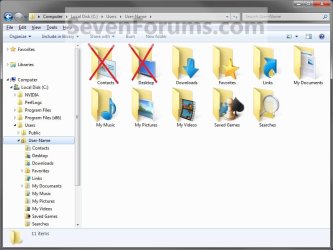
1. Open the C:\Users\(user-name) folder.
WARNING: This must be done at this location. It will not work by opening the user folder from the Start Menu location.Example1.jpg

2. Right click or swipe down on the user folder icon that you want to restore to default, and click/tap on Properties. (See screenshot above)

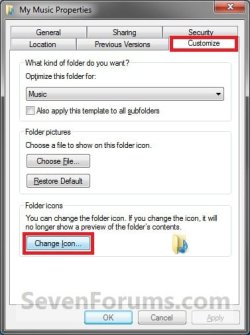
3. Click/tap on the Customize tab, and click/tap on the Change Icon button. (See screenshot below)Step1.jpg

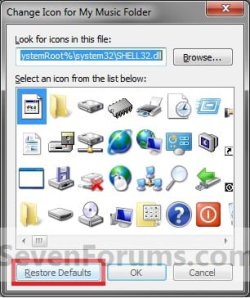
4. Click/tap on the Restore Defaults button. (See screenshot below)Restore-1.jpg

5. Click/tap on OK. (See screenshot below step 3)

6. If the user folder icon has still not been restored to the default icon, then do Method Two below.


METHOD TWO

Through Desktop.ini File


NOTE:This option will be for all of the user folders in the C:\Users\(user-name) folder except the User Name folder itself (OPTION ONE).1. Press the Windows + R keys to open the Run dialog.

2. Type in the Shell command (see table below) for the User folder icon that you want to restore to default, and press Enter.
NOTE: This will open the personal user folder.
User FolderShell Command
Contactsshell:Contacts
Desktopshell:desktop
Documentsshell:Personal
Downloadsshell:downloads
Favoritesshell:Favorites
Linksshell:Links
Musicshell:My Music
Picturesshell:My Pictures
Saved Gamesshell:SavedGames
Searchesshell:Searches
SkyDrive (Windows 8.1)shell:skydrive
Videosshell:My Video


3. In Folder Options, set protected operating system files to show.
NOTE: Use step 4 in OPTION ONE at the link in this step. You must be logged in as an administrator to be able to do this step.

4. Click/tap on the Download link below to download the default Desktop.ini file, in a ZIP file, for the User folder icon that you want to restore to default.
NOTE: The Desktop.ini file is a .txt file that contains the user folder settings in it.A) Contacts
B) Desktop
C) My Documents
D) Downloads
E) Favorites
F) Links
G) My Music
H) My Pictures
I) Saved Games
J) Searches
K) SkyDrive (Windows 8.1)
L) My Videos


5. Save the ZIP file to your desktop.

6. Extract and open the folder in the ZIP file.

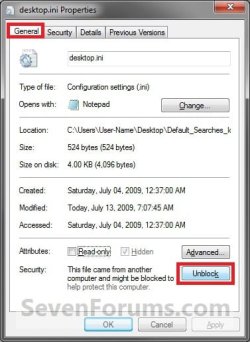
7. Right click or swipe down on the Desktop.ini file in the extracted folder, and click/tap on Properties, click/tap on General tab, the Unblock button, and click/tap on OK. (See screenshot below)
NOTE: If there is not an Unblock button, then it already is unblocked. Proceed to step 8.Unblock.jpg

8. Right click or swipe down on the Desktop.ini file, and click/tap on Copy.Desktop_ini.jpg

9. Right click or press and hold on an empty space in the main part of the user folder window from step 2 above, and click/tap on Paste.

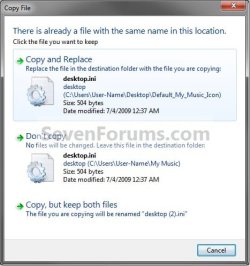
10. If prompted, click on Copy and Replace, then close the user folder window from step 2. (See screenshot below)Copy_Replace.jpg

11. Open a command prompt in Windows 7 or Windows 8.

12. In the command prompt, type the command below for the user folder icon that you want to restore to default. (See table below)
NOTE: This will set the user folder as Read-only. You can Copy and Paste these to make it easier for you.
WARNING: If you had changed the default location of your user folder, then you will need to type the full path of it's new location after attrib +r instead of the default %USERPROFILE% location below. For example, attrib +r D:\New location
User FolderCommand
Contactsattrib +r -s -h %USERPROFILE%\Contacts /S /D
Desktopattrib +r -s -h %USERPROFILE%\Desktop /S /D
Documentsattrib +r -s -h %USERPROFILE%\Documents /S /D
Downloadsattrib +r -s -h %USERPROFILE%\Downloads /S /D
Favoritesattrib +r -s -h %USERPROFILE%\Favorites /S /D
Linksattrib +r -s -h %USERPROFILE%\Links /S /D
Musicattrib +r -s -h %USERPROFILE%\Music /S /D
Picturesattrib +r -s -h %USERPROFILE%\Pictures /S /D
Saved Gamesattrib +r -s -h %USERPROFILE%"Saved Games" /S /D
Searchesattrib +r -s -h %USERPROFILE%\Searches /S /D
SkyDrive (Windows 8.1)attrib +r -s -h %USERPROFILE%\SkyDrive /S /D
Videosattrib +r -s -h %USERPROFILE%\Videos /S /D


13. Close the command prompt.

14. Log off and log on, or restart the computer to apply.

15. Confirm that the folder icon is back to normal.

16. In Folder Options, set protected operating system files to be hidden again.
NOTE: Use step 5 in OPTION ONE at the link in this step. You must be logged in as an administrator to be able to do this step.

17. You can now delete the downloaded files (step 4) on your desktop if like.


That's it,
Shawn Brink


Attachments

Last edited:
Excellent tutorial,
I had problems with folders in one pc, followed your tutorial, method two, and solved almost everything, althoug, there's one folder that I didn't solve "Saved Games"
Can you help me with this, please?
Also, when entering the command (eg. attrib +r -s -h %USERPROFILE%\"Saved Games" /S /D), I always receive a message saying "The parameter format is not correct -"
I would appreciate your help with this.
Thanks,
Jorge
 
Last edited:

My Computer

OS
Windows 7 Professional
Hello Jorge, and welcome to Seven Forums.

Not sure why it's not working for you.

Double check to make sure that you are using a elevated command prompt (right click & "run as administrator). You can also try this command as well:

attrib +r -s -h "%USERPROFILE%\Saved Games" /s /d

Hope this helps,
Shawn
 

My Computer

Computer type
PC/Desktop
Computer Manufacturer/Model Number
Self built custom
OS
64-bit Windows 11 Pro for Workstations
CPU
Intel i7-8700K OC'd to 5 GHz
Motherboard
ASUS ROG Maximus XI Formula Z390
Memory
64 GB (4x16GB) G.SKILL TridentZ RGB DDR4 3600 MHz
Graphics Card(s)
ASUS ROG-STRIX-GTX1080TI-O11G-GAMING
Sound Card
Integrated
Monitor(s) Displays
2 x Samsung Odyssey G7 27"
Screen Resolution
2560x1440
Hard Drives
1TB Samsung 990 PRO M.2,
4TB Samsung 990 PRO PRO M.2,
TerraMaster F8 SSD Plus NAS
PSU
Seasonic Prime Titanium 850W
Case
Thermaltake Core P3
Cooling
Corsair Hydro H115i
Keyboard
Logitech wireless K800
Mouse
Logitech MX Master 4
Internet Speed
2 Gb/s Download and 100 Mb/s Upload
Antivirus
Malwarebyte Anti-Malware Premium
Browser
Google Chrome
Other Info
Logitech Z625 speaker system,
Logitech BRIO 4K Pro webcam,
HP Color LaserJet Pro MFP M477fdn,
APC SMART-UPS RT 1000 XL - SURT1000XLI,
Galaxy S23 Plus phone
Thanks Brink,
I don't know why it didn't work, but after posting I entered the "Saved Games" folder properties, then clicked to change the folder icon and clicked restore predefinition.
It solved the issue.
Thank you very much for your help and this great tutorial,
Jorge
 

My Computer

OS
Windows 7 Professional
Jorge, I'm happy to hear that you got it sorted. I guess it may have just need a bit to reset itself to allow it.
 

My Computer

Computer type
PC/Desktop
Computer Manufacturer/Model Number
Self built custom
OS
64-bit Windows 11 Pro for Workstations
CPU
Intel i7-8700K OC'd to 5 GHz
Motherboard
ASUS ROG Maximus XI Formula Z390
Memory
64 GB (4x16GB) G.SKILL TridentZ RGB DDR4 3600 MHz
Graphics Card(s)
ASUS ROG-STRIX-GTX1080TI-O11G-GAMING
Sound Card
Integrated
Monitor(s) Displays
2 x Samsung Odyssey G7 27"
Screen Resolution
2560x1440
Hard Drives
1TB Samsung 990 PRO M.2,
4TB Samsung 990 PRO PRO M.2,
TerraMaster F8 SSD Plus NAS
PSU
Seasonic Prime Titanium 850W
Case
Thermaltake Core P3
Cooling
Corsair Hydro H115i
Keyboard
Logitech wireless K800
Mouse
Logitech MX Master 4
Internet Speed
2 Gb/s Download and 100 Mb/s Upload
Antivirus
Malwarebyte Anti-Malware Premium
Browser
Google Chrome
Other Info
Logitech Z625 speaker system,
Logitech BRIO 4K Pro webcam,
HP Color LaserJet Pro MFP M477fdn,
APC SMART-UPS RT 1000 XL - SURT1000XLI,
Galaxy S23 Plus phone
This is madness...

It's so easy to accidentally delete the "downloads" (link and carptet) but so bloo#$# complicated to restore it, thanks Microsoft im gonna have to reinstall windows again. :confused:
 

My Computer

Computer type
PC/Desktop
Computer Manufacturer/Model Number
Custom Build
OS
Microsoft Windows 7 Ultimate 64 bits 7601 Multiprocessor Free Service Pack 1
CPU
Intel(R) Core(TM) i7-3770K CPU @ 3.50GHz
Motherboard
ASUSTeK Computer INC. P8Z68-V PRO GEN3
Memory
8.00 GB
Graphics Card(s)
NVIDIA GeForce GTX 670
Sound Card
Omega Striker
Monitor(s) Displays
Viewsonic vx2250wm
Screen Resolution
1920 x 1080 x 32 bits (4294967296 colors) @ 60 Hz
Hard Drives
V9CPETXT
Seagate 1TB.
PSU
Corsair Gold Series AX850
Case
nvidia 690 advanced II
Cooling
Air

My Computer

Computer type
PC/Desktop
Computer Manufacturer/Model Number
Self built custom
OS
64-bit Windows 11 Pro for Workstations
CPU
Intel i7-8700K OC'd to 5 GHz
Motherboard
ASUS ROG Maximus XI Formula Z390
Memory
64 GB (4x16GB) G.SKILL TridentZ RGB DDR4 3600 MHz
Graphics Card(s)
ASUS ROG-STRIX-GTX1080TI-O11G-GAMING
Sound Card
Integrated
Monitor(s) Displays
2 x Samsung Odyssey G7 27"
Screen Resolution
2560x1440
Hard Drives
1TB Samsung 990 PRO M.2,
4TB Samsung 990 PRO PRO M.2,
TerraMaster F8 SSD Plus NAS
PSU
Seasonic Prime Titanium 850W
Case
Thermaltake Core P3
Cooling
Corsair Hydro H115i
Keyboard
Logitech wireless K800
Mouse
Logitech MX Master 4
Internet Speed
2 Gb/s Download and 100 Mb/s Upload
Antivirus
Malwarebyte Anti-Malware Premium
Browser
Google Chrome
Other Info
Logitech Z625 speaker system,
Logitech BRIO 4K Pro webcam,
HP Color LaserJet Pro MFP M477fdn,
APC SMART-UPS RT 1000 XL - SURT1000XLI,
Galaxy S23 Plus phone
Hi Shawn,

I lost download icon when I move the downloads folder by: right click download folder, properties, location, move tab.
I changed it to another partition without making a new downloads folder first, so the downloads folder dissapear replaced with D: (the destination folder)

I'm a "win 7 basic" user

I tried to restore it but this appear:
"falied to build the list of regular subfolder under "D:\System Volume Information" Access is denied"

I tried your "option one": I don't have personalize option because my win 7 basic.
I tried your "option two-method one": everytime I make new downloads folder it ask me to merge with new folder, and it dissapear right away.
I tried your "option two-method two": I found that your "downloads icon" link is empty, it contain no "desktop.ini" file.

I've tried almost all way, but I can't fix it.

Can you help me please.

Mesakh
 

My Computer

Computer Manufacturer/Model Number
A42f
OS
Win 7 Basic
CPU
i3-350m
Motherboard
asus
Memory
kingston
Graphics Card(s)
intel onboard
Sound Card
intel onboard
Monitor(s) Displays
asus

My Computer

Computer type
PC/Desktop
Computer Manufacturer/Model Number
Self built custom
OS
64-bit Windows 11 Pro for Workstations
CPU
Intel i7-8700K OC'd to 5 GHz
Motherboard
ASUS ROG Maximus XI Formula Z390
Memory
64 GB (4x16GB) G.SKILL TridentZ RGB DDR4 3600 MHz
Graphics Card(s)
ASUS ROG-STRIX-GTX1080TI-O11G-GAMING
Sound Card
Integrated
Monitor(s) Displays
2 x Samsung Odyssey G7 27"
Screen Resolution
2560x1440
Hard Drives
1TB Samsung 990 PRO M.2,
4TB Samsung 990 PRO PRO M.2,
TerraMaster F8 SSD Plus NAS
PSU
Seasonic Prime Titanium 850W
Case
Thermaltake Core P3
Cooling
Corsair Hydro H115i
Keyboard
Logitech wireless K800
Mouse
Logitech MX Master 4
Internet Speed
2 Gb/s Download and 100 Mb/s Upload
Antivirus
Malwarebyte Anti-Malware Premium
Browser
Google Chrome
Other Info
Logitech Z625 speaker system,
Logitech BRIO 4K Pro webcam,
HP Color LaserJet Pro MFP M477fdn,
APC SMART-UPS RT 1000 XL - SURT1000XLI,
Galaxy S23 Plus phone
Your option 2 method 2 save my life. Thanks man and it works on Windows 8 too...
 

My Computer

Computer type
Laptop
Computer Manufacturer/Model Number
Asus
OS
Windows 8.1 Enterprise
CPU
Intel Core i7 4700HQ
Motherboard
Asus
Memory
16GB
Graphics Card(s)
Nvidia GeForce GTX 770M
everything was fine up to the point where i entered the CMD, i tried copying and pasting that and i got "Parameter format not correct", im not sure what to try now, i tried option 2 first.

specs

windows 7 64 bit
trying to restore my downloads icon, when i go to change icon it flashes the right icon then goes back to the yellow folder icon. it shows the right icon in the address bar though ??
 

My Computer

Computer type
PC/Desktop
Computer Manufacturer/Model Number
Emachines
OS
Windows 7 64 bit Pro
CPU
2.70 gigahertz AMD Athlon II X2 235e 256 kilobyte Pri Memory
Motherboard
Board: eMachines MCP61PM-GM
Memory
5888 Megabytes Usable Installed Memory
Graphics Card(s)
GeForce 6150SE nForce 430
Hard Drives
Backup B:\\ ST350031 2CS SCSI Disk Device (500.11 GB) -- drive 0, s/n 6VV1V14G, SMART Status: Healthy

OS C:\\ ST375052 8AS SCSI Disk Device (750.15 GB) -- drive 1, s/n 5VP1YPDS, SMART Status: Healthy
Antivirus
AVG Free
Browser
Firefox
CLOSED, i got it!!!

Everything is Good, i got it it after much finger typing practice

i needed to delete the bad folder in the start menu users folder, then recreate the New downloads folder in the C:/users/username Folder after that the correct folder appeared, after getting rid of the bad folder and recreating it in the Main C:/users/username Folder, , then the start menu username folder automatically change the icon

thanks for all your tutorials, i recently had to use this one - http://www.sevenforums.com/tutorials/18583-user-folders-restore-default-location.html. i followed that to the T, and it Worked Great!!


Thanks Again
 

My Computer

Computer type
PC/Desktop
Computer Manufacturer/Model Number
Emachines
OS
Windows 7 64 bit Pro
CPU
2.70 gigahertz AMD Athlon II X2 235e 256 kilobyte Pri Memory
Motherboard
Board: eMachines MCP61PM-GM
Memory
5888 Megabytes Usable Installed Memory
Graphics Card(s)
GeForce 6150SE nForce 430
Hard Drives
Backup B:\\ ST350031 2CS SCSI Disk Device (500.11 GB) -- drive 0, s/n 6VV1V14G, SMART Status: Healthy

OS C:\\ ST375052 8AS SCSI Disk Device (750.15 GB) -- drive 1, s/n 5VP1YPDS, SMART Status: Healthy
Antivirus
AVG Free
Browser
Firefox
Great news PcWizKid. :party:
 

My Computer

Computer type
PC/Desktop
Computer Manufacturer/Model Number
Self built custom
OS
64-bit Windows 11 Pro for Workstations
CPU
Intel i7-8700K OC'd to 5 GHz
Motherboard
ASUS ROG Maximus XI Formula Z390
Memory
64 GB (4x16GB) G.SKILL TridentZ RGB DDR4 3600 MHz
Graphics Card(s)
ASUS ROG-STRIX-GTX1080TI-O11G-GAMING
Sound Card
Integrated
Monitor(s) Displays
2 x Samsung Odyssey G7 27"
Screen Resolution
2560x1440
Hard Drives
1TB Samsung 990 PRO M.2,
4TB Samsung 990 PRO PRO M.2,
TerraMaster F8 SSD Plus NAS
PSU
Seasonic Prime Titanium 850W
Case
Thermaltake Core P3
Cooling
Corsair Hydro H115i
Keyboard
Logitech wireless K800
Mouse
Logitech MX Master 4
Internet Speed
2 Gb/s Download and 100 Mb/s Upload
Antivirus
Malwarebyte Anti-Malware Premium
Browser
Google Chrome
Other Info
Logitech Z625 speaker system,
Logitech BRIO 4K Pro webcam,
HP Color LaserJet Pro MFP M477fdn,
APC SMART-UPS RT 1000 XL - SURT1000XLI,
Galaxy S23 Plus phone
Thank you Brink. Method 2 helped me get my Downloads icon back. I appreciate it.


My Computer

Computer type
PC/Desktop
Computer Manufacturer/Model Number
HP Compaq Presario CQ5500Y
OS
Windows 7 Ultimate 32bit SP1
CPU
AMD Sempron 140 2.7 Ghz
Motherboard
M2N68-LA (Narra5)
Memory
2Gig DDR2 DIMM (240-pin) PC2-6400 MB/sec
Graphics Card(s)
GPU NVIDIA GeForce 6150SE nForce 430
Sound Card
Integrated Realtek ALC888S Audio
Monitor(s) Displays
Dell SE178WFP LCD monitor 17"
Screen Resolution
1400 x 900
Hard Drives
ST350041 8AS SCSI - SATA 7200 rpm
Keyboard
Logitech K360 Wireless Keyboard
Mouse
Logitech Anywhere MX Wireless Laser Mouse
Internet Speed
Time Warner Roadrunner 3 mb (Down) 1 mb (Up) [Residential]
Antivirus
Microsoft Security Essentials
You're most welcome Fudd. I'm glad it could help. :)
 

My Computer

Computer type
PC/Desktop
Computer Manufacturer/Model Number
Self built custom
OS
64-bit Windows 11 Pro for Workstations
CPU
Intel i7-8700K OC'd to 5 GHz
Motherboard
ASUS ROG Maximus XI Formula Z390
Memory
64 GB (4x16GB) G.SKILL TridentZ RGB DDR4 3600 MHz
Graphics Card(s)
ASUS ROG-STRIX-GTX1080TI-O11G-GAMING
Sound Card
Integrated
Monitor(s) Displays
2 x Samsung Odyssey G7 27"
Screen Resolution
2560x1440
Hard Drives
1TB Samsung 990 PRO M.2,
4TB Samsung 990 PRO PRO M.2,
TerraMaster F8 SSD Plus NAS
PSU
Seasonic Prime Titanium 850W
Case
Thermaltake Core P3
Cooling
Corsair Hydro H115i
Keyboard
Logitech wireless K800
Mouse
Logitech MX Master 4
Internet Speed
2 Gb/s Download and 100 Mb/s Upload
Antivirus
Malwarebyte Anti-Malware Premium
Browser
Google Chrome
Other Info
Logitech Z625 speaker system,
Logitech BRIO 4K Pro webcam,
HP Color LaserJet Pro MFP M477fdn,
APC SMART-UPS RT 1000 XL - SURT1000XLI,
Galaxy S23 Plus phone
Can't Get Past Step 2

I am trying to use Option 2 Method 2 and I can't even get past Step 2. When I type in "shell:downloads" i get the following response: "Windows cannot find find 'shell:downloads'. Make sure you typed the name correctly, and then try again. I have lost my "Download" folder and there is only a "paper" icon for the Download Folder. This is becoming very aggravating.
 

My Computer

OS
Windows 7

My Computer

Computer type
PC/Desktop
Computer Manufacturer/Model Number
Self built custom
OS
64-bit Windows 11 Pro for Workstations
CPU
Intel i7-8700K OC'd to 5 GHz
Motherboard
ASUS ROG Maximus XI Formula Z390
Memory
64 GB (4x16GB) G.SKILL TridentZ RGB DDR4 3600 MHz
Graphics Card(s)
ASUS ROG-STRIX-GTX1080TI-O11G-GAMING
Sound Card
Integrated
Monitor(s) Displays
2 x Samsung Odyssey G7 27"
Screen Resolution
2560x1440
Hard Drives
1TB Samsung 990 PRO M.2,
4TB Samsung 990 PRO PRO M.2,
TerraMaster F8 SSD Plus NAS
PSU
Seasonic Prime Titanium 850W
Case
Thermaltake Core P3
Cooling
Corsair Hydro H115i
Keyboard
Logitech wireless K800
Mouse
Logitech MX Master 4
Internet Speed
2 Gb/s Download and 100 Mb/s Upload
Antivirus
Malwarebyte Anti-Malware Premium
Browser
Google Chrome
Other Info
Logitech Z625 speaker system,
Logitech BRIO 4K Pro webcam,
HP Color LaserJet Pro MFP M477fdn,
APC SMART-UPS RT 1000 XL - SURT1000XLI,
Galaxy S23 Plus phone
Back
Top