Bluetooth headset pairs but won't connect, not avail as playback devic

I agree, why is it so difficult to get a set of Bluetooth headphones to work. I have an HP EliteBook 8740w and it comes with the Broadcom Software, I can pair my Philips SHB4000 headphones, but it doesn't show in the Sound device and so I can't make it the default device. I've tried it on my PC still no joy. I've tried all the suggestions made by others on this forum, nothing works. Any suggestions, before I go mad:mad:
 

My Computer My Computer

At a glance

Windows 7 x64Intel Core 15 i5-3340 CPU @ 3.10Ghz8.00GB
Computer type
PC/Desktop
Computer Manufacturer/Model Number
Proline Computers
OS
Windows 7 x64
CPU
Intel Core 15 i5-3340 CPU @ 3.10Ghz
Memory
8.00GB
Hard Drives
931 GB Hard Drive
465 GB Hard Drive
Antivirus
McAfee
Browser
IE
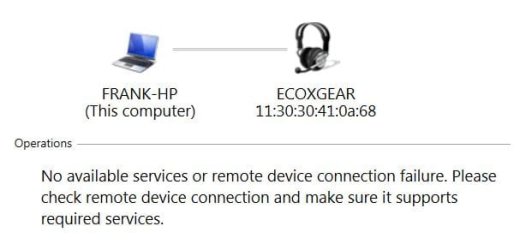
My problem is that 6 mos or so ago my HP Laptop with Win 7 could connect to all of my Bluetooth devices then suddenly stopped. My iPad and phone can connect to all of them, so the problem is in the laptop. I tried back then uninstalling and reinstalling bluetooth drivers. Today I checked updates on all of them in Device Manager, still no luck, I don't want to do a rollback that far as sometimes recommended. I see all the devices, sometimes nothing happens when I click "listen to music" and other times it says "no available services or remote device connection failure. Please check remote device connection and make sure it supports required services." capture of bluetooth failure.JPG
 

My Computer My Computer

At a glance

Wndows 7 Home Premium 64 bit
OS
Wndows 7 Home Premium 64 bit
Thought I'd add to this as I was going through the same hassle as the op and found a solution, which did involve updating the Bluetooth "driver" software on my HP laptop.
I tried all the previous links posted in this thread - most of them link to a supposed driver detector, which shows obsolete drivers on your system, but makes you pay if you want to update (before you know if it is actually going to work!).
So I went to the laptop manufacturer's website (HP in my case) and downloaded the latest Bluetooth update from there. Once that was installed I got more useful dialogue boxes and eventually got the headset working.
This is the Broadcom Bluetooth update from HP - Drivers & Software - HP Support Center.
It might work for your system, but I would check your installed Bluetooth device first.
(If the link I've posted changes to a non-HP website link, don't follow it!)
Once the update was installed I got an icon for my device under All Programs/Bluetooth. This app gave me a "Connect" button which got it working.
 

My Computer My Computer

At a glance

Windows 7 Enterprise x64
Computer type
Laptop
Computer Manufacturer/Model Number
HP 8570w
OS
Windows 7 Enterprise x64
Sony DR-BT101 Bluetooth Headset Connection to PC - Resolved

By searching this thread I was able to resolve the connectivity issue from my Sony DR-BT101 bluetooth headset to my PC by following JayMac's Instructions. Thank you!

HERE IS THE FIX FROM JAYMAC:

Remove the device from your PC (Devices and Printers) > Click on Add a Device and set your bluetooth to pairing mode > when your device shows up in the list DO NOT HIT NEXT just yet > Instead right click and go to Properties and select ALL the options for the services and after it install everything it will work for you. Also, please don't forget to change your default sound device in Control Panel and Sound.
 
Last edited:

My Computer My Computer

At a glance

Windows 10 64bitIntel(R) Core(TM) i7-4790 CPU @ 3.60GHz32Gb
Computer type
Laptop
Computer Manufacturer/Model Number
Dell Optiplex 9020
OS
Windows 10 64bit
CPU
Intel(R) Core(TM) i7-4790 CPU @ 3.60GHz
Memory
32Gb
Antivirus
Iolo System Mechanic Pro
Browser
Firefox, Google Chrome, Internet Explorer
Other Info
Don't be mad at me and restrict me from displaying my website just because you are an angry Antifa member who has the jealousy blues. I am superior, a descendent from the stars and the path you are on is bleak. Those who behave wickedly towards others, no matter how small the action, will pay dearly at a time when it matters most. Do not let your pride, ego, jealousy or HATRED hinder you.
I'm about ready to give up. I have a Bluetooth (v2.1+EDR) speaker that pairs & installs just fine (Win7 reports it as a "headset", but that doesn't matter.)

When my BT-3.0 adapter didn't work, I bought a BT-4.0 adapter (plugged into a USB 2.0 port). Installed the latest drivers downloaded on the manufacturers website and everything installed.

I followed "JayMac's" instructions (which aren't 100% correct. Checking those boxes before hitting "Next" disables the "Next" button. Instead, you must click OK, install the device, then Right-click on the device there and tick the Services boxes) but it didn't help.

Drivers are all installed. Speaker paired & installed, but when I try to set it as an output device, the Sound manager reports it as "disconnected" (yes, it is On and paired.)

A picture is worth a thousand words, so:

Bluetooth_disconnected.jpg


I'm stumped. :cry:
 

My Computer My Computer

At a glance

Win7 Home Premium x64AMD Phenom II x4 9208gbRadeon 5850
Computer Manufacturer/Model Number
homebrew
OS
Win7 Home Premium x64
CPU
AMD Phenom II x4 920
Motherboard
Gigabyte MA790gs-ds4h
Memory
8gb
Graphics Card(s)
Radeon 5850
Sound Card
Realtek
Monitor(s) Displays
Asus 26" lcd
Screen Resolution
1920x1200
Hard Drives
120gb Corsair Force GT SSD
1TB C:
500GB D:
various external drives
PSU
CoolerMax 750watt
Case
Antec
Cooling
Fans (5)
Keyboard
standard-101
Mouse
MS Optical trackball
Internet Speed
DSL 1.5gbit
Not there yet

Happy to come across this item, after many hours of searching for a clue. Not there yet, but trying to contribute to come to a clear conclusion...

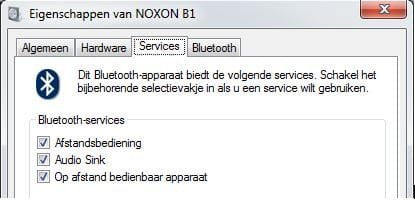
I followed the instructions by Jaymac (which were correct - at least in my case) but that didn't make a difference, as the BT services were already available in my BT device (a Noxon B1 Rev3 BT audioplayer to stream music to an analogue amp), see screenshot.
The trouble is, as stated by famattjr, that it shows the "listen to music" link, but when I select that, nothing happens. In the audio settings the BT headphones cannot be activated, nor is there a new BT playback device shown.
Trying to find a workable solution by checking the other entries...

The support dept of Terratec, who provide the Noxon B1, have been very helpful trying to tackle this issue, but no success. The B1 should be recognized as a BT playback device by Win7...
(This Windows problem has taken me over 8 hrs of weekend time, no kidding :()
 

Attachments

  • Noxon B1 eigenschappen properties.JPG
    Noxon B1 eigenschappen properties.JPG
    21.8 KB · Views: 62

My Computer My Computer

At a glance

Windows 7 Enterprise 64bitIntel Core i5 1.60GHz4 GB
Computer type
Laptop
Computer Manufacturer/Model Number
HP Folio13
OS
Windows 7 Enterprise 64bit
CPU
Intel Core i5 1.60GHz
Memory
4 GB
In the audio settings the BT headphones cannot be activated, nor is there a new BT playback device shown.

If your BT device is never even seen when pairing, chances are your BT transmitter/receiver is an older version than your device, or your BT drivers (the transmitter not the headphones) may need to be updated.

Are the "audio settings" you mention the ones found by clicking "Control Panel | Sound"? If your BT device is there but listed as "Disconnected", try this:

Put your BT device in Discovery Mode, Go into "Devices and Printers", right-click on your BT device (if your device is not in Discovery Mode, you'll get a "Failed to Initialize" warning) and select "Control" from the pop-up menu.

Another window should open with a "Connect" button on it. Click the "Connect" button and it should enable your headphones. In my own case, as soon as the window opens, it disappears about a second later about 75% of the time and I must repeatedly try over & over til it stays open. If this happens to you, you can try to click the Connect button before the window closes and about 50% of the time it'll work. :(
 

My Computer My Computer

At a glance

Win7 Home Premium x64AMD Phenom II x4 9208gbRadeon 5850
Computer Manufacturer/Model Number
homebrew
OS
Win7 Home Premium x64
CPU
AMD Phenom II x4 920
Motherboard
Gigabyte MA790gs-ds4h
Memory
8gb
Graphics Card(s)
Radeon 5850
Sound Card
Realtek
Monitor(s) Displays
Asus 26" lcd
Screen Resolution
1920x1200
Hard Drives
120gb Corsair Force GT SSD
1TB C:
500GB D:
various external drives
PSU
CoolerMax 750watt
Case
Antec
Cooling
Fans (5)
Keyboard
standard-101
Mouse
MS Optical trackball
Internet Speed
DSL 1.5gbit
Solved - disable unused Profiles in BT

Autoconnect seems to fail to autoconnect if you have too many Bluetooth device profiles enabled.

By default setting up a new device pairs and installs [every profile] it can find for that device. That fails.

I read this thread and went back into Right Click on Bluetooth Device and went down the profiles for the device and {disabled} all but one.. and walla!.. suddenly autoconnect works!

here is a guess.. it selects a profile and that grabs complete control.. like perhaps the VOIP to (handsfree) profile instead of the Listen to Music (headset) profile and [stops] because the handfree profile {assumes} you will click a button to start a call. Therefore it never gets to move on to enable the Listen to Music (headset) profile.

by disabling the "grabby" control freak (handsfree) profile.. it skips it and moves on to autoenable the device profile that lets you go into headset or "Listen to Music" profile mode right away..

In any event this works!

I did not have to wipe or uninstall and reinstall drivers.

One new problem I've noticed is the "Headset" profile appears to introduce a "lag" between lip sync in video and audio.. the "Handsfree" profile does not have this lag.

here is a guess.. the "Listen to Music (Headset)" profile has a transmission higher bit rate and regularly drops bits to stay in sync and "pops" occasionally. The "Handsfree" profile is lower bit rate and stays in sync.. for podcasts or watching video this seems critical because there is no lag or problems with lip sync.

additional guess.. if its going into "watch for call button" mode with "headset" profile.. simply pretending to start a call may allow autoconnect to work... just don't let it start a call
 

My Computer My Computer

At a glance

Windows 7 Pro 4 bit
Computer type
PC/Desktop
OS
Windows 7 Pro 4 bit
I read this thread and went back into Right Click on Bluetooth Device and went down the profiles for the device and {disabled} all but one.. and walla!.. suddenly autoconnect works

What "profiles" are you talking about? My BT devices don't have "profiles" (I right-click my BT icon to "Show Devices"... of which I have 1... right-click and there are no "Profiles". Checked Properties. Not there either.

:confused:
 

My Computer My Computer

At a glance

Win7 Home Premium x64AMD Phenom II x4 9208gbRadeon 5850
Computer Manufacturer/Model Number
homebrew
OS
Win7 Home Premium x64
CPU
AMD Phenom II x4 920
Motherboard
Gigabyte MA790gs-ds4h
Memory
8gb
Graphics Card(s)
Radeon 5850
Sound Card
Realtek
Monitor(s) Displays
Asus 26" lcd
Screen Resolution
1920x1200
Hard Drives
120gb Corsair Force GT SSD
1TB C:
500GB D:
various external drives
PSU
CoolerMax 750watt
Case
Antec
Cooling
Fans (5)
Keyboard
standard-101
Mouse
MS Optical trackball
Internet Speed
DSL 1.5gbit
That would be the profiles here:

Notice the [disabled] ones are the Icons with the "tiny" grey circle with the even "tinier" black [downwards pointing arrow] on top of the Icons in the lower right corner of the Icons.

In this dialog screen capture "only" the Icon representing the Profile in the "first row" is not disabled.

Each "Profile" is a Bluetooth "Device Function" in hardware "driver speak" according to Microsoft.. to the rest of the world and the Bluetooth standard they are called "Profiles" -- which are basically contracts, or API's that define "if your going to make a device that offers this type of service" on Bluetooth.. then it should work -- such and such a way, over Bluetooth.

The problem is Profiles tend to be written kind of independently.. as if each Bluetooth device only had one function or purpose.. so first Profile that gets control calls "Shot gun" and all the other Profiles "suffer" the consequences.. basically they get to fight over the left overs..

Look at it this way.. "Hands Free" is like a phone with an on/off switch.. "Audio/Video remote control" is like a TV remote with an on/off switch.. it can't be "both" a Phone and a Remote at the same time.. so {which is it?} the answer is.. which ever comes first.. and the remainder doesn't get to control anything.. including autoconnect the device to the sound system.

You don't "expect" a Phone to autoconnect and provide a "Dial Tone" so that's its behavior.. it connects and doesn't provide a Dial Tone. But when Headphones autoconnects you expect them to immediately begin providing sound so that's its behavior. Whichever gets control of the system first overrides the behavior of the others.

Its just a guess, but I suspect there is a way to assign "priority" or "order of startup" to these profiles and that someone like the device driver writers have figured this out.. and that is why sometimes reinstalling a different driver pack works.. it reinstalls the Profiles in a "different" order or priority.. and things magically start working. But disabling the other Profiles achieves the same thing.. ham fistedly.. and if there isn't another driver pack available.. this might be your only option.

I use my headset mostly for listening to podcasts or music.. so phone functions isn't as important. That's my choice.. but if I can figure out in Windows how to reset or reorder the priorities of the Profiles.. there might be a better way.

p123.jpg
 

My Computer My Computer

At a glance

Windows 7 Pro 4 bit
Computer type
PC/Desktop
OS
Windows 7 Pro 4 bit
If your BT device is never even seen when pairing, chances are your BT transmitter/receiver is an older version than your device, or your BT drivers (the transmitter not the headphones) may need to be updated.
Thank you but the BT device does pair (visible on the Windows and on the device). But it's not mentioned at the playback devices.

Are the "audio settings" you mention the ones found by clicking "Control Panel | Sound"?
It's not listed in this panel, although the generic BT Headphones are listed. So I expected the BT audio device to be recognized as Headphones. But the BT Headphones stay in 'Disconnected' mode. When I try to connect, nothing happens. There is no 'Control' option when I right-click.
 

My Computer My Computer

At a glance

Windows 7 Enterprise 64bitIntel Core i5 1.60GHz4 GB
Computer type
Laptop
Computer Manufacturer/Model Number
HP Folio13
OS
Windows 7 Enterprise 64bit
CPU
Intel Core i5 1.60GHz
Memory
4 GB
Thanks for your suggestion; I've left AudioSink as the only active service and disabled the other services / profiles on the device. It doesn't make any difference.

FYI: I spent an hour at the shop where I bought the device (hurra for bricks, be welcome at Wifimedia in Arnhem, NL, great service). They've tried another BT playback audio device too. It just doesn't work on Win7 (on my HP Folio). We've also tried using another BT dongle instead of the internal BT radio of the laptop, but this also doesn't make a difference.
The BT device works perfectly with my Samsung telephone and our Macbook. It's just Win7 that won't get it to work :-(
 

My Computer My Computer

At a glance

Windows 7 Enterprise 64bitIntel Core i5 1.60GHz4 GB
Computer type
Laptop
Computer Manufacturer/Model Number
HP Folio13
OS
Windows 7 Enterprise 64bit
CPU
Intel Core i5 1.60GHz
Memory
4 GB
Me again

Hi all

I'm back after my original reply over a year ago, as I was searching for a new problem with Bluetooth audio and stumbled over this thread again by chance!

So now I have a new laptop, running 7 (reasons I won't go into) and I am having the problem whereby I click "listen to music" in the Bluetooth services window, and the link either flickers and nothing happens, or it says "connection failed".

Restarting my PC fixes it but that isn't workable. So I found the service that is causing the problem. It is called "bluetooth media service" and starts automatically on startup.

You need to RESTART this service using the "services.msc" snap-in. If this doesn't make sense to you, just press Start, then type "services.msc" (sans quotes) into the search box and press enter. Scroll down to the service named "Bluetooth media service", right click and then click "restart"

Wait for the stop and start to happen (there is a quick status dialog that appears) then close services.msc. You should now be able to click "listen to music" back in the bluetooth service dialog box for your device.
 

My Computer My Computer

At a glance

Windows 7 HPrem 32 bit
Computer type
Laptop
OS
Windows 7 HPrem 32 bit
Hey Guys,

I made an account just to post this because I was struggling for 2 freakin hours to make my bluetooth headset work. I had this same exact problem so here is what worked:

I went to my notebook manufacturer's website and downloaded and installed the latest Broadcom Bluetooth Software. That fixed everything. You can find it directly here (http://ftp.hp.com/pub/softpaq/sp66001-66500/sp66402.exe), if you want to check it on HP's website, go here (http://h20564.www2.hp.com/hpsc/swd/public/readIndex?sp4ts.oid=5212930&swLangOid=8&swEnvOid=4060, under Driver - Network).

I guess this may not work for all the laptops, but you get the idea - try updateing your PC's bluetooth software instead of figuring out drivers for the headset! As soon as I did that the headset appeared in playback devices.

Hope this helps someone.
 

My Computer My Computer

At a glance

Windows 7 Home Premium 64bitIntel Core i5
Computer type
PC/Desktop
Computer Manufacturer/Model Number
HP
OS
Windows 7 Home Premium 64bit
CPU
Intel Core i5
14 HOURS OF HAIL later...

14 HOURS OF HAIL later... this is what finally worked for my Plantronics headset:

My Windows 7 computer does not have internal BT
- delete all previous BT attempts/drivers/devices (start over)

- plug in USB bluetooth adapter (mine is an Asus BT21), let Windows put a Generic driver
- install Broadcom's wizard (SetupBtwDownloadSE.exe downloaded from their site)
- reboot
- use Windows update, it should locate "Broadcom 2046 BT 2.1+EDR w First Connect" to replace/update Generic BT (for my Asus USB BT anyway)
- reboot
- add a device under BT devices (for my headset), will recognize the pairing and show the device, ***R clk on the newly discovered device and select ADD THIS DEVICE (not the properties!)**** (I kept selecting Properties for variations on the 4 check boxes)
- DO NOT SELECT NEXT button, only use the R clk and select Add this Device
- it auto added it's needed drivers, and recognized it (added Hands-free, Romote Control and AV)
"This device has been successfully added to this computer"

- R clk device and Control is there
- sound properties now lists it
- simply make it the default for sound, then when you turn it off it should default to speakers again

This ordeal nearly killed me, but I won.
 

My Computer My Computer

At a glance

Windows 7
OS
Windows 7
this solved my problem

Hi
I also went through similar problems and nothing worked , then a very simple solution worked for me
go to control panel , choose manage audio devices
most likely your headphones wont be visible there despite being paired
if thats the case then just right click and check - Show Disabled devices
now the headphones should be visible if the are paired and connected
enable them and voila , you are good to go...

if this doesnt work for you then keep looking , something will work.. it always does.


My Computer My Computer

At a glance

windows 7 home premium 32 bit
Computer type
PC/Desktop
OS
windows 7 home premium 32 bit
Another Solution for Stubborn Blueteeth!

I know this thread is pretty old but hope the mods will leave my two cents on it because of all the previous solutions. Thanks!

Okay I have more information about problems regarding Windows 7 Bluetooth connectivity not working
correctly that I hope will help someone. I haven't seen this solution the past two days of
searching so maybe I can give back a little to so many who have helped me. My OS is Windows 7
Ultimate 64 bit.

I bought a highly regarded Bluetooth dongle the other day to pair with my new speakers. I
purchased on line and when the device got here followed the instructions carefully to install the
dongle. Things did not go well so I scoured the internet the past few days in search of an answer
and the closest thing I could find to answer my problem was to download Microsoft Hotfix KB980396.

Unfortunately (or maybe not) I couldn't get this Hotfix to install and after further investigation
have surmised that it is included with Windows 7 SP1 and I would get some crazy message about how
MS was not going to install the Hotfix. Well okay, now what?

I had previously gone to a website that suggested going into "Services" and doing some sort of
magic there. To do that I had to mash the Windows badge and type in "services". The answer didn't
come there but led me to the truth of my problem. I did the same thing tonight in an attempt to
maybe figure out some solution and when I was typing in the letters for "services", the MS auto-complete showed me several choices..one of which was "Component Services" so I thought "Why not? I haven't done anything to fix this so far, might as well look there."

When I chose Component Services I got a tree of stuff I know nothing about so since i hadn't done
any good so far I started poking around with these things and clicked on the arrow to the left of
"DCOM Config". (Just to reassure you, I NEVER just go Willy-Nilly clicking and yessing or noing without a pretty good idea I either won't harm anything or what I am doing is right. Who wants to spend hours doing OS repairs? Not me!) Prior to my clicking this arrow I had gotten no messages or flags of any kind then suddenly I get this pop-up telling me of a "DCOM Configuration Warning!"

Then in the text below, lo and behold were identifiers for my stubborn Bluetooth dongle and the
message was that several pieces of code or whatever had not properly found their places in the
Registry! " "C:\Program Files\WIDCOMM\Bluetooth Software\BtStackServer.exe" and title
BTSecurityCallback Class has the named value AppID, but is not recorded under \\HKEY_CLASSES_ROOT\AppId. Do you wish to record it?"

Well heck yeah!, let's record it! So I clicked on the "Yes" box and Windows 7 fixed me up! I'm
listening to some of my fave's right now! What an ordeal...but it was worth it so I hope this
helps even one person like me who has neither the knowledge nor patience to fix everything myself.
Hope everyone has a really good New Year!
 

My Computer My Computer

At a glance

Win 7 Ultimate X64AMD RYZEN 5 2600MEM 2Gx8|G.SKILL AEGISNVIDIA 750 Ti
Computer type
PC/Desktop
Computer Manufacturer/Model Number
Leo625`s Amazing Time Killers
OS
Win 7 Ultimate X64
CPU
AMD RYZEN 5 2600
Motherboard
GIGABYTE X470 AORUS Gaming 7 WIFI
Memory
MEM 2Gx8|G.SKILL AEGIS
Graphics Card(s)
NVIDIA 750 Ti
Sound Card
MB
Monitor(s) Displays
LG
Screen Resolution
1920 X 1080
Hard Drives
WD 1TB Black
PSU
Corsair 750
Case
Old and Sturdy
Cooling
3 - 120MM Fans and CoolerMaster Hyper 612 on CPU
Keyboard
Logitech wired and lighted
Mouse
Logitech wireless
Browser
Firefox
Hey Guys,

I made an account just to post this because I was struggling for 2 freakin hours to make my bluetooth headset work. I had this same exact problem so here is what worked:

I went to my notebook manufacturer's website and downloaded and installed the latest Broadcom Bluetooth Software. That fixed everything. You can find it directly here (http://ftp.hp.com/pub/softpaq/sp66001-66500/sp66402.exe), if you want to check it on HP's website, go here (http://h20564.www2.hp.com/hpsc/swd/public/readIndex?sp4ts.oid=5212930&swLangOid=8&swEnvOid=4060, under Driver - Network).

I guess this may not work for all the laptops, but you get the idea - try updating your PC's bluetooth software instead of figuring out drivers for the headset! As soon as I did that the headset appeared in playback devices.

Hope this helps someone.

I know it's an old post but just wanted to say thank you for this. Solved my problem. And the link helped as my HP laptop model support page didn't have that latest driver. So updating to that has made it connect and allow me to use my bluetooth headphones with my laptop at work!!
 

My Computer My Computer

At a glance

Windows 7 Entreprise 64bit
Computer type
PC/Desktop
OS
Windows 7 Entreprise 64bit
Hey Guys,

I am having this problem for almost 3 days now. I know it is a old post and I don't know if anyone has my problem got solved. But I just can't believe that it is 2016 and it is this hard to connect your bluetooth device to a damn laptop.

After I add my headset to my computer I double click the device. It went into the service menu. It gives me two options. One is Listen to Music and the other one is Forward VoIP Calls to handsfree. I updated all the drive and make sure all the software is up to date. But every time I click option 1 or 2. Nothing happens...... No connecting and nothing pop up.

Anyone experience the same??? I seen someone posted same problem years ago, did they fixed the problem??

Thank you.
 

My Computer My Computer

At a glance

Windows Home 64bit
Computer type
PC/Desktop
OS
Windows Home 64bit
Solution!

I read almost all your posts and my problem was also the same, the device was connected but did not sound !!!

well, because finally a found a solution for me i wanna share with you.

All the problem is with the drivers of your PC and OS, but be careful with this, because in my case was the the key.

Just download the specific drivers that are for your PC and it have to work. I had downloaded a wrong version and seems work but the reality was other.

Thanks for all your post! help me to almost find my solution ! i hope this help for more that one.
 

My Computer My Computer

At a glance

windows 7
Computer type
PC/Desktop
OS
windows 7
Back
Top