Boot/startup Problem

hschoenman

New member
Local time
11:32 AM
Messages
12
Hello,

My netbook is running Win 7 Ult x32. All was well until 2-3 months ago when it failed to restart. It comes up to a screen with 2 choices, "Launch Startup Repair (Recommended)" and "Launch Windows Normally," with the first being highlighted. If I select the first or do nothing I get a System Recovery Options dialog box and after selecting the keyboard language (US), I get a User Name and Password (login) screen. After logging in I get 5 choices starting with System Repair. This runs for a good while but ultimately says it cannot repair the system and that it cannot find any restore points. I really do not want to go through a reinstall.

The ironic thing is that if I select Launch Windows Normally before the time runs out, Windows will start up fine and nothing is amiss. It's like there is something wrong in the MBR that is keeping it from automatically completing the startup, but if I select it, then it will finish the boot up sequence.

Any ideas on what I can use to fix this?

hschoenman
 

My Computer

OS
Windows 7 Ultimate 32bit
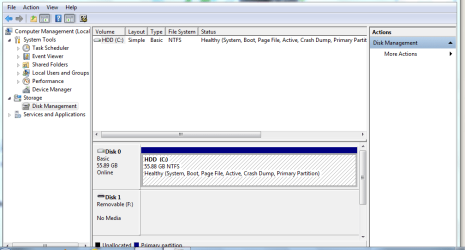
Please post back a screenshot of your maximized full Disk Mgmt drive map with listings, using Snipping Tool in Start Menu.

You may need to run the Repairs from the DVD or Repair CD so that the Repairs don't depend on OS files. And the System Reserved or Win7 partition may need to be marked Active - we shall see. http://www.sevenforums.com/tutorials/2083-system-repair-disc-create.html

While we look it over for you, check the logs and other resoures listed in these Troubleshooting Steps to see if any problems make themselves apparent.
 
Disk Management Drive Map Snips

The first snip is all that would fit on the screen. 2nd snip is a continuation of the drive info.
 

Attachments

  • Disk drive map, part 1.PNG
    Disk drive map, part 1.PNG
    21.8 KB · Views: 32
  • Disk drive map, part 2.PNG
    Disk drive map, part 2.PNG
    2.2 KB · Views: 9

My Computer

OS
Windows 7 Ultimate 32bit
It looks correct.

I'd run Startup Repair from DVD or Repair CD next to see if it finds any issues to repair. Try running it a few times if it finds anything.

Run through the troubleshooting list to see if you can find the problem.

If you have to clean reinstall, get a perfect install this time then after setup save externally a Win7 backup image so you never have to reinstall again - just reimage from the booted DVD or Repair CD using the stored image. http://www.sevenforums.com/tutorials/663-backup-complete-computer-create-image-backup.html
 
Last edited:

My Computer

Computer type
PC/Desktop
Computer Manufacturer/Model Number
Home Built Desktop By DataTech
OS
Windows 7 Ultimate X64 SP1
CPU
Intel i5-2550K, Differing ~4.4-4.8GHz No built in GPU
Motherboard
ASUS P8Z68-V PRO/GEN3
Memory
16GB G.Skill Sniper 1866MHz @ 2133MHz 2x8GB
Graphics Card(s)
ASUS GTX650TIB-DC2OC-2GD5, (650TI Boost)
Sound Card
Onboard Realtek 5-1
Monitor(s) Displays
Samsung P2570HD
Screen Resolution
1920x1080
Hard Drives
Samsung 840 Pro 256GB SSD for OS, 500GB Seagate Constellation (Enterprise drive) for Data
PSU
Corsair HX650W
Case
Inwin Dragon Rider
Cooling
Hyper 212 EVO w/two Noctua fans, push-pull, @1300 RPM
Keyboard
E-Z Eyes, bright yellow keys with large characters
Mouse
steelseries SENSEI Laser Pro Gaming
Internet Speed
48-51Mbs Mbs down, 11 Mbs up Xfinity Cable
Antivirus
Norton Internet Security 2013
Browser
IE 10, Opera, Pale Moon if needed
Other Info
4 case fans, LG BluRay-RE, ASUS DVD-RW, Mr. Fusion power supply, 1.21 gigawatts.
I am not sure where to find Startup Repair. Do you have a file name for the executable. Rather than a Win 7 DVD per se I have a file, en_windows_7_ultimate_x86_dvd_x15-65921.iso, from which I did the original installation. If I run setup.exe from the root directory within the ISO file there is no menu or option to run anything other than an install (upgrade or clean). Even an upgrade install will not work because with all of the updates since the original install, what I have installed is newer than what is on the "DVD" so the install aborts.

I just find it very ironic that when the n/b boots and I select a normal startup that it runs just fine. I would have to think that there is some corrupted file needed for startup to complete normally but that can be bypassed with no apparent problem.
 

My Computer

OS
Windows 7 Ultimate 32bit
You need to burn the ISO to DVD or write to bootable flash stick using Windows 7 USB-DVD Download Tool.

It needs to be bootable in case Win7 won't start and so you can run Startup Repair or any of the other booted System Recovery Options

If running Startup Repair a few times doesn't help, see if you have a System Restore point from before the problem began to restore to.

If those both fail to help, consider running a
Repair Install.

Click each of the blue links for a full tutorial.
 
I did create/burn the bootable DVD. Since the netbook does not have a DVD drive I access it on my laptop DVD drive. But one problems are I still cannot find any executable file in any directory on the DVD that even remotely look like Startup Repair or anything similar (I did a search on .exe on the DVD and then looked through the resultant list. But actually System Recovery runs on its own when I boot the netbook and do not (quickly enough) select the "Launch Windows Normally" option. When I then run System Repair, after a lengthy time it says it cannot repair this computer automatically with the choices being to send or don't send the information to Microsoft. I send it.

I am not willing to do a clean install. I also cannot do a Repair Install because I would first have to uninstall SP1 and when I read through all of the caveats I decided it was simply not worth it.

If I select "Launch Windows Normally" when the boot fails then Windows finishes starting up with no problems. I can live with this as this is a GITCA netbook and is not my main computer. After TechEd Atlanta it will go to another GITCA board member who will probably do a clean install and set it up for himself. I thought that if I could turn it in w/o problems that would be a plus, but now I will turn it over as is.

If any of you are at TechEd next month, stop by the GITCA booth in the Community Lounge.

Harvey Schoenman

Thank you for the help and suggestions. You can consider this ticket closed. :-)
 

My Computer

OS
Windows 7 Ultimate 32bit
You need to boot the installer's Repair console from the netbook itself to run Startup Repair, so that the Repair does not depend upon Win7 system files. This is how the Startup repair loop is normally resolved.

Write the ISO to flash stick using Ultra ISO trial version: On file tab open ISO or DVD, On Bootable tab Write Disk Image, Format, write. Boot under USB or HD's.

Then run Startup Repair from the Repair console on second screen.
 
I decided to give it one last shot. I burned the bootable image to a flash drive, changed the boot order on the netbook and booted Windows from the flash drive. It even said it was booting from the flash drive. After I clicked repair on the 2nd screen I ran Startup Repair from the Repair Console. Unfortunately the results were the same; i.e. it could not repair the system. Again sent the results to Microsoft. Then I rebooted and did it again (just to be sure). Yep, same results.

Since I am not going to take the time to do a full re-install, bring down all the patches and SP1, load the apps and get all of the current updates for them, and since I can use the n/b as is... I'm done!

Thanks for your help and all of your suggestions.
 

My Computer

OS
Windows 7 Ultimate 32bit
Did it show an installation to repair when you booted into Repair console?

Make sure Win7 or it's 100mb System Reserved boot partition (preferred) are marked Active, using DIskpart from Repair console Command Line, or free Partition Wizard bootable CD:
Partition - Mark as Active
Partition Wizard
Then run Startup Repair 3 times with reboots to see if it will repair. If not, change the Active flag to Win7 partition itself (if it was on 100mb) then run the Repairs again.

If needed you can copy out your files using Repair console this way: Copy & Paste - in Windows Recovery Console

Then if you slipstream SP1 into the installer it will minimize your workload quite a bit in Reinstalling Windows 7.
Slipstream Windows 7 SP1 into a Installation DVD or ISO File
 
Yes, it showed an installation to repair, OS: "Windows 7," Partition Size: "57223 MB," Location: "(C: ) HDD"
No 100mb System Reserved boot partition (only the Windows 7 partition).
Ran Diskpart from the Repair Console command line per instructions. Made the Windows 7 partition active.
Restarted normally but no go. Checked the partition with DiskMgmt.msc and it showed the Windows 7 partition as active. (I wish I had done this prior to marking it active using the command line tools as I believe it might have already been the active partition.)
Booted from the flash drive and ran the Startup Repair 3 times as you suggested. It could not find anything to repair. I sent the results to MS each time. For your info I have included the details below.
Repair Run 1.
Event: StartupRepair Offline
Sig 01: 6.1.7600.16385
Sig 02: 6.1.7600.16385
Sig 03: Unknown
Sig 04: 60
Sig 05: External Media
Sig 06: 1
Sig 07: NoRootCause
OS Ver: 6.1.7600.2.0.0.256.1
Locale ID: 1033
Repair Run 2. (Only where different from Repair Run 1)
Sig 04: 21201030
Sig 06: 2
Repair Run 3. (Only where different from Repair Run 2)
Sig 06: 3
Rebooted normally - Still no go.
I am not going to do a reinstall - not for a temporary netbook that I can get to work by selecting "Start Windows normally."
 
Last edited:

My Computer

OS
Windows 7 Ultimate 32bit
Could be a disk issue.

Might be worth running checkdisk - tick "Scan for and attempt recovery of bad sectors"
 

My Computers

System One System Two

  • Computer type
    PC/Desktop
    OS
    7 X64
    CPU
    i5 8400
    Motherboard
    gigabyte b365m ds3h
    Memory
    2x8gb 3200mhz
    Hard Drives
    various
    PSU
    pure power 11 400w cm
    Case
    Coolermaster
    Cooling
    cryorig m9i
  • Computer type
    PC/Desktop
    OS
    7x64
    CPU
    g5400
    Motherboard
    ga b365m ds3h
    Memory
    8gb ddr4 2400
    PSU
    xfx pro 450w
I almost didn't try this because I thought there was no way that it could be a disk sector problem and that Startup Repair would not have rewritten the bad file. But that's exactly what happened. I ran chkdsk with the /B switch and it replaced one of the boot files that it said had damaged sectors. I wish I remembered the file name but since it ran for so long, I only periodically came into the room to check it. I figured the command prompt screen with chkdsk's final entry would be on the screen when it finished, but it rebooted and when I came in, Windows had started up and showed the user icon selection. Just to make sure I did a restart and it booted right up.

Thank you so much for the help. :-)
CASE CLOSED!!

If you will be at TechEd in Atlanta next month, stop by the GITCA booth in the Community Lounge and say hello.

Harvey Schoenman
GITCA NorAm Board
 

My Computer

OS
Windows 7 Ultimate 32bit
I'm glad you persevered- and Happy it worked for you. :D

Thanks for the invite - but it's a little far to travel as I am across the Atlantic :)

It was just a hunch Greg. Or maybe magic ;)
 

My Computers

System One System Two

  • Computer type
    PC/Desktop
    OS
    7 X64
    CPU
    i5 8400
    Motherboard
    gigabyte b365m ds3h
    Memory
    2x8gb 3200mhz
    Hard Drives
    various
    PSU
    pure power 11 400w cm
    Case
    Coolermaster
    Cooling
    cryorig m9i
  • Computer type
    PC/Desktop
    OS
    7x64
    CPU
    g5400
    Motherboard
    ga b365m ds3h
    Memory
    8gb ddr4 2400
    PSU
    xfx pro 450w
Back
Top