
Built-in Administrator - Enable from WinRE

How to Enable the Built-in Elevated "Administrator" Account from WinRE

   Information

Theoretically if you don't have any administrator account, the built-in Administrator account should be available in safe mode (see also related articles). Sometimes due to any identified reason, the built-in Administrator may not to be available in safe mode.

This tutorial will help you to log on to the built-in Administrator in this case in Vista and Windows 7. It may also help if you forgot your admin password and you don't have a password reset disk.


METHOD I (work only for 32 bit systems)

1. Download this file enableadmin.exe, save it on your desktop, and unblock it.

2. Open a command prompt at boot.

3. In the command prompt, type diskpart and press Enter. (see screenshot below step 5)

4. In the command prompt, type list volume and press Enter. (see screenshot below step 5)
NOTE: This will let you see what the drive letter is for your Windows 7 drive. It may not always be the C: drive letter at boot.

5. After making note of the drive letter, type exit and press Enter. (see screenshot below)
Command-1.jpg
6. In the command prompt, type:
cd /d <boot partition>:\Users\<your account name>\Desktop

press ENTER

where <boot partition> is the drive letter where you installed Windows 7

and next type in command prompt

enableadmin


example:

here OS is on drive D:,the account name was John where this file has been placed so commands for this example will be:

cd /d D:\Users\John\Desktop

press ENTER

enableadmin

press ENTER
7. Restart computer,log on to build-in Administrator account and now you can try to fix problem dependce from situation -fix your account,reset password for your account or create new admin account.


METHOD II (work for all systems)

1. Open a command prompt at boot.

2. In the command prompt, type the command below and press Enter.
regedit
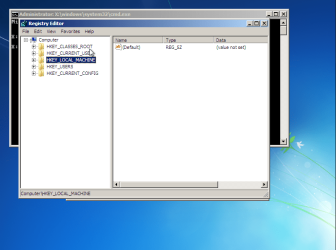
3. Click on HKEY_LOCAL_MACHINE (or HKEY_USERS - your choose. In this example I've chosen HKEY_LOCAL_MACHINE) .
rpp1.png
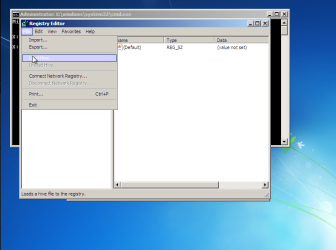
4. Go to File menu and choose load hive option
rpp2.png

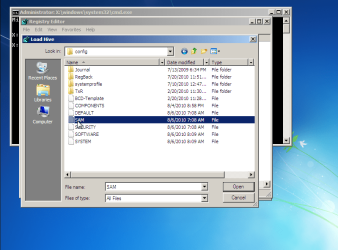
it will open new window and in that navigate to drive where your OS is installed and go to <boot partition>\Windows\System32\config

in this example it is C:\Windows\System32\config
5. Choose SAM file and click Open
rpp3.png
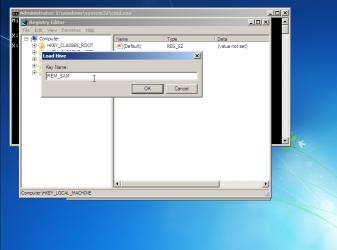
6. Next appear Key Name box,type the name whatever you want i.e REM_SAM
rpp4.png
7. Go to HKEY_LOCAL_MACHINE\REM_SAM\SAM\Domains\Accounts\Users\000001F4 key and double click on string F,
rpp5.png

it will open table with hexadicimal numbers
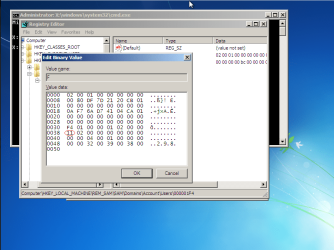
rpp6.png
Build-in Administrator is disabled
8. In this table find 11 number (8th line,first column in table -images),click to the right of it,press backspace and the 11 disappear and insert the 10 in this place
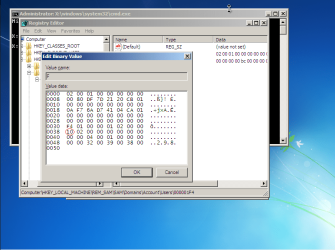
rpp8.png
Build-in Administrator is enabled
9. Close box,the whole regedit and restart computer.

10. Log on to build-in Administrator account and now you can try to fix problem dependce from situation -fix your account,reset password for your account or create new admin account.

   Warning

When finished repair you should disable build-in Administrator account (eventually create password for it).This account shouldn't be used in daily work.


Last edited by a moderator:
Hello Quidam88, and welcome to Seven Forums. :-)

You would need to do this from a command prompt at boot to avoid the in use issue.

Since you are able to boot into Safe Mode, you could see if you may be able to enable the built-in Administrator using one of the method below instead.

:ar: Built-in Administrator Account - Enable or Disable
 

My Computer My Computer

Computer type
PC/Desktop
Computer Manufacturer/Model Number
Self built custom
OS
64-bit Windows 11 Pro for Workstations
CPU
Intel i7-8700K OC'd to 5 GHz
Motherboard
ASUS ROG Maximus XI Formula Z390
Memory
64 GB (4x16GB) G.SKILL TridentZ RGB DDR4 3600 MHz
Graphics Card(s)
ASUS ROG-STRIX-GTX1080TI-O11G-GAMING
Sound Card
Integrated
Monitor(s) Displays
2 x Samsung Odyssey G7 27"
Screen Resolution
2560x1440
Hard Drives
1TB Samsung 990 PRO M.2,
4TB Samsung 990 PRO PRO M.2,
TerraMaster F8 SSD Plus NAS
PSU
Seasonic Prime Titanium 850W
Case
Thermaltake Core P3
Cooling
Corsair Hydro H115i
Keyboard
Logitech wireless K800
Mouse
Logitech MX Master 4
Internet Speed
2 Gb/s Download and 100 Mb/s Upload
Antivirus
Malwarebyte Anti-Malware Premium
Browser
Google Chrome
Other Info
Logitech Z625 speaker system,
Logitech BRIO 4K Pro webcam,
HP Color LaserJet Pro MFP M477fdn,
APC SMART-UPS RT 1000 XL - SURT1000XLI,
Galaxy S23 Plus phone
Any other suggestions

Thanks but do you have any other suggestions or work around? I had already tried method 2 and got hung up on the SAM step as I already posted. I can’t seem to get method 1 working because the computer won’t link to the internet in safe mode with networking, and afraid if I download on another computer and use a jump drive that it won’t let me because it won’t even let me open folders to transfer it to the desktop. Any other suggestions are appreciated.
 

My Computer My Computer

Computer type
PC/Desktop
Computer Manufacturer/Model Number
Custom build
OS
Windows 7
You should be able to use Option 2 below in the elevated command prompt while logged in to your account or in Safe Mode. An Internet connection is not required to enable the built-in Administrator account.

Built-in Administrator Account - Enable or Disable
 

My Computer My Computer

Computer type
PC/Desktop
Computer Manufacturer/Model Number
Self built custom
OS
64-bit Windows 11 Pro for Workstations
CPU
Intel i7-8700K OC'd to 5 GHz
Motherboard
ASUS ROG Maximus XI Formula Z390
Memory
64 GB (4x16GB) G.SKILL TridentZ RGB DDR4 3600 MHz
Graphics Card(s)
ASUS ROG-STRIX-GTX1080TI-O11G-GAMING
Sound Card
Integrated
Monitor(s) Displays
2 x Samsung Odyssey G7 27"
Screen Resolution
2560x1440
Hard Drives
1TB Samsung 990 PRO M.2,
4TB Samsung 990 PRO PRO M.2,
TerraMaster F8 SSD Plus NAS
PSU
Seasonic Prime Titanium 850W
Case
Thermaltake Core P3
Cooling
Corsair Hydro H115i
Keyboard
Logitech wireless K800
Mouse
Logitech MX Master 4
Internet Speed
2 Gb/s Download and 100 Mb/s Upload
Antivirus
Malwarebyte Anti-Malware Premium
Browser
Google Chrome
Other Info
Logitech Z625 speaker system,
Logitech BRIO 4K Pro webcam,
HP Color LaserJet Pro MFP M477fdn,
APC SMART-UPS RT 1000 XL - SURT1000XLI,
Galaxy S23 Plus phone
Throws that first

I actually tried method 2 first because it didn’t require me to download anything, see back to my first post, I got hung up at step 5 the SAM part, I says it’s in use by another program (original post has exact wording it uses). I can’t figure out how to get the SAM file open to get to step 6.

So today after work I tried method 1. But it won’t open the internet and when I put in a Jump drive it says I don’t have permissions to open any folder to even get to the jump drive, see one of my later posts, I am trying this because the other forum post said this helped fix the issue when locked out of things and tells me I can’t get into anything

Server process could not be started because the configured identity is - Microsoft Community

I’ve tried this all as normal admin, in safe mode, safe mode with command prompt... I was just hoping you might have another work around since this admin build helped other with this bigger issue.

Thanks for you help. If I can’t get it figured out I might have to break down and pay a tech
 
Last edited:

My Computer My Computer

Computer type
PC/Desktop
Computer Manufacturer/Model Number
Custom build
OS
Windows 7
Sorry, but I'm a bit confused.

If your goal is to enable the built-in Administrator account, what happened when you tried to use Option 2 below while logged in to your normal admin account not in safe mode?

Built-in Administrator Account - Enable or Disable
 

My Computer My Computer

Computer type
PC/Desktop
Computer Manufacturer/Model Number
Self built custom
OS
64-bit Windows 11 Pro for Workstations
CPU
Intel i7-8700K OC'd to 5 GHz
Motherboard
ASUS ROG Maximus XI Formula Z390
Memory
64 GB (4x16GB) G.SKILL TridentZ RGB DDR4 3600 MHz
Graphics Card(s)
ASUS ROG-STRIX-GTX1080TI-O11G-GAMING
Sound Card
Integrated
Monitor(s) Displays
2 x Samsung Odyssey G7 27"
Screen Resolution
2560x1440
Hard Drives
1TB Samsung 990 PRO M.2,
4TB Samsung 990 PRO PRO M.2,
TerraMaster F8 SSD Plus NAS
PSU
Seasonic Prime Titanium 850W
Case
Thermaltake Core P3
Cooling
Corsair Hydro H115i
Keyboard
Logitech wireless K800
Mouse
Logitech MX Master 4
Internet Speed
2 Gb/s Download and 100 Mb/s Upload
Antivirus
Malwarebyte Anti-Malware Premium
Browser
Google Chrome
Other Info
Logitech Z625 speaker system,
Logitech BRIO 4K Pro webcam,
HP Color LaserJet Pro MFP M477fdn,
APC SMART-UPS RT 1000 XL - SURT1000XLI,
Galaxy S23 Plus phone
;) thank you il give it a go when I get home , iam clueless using a laptop lol so need all help can get cheers .
 

My Computer My Computer

OS
Windows 7 32bit
:o Thank You ,I keep 2nd guessing myself witch isn't helpful :mad: cheers
 

My Computer My Computer

OS
Windows 7 32bit
:thumbsup:
 

My Computer My Computer

Computer type
PC/Desktop
Computer Manufacturer/Model Number
Self built custom
OS
64-bit Windows 11 Pro for Workstations
CPU
Intel i7-8700K OC'd to 5 GHz
Motherboard
ASUS ROG Maximus XI Formula Z390
Memory
64 GB (4x16GB) G.SKILL TridentZ RGB DDR4 3600 MHz
Graphics Card(s)
ASUS ROG-STRIX-GTX1080TI-O11G-GAMING
Sound Card
Integrated
Monitor(s) Displays
2 x Samsung Odyssey G7 27"
Screen Resolution
2560x1440
Hard Drives
1TB Samsung 990 PRO M.2,
4TB Samsung 990 PRO PRO M.2,
TerraMaster F8 SSD Plus NAS
PSU
Seasonic Prime Titanium 850W
Case
Thermaltake Core P3
Cooling
Corsair Hydro H115i
Keyboard
Logitech wireless K800
Mouse
Logitech MX Master 4
Internet Speed
2 Gb/s Download and 100 Mb/s Upload
Antivirus
Malwarebyte Anti-Malware Premium
Browser
Google Chrome
Other Info
Logitech Z625 speaker system,
Logitech BRIO 4K Pro webcam,
HP Color LaserJet Pro MFP M477fdn,
APC SMART-UPS RT 1000 XL - SURT1000XLI,
Galaxy S23 Plus phone
Back
Top