Solved Can't install windows 7 on new asus laptop

dragonballz4

New member
Local time
10:27 AM
Messages
27
Hello i just bought an asus x551m laptop and I downloaded the Windows 7 iso and burned it using Windows USB/DVD Tool.I have tried Many different isos and I have the same problem-it goes 'windows is loading files' and then when it reaches the "windows starting", it restarts before i see the windows logo's colors come together. it restarts as soon as it reaches "Starting windows".Please help.remember it is a new laptop.
 

My Computer My Computer

At a glance

Windows 7Intel Quad Core2 GbBuilt in
Computer type
PC/Desktop
Computer Manufacturer/Model Number
Asus
OS
Windows 7
CPU
Intel Quad Core
Memory
2 Gb
Graphics Card(s)
Built in
Hard Drives
Sata 500gb
A new laptop will have UEFI BIOS if so you'll need to follow the steps in UEFI (Unified Extensible Firmware Interface) - Install Windows 7 with - Windows 7 Forums, and more special steps if you're using USB installer in Option One here: UEFI Bootable USB Flash Drive - Create in Windows.

If this still fails even when booting the installer as a UEFI device and deleting all partitions first, or shrinking C to create a new partition if you want to dual boot with the OS on there, then check the BIOS settings for Secure Boot which must be disabled, any UEFI or CSM which may need enabling, and Legacy BIOS or Boot which may need disabling. Post back a camera snap of all choices if you're unsure.

If this becomes too much to bother with any longer then you can also Bypass UEFI to Install WIn7 which always works.
 
Thanks for the reply i have disabled secure boot and enabled csm still the same problem,by mistake in free dos i typed format and whenit was at 1% my laptop powered off.now it wont go past bios splash screen and i cant enter bios please help.
 

My Computer My Computer

At a glance

Windows 7Intel Quad Core2 GbBuilt in
Computer type
PC/Desktop
Computer Manufacturer/Model Number
Asus
OS
Windows 7
CPU
Intel Quad Core
Memory
2 Gb
Graphics Card(s)
Built in
Hard Drives
Sata 500gb
What i am trying to say is i tried using the uefi steps,when that failed i found out that win7 requires ntfs so i tried to format using freeDos and by mistake switched off the computerin between and now i cant acces my bios as it wont go past asus splash screen. Please help
 

My Computer My Computer

At a glance

Windows 7Intel Quad Core2 GbBuilt in
Computer type
PC/Desktop
Computer Manufacturer/Model Number
Asus
OS
Windows 7
CPU
Intel Quad Core
Memory
2 Gb
Graphics Card(s)
Built in
Hard Drives
Sata 500gb
I know but i cant follow those steps because my computer is freezing at asus splash screen-i cant acess my bios.or boot from cd or usb.it is frozen at asus splash screen
 

My Computer My Computer

At a glance

Windows 7Intel Quad Core2 GbBuilt in
Computer type
PC/Desktop
Computer Manufacturer/Model Number
Asus
OS
Windows 7
CPU
Intel Quad Core
Memory
2 Gb
Graphics Card(s)
Built in
Hard Drives
Sata 500gb
Thanks it worked
 

My Computer My Computer

At a glance

Windows 7Intel Quad Core2 GbBuilt in
Computer type
PC/Desktop
Computer Manufacturer/Model Number
Asus
OS
Windows 7
CPU
Intel Quad Core
Memory
2 Gb
Graphics Card(s)
Built in
Hard Drives
Sata 500gb
I am experiencing nearly the same problem as OP - same laptop, same goal of installing Windows 7, except I am getting a blue screen upon the windows 7 install loading screen, which says:

A problem has been detected and windows has been shut down to prevent damage to your computer. If this is the first time you've seen this stop error screen, restart your computer. If this screen appears again, follow these steps: The BIOS in this system is not fully ACPI compliant. Please contact your system vendor for an updated BIOS. Technical information:

*** STOP: 0x000000A5 (0x0000001D,0x00000000,0x00000000)

This was when booting from USB or DVD, not in UEFI "mode" - meaning, I turned off a few options in the BIOS (fast booting was turned off, CMS was turned on, Secure Boot was turned off).

When I tried creating a UEFI bootable USB drive by following the steps here, and booting from this USB drive, the system just presents the boot menu again, and if I select the USB option again, it loads up Windows 8 (so it seems to be not recognizing the USB as "bootable").

I looked at the available BIOS updates, but none seemed relevant, and I'm not sure what to do with the .510 files that it provides - maybe I'm looking in the wrong place?

Thanks for any help!
 

My Computer My Computer

At a glance

Windows 8.1, trying to downgrade to Windows 7...
Computer type
PC/Desktop
Computer Manufacturer/Model Number
Asus X5551
OS
Windows 8.1, trying to downgrade to Windows 7 Ultimate x64
I'm having the same issue but non of the steps is working. I have asus x553ma and I installed windows 8.1 without any problems but installing windows 7 is a 2 day nightmare!
when I try to boot I have 3 options: boot from my HDD, UEFI:(name of my flash drive) and (name of my flash drive). If I go to UEFI it takes me to BIOS. If I choose (name of my flash drive) I boot from the flash drive, and just as I'm about to start my installation I get blue screen of death.
Does this make any sense? :)
Please help
 

My Computer My Computer

At a glance

8.1 64 bit4GB
Computer type
Laptop
Computer Manufacturer/Model Number
Asus/x553M
OS
8.1 64 bit
Memory
4GB
In BIOS setup confirm that Secure Boot is disabled, UEFI and CSM or Legacy BIOS enabled. Then boot the installer as a UEFI device which should work since it's showing up on your Boot menu.

To make sure you've written the stick correctly do it over following Option One in UEFI Bootable USB Flash Drive - Create in Windows.

If this fails post back pictures of your BIOS settings choices for Secure Boot, UEFI, CSM, Legacy BIOS, and BIOS Boot Priority options. Screenshots and Files - Upload and Post in Seven Forums - Windows 7 Forums

You can also Bypass UEFI to Install WIn7
 
How to install Windows 7 x64 on notebook Asus X552MD

First of all. I'm sorry in advance for my bad English. I'm new on this forums. I'v had this problem with my Asus X552MD notebook and finally i succeeded to install Win7 Ultimate x64 on it.In order to do that i upgraded my BIOS version to 300. So here we go.

IMPORTANT: Don't forget to plug in you'r notebook charger. You don't want to stop the process. you might brick you'r Notebook if the process is stopped.
IMPORTANT: The files linked below , are only for ASUS X552MD. Don't use them for another laptops. Check you'r compatibility first.


Steps:

1.You will need a USB Stick any size (I used a ADATA 2GB Stick).
IMAG0091_1.jpg


2.BIOS compatible File Here (External1), Here (External2) or Here (Asus website ZIP)
IMAG0105_1.jpg


3.Put X550MDAS.300 on the USB Stick.

4.Take the USB Stick and mount it on an USB port in to you'r ASUS X552MD Notebook.

5.Power your Asus Notebook and enter in bios by pressing Fn+F2 keys.

6.Go to Advanced tab and Enter in "Start Easy Flash"
IMAG0099_1.jpg


7.You'r values showed in Easy Flash Utility will be different of the ones showed in the image below. That's because i already upgraded my BIOS. So: As you see in the image my Platform is X550MD, Version 300, And build Date Nov 3 2014. Yours are lower and older than mine.
In the left column you will see the partitions available. mine are noted as FS0 , FS1 and FS2. Find the one witch is you'r USB Stick. Mine was FS0. in the right side you will get you'r BIOS File X550MDAS.300.
Highlight it , and press enter on it. Then follow the steps to start the FLASH. After the Flash is started , don't Interrupt it..
IMAG0101_1.jpg


8.When the Flash ends the system will reboot in 2 seconds.
After the reboot , enter again in BIOS by pressing Fn+F2. And go again to Advanced tab. And change the OS Selection to Windows 7.
IMAG0102_1.jpg


9.Make sure Secure Boot is disabled in the Security Tab.
IMAG0098_1.jpg


10. Make sure SATA Mode is on AHCI Mode. Advanced->SATA Configuration->SATA Mode
IMAG0095_1.jpg


11. After That , Change you'r boot priority to CD/DVD , or if you want to install Win 7 from a USB Stick , just plug it in. Save BIOS changes , reboot , and voila , you got your system booting Win 7 x64.


I Hope that was useful , if you have any questions about this tutorial , just feel free to ask. Cheers.
Melkazen.

 

My Computer My Computer

At a glance

Windows 7 Ultimate x86/x64Intel core 2 Quad 2.16ghz/Intel core 2 Duo 2....
Computer type
PC/Desktop
Computer Manufacturer/Model Number
Asus, Dell , Compaq
OS
Windows 7 Ultimate x86/x64
CPU
Intel core 2 Quad 2.16ghz/Intel core 2 Duo 2.66ghz
Dear Melkazen,
First of all thanks for your extra detailed information on how to update the bios on your x552md in order to install Windows 7. I too own an asus x552md laptop, which originally came with bios version 205, and (of course) does not allow me to setup win7. My question is: Is the latest bios version (v.300, 2014/11/20 - as listed in the official web site) compatible with all different hardware setup versions of the x552md series laptops? I'm asking cause in the afficial asus website my current hardware setup don't seem to be listed (mine has a celeron quad core N2930 CPU, and on the official web site only lists the models with i3,i5 and i7 CPU's).
And another question: would you mind telling us what is your hardware configuration (CPU etc.) on your x552md laptop?
Thank you very much.
Thanks for keeping up this wonderful forum.
AthanStef.
 
Last edited:

My Computer My Computer

At a glance

Windows 7 Home Premium 32bit
Computer type
PC/Desktop
OS
Windows 7 Home Premium 32bit
attachment.php


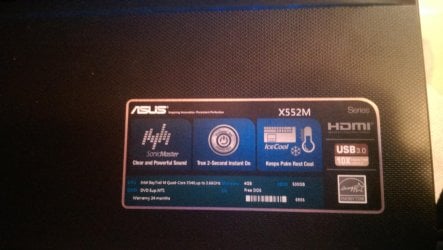
This is my laptop , as u see mine has quad core , not i3 , i5 or i7 and worked just fine :)
 

Attachments

  • IMAG0089.jpg
    IMAG0089.jpg
    330 KB · Views: 15

My Computer My Computer

At a glance

Windows 7 Ultimate x86/x64Intel core 2 Quad 2.16ghz/Intel core 2 Duo 2....
Computer type
PC/Desktop
Computer Manufacturer/Model Number
Asus, Dell , Compaq
OS
Windows 7 Ultimate x86/x64
CPU
Intel core 2 Quad 2.16ghz/Intel core 2 Duo 2.66ghz
Hi there, and sorry for the delayed response. I finally followed your tutorial (updated BIOS to version 300) and, YES, Win7 ultimate 64bit installed perfectly! All hardware recognized (after loading asus drivers) and had no problem at all. Thank you once again for your really helpful and detailed tutorial.
To anyone who might want to know my setup is: ASUS X552MD-SX019D, utilizing intel quad core celeron N2930, 4Gb RAM, 500G HDD, nvidia 820M/1Gb.
AthanStef.
 

My Computer My Computer

At a glance

Windows 7 Home Premium 32bit
Computer type
PC/Desktop
OS
Windows 7 Home Premium 32bit
You're welcome, and i'm glad i could help. I'v made this tutorial because i had the same problem and i didn't find any related topics about it. So i managed myself. ^^ cheers.
 

My Computer My Computer

At a glance

Windows 7 Ultimate x86/x64Intel core 2 Quad 2.16ghz/Intel core 2 Duo 2....
Computer type
PC/Desktop
Computer Manufacturer/Model Number
Asus, Dell , Compaq
OS
Windows 7 Ultimate x86/x64
CPU
Intel core 2 Quad 2.16ghz/Intel core 2 Duo 2.66ghz
Win 7 Driver at installation

Hi,

I had a issue installing Windows 7 on my Asus ux31e.

It stopped and asked for drivers and i tried all the drivers relating to disk and controller but it did not work.

So after a bit of head scratching i realized that i had the usb in the usb3 port, i swopped it to the usb2 port rebooted and the installation went well.

I made the usb installation disk with Rufus.

Hope this helps.
Mick
 

My Computer My Computer

At a glance

Win 7
Computer type
PC/Desktop
Computer Manufacturer/Model Number
Asus
OS
Win 7
Thanks for your feedback , i hope this will help other people with they'r ux31e.


Melkazen
 

My Computer My Computer

At a glance

Windows 7 Ultimate x86/x64Intel core 2 Quad 2.16ghz/Intel core 2 Duo 2....
Computer type
PC/Desktop
Computer Manufacturer/Model Number
Asus, Dell , Compaq
OS
Windows 7 Ultimate x86/x64
CPU
Intel core 2 Quad 2.16ghz/Intel core 2 Duo 2.66ghz
Back
Top