You may have to take the drastic action as mentioned below. It's not really drastic unless you really, really care about the content of your current jumplists (they'll rebuild themselves as you go back to using the files again).
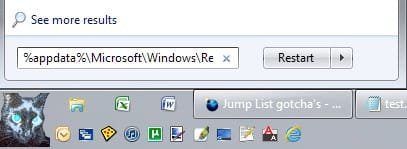
To get to the place where you can delete the current jumplists in order to reset them, type (or copy and paste) each of the following into your Start Menu search bar and then press "Enter" on the keyboard after pasting each (don't try to paste both and then hit enter

):
%appdata%\Microsoft\Windows\Recent\AutomaticDestinations
%appdata%\Microsoft\Windows\Recent\CustomDestinations
You'll get an explorer window showing the contents:
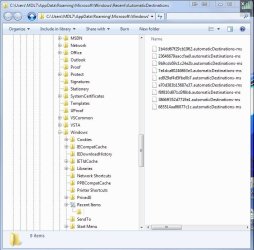
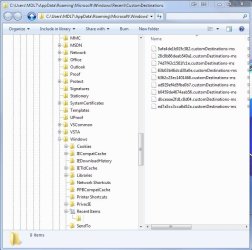
Delete the contents of each and all of your jumplists will start over, perhaps fixing the glitch you have encountered.
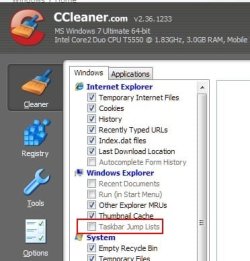
Oh, CCleaner, if you have it, will empty these folders when this option is selected:
It is possible to figure out which program is associated with each jumplist entry by examining the contents with a text viewer. One can also look at the date modified entry and deduce quite closely as well.
I found this list a while ago that correlates a few of the *.*Destinations-ms files to the program with which they belong:
74d7f43c1561fc1e Media Player
1b4dd67f29cb1962 Explorer
5afe4de1b92fc382 Welcome Center
28c8b86deab549a1 Internet Explorer
918e0ecb43d17e23 Notepad



