
Change Command Prompt Default Directory

MadMaxData

Banned
Local time
7:02 PM
Messages
759
Location
Ohio
This is a simple registry hack to change the default directory you see when opening command prompt. I like to have it set to the OS root drive, but you can change it to whatever you like. This will keep you from having to use the "change directory" switch every time you open command prompt, which can be more than a little annoying. ;)

1.) Open up registry editor by typing "regedit" [without the quotes] in the search box, and then clicking on the link up top.

2.) Navigate to the key HKEY_CURRENT_USER \ Software \ Microsoft \ Command Processor and search for the string "Autorun" in the left window. If that string is not existing yet, create it. Double-click it afterwards and add the new directory path in the following way: CD /d C:\

3.) If you would like the command prompt to open in the system32 folder, use this string instead:
CD /d C:\windows\system32

4.) Close the registry editor, and then open the command prompt to check your work.

As you can see, you can easily change the default directory to whatever you like. Hope this helps you from being annoyed at the command prompt. :D

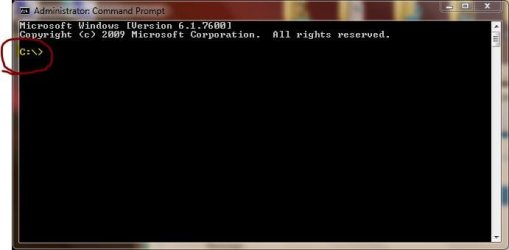
Here's the rusult....

21or8z9.jpg


Max
 

My Computer

Computer Manufacturer/Model Number
NVIDIA
OS
Windows 7 Enterprise x64
CPU
AMD Athlon 64X2 Dual Core 3800+
Motherboard
GeForce 6100-M9
Memory
OCZ Platinum Dual Channel - 4x1Gb
Graphics Card(s)
NVIDIA GeForce 8800 GT PCI Express x16
Sound Card
Creative Audigy Sound Blaster Extreme PCI
Monitor(s) Displays
Compaq 7500
Screen Resolution
1024x768
Hard Drives
C: Seagate ST3250318AS SataII - 250Gb

D: Seagate ST3500418AS SataII - 500Gb
PSU
OCZ 600w Dual 12v Rails
Case
Thermaltake
Cooling
OCZ Heatsinks, Fans, and Thermal Paste on CPU & Chipsets
Keyboard
Logitech
Mouse
Radio Shack PS2
Internet Speed
Cable
Other Info
Dual Pioneer DVD/RW optical drives. LG CD/RW optical drive.
This is a simple registry hack to change the default directory you see when opening command prompt.

Hi Max... why would you do that?

In your start bar find the command prompt shortcut, make a copy of it in a convenient place...

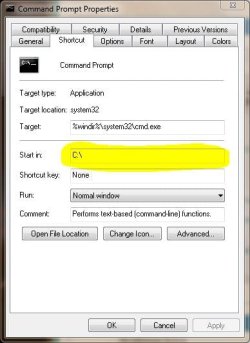
Right click and select properties... You will see this....

Capture.JPG

In the "Start in" box type the path where you want the command prompt to open.
You can even make multiple copies of the shortcut and have them available to open in any convenient place you like...

Capture2.JPG

In addition there are a number of variables that can be used...

%HOMEDRIVE% = the root folder of your system partition
%APPDATA% = the application data folder for each user
%HOMEPATH% = your user folder
%PUBLIC% = your public folder
%SYSTEMROOT% = windows folder
%PROGRAMFILES% = program files folder
%TEMP% = user's temp folder

and I'm sure there are more...
 

My Computer

Computer Manufacturer/Model Number
Homebrew
OS
XP Pro SP3 X86 / Win7 Pro X86
CPU
Amd 64 x2 4200 (2.4ghz)
Motherboard
Asus M2N-MX SE Plus
Memory
Kingston DDR2 800 2gb
Graphics Card(s)
Nvidia GF-8400
Sound Card
Realtek on Motherboard
Monitor(s) Displays
Acer x-193bw
Screen Resolution
1440 x 900
Hard Drives
Western Digital 500g
PSU
350watt In-Win
Case
In-Win
Cooling
Air
Keyboard
yes
Mouse
yes
Internet Speed
5mpbs
Other Info
Also ASRock ION 330 as HTPC (on XP).
Acer Aspire as GP netbook (on XP).
Hi Max... why would you do that?
Becuase it's simple, and that's the way I've always done it. Except now I have a .reg file I just double-click on after a clean install. It's among a number of .reg files I use.
 

My Computer

Computer Manufacturer/Model Number
NVIDIA
OS
Windows 7 Enterprise x64
CPU
AMD Athlon 64X2 Dual Core 3800+
Motherboard
GeForce 6100-M9
Memory
OCZ Platinum Dual Channel - 4x1Gb
Graphics Card(s)
NVIDIA GeForce 8800 GT PCI Express x16
Sound Card
Creative Audigy Sound Blaster Extreme PCI
Monitor(s) Displays
Compaq 7500
Screen Resolution
1024x768
Hard Drives
C: Seagate ST3250318AS SataII - 250Gb

D: Seagate ST3500418AS SataII - 500Gb
PSU
OCZ 600w Dual 12v Rails
Case
Thermaltake
Cooling
OCZ Heatsinks, Fans, and Thermal Paste on CPU & Chipsets
Keyboard
Logitech
Mouse
Radio Shack PS2
Internet Speed
Cable
Other Info
Dual Pioneer DVD/RW optical drives. LG CD/RW optical drive.
Hi Max... why would you do that?
Becuase it's simple, and that's the way I've always done it. Except now I have a .reg file I just double-click on after a clean install. It's among a number of .reg files I use.

Yeah, well... My way is better... :p

Hey... whatever works.
 

My Computer

Computer Manufacturer/Model Number
Homebrew
OS
XP Pro SP3 X86 / Win7 Pro X86
CPU
Amd 64 x2 4200 (2.4ghz)
Motherboard
Asus M2N-MX SE Plus
Memory
Kingston DDR2 800 2gb
Graphics Card(s)
Nvidia GF-8400
Sound Card
Realtek on Motherboard
Monitor(s) Displays
Acer x-193bw
Screen Resolution
1440 x 900
Hard Drives
Western Digital 500g
PSU
350watt In-Win
Case
In-Win
Cooling
Air
Keyboard
yes
Mouse
yes
Internet Speed
5mpbs
Other Info
Also ASRock ION 330 as HTPC (on XP).
Acer Aspire as GP netbook (on XP).
Also, if you put whatever paths you need in your PATH environment variable, then that will negate the need to have CMD in a different directory in most cases. It won't really matter what directory it defaults to unless you are specifically trying to do something in that directory.
 

My Computer

OS
Windows 7
CPU
i5-750
Motherboard
Asus
Memory
4GB DDR3 1600
Graphics Card(s)
GT220

My Computer

Computer type
PC/Desktop
Computer Manufacturer/Model Number
Self built custom
OS
64-bit Windows 11 Pro for Workstations
CPU
Intel i7-8700K OC'd to 5 GHz
Motherboard
ASUS ROG Maximus XI Formula Z390
Memory
64 GB (4x16GB) G.SKILL TridentZ RGB DDR4 3600 MHz
Graphics Card(s)
ASUS ROG-STRIX-GTX1080TI-O11G-GAMING
Sound Card
Integrated
Monitor(s) Displays
2 x Samsung Odyssey G7 27"
Screen Resolution
2560x1440
Hard Drives
1TB Samsung 990 PRO M.2,
4TB Samsung 990 PRO PRO M.2,
TerraMaster F8 SSD Plus NAS
PSU
Seasonic Prime Titanium 850W
Case
Thermaltake Core P3
Cooling
Corsair Hydro H115i
Keyboard
Logitech wireless K800
Mouse
Logitech MX Master 4
Internet Speed
2 Gb/s Download and 100 Mb/s Upload
Antivirus
Malwarebyte Anti-Malware Premium
Browser
Google Chrome
Other Info
Logitech Z625 speaker system,
Logitech BRIO 4K Pro webcam,
HP Color LaserJet Pro MFP M477fdn,
APC SMART-UPS RT 1000 XL - SURT1000XLI,
Galaxy S23 Plus phone
An easy way to set the Command Prompt to open as Administrator, is to go to Start Orb>>> All Programs>>> Accessories>>> Right click the Command Prompt link>>> Choose Properties>>> Click on Advanced in the Shortcut tab>>> Tick the box to run as Administrator>>> click ok twice to save your setting.

I always run the Command Prompt as Administrator. There's no reason to run it any other way. ;)
 

My Computer

Computer Manufacturer/Model Number
NVIDIA
OS
Windows 7 Enterprise x64
CPU
AMD Athlon 64X2 Dual Core 3800+
Motherboard
GeForce 6100-M9
Memory
OCZ Platinum Dual Channel - 4x1Gb
Graphics Card(s)
NVIDIA GeForce 8800 GT PCI Express x16
Sound Card
Creative Audigy Sound Blaster Extreme PCI
Monitor(s) Displays
Compaq 7500
Screen Resolution
1024x768
Hard Drives
C: Seagate ST3250318AS SataII - 250Gb

D: Seagate ST3500418AS SataII - 500Gb
PSU
OCZ 600w Dual 12v Rails
Case
Thermaltake
Cooling
OCZ Heatsinks, Fans, and Thermal Paste on CPU & Chipsets
Keyboard
Logitech
Mouse
Radio Shack PS2
Internet Speed
Cable
Other Info
Dual Pioneer DVD/RW optical drives. LG CD/RW optical drive.
There is another way to script this into a batch file...

I found this result by google so, sorry for bringing this out of the archive. I thought you all would like this,

To List the working directory, you can call on the environmental variable of %cd%

For example:
If your trying to make a batch file that copyies a file from a "flash drive" to the desktop, you would normally put something like this:

copy e:\filename.txt c:\users\username\desktop /y

The problem would then be that if you plug the flash drive into a machine where the drive letter E: is taken, your copy command would not work. If you use environmental variables your copy command would look something like this.

copy %cd%filename.txt %userprofile%\desktop /y

P.S. keep in mind if you would like to add in a little debugging, add "&&" to specify an action if sucessful OR "||" to specify an action if NOT successful.

For Example the following would copy the file and if it was NOT successful it would ECHO Copying Failed.

copy %cd%filename.txt %userprofile%\desktop /y||ECHO Copying Failed
 

My Computer

OS
Windows 7 32 bit & Windows 7 64 bit
CPU
Core i5
Motherboard
eVGA
Memory
4GB 1333
Graphics Card(s)
eVGA 460 GT OC
I came upon this thread when trying to find how to open, from a desktop icon, a Command Prompt window in a directory of my choosing.

It would seem that the specification of a directory path in the "Start in" field in the shortcut will work only when the Command Prompt shortcut is run in normal, or non-elevated, mode.

However, if the box "Run as administrator" is ticked, the Command Prompt window starts with C:\Windows\System32 as the current directory. It is at this point that one needs to use MadMaxData's original Regedit hack, the first post in this thread, to change this to the directory of one's choosing, say D:\MyDirectory - for which I thank him!
 

My Computer

OS
Windows 7 Pro 64-bit
I came upon this thread when trying to find how to open, from a desktop icon, a Command Prompt window in a directory of my choosing.

It would seem that the specification of a directory path in the "Start in" field in the shortcut will work only when the Command Prompt shortcut is run in normal, or non-elevated, mode.

However, if the box "Run as administrator" is ticked, the Command Prompt window starts with C:\Windows\System32 as the current directory, regardless of whatever directory path has been put in the "Start in" field. It is at this point that one needs to use MadMaxData's original Regedit hack, the first post in this thread, to change this to the directory of one's choosing, say D:\MyDirectory - for which I thank him!
 

My Computer

OS
Windows 7 Pro 64-bit
JFI: Using this method just to set the initial path when opening a command line window can lead to problems: a colleague of me had strange errors compiling a VisualStudio project which uses a PostBuild-step processing to copy some files using relative paths, and it was very hard to find out this Autorun entry changed the directory before the PostBuild commands were executed, so the relative paths pointed to wrong locations.
 

My Computer

Computer type
PC/Desktop
OS
Windows 7 Ultimate x64
Welcome to the Seven Forums, rompl.

Good info - nice first post!
 

My Computer

Computer type
Laptop
Computer Manufacturer/Model Number
Employer provided Dell Latitude
OS
W7 Pro SP1 64bit
CPU
i7
Memory
8GB
Graphics Card(s)
Intel HD Graphics
Hard Drives
crappy SSD
Antivirus
Employer mandated Symantec Endpoint Protection
Browser
Pale Moon 64bit, IE11 64bit & Chrome 64bit
I also had problems with this. Due to the default folder being changed, a bat file from certain software I installed was not working anymore. After a long investigation of what went wrong, I found out that the problem was solved when deleting the registry entry again. If I understood it correctly, mostly %d commands will cause problems if you change the default folder.

So be careful with implementing this!
 

My Computer

Computer type
PC/Desktop
OS
Windows 7 64 bit
Back
Top