Solved Cloning to new SSD from failing HDD

Jason Carlton

New member
Local time
9:19 AM
Messages
11
Hi all,

I'm working on my GF's laptop. It's an HP, and the HDD is starting to fail. I ordered a new SSD for her, but I'm having a hard time getting the old one cloned over; she has about 80G of data, and the old drive keeps crashing in the middle of processing! I've tried both cloning and creating an image (for several days now), but have problems with both.

The new SSD currently has an unnamed partition from the earlier cloning attempt, and I assume it has boot data on it. Then I have a G: drive with the "Recovery" data from HP. Then I have an H: drive that's empty, and SHOULD hold all of the old drive's C: data. I had to create the H: label manually under Disk Management; before, I just had the unnamed partition, then G:, then an unallocated partition.

So here's my question:

Since I have the unnamed partition, can I just manually copy C: from the old drive to H: on the new drive, then swap the drives? Would H: then automatically become C:, and everything work like it should?

Manually copying data is going to take forever, but it would at least let me pick up where I left off each time the HDD crashes.

If that won't work, what is a better alternative?
 

My Computer My Computer

At a glance

Windows 7 Ultimate x64
OS
Windows 7 Ultimate x64
Jason do you have a way of clean installing Windows?? because personally I would retrieve all data and then install the Windows and put back the data afterwards as I think what you are trying to do is going to take a lot of working out.
Plus just what are you using to clone the drive with? (program)

To retrieve data see this
BOOTABLE UBUNTU
Make a bootable Ubuntu disk Download Ubuntu Desktop | Download | Ubuntu
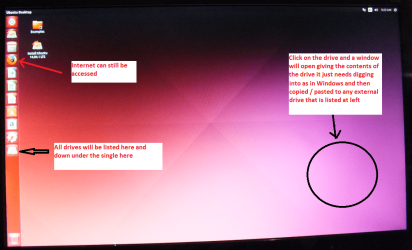
Set the BIOS to boot from the optical when the machine boots it will show you a screen with TRY or INSTALL > select TRY not INSTALL
When it is finished - it takes very little time you will get a screen like in the pic .
Open the drive you want > User and dig down until you get to the data / settings you may be able to copy / paste the material you want to an external source or other installed drive doing this.
I am not sure if it will but I have recovered tons of data etc using this method both on "dead" or just plain drives that you cannot get data from using Windows.
 

Attachments

  • UBUNTU SCREEN X2.PNG
    UBUNTU SCREEN X2.PNG
    272.7 KB · Views: 0

My Computer My Computer

At a glance

Desk1 7 Home Prem / Desk2 10 Pro / Main lap A...Desk1 i5 3750K / Laptop i7 GTX 860M / Desk2 i...Desk1 8GB (1866) / Desk2 16GB (1333) / Laptop...Desk 1& 2NVidia GTX 650 & Laptops on board Intel
Computer type
PC/Desktop
Computer Manufacturer/Model Number
Own build (new) Desk1 / Asus ROG Win 7 / Desk2 1st build
OS
Desk1 7 Home Prem / Desk2 10 Pro / Main lap Asus ROG 10 Pro 2 laptop Toshiba 7 Pro Asus P2520 7 & 10
CPU
Desk1 i5 3750K / Laptop i7 GTX 860M / Desk2 i5 2500
Motherboard
Desk1 Asus P877-V / Desk2 Gigabyte H67 UD3H / Laptop ?
Memory
Desk1 8GB (1866) / Desk2 16GB (1333) / Laptop 8Gb DDR3
Graphics Card(s)
Desk 1& 2NVidia GTX 650 & Laptops on board Intel
Sound Card
Desk 1 & 2 -XONAR DG Realtek High Def audio Laptop
Monitor(s) Displays
Desk 1 Benq HD 2450 / Desk2 Philips 24" / Laptop 17.5"
Screen Resolution
1920x1080 D1 & D2 & Laptop 1
Hard Drives
Desk1 Samsung 120GB 830 SSD
Asus ROG 256GB 850 Pro SSD
Desk2 Samsung 840 256 SSD
Toshiba 120GB EVO
PSU
Desk 1 Corsair HX 1050/ Laptop ? / Desk 2 Corsair HX 650
Case
Desk 1 Cooler HAF XM ? Toshiba laptop / Desk2 Coolermaster
Cooling
Fans on all Desk1 -2 Desk2 - all Coolermasters 5 Laptop ?
Keyboard
Desk 1 MS Sidewinder X6 Desk 2 MS Sidewinder X 4
Mouse
Desk 1&2 - Gigabyte MS 900 gamer - laptop - Logitec wireless
Internet Speed
ADSL2+
Other Info
One other Desktop (tester) and spare Toshba laptop both with SSD's
Running Kaspersky 2016 ISS on all machines config'd identically
Logitec audio stereo systems on each machine (x3)
Canon MG5250MFC
Router/modem TP-Link running WPA2SK

My Computers My Computers

  • At a glance

    Windows 11 ProRyzen 9 5900X32GB G Skill DDR4-3600EVGA RTX 3080 FTW 3 Ultra
    Computer type
    PC/Desktop
    Computer Manufacturer/Model Number
    ALWAYS UNDER CONSTRUCTION
    OS
    Windows 11 Pro
    CPU
    Ryzen 9 5900X
    Motherboard
    Asus X570 Crosshair Viii Hero
    Memory
    32GB G Skill DDR4-3600
    Graphics Card(s)
    EVGA RTX 3080 FTW 3 Ultra
    Sound Card
    On Board/Sennheiser PC37X Headset
    Monitor(s) Displays
    3 X Asus 27"
    Screen Resolution
    2560x1440
    Hard Drives
    2 X 1 TB NVME drives
    PSU
    EVGA 850
    Case
    Phanteks Eclipse P400A
    Cooling
    EVGA 280 AIO
    Keyboard
    Logitech G510s/ Logitech G13
    Mouse
    Logitech G502
    Internet Speed
    24/1
    Antivirus
    ESET/MBAM Pro/SAS Pro
    Browser
    Chrome/ Firefox/ Edge
  • At a glance

    Windows 11 ProIntel Ultra 9 288V32 GB LPDDR5X 8533
    Computer type
    Laptop
    System Manufacturer/Model Number
    Dell 16 Plus
    OS
    Windows 11 Pro
    CPU
    Intel Ultra 9 288V
    Memory
    32 GB LPDDR5X 8533
    Monitor(s) Displays
    16" Mini-LED HDR600 Touch 90 Hz
    Screen Resolution
    2560X1600
    Hard Drives
    1 TB NVME
ason, here is a tutorial on how to do it. http://www.sevenforums.com/tutorials/149969-ssd-install-transfer-operating-system.html
The Paragon way is the easiest way, but not free.

However, if your hard drive is failing, I would recommend a clean install as ICIT2LOL said. If your failing hard drive has bad sectors or errors, as most would, you would be carrying them over to the new SSD.
I have used Casper 8 to clone my SSD C: drive to an ext. USB drive as a practice for cloning on to the SSD after a future fault (which I haven't done yet). From looking at the list of what was cloned it seemed to be complete. Casper does cloning and some other backups only (including bootable backups) but not the drive management that Paragon does. It is not expensive.
 

My Computer My Computer

At a glance

Windows 7 Home Premium 64bitIntel Pentium Edition G3220 3.0 GHz8 GB DDR3 1600 MHz DIMMNot Known
Computer type
PC/Desktop
Computer Manufacturer/Model Number
Gigabyte ATX case with 500 W power supply GZ-M1
OS
Windows 7 Home Premium 64bit
CPU
Intel Pentium Edition G3220 3.0 GHz
Motherboard
Gigabyte Socket 1150 MicroATX Mot Ultra Durable, GA-H81M-S2H
Memory
8 GB DDR3 1600 MHz DIMM
Graphics Card(s)
Not Known
Sound Card
Not known
Monitor(s) Displays
Samsung LS24D590 23.6"
Screen Resolution
1920 x 1080
Hard Drives
256 GB Solid State Drive (C: on which Windows 7 is installed)-
1 TB internal conventional HD (X:)-
Two WD "Elements" " 2TB USB drives as backups
PSU
500 W
Case
Gigabyte ATX case
Cooling
Several fans!
Keyboard
Accuratus 301 USB Compact, white.
Mouse
Microsoft Basic Optical Mouse v2.0, two-button, tethered
Internet Speed
10 to 12 Mb per second
Antivirus
Kaspersky Internet Security 2016, Malwarebytes (paid)
Browser
Firefox (ocassionally Safari)
Other Info
The 256 GB SSD (C:) also has Adobe Photoshop CS6 and InDesign CS6, MS Office, Adobe Lightroom, and other small programs.
Thanks for the advice!

Unfortunately, this laptop came pre-loaded with Win7, so there aren't any disks with it. Unless there's a way to clean boot using the "Recovery" partition (I have no idea what that partition is for) then my only alternative would be to buy a new OS copy.

She also has several paid programs that I don't think will re-install without re-purchasing, like Quickbooks. So if I do a clean install, she'll have to at least spend a few hundred dollars on software :-(

The cloning software I used was the free version of Macrium Reflect. I'm making one last attempt using the Windows Backup & Restore option (backing up to an old 200G HDD that I had laying around), but even if that works I'm not 100% sure how to restore it to the new SSD.

Essenbe, I've read through the tutorial you linked, and it looks like I'm halfway through the "Geeky way". The bootable partition already exists, and the rest of the SSD seems to be working correctly after I assigned a letter in Disk Management. So if the Windows Backup & Restore actually completes then, hopefully, I'll be able to figure out how to restore it to the SSD.

Wish me luck! If this backup fails or if I get lost, I'll post back.
 

My Computer My Computer

At a glance

Windows 7 Ultimate x64
OS
Windows 7 Ultimate x64
Just a little idea that might help if she has paid for programs and has not saved the keys.

This free program just might show you the need program keys that are in your system.

Belarc Advisor - Free Personal PC Audit, for software, hardware and security configuration information on your computer. Software license management, IT asset management, cyber security audits, and more.

You should be able to load the programs again on the same computer with the proper authorization key.

Belarc Advisor - Free Personal PC Audit, for software, hardware and security configuration information on your computer. Software license management, IT asset management, cyber security audits, and more.
 

My Computer My Computer

At a glance

Windows 10 Pro. 64/ version 1709 Windows 7 Pr...Intel i7-6800K @ 4.3Corsair Platinum 16 gig @2400EVGA GTX 1070 OC
Computer type
PC/Desktop
Computer Manufacturer/Model Number
Home made Desktop
OS
Windows 10 Pro. 64/ version 1709 Windows 7 Pro/64
CPU
Intel i7-6800K @ 4.3
Motherboard
ASUS X-99 Deluxe II
Memory
Corsair Platinum 16 gig @2400
Graphics Card(s)
EVGA GTX 1070 OC
Monitor(s) Displays
Asus 27" LED LCD/VE278Q
Screen Resolution
1920-1080 or 1280-720 HDMI
Hard Drives
INTEL SSD 730-240 Gb Sata 3.0/
PSU
EVGA Platium 1200W
Case
Phanteks Luxe Tempered Glass 8 fans/ one radiator
Cooling
XSPC/ Water Cooled CPU
Keyboard
Das 4 Professional
Mouse
Logitech M705/MX Anywhere 2-S
Internet Speed
100 mbits
Antivirus
Microsoft Security Essentials/ Malwarebytes Premium 3.0/ SAS
Browser
I.E. 11 default/Firefox/ ISP Time Warner Cable/Spectrum
Other Info
LG BluRay Burner/
Sound system-KLipsch-THX/
Icy Dock ssd Hot Swap bays.
Have you tried a sector-by-sector image or clone? You could also try to replicate the drive partition-by-partition, in smaller chunks as it were, for the sake of the failing HD. Then you will need to run an external WinRE disk to repair the boot.
 

My Computer My Computer

At a glance

Linux Lite 3.2 x64; Windows 7, 8.1Core2Duo 2.46GB ddr2nVidia
Computer type
PC/Desktop
Computer Manufacturer/Model Number
dell precision t3400 tower
OS
Linux Lite 3.2 x64; Windows 7, 8.1
CPU
Core2Duo 2.4
Memory
6GB ddr2
Graphics Card(s)
nVidia
Hard Drives
120gb SSD, 1TB HD, 2TB HD; sata II
Internet Speed
12/2
Browser
Vivaldi, Slimjet (Chromium) x64
You can do a clean install with any install disk, as long as it is the same as yours. For example, if you have Windows 7 Home Premium X 64, then any installation disk of Windows 7 HP X 64 will work fine. The install media does not matter. The activation key matters.

And, lets not overcomplicate this. It is a fairly simple procedure. A clean install is straight forward and is simple. Making an image and laying it on the SSD is simple too. I did it yesterday.
 

My Computers My Computers

  • At a glance

    Windows 11 ProRyzen 9 5900X32GB G Skill DDR4-3600EVGA RTX 3080 FTW 3 Ultra
    Computer type
    PC/Desktop
    Computer Manufacturer/Model Number
    ALWAYS UNDER CONSTRUCTION
    OS
    Windows 11 Pro
    CPU
    Ryzen 9 5900X
    Motherboard
    Asus X570 Crosshair Viii Hero
    Memory
    32GB G Skill DDR4-3600
    Graphics Card(s)
    EVGA RTX 3080 FTW 3 Ultra
    Sound Card
    On Board/Sennheiser PC37X Headset
    Monitor(s) Displays
    3 X Asus 27"
    Screen Resolution
    2560x1440
    Hard Drives
    2 X 1 TB NVME drives
    PSU
    EVGA 850
    Case
    Phanteks Eclipse P400A
    Cooling
    EVGA 280 AIO
    Keyboard
    Logitech G510s/ Logitech G13
    Mouse
    Logitech G502
    Internet Speed
    24/1
    Antivirus
    ESET/MBAM Pro/SAS Pro
    Browser
    Chrome/ Firefox/ Edge
  • At a glance

    Windows 11 ProIntel Ultra 9 288V32 GB LPDDR5X 8533
    Computer type
    Laptop
    System Manufacturer/Model Number
    Dell 16 Plus
    OS
    Windows 11 Pro
    CPU
    Intel Ultra 9 288V
    Memory
    32 GB LPDDR5X 8533
    Monitor(s) Displays
    16" Mini-LED HDR600 Touch 90 Hz
    Screen Resolution
    2560X1600
    Hard Drives
    1 TB NVME
Using Windows Backup failed, too, so...

Layback, I could be wrong because I haven't had to do this in a few years, but last time we tried to re-install Quickbooks it wouldn't work. It wasn't an issue of not having the right key, it was an issue that the key was coded to the hard drive. Their system assumed that we were trying to install it on a second computer, so the install failed. Which was very irritating.

Paul, I'm not sure how to do what you're suggesting. The old HDD has 3 partitions, and while two of them cloned just fine (the bootable partition and the Recovery partition), the third one (representing C:) is the one that's failing. Are you saying that I should break it up in to separate partitions? If so, how do I do that?

Or, is there a cloning / imaging program that will take the source drive in small chunks, and then after it's all copied mash it all in to one big image?

Essenbe, I bought my laptop at the same time as hers (but mine's a Toshiba), and AFAIK they have the same version of Win7. Mine didn't come with CDs either, though. Is there a way to create an install disk from the content that the laptops came with?

I agree that making an image SHOULD be simple, but this one keeps breaking because of the failing drive. I don't know of a way to make it ignore the error section and continue with the image, and it's pretty frustrating to let it run for 3+ hours and then throw an error when it gets to 80%!


****
For future readers, I tried manually copying using:

robocopy C:\ H:\ /MT:10

(where C: is the source drive, H: is the large partition on the new drive, and /MT:10 means to use 10 threads)

But immediately it began to fail because several .SYS files were in use. It appears that the only way to do this would be if I could boot into DOS, which doesn't appear to be an option in Win7+. So at this point, it looks like my only options are to either find a way to reinstall Windows (even though the laptop didn't come with disks) or to clone the source drive (even though it's throwing errors and failing).
 

My Computer My Computer

At a glance

Windows 7 Ultimate x64
OS
Windows 7 Ultimate x64
If you have an external drive and can keep your PC going for about 20 minutes you can image your PC onto an external drive. It is not hard and can be done fairly quick with Macrium Reflect Free Just download the program and make an image of all partitions at once to the external drive. When you get the new SSD you can image back to it and your PC would be exactly the same as now.
 

My Computer My Computer

At a glance

Windows 7 Home Premium 32-Bit - Build 7600 SP1Intel Core i3-2120 3.30GhzKingston 4 GB DDR3 1333 mhzAMD Radeon HD6670
Computer type
PC/Desktop
Computer Manufacturer/Model Number
Custom Build
OS
Windows 7 Home Premium 32-Bit - Build 7600 SP1
CPU
Intel Core i3-2120 3.30Ghz
Motherboard
Asus P8Z68-V LX Intel Z68 Socket H2 ATX
Memory
Kingston 4 GB DDR3 1333 mhz
Graphics Card(s)
AMD Radeon HD6670
Sound Card
Sound Blaster Audigy SE 24-Bit
Monitor(s) Displays
Asus VE228
Screen Resolution
1440 X 900
Hard Drives
OCZ Vertex 3 120 GB Sata 3 SSD ==
Kingston SH103/S3 120 G Hyper X 120 GB SSD ==
Western Digital 500 GB Caviar Green 7200 RPM ==
PSU
Corsair CX600M == 600 Watt
Case
NZXT Apollo - Silver with Clear Side Panel
Cooling
Three 120 mm Fans
Keyboard
Microsoft Natural 4000
Mouse
Microsoft Custom Optical 3000
Internet Speed
AT&T Fiber Optic Wireless Network
Antivirus
Microsoft Security Essentials
Browser
Chrome
Other Info
120 mm Blue LED Fan -- Three Blue LED Lazer Light Sticks
Paul, I'm not sure how to do what you're suggesting. The old HDD has 3 partitions, and while two of them cloned just fine (the bootable partition and the Recovery partition), the third one (representing C is the one that's failing. Are you saying that I should break it up in to separate partitions? If so, how do I do that?

You've probably already got the C drive partition structure on the SSD from your previous attempt. Simply go into your backup software and do a partition clone rather than a disk clone. Clone the C drive to the corresponding partition on the SSD, or to the space where the partition should reside. The partition boot sector may or may not line up as it should, so you'll probably have to use a WinRE disk to restore the boot, which it probably will do automatically.

You're BU software should also have the option to "align" the partitions on the SSD, otherwise you will suffer a major performance hit.

As for Quickbooks et al, you probably could get an override on the licensing problem through their support, unless the original license is "single image", in which case you're stuck with the current install unless you really know your way around the Registry.

edit: BTW, for the command line copy to work you would have to invoke the VSS service first. And even then I don't know that it would work. It would have to pick up hidden and system files. Better to stick with BU software, I think.
 

My Computer My Computer

At a glance

Linux Lite 3.2 x64; Windows 7, 8.1Core2Duo 2.46GB ddr2nVidia
Computer type
PC/Desktop
Computer Manufacturer/Model Number
dell precision t3400 tower
OS
Linux Lite 3.2 x64; Windows 7, 8.1
CPU
Core2Duo 2.4
Memory
6GB ddr2
Graphics Card(s)
nVidia
Hard Drives
120gb SSD, 1TB HD, 2TB HD; sata II
Internet Speed
12/2
Browser
Vivaldi, Slimjet (Chromium) x64
You should consider that the failings you are experiencing may be due to the damaged sectors on the original hard drive. If you will install Macrium, as Bigmck suggested, make a winPE recovery USB drive. That is a fully functional copy of macrium that can be run from ram. You could boot into the Macrium Recovery environment and make an image of the hard drive and restore it to the SSD from there. That way you would not have the issue of the hard drive being in use at the time.

I know of no way to make an installation disk from the recovery partition. But, any of your friends who have an installation DVD of the same version of Windows you have could be borrowed and used, for a clean install. I believe you said your recovery partition is on the SSD. You could remove the other hard drive, make the recovery partition active and see if you can boot into it. If you can, you may very well be able to recover the OS from that. Just be sure you are familiar with the process first.
 

My Computers My Computers

  • At a glance

    Windows 11 ProRyzen 9 5900X32GB G Skill DDR4-3600EVGA RTX 3080 FTW 3 Ultra
    Computer type
    PC/Desktop
    Computer Manufacturer/Model Number
    ALWAYS UNDER CONSTRUCTION
    OS
    Windows 11 Pro
    CPU
    Ryzen 9 5900X
    Motherboard
    Asus X570 Crosshair Viii Hero
    Memory
    32GB G Skill DDR4-3600
    Graphics Card(s)
    EVGA RTX 3080 FTW 3 Ultra
    Sound Card
    On Board/Sennheiser PC37X Headset
    Monitor(s) Displays
    3 X Asus 27"
    Screen Resolution
    2560x1440
    Hard Drives
    2 X 1 TB NVME drives
    PSU
    EVGA 850
    Case
    Phanteks Eclipse P400A
    Cooling
    EVGA 280 AIO
    Keyboard
    Logitech G510s/ Logitech G13
    Mouse
    Logitech G502
    Internet Speed
    24/1
    Antivirus
    ESET/MBAM Pro/SAS Pro
    Browser
    Chrome/ Firefox/ Edge
  • At a glance

    Windows 11 ProIntel Ultra 9 288V32 GB LPDDR5X 8533
    Computer type
    Laptop
    System Manufacturer/Model Number
    Dell 16 Plus
    OS
    Windows 11 Pro
    CPU
    Intel Ultra 9 288V
    Memory
    32 GB LPDDR5X 8533
    Monitor(s) Displays
    16" Mini-LED HDR600 Touch 90 Hz
    Screen Resolution
    2560X1600
    Hard Drives
    1 TB NVME
Thanks for all of the help! I was finally able to get it working today!

For the sake of future readers...

I had originally tried using Macrium Reflect Free, but it was giving errors while cloning. The specific error was:

Code:
ReadFailed - 22 - brokenpipe  m_p SegmentToRestore -> m_FileSystem. ReadFile failed - WriteFilem System Data failed - pDataRun==NULL - Remap MFT Record failed

The whitespaces on that might be wrong (I wrote it on paper to look it up), but it's pretty close. I couldn't find anything useful about that error online, but I'm guessing that they stemmed from the hard drive failing.

When trying to create an image of the hard drive, I was getting an I/O Error after around 80%. Sorry, I didn't write down the exact error.

After quite a bit of digging, though, I found a somewhat hard-to-find way to make Macrium create an image while ignoring errors. To do so, go to:

Other tasks > Edit defaults > Advanced

Then place a check next to "Ignore bad sectors when creating images".

Before making an image, you should try to correct any errors on your hard drive. I used chkdsk; go to Start > Run, then type "cmd" (without the quotes). In the DOS-like box that opens, type:

chkdsk /r /f

(There's some question of whether the /f is needed since it should be implemented automatically be using /r, but there's harm in using it)

You'll need to reboot your computer after this to get it to scan. On my computer, it ran for about 8 hours!

After that's done, you'll want to Defrag to (hopefully) move any bad sectors to a portion of the source drive that's not being used. I don't know if it helped or not, but I read that tip elsewhere and figured it couldn't hurt anything.

Once the scan was complete, I then created an image of the source drive, and it finally succeeded!

Be forewarned, though, that based on information given in this thread, it's still possible that this image will contain the errors found in the source drive, so when you restore it to the new drive you could be copying errors back over. That might be OK, but it might not be. In my case it seemed to be OK, but I'm not sure whether it's because chkdsk fixed the errors, defrag moved the errors, or if I was just lucky.

I hope this helps someone in the future!
 

My Computer My Computer

At a glance

Windows 7 Ultimate x64
OS
Windows 7 Ultimate x64

My Computer My Computer

At a glance

Desk1 7 Home Prem / Desk2 10 Pro / Main lap A...Desk1 i5 3750K / Laptop i7 GTX 860M / Desk2 i...Desk1 8GB (1866) / Desk2 16GB (1333) / Laptop...Desk 1& 2NVidia GTX 650 & Laptops on board Intel
Computer type
PC/Desktop
Computer Manufacturer/Model Number
Own build (new) Desk1 / Asus ROG Win 7 / Desk2 1st build
OS
Desk1 7 Home Prem / Desk2 10 Pro / Main lap Asus ROG 10 Pro 2 laptop Toshiba 7 Pro Asus P2520 7 & 10
CPU
Desk1 i5 3750K / Laptop i7 GTX 860M / Desk2 i5 2500
Motherboard
Desk1 Asus P877-V / Desk2 Gigabyte H67 UD3H / Laptop ?
Memory
Desk1 8GB (1866) / Desk2 16GB (1333) / Laptop 8Gb DDR3
Graphics Card(s)
Desk 1& 2NVidia GTX 650 & Laptops on board Intel
Sound Card
Desk 1 & 2 -XONAR DG Realtek High Def audio Laptop
Monitor(s) Displays
Desk 1 Benq HD 2450 / Desk2 Philips 24" / Laptop 17.5"
Screen Resolution
1920x1080 D1 & D2 & Laptop 1
Hard Drives
Desk1 Samsung 120GB 830 SSD
Asus ROG 256GB 850 Pro SSD
Desk2 Samsung 840 256 SSD
Toshiba 120GB EVO
PSU
Desk 1 Corsair HX 1050/ Laptop ? / Desk 2 Corsair HX 650
Case
Desk 1 Cooler HAF XM ? Toshiba laptop / Desk2 Coolermaster
Cooling
Fans on all Desk1 -2 Desk2 - all Coolermasters 5 Laptop ?
Keyboard
Desk 1 MS Sidewinder X6 Desk 2 MS Sidewinder X 4
Mouse
Desk 1&2 - Gigabyte MS 900 gamer - laptop - Logitec wireless
Internet Speed
ADSL2+
Other Info
One other Desktop (tester) and spare Toshba laptop both with SSD's
Running Kaspersky 2016 ISS on all machines config'd identically
Logitec audio stereo systems on each machine (x3)
Canon MG5250MFC
Router/modem TP-Link running WPA2SK
After quite a bit of digging, though, I found a somewhat hard-to-find way to make Macrium create an image while ignoring errors. To do so, go to:

Other tasks > Edit defaults > Advanced

Then place a check next to "Ignore bad sectors when creating images".

That's good to know, thanks. I wonder if it's the same function as AOMIE's "sector by sector" backup, which they recommend when there are disk problems.

Before making an image, you should try to correct any errors on your hard drive. I used chkdsk; go to Start > Run, then type "cmd" (without the quotes). In the DOS-like box that opens, type:

chkdsk /r /f

(There's some question of whether the /f is needed since it should be implemented automatically be using /r, but there's harm in using it)

The /f is implied by /r and isn't necessary.

I have some doubt about the wisdom of trying to correct sectors on a bad disk before imaging, because the repair process might send more sectors over the edge. I tend to think it's better just to get the image captured as quickly as possible, then deal with any problems when it's on a disk you can work with. But I suppose in some cases data on failing sectors actually will be rescued by chkdsk.
 

My Computer My Computer

At a glance

Linux Lite 3.2 x64; Windows 7, 8.1Core2Duo 2.46GB ddr2nVidia
Computer type
PC/Desktop
Computer Manufacturer/Model Number
dell precision t3400 tower
OS
Linux Lite 3.2 x64; Windows 7, 8.1
CPU
Core2Duo 2.4
Memory
6GB ddr2
Graphics Card(s)
nVidia
Hard Drives
120gb SSD, 1TB HD, 2TB HD; sata II
Internet Speed
12/2
Browser
Vivaldi, Slimjet (Chromium) x64
I have some doubt about the wisdom of trying to correct sectors on a bad disk before imaging, because the repair process might send more sectors over the edge. I tend to think it's better just to get the image captured as quickly as possible, then deal with any problems when it's on a disk you can work with. But I suppose in some cases data on failing sectors actually will be rescued by chkdsk.

I had a similar thought myself, but just dove in. In retrospect, I should have probably created an image before doing any scans, then ran the scans, then created a second image. That way, if there were any problems scanning or if the second image failed, then I would have had a backup.
 

My Computer My Computer

At a glance

Windows 7 Ultimate x64
OS
Windows 7 Ultimate x64
Back
Top