

- Local time
- 10:12 PM
- Messages
- 3,047
Hi Thedoctor44  ,
,
The bugcheck does appear to due to the GPU, let's shake things up.
:ar: Please follow this detailed quote and roll-back the driver to a known stable release:
:ar: Testing the HDD:
Boot into the BIOS using the *Fx key.
Look for an entry called SATA Mode (or something similar), it should be set to IDE / AHCI.
It's probably set to AHCI which is why SeaTools doesn't recognize them in the DOS environment.
Set it to IDE then save and exit usually by pressing the F10 key.
Now boot into SeaTools and it should detect the drives.
Start the Long Test and let it run.
Upon completion don't try to boot into Windows as it will only result in a BSOD, go back into the BIOS
and change the SATA setting back to what it was in the first place.
What is the make, model and age of your PSU?
Fill out this form and post back the result:
:ar:What did the Furmark test yield?
:ar: Please update the Atheros AR9285 Wireless Network Adapter:
:ar: Please export and upload your system event log:
Let us know the results.
,The bugcheck does appear to due to the GPU, let's shake things up.
:ar: Please follow this detailed quote and roll-back the driver to a known stable release:
Install the 314.22 WHQL only.
- Uninstall All nvidia items in Control Panel > Programs and features
(Are you using nvidia chipset drivers? If so, dont uninstall anything other than those are listed).
- 3D Vision Control Driver
- 3D Vision Driver
- Graphics Driver
- HD Audio Driver
- PhysX
- nvidia Update
- Now follow Drivers - Clean Left over Files after Uninstalling
- Boot normally now. Download 314.22 WHQL. While installing, Select Custom (Advanced) install. In the next page, follow this settings:

Warning
The Following Method Should NOT Be Performed On An SSD!
- Perform a Disk Check | Disk Check- Scroll down to OPTION TWO of the tutorial and use the /R switch in the CHKDSK command | chkdsk C: /R.
- Then Post the Disk Check results following | This Tutorial.
- Once back in Windows, download Crystal Disk Info and post a screenshot (multiple shots if you have more than one drive).
- Download SeaTools for DOS if you don't want to use a CD to test the HDD you can use YUMI – Multiboot USB Creator to create a bootable USB (instructions are found at the bottom of both pages).
- If SeaTools for DOS is unable to recognize your HDD:
- Visit HDDdiag and follow the instructions | Or follow the instructions below.
Boot into the BIOS using the *Fx key.
Look for an entry called SATA Mode (or something similar), it should be set to IDE / AHCI.
It's probably set to AHCI which is why SeaTools doesn't recognize them in the DOS environment.
Set it to IDE then save and exit usually by pressing the F10 key.
Now boot into SeaTools and it should detect the drives.
Start the Long Test and let it run.
Upon completion don't try to boot into Windows as it will only result in a BSOD, go back into the BIOS
and change the SATA setting back to what it was in the first place.
Re-seat the sata and power.
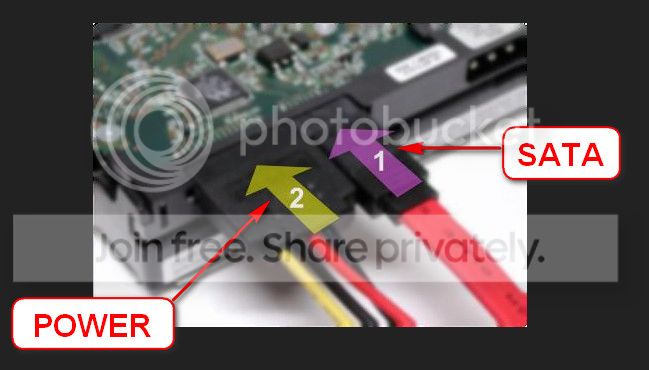
What is the make, model and age of your PSU?
Fill out this form and post back the result:
:ar:What did the Furmark test yield?
:ar: Please update the Atheros AR9285 Wireless Network Adapter:
Code:
lmvm athrx
Browse full module list
start             end                 module name
fffff880`05604000 fffff880`0575c000   athrx    T (no symbols)
    Loaded symbol image file: athrx.sys
    Image path: athrx.sys
    Image name: athrx.sys
    Browse all global symbols  functions  data
Timestamp: [COLOR=Red][U]Tue Jun 09 21:06:49 2009[/U][/COLOR]- Driver Reference Table - athrx.sys
- Drivers for Atheros AR9285
- Follow this tutorial to install - http://www.sevenforums.com/tutorials/97061-driver-install-device-manager.html
:ar: Please export and upload your system event log:
 rb: Start → type eventvwr → hit Enter.
- Toggle open the triangle to the left of Windows Logs, right-click on System and choose Save All Events As...
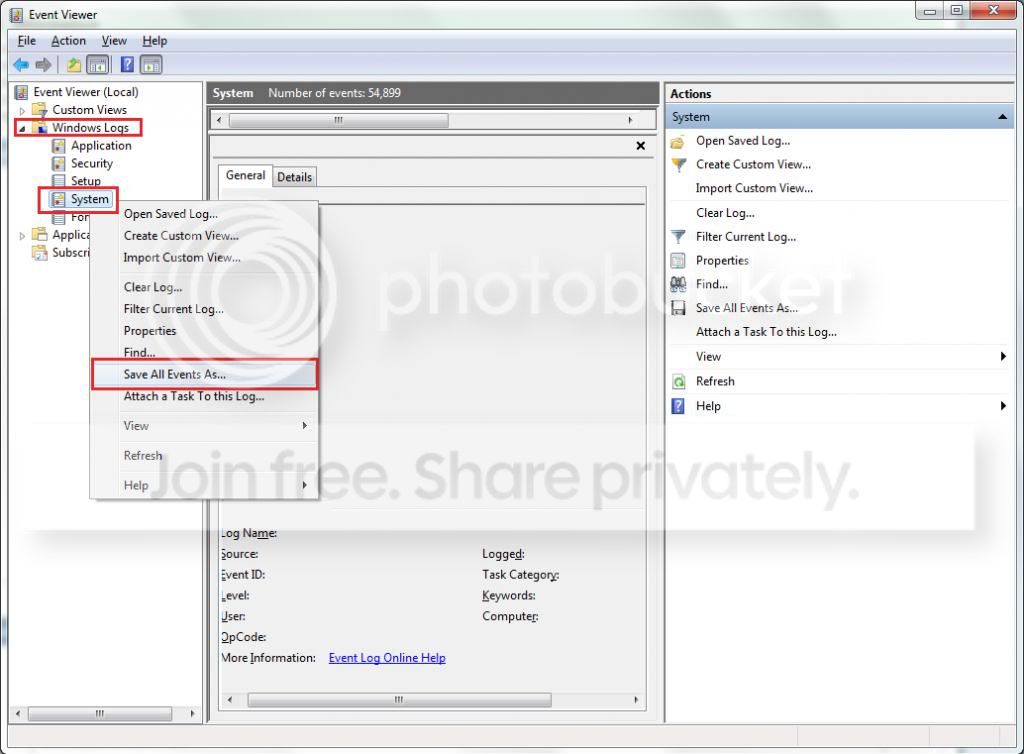
- A dialogue box will pop up asking you to name the file and select the save directory, name the file the same as your Seven Forums user-name and save it to the desktop.
- A second dialogue box will appear asking you to select the Display Information, select Display information for these languages and check the box next to English (if you don't have English automatically offered check the box at the bottom to display additional languages - Show all available languages and check English).
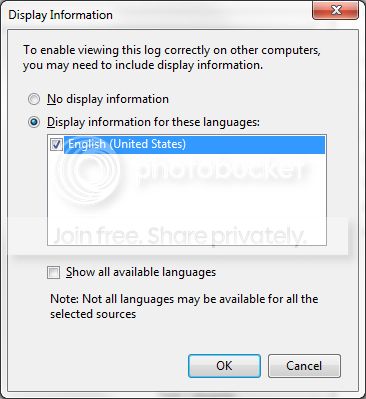
- Wait a few moments until the cursor returns to normal. The file will now be on your desktop (given it's the directory it was saved to) UserName.evtx, next to it there will be a folder called LocaleMetaData select both the .evtx file as well as the folder and compress them using Winrar / 7zip and attach it in your next post.
Let us know the results.
My Computer
- Computer type
- PC/Desktop
- OS
- Windows 10
- CPU
- Intel Core i5 3570K
- Motherboard
- Asus P8Z77V-PRO
- Memory
- 16GB 1600Mhz G.Skill
- Graphics Card(s)
- Gigabyte GTX 970 G1-Gaming
- PSU
- Seasonic 1000W Platinum
- Case
- Fractal Design Define R4
- Cooling
- Noctua NH-D14


