Solved Configuring Static Routes

Lery

New member
Local time
7:22 AM
Messages
35
Hello and thank you for taking the time to read this post. Here is my situation:

Physical server configured with one NIC card. IP address is: 192.168.1.136

Physical server is acting as the domain controller and running DNS services.

Physical server is running Windows Server 2012 and utilizing the Hyper-V Feature.

Hyper-V virtual switch has two virtual switches created. They're as follows:

10.10.10.2
10.10.20.2

I have numerous virtual machines working off of these two virtual switches without issue.

The physical server has Routing and Remote Access configured and working for NAT traffic for these virtual switches. All virtual guests are able to access the internet without a problem.

The problem comes in when I try to use my workstation PC. This is also a physical computer configured with one NIC as follows:

IP: 192.168.1.116
Subnet: 255.255.255.0
Gateway: 192.168.1.1 (This is the IP of the Linksys Router)

I'm trying to use this workstation PC to access my virtual guests running on 192.168.1.136. I understand that when I try to connect to something like 10.10.10.4, the Linksys router has no idea where this is. Therefore, I've configured a static route. Unfortunately, the static route is not working as I expected. Here is how I have the static route setup:

Destination LAN IP: 10.10.10.0
Subnet Mask: 255.255.255.0
Gateway: 192.168.1.136

Destination LAN IP: 10.10.20.0
Subnet Mask: 255.255.255.0
Gateway: 192.168.1.136

When I ping 10.10.10.4 from my 192.168.1.116 workstation, it's unable to reach it. I'm not sure what I could missing and any help would be appreciated. I can of course ping the physical server 192.168.1.136 without issue.

I did try changing the Destination LAN IP from 10.10.10.0 to 10.10.0.0 just to see if that would work. It did not. I also tried using the Linksys IP address for the gateway and that does not accept as a valid route.
 

My Computer

OS
Windows 7
You appear to be doing NAT on the server. This is most likely the cause. I would edit your Routing and remote access policies so that there is a "public" (192.168.1.0/24 IP address) associated with each VM. This way when you send traffic to those devices the server will translate the destination IP (One you created) to the virtual machine associated.

Since these are on the same LAN segment you would need to set up static routes that force the traffic to the server as the gateway (like the static routes you have done). If you don't then the workstation client will attempt to broadcast for the VM's MAC address or send the traffic to the linksys router. If memory serves me correct when I last did this you may need to set up a static route on the virtual machine however if there are default routes configured correctly (Default gateway) then these should work fine.

   Note
Since you are using ICMP it uses it's own transport layer protocol therefore using PAT (Port address translation) is not a viable option.


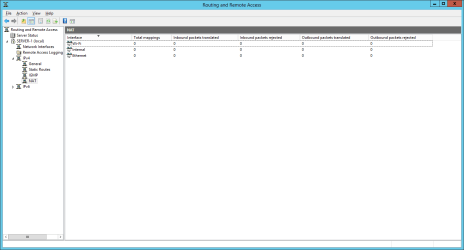
If you open up Routing and Remote Access console on the local Windows server machine and go to your NAT settings.

Step1.png

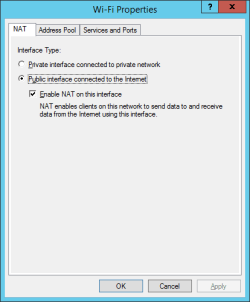
From there right click your "public" interface or the physical NIC that connects to the 192.168.1.0/24 network and then click on properties. This should bring up a similar properties window as the one below.

Step 2.png

From here, click on the address pool tab to show the pool of addresses that NAT can use.

Step 3.png

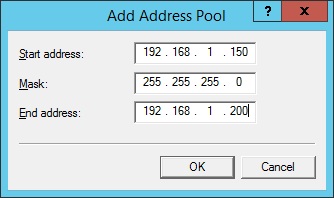
Click on Add to add a range of addresses that your virtual machines will be associated with on your physical network. For example, using your address range it could be something similar to the following:

Step 4.png

Once the range has been set you can click on the OK button to add it to the available "public" addresses for use.

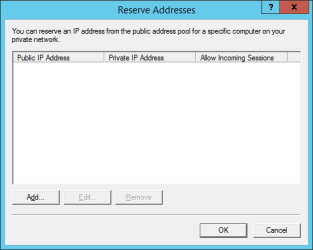
After this click on the reservations button to tie an address from the pool you created with the logical IP address of a VM (e.g 10.10.10.2). Once the reservation window is open click on the Add button to add a reservation/IP association.

Step 5.png

Step 6.png

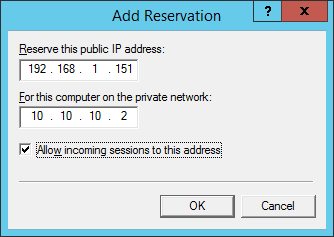
Now enter in the "public" address that you will use to connect to that VM from the workstation client and the VM's IP address. For example, using your scenario the following could be a valid reservation.

Step 7.png

   Note
You must ensure that the tick box is checked in order to allow network connections initiated from the workstation client


Now you can click add,OK and apply to apply the configuration. Equally you can then add additional reservations for each VM that you wish to access.

The final step that needs to be done is to configure the static routes on the workstation client to enable the traffic to be sent to the server.

The static routes should be:

Destination IP address: 192.168.1.151 - Or the reserved IP address made for that VM
Subnet Mask: 255.255.255.255 - Meaning, exactly that IP address
Gateway: 192.168.1.136 - IP address of the physical NIC of the server that hosts the VM

Repeat the static routes for each VM and you should have network connectivity now. To ping the VM from the workstation client just simply use the reserved IP address you created on the server.

   Warning
It is possible for firewall restrictions to block certain applications so ensure that exceptions are made on both the server, workstation client and VM


EDIT: If you can tell me the pool range that you have used I may be able to calculate the subnet mask and static route that could include all of the IP address in that reserved range. This way you can shorten the routing table from individual routes to just one route. Also just a heads up. If you do use this method of shortening the routes that make sure that no other physical device is assigned those addresses since the workstation client will automatically send traffic for them to the server itself (Due to the static route).

Hopefully this will resolve your issue,
Josh :)
 

My Computer

Computer type
PC/Desktop
Computer Manufacturer/Model Number
Custom Built
OS
Windows 7 Professional x64 SP1 ; Windows Server 2012 R2 Standard
CPU
Intel Core i5 2400 @ 3.10GHz
Motherboard
Foxconn H67MP-S/-V/H67MP
Memory
8.0GB DDR3 @ 665MHz (2GBx4)
Graphics Card(s)
AMD Radeon HD 6870
Sound Card
Realtek High Definition Audio
Monitor(s) Displays
AOC 2243W & SMB1930NW
Screen Resolution
1440x900 & 1920x1080
Hard Drives
977GB Seagate ST31000524AS ATA Drive (SATA)
250GB WD iSCSI attached Drive
PSU
750W Gaming PSU
Case
Novatech Night
Cooling
Fan
Keyboard
Dell Standard PS/2 Keyboard
Mouse
R.A.T 07 Gaming Mouse
Internet Speed
Download: 10 Mbps Ping: 30ms Upload: 0.81 Mbps
Browser
Google Chrome
Other Info
Optiarc DVD RW AD-5260S ATA Device
Thank you Josh! That did the trick. I'm now able to use remote desktop from my workstation to connect to machines.

I would ask one last thing. Well, maybe not the last, but hopefully. I notice that running Routing and Remote Access with NAT is VERY slow. Usually connecting through Remote Desktop is instant. It takes maybe a minute to connect from my workstation.

From the physical server, with IP address 192.168.1.136, I utilize the Hyper-V interface to connect to one of the guest virtual machines. Virtual machine has the ip address of 10.10.10.3 and another machine has 10.10.20.3. When I try to copy a simple file it takes a considerable amount of time. When I try to copy a file from two virtual machines on the 10.10.10.0/24 subnet, it's fine. Very fast. So I think this points to the software NAT? Is there anything I can do to make it work faster?

All firewalls are off.
 

My Computer

OS
Windows 7
Hmmm... Most likely NAT causing the increased latency. For every packet that flows through the NIC the server needs to strip the destination IP address of 192.168.1.X and then change it to the IP address of the VM. Equally on the return traffic it does the same thing.

What are the system resources of the server? It might be worth considering merging your VM network into the same IP subnet as your LAN. This will remove the need to use NAT in the first place. Equally, when thinking about it... You don't need NAT to begin with. As long as the server has a virtual NIC connected to each virtual switch and has a valid IP address you should be able to send traffic destined to 10.10.10.0/24 and 10.10.20.0/24 to the server. This will be done with the static routes that you had previously configured:

Lery said:
Destination LAN IP: 10.10.10.0
Subnet Mask: 255.255.255.0
Gateway: 192.168.1.136

Destination LAN IP: 10.10.20.0
Subnet Mask: 255.255.255.0
Gateway: 192.168.1.136

The issue was that NAT was only working one way. By removing it traffic can flow both directions.

Was there a particular reason for using it?

Josh :)
 
Last edited:

My Computer

Computer type
PC/Desktop
Computer Manufacturer/Model Number
Custom Built
OS
Windows 7 Professional x64 SP1 ; Windows Server 2012 R2 Standard
CPU
Intel Core i5 2400 @ 3.10GHz
Motherboard
Foxconn H67MP-S/-V/H67MP
Memory
8.0GB DDR3 @ 665MHz (2GBx4)
Graphics Card(s)
AMD Radeon HD 6870
Sound Card
Realtek High Definition Audio
Monitor(s) Displays
AOC 2243W & SMB1930NW
Screen Resolution
1440x900 & 1920x1080
Hard Drives
977GB Seagate ST31000524AS ATA Drive (SATA)
250GB WD iSCSI attached Drive
PSU
750W Gaming PSU
Case
Novatech Night
Cooling
Fan
Keyboard
Dell Standard PS/2 Keyboard
Mouse
R.A.T 07 Gaming Mouse
Internet Speed
Download: 10 Mbps Ping: 30ms Upload: 0.81 Mbps
Browser
Google Chrome
Other Info
Optiarc DVD RW AD-5260S ATA Device
Hmmm... Most likely NAT causing the increased latency. For every packet that flows through the NIC the server needs to strip the destination IP address of 192.168.1.X and then change it to the IP address of the VM. Equally on the return traffic it does the same thing.

What are the system resources of the server? It might be worth considering merging your VM network into the same IP subnet as your LAN. This will remove the need to use NAT in the first place. Equally, when thinking about it... You don't need NAT to begin with. As long as the server has a virtual NIC connected to each virtual switch and has a valid IP address you should be able to send traffic destined to 10.10.10.0/24 and 10.10.20.0/24 to the server. This will be done with the static routes that you had previously configured:

Lery said:
Destination LAN IP: 10.10.10.0
Subnet Mask: 255.255.255.0
Gateway: 192.168.1.136

Destination LAN IP: 10.10.20.0
Subnet Mask: 255.255.255.0
Gateway: 192.168.1.136

The issue was that NAT was only working one way. By removing it traffic can flow both directions.

Was there a particular reason for using it?

Josh :)

Where do I run the route command on? The virtual machines or the host? I would love to drop NAT. I just assumed I required it.

The physical server is a Dell T610. It has 24GB of RAM. The processor is running at 2.27GHZ with 2 processors. Total of 8 cores.

Here is the breakdown of the network I have.

Cable Modem from ISP-----Linksys Router (192.168.1.1)

Dell T610 physical NIC plugged into Linksys router with IP of 192.168.1.136

Dell T610 is acting as Active Directory Domain Controller and DNS.

Various other devices work outside of this server. They're personal home machines and devices. The workstation I mentioned previously is one of these "workgroup" based machines with an IP of 192.168.1.116.

My goal would be to have two subnets on the Dell T610. I need this for my work testing. I do have a spare NIC I can put into the Dell T610.

The Dell T610 is running Hyper-V. In the virtual switch manager I have one external switch mapped or connected to the NIC card in the server.

I created two additional virtual switches. Both of these internal switches are internal. Once you create the switch it creates a virtual NIC. On the NIC created by Hyper-V I give it an IP address and subnet mask. The gateway and DNS entries are left blank. One of these internal virtual switches is configured for 10.10.10.0/24 and the other internal switch configured for 10.10.20.0/24.

I can now build virtual machines and assign them to the virtual switch I desire them to be on.

Routing and Remote Access services with NAT is providing the internet connection and now with your help, the ability to remote into the virtual machines on the virtual switches.

I'm very much open to a better approach. As I mentioned I do have an additional physical NIC card I can put into the Dell T610. I do not have another physical router, so the one Linksys router is all I have.

Thank you so much for the assistance so far. It's been a great learning experience.
 

My Computer

OS
Windows 7
I see why you are using NAT now... If you didn't the source IP address of the VM's would be from 10.10.10.x or 10.10.20.x. When the linksys router see's the traffic it will route the return internet traffic back to the ISP since it isn't on the 192.168.1.0/24 network.

How much control does your linksys router have? Are you able to set up static routing?

NAT seems the suspect for the slow connection. temporarily disable the NAT process and then on the workstation client put in the static routes that I quoted before:

Lery said:
Destination LAN IP: 10.10.10.0
Subnet Mask: 255.255.255.0
Gateway: 192.168.1.136

Destination LAN IP: 10.10.20.0
Subnet Mask: 255.255.255.0
Gateway: 192.168.1.136

Disable NAT.png

Now try remote access and responsiveness? Still slow or has speed improved?

   Note
Internet access for the VM's will be disabled since NAT is turned off. This is for troubleshooting and is not a fix!


Josh :)
 

My Computer

Computer type
PC/Desktop
Computer Manufacturer/Model Number
Custom Built
OS
Windows 7 Professional x64 SP1 ; Windows Server 2012 R2 Standard
CPU
Intel Core i5 2400 @ 3.10GHz
Motherboard
Foxconn H67MP-S/-V/H67MP
Memory
8.0GB DDR3 @ 665MHz (2GBx4)
Graphics Card(s)
AMD Radeon HD 6870
Sound Card
Realtek High Definition Audio
Monitor(s) Displays
AOC 2243W & SMB1930NW
Screen Resolution
1440x900 & 1920x1080
Hard Drives
977GB Seagate ST31000524AS ATA Drive (SATA)
250GB WD iSCSI attached Drive
PSU
750W Gaming PSU
Case
Novatech Night
Cooling
Fan
Keyboard
Dell Standard PS/2 Keyboard
Mouse
R.A.T 07 Gaming Mouse
Internet Speed
Download: 10 Mbps Ping: 30ms Upload: 0.81 Mbps
Browser
Google Chrome
Other Info
Optiarc DVD RW AD-5260S ATA Device
I see why you are using NAT now... If you didn't the source IP address of the VM's would be from 10.10.10.x or 10.10.20.x. When the linksys router see's the traffic it will route the return internet traffic back to the ISP since it isn't on the 192.168.1.0/24 network.

How much control does your linksys router have? Are you able to set up static routing?

NAT seems the suspect for the slow connection. temporarily disable the NAT process and then on the workstation client put in the static routes that I quoted before:

Lery said:
Destination LAN IP: 10.10.10.0
Subnet Mask: 255.255.255.0
Gateway: 192.168.1.136

Destination LAN IP: 10.10.20.0
Subnet Mask: 255.255.255.0
Gateway: 192.168.1.136

View attachment 304122

Now try remote access and responsiveness? Still slow or has speed improved?

   Note
Internet access for the VM's will be disabled since NAT is turned off. This is for troubleshooting and is not a fix!


Josh :)

When you use the word, workstation, I associate that to what I've described as workstation with the IP address of 192.168.1.116. It's a physical machine outside of the Dell T610. Just wanted to make sure that is clear.

I disabled NAT on the Dell T610 (192.168.1.136). I then rebooted the workstation to clear out the routes. I then typed:

route add 10.10.10.0 mask 255.255.255.0 192.168.1.136

It said OK!. I tried connecting to 10.10.10.4 over RDP and it was not able to. I tried to ping and got the request timed out.

Next thoughts or ideas?
 

My Computer

OS
Windows 7
Remove the network bridge if you have already made one, my apologies :o Also change the IP address of the interfaces back to how they should if they changed. They should return to the original static configurations if the bridge is removed.
On the main server:

Go into Routing and Remote Access

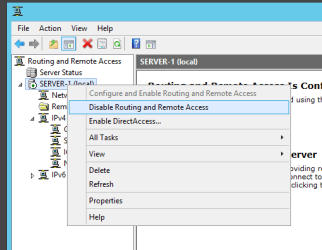
Right click the server in the left hand pane and click on 'Configure and Enable Routing and Remote Access

Step 1.png

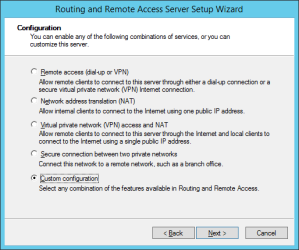
Click Next to start the wizard. On the next page click on the 'Custom Configuration' radio button and then click next.

Step 2.png

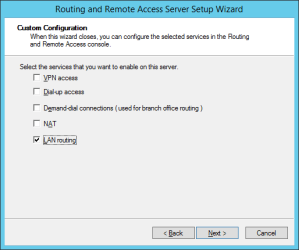
From here check the 'LAN Routing' tick box to enable the routing of traffic between each interface

Step 3.png

Now click next and finish to end the configuration. You may be prompted about starting the service. Just start the service if asked.

Step 4.png

Now, with the workstation client (192.168.1.116) the static routes should still be in place with the server as the gateway. Now try to initiate a connection. Remember that firewalls could block the communication so temporarily disable them if you have any enabled.

Test connectivity? Any quicker than without NAT?

If it is then you can keep that LAN routing config. To enable internet connection to the VMs simply add static routes on the linksys router that says something like:

Destination Address: 10.10.10.0
Mask: 255.255.255.0
Next Hop/Gateway: 192.168.1.136

Destination Address: 10.10.20.0
Mask: 255.255.255.0
Next Hop/Gateway: 192.168.1.136


Again, my apologies for creating the network bridge... I forgot this was a server that could do routing...

Josh :)
 
Last edited:

My Computer

Computer type
PC/Desktop
Computer Manufacturer/Model Number
Custom Built
OS
Windows 7 Professional x64 SP1 ; Windows Server 2012 R2 Standard
CPU
Intel Core i5 2400 @ 3.10GHz
Motherboard
Foxconn H67MP-S/-V/H67MP
Memory
8.0GB DDR3 @ 665MHz (2GBx4)
Graphics Card(s)
AMD Radeon HD 6870
Sound Card
Realtek High Definition Audio
Monitor(s) Displays
AOC 2243W & SMB1930NW
Screen Resolution
1440x900 & 1920x1080
Hard Drives
977GB Seagate ST31000524AS ATA Drive (SATA)
250GB WD iSCSI attached Drive
PSU
750W Gaming PSU
Case
Novatech Night
Cooling
Fan
Keyboard
Dell Standard PS/2 Keyboard
Mouse
R.A.T 07 Gaming Mouse
Internet Speed
Download: 10 Mbps Ping: 30ms Upload: 0.81 Mbps
Browser
Google Chrome
Other Info
Optiarc DVD RW AD-5260S ATA Device
Scrap that

Updating....

lol, I was just coming here to say that I did it.

I'm also sorry that I forgot to reply. Yes I can add the static routes to the Linksys router.

After attempting the bridge the IP address switched from 192.168.1.136 to 192.168.1.131

I added a static route on the workstation to the gateway 192.168.1.131.

When I ping I get Destination host unreachable instead of request timed out.

But, I'm still not able to RDP to the 10.10.10.4 VM.

I'll wait for your update.
 

My Computer

OS
Windows 7
Updated post if you have not checked.

Josh
 

My Computer

Computer type
PC/Desktop
Computer Manufacturer/Model Number
Custom Built
OS
Windows 7 Professional x64 SP1 ; Windows Server 2012 R2 Standard
CPU
Intel Core i5 2400 @ 3.10GHz
Motherboard
Foxconn H67MP-S/-V/H67MP
Memory
8.0GB DDR3 @ 665MHz (2GBx4)
Graphics Card(s)
AMD Radeon HD 6870
Sound Card
Realtek High Definition Audio
Monitor(s) Displays
AOC 2243W & SMB1930NW
Screen Resolution
1440x900 & 1920x1080
Hard Drives
977GB Seagate ST31000524AS ATA Drive (SATA)
250GB WD iSCSI attached Drive
PSU
750W Gaming PSU
Case
Novatech Night
Cooling
Fan
Keyboard
Dell Standard PS/2 Keyboard
Mouse
R.A.T 07 Gaming Mouse
Internet Speed
Download: 10 Mbps Ping: 30ms Upload: 0.81 Mbps
Browser
Google Chrome
Other Info
Optiarc DVD RW AD-5260S ATA Device
Remove the network bridge if you have already made one, my apologies :o Also change the IP address of the interfaces back to how they should if they changed. They should return to the original static configurations if the bridge is removed.
On the main server:

Go into Routing and Remote Access

Right click the server in the left hand pane and click on 'Configure and Enable Routing and Remote Access

View attachment 304137

Click Next to start the wizard. On the next page click on the 'Custom Configuration' radio button and then click next.

View attachment 304138

From here check the 'LAN Routing' tick box to enable the routing of traffic between each interface

View attachment 304139

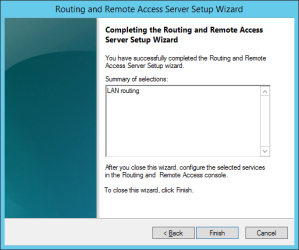
Now click next and finish to end the configuration. You may be prompted about starting the service. Just start the service if asked.

View attachment 304140

Now, with the workstation client (192.168.1.116) the static routes should still be in place with the server as the gateway. Now try to initiate a connection. Remember that firewalls could block the communication so temporarily disable them if you have any enabled.

Test connectivity? Any quicker than without NAT?

If it is then you can keep that LAN routing config. To enable internet connection to the VMs simply add static routes on the linksys router that says something like:

Destination Address: 10.10.10.0
Mask: 255.255.255.0
Next Hop/Gateway: 192.168.1.136

Destination Address: 10.10.20.0
Mask: 255.255.255.0
Next Hop/Gateway: 192.168.1.136


Again, my apologies for creating the network bridge... I forgot this was a server that could do routing...

Josh :)

No problem about the network bridge. You've been so extremely helpful.

So, everything worked as you instructed. On the workstation, I removed the static routes, rebooted, and decided to enter it again. I entered route add 10.10.10.0 mask 255.255.255.0 192.168.1.136

From the workstation I can now ping and connect via RDP.

I tested some copying and pasting.

Test copy was done using a folder of 840 KB and 5 files inside it.

Copying from 10.10.10.4 to 192.168.1.136 was instant.

From workstation connected to \\10.10.10.4\c$ Copied folder to desktop of Workstation. Noticeable slowdown in speed. It worked, just took between 1-2 minutes.

Copying from 10.10.20.4 to 10.10.10.4 about 1 minute.

From 10.10.20.4 connected to \\192.168.1.136\c$ Copied folder instantly.

Internet connectivity via static route on the router now allows for systems to access the internet.

So I'm thinking I just have to live with the slower speeds? Other than that, everything works fantastic.
 

My Computer

OS
Windows 7
Hmm... Is all of this running of one HDD? As in one HDD used for the server host and the two VMs? That might be a possible cause.

Another thing is the possibility for the physical NIC to be a bottleneck for traffic flowing through it. What is the bandwidth like on the NIC? Is it onboard or a PCI type one?

I'm taking wild guesses here since I have never personally deployed hyper-v. As a student I don't really have the money to get a machine that could run it half decently aha! I'll keep thinking about this throughout the day and post back suggestions that I may find

Josh :)
 

My Computer

Computer type
PC/Desktop
Computer Manufacturer/Model Number
Custom Built
OS
Windows 7 Professional x64 SP1 ; Windows Server 2012 R2 Standard
CPU
Intel Core i5 2400 @ 3.10GHz
Motherboard
Foxconn H67MP-S/-V/H67MP
Memory
8.0GB DDR3 @ 665MHz (2GBx4)
Graphics Card(s)
AMD Radeon HD 6870
Sound Card
Realtek High Definition Audio
Monitor(s) Displays
AOC 2243W & SMB1930NW
Screen Resolution
1440x900 & 1920x1080
Hard Drives
977GB Seagate ST31000524AS ATA Drive (SATA)
250GB WD iSCSI attached Drive
PSU
750W Gaming PSU
Case
Novatech Night
Cooling
Fan
Keyboard
Dell Standard PS/2 Keyboard
Mouse
R.A.T 07 Gaming Mouse
Internet Speed
Download: 10 Mbps Ping: 30ms Upload: 0.81 Mbps
Browser
Google Chrome
Other Info
Optiarc DVD RW AD-5260S ATA Device
Hmm... Is all of this running of one HDD? As in one HDD used for the server host and the two VMs? That might be a possible cause.

Another thing is the possibility for the physical NIC to be a bottleneck for traffic flowing through it. What is the bandwidth like on the NIC? Is it onboard or a PCI type one?

I'm taking wild guesses here since I have never personally deployed hyper-v. As a student I don't really have the money to get a machine that could run it half decently aha! I'll keep thinking about this throughout the day and post back suggestions that I may find

Josh :)

The server has 8 physical drives in it. 1 drive is setup for the OS. The 7 drives are setup to run the VM's with RAID-0. No redundancy and built as just a lab. The NIC is a Broadcom BCM5709C NetXtreme II GigE. The speed on the NIC is set to Auto. The NIC is PCI I'm about 99.9% sure.
 

My Computer

OS
Windows 7
Back
Top