(Warning: Long Post.)
Its amazing what a "drop shadow / glow / blur etc." can do to to bring most artwork to life and give it the impact that it requires.
But keep up the good work .. you are really staring to shine

(This is directed to Arc, but using PooMan's quote. He has it nailed)
You seem to know a bit about layers, but here's some things to think on. Layers are one of the most basic things a person using advanced graphics software uses. The image is organized to each part of it, which can then be tweaked and adjusted based on how it looks best with the rest of it.

Take for example, this image.
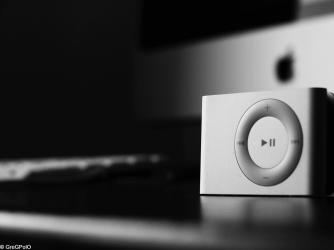
While this image was made with a simple camera trick and converting the colors to Grey-scale, let's imagine that it was made entirely in Gimp, with the Mac in the background on one layer and the iPod Shuffle on another layer.
With layers, you can use it to only affect the image that is on that layer, so, in this case, our artist used Gaussian Blur on that layer. It did not affect the Shuffle, and it gives it perspective and depth, and also focuses the viewer's attention to the Shuffle at first, then they begin looking at the rest of the image and see the theme of it (for this picture, Apple). Get it?
------------
If you are indeed using Gimp, here are two handy tools to have that involve layers.
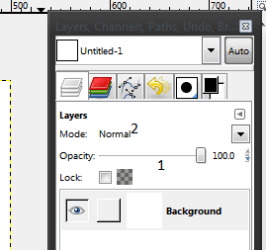
1. This is the transparency setting. I use this to simulate something far away (like in my Arcane wallpaper. The large glyph in the background is dimmed, which gives a slight impression that it is far away)
2. This is an AWESOME tool for making some cool effects. Using it, you can use layers with simple colors or other things to effect how the layers below it look. Like this:
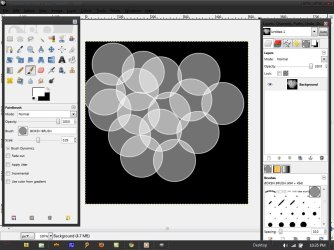
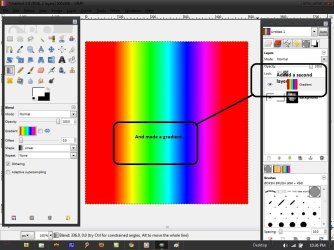
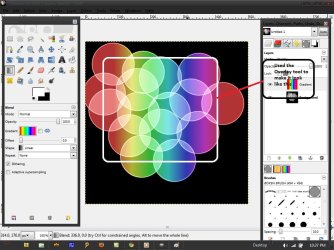
You can see, I made a bunch of circles, added a second layer, made a gradient on it, and then set the option described in #2 to Overlay, which produced the effect in the third picture. Try it out yourself!

As for rotating brushes, I have no idea. Layering might be the way to go for that one.
Good luck on your works!