Customizing Windows Explorer?

esha

New member
Power User
Local time
9:01 PM
Messages
98
I've searched the tutorials about file and folder settings but I couldn't find this:

The windows explorer has a kind of status bar that can show details about my files. But how can I configure what details I want to see?
E.g. when I have a jpg file, Win seems to think it's a photo and it shows me the date when I took the photo, it shows ratings etc. But I don't want that, not all my jpgs are photos and I certainly don't need ratings.
And when I've selected multiple items, it doesn't show me the file size of the bunch, I have to do an extra click on "Show details" to see how big they are all together.

Any chance of customizing this?
 

My Computer

OS
Win 7 Professional 64bit
CPU
Intel i7-3930K @ 3.2GHz
Memory
16 GB
Graphics Card(s)
NVIDIA GeForce GTX 650
Monitor(s) Displays
1 CRT, 1 LCD
Hard Drives
3 hard drives
If I get what you are asking, can you right click on the column header and get choices there?

A Guy
 

My Computer

Computer type
PC/Desktop
OS
Windows 10 Home x64
CPU
INTEL Core i5-750 Quad-Core 3.37GHz
Motherboard
ASUS P7P55D
Memory
HyperX Fury Black Series 8GB (2 x 4GB) 1866Mhz
Graphics Card(s)
EVGA GeForce GTX 750 Superclocked 1GB 128-Bit GDDR5
Monitor(s) Displays
LG 32MA68HY 32" IPS
Screen Resolution
1920 x 1080
Hard Drives
Samsung 840 Evo 120GB, SEAGATE 500GB Barracuda® 7200.12, SATA 3 Gb/s, 7200 RPM, 16MB cache
PSU
ANTEC TruePower New TP-550, 80 PLUS, 550W
Case
ANTEC Three Hundred Illusion
Cooling
COOLER MASTER Hyper 212 Plus, 4 x 120mm 1 x 140mm Noctua's
Internet Speed
85 + Mbps
Antivirus
Avast
Browser
Vivaldi
No, I don't mean the details. I have them active anyway.
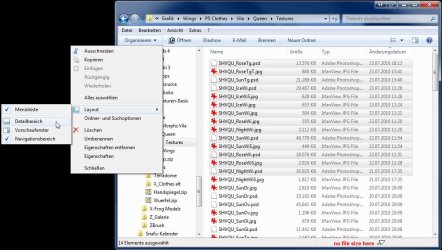
I mean the status bar at the bottom. When I have selected more than 15 items, the display looks like my screenshot. I have to click that line at the bottom (see arrow) to see how big they are all together. That's a nuisance because I often zip many items and I'd like to compare the size before-after zipping at one glance.

Somehow the explorer seems to have problems with multiple files anyway. When I want to open many small files at once (select all and hit enter) that only works with 15 files or less. With 16 or more nothing happens. XP didn't have that problem.
 

Attachments

  • expl1.jpg
    expl1.jpg
    209.8 KB · Views: 26

My Computer

OS
Win 7 Professional 64bit
CPU
Intel i7-3930K @ 3.2GHz
Memory
16 GB
Graphics Card(s)
NVIDIA GeForce GTX 650
Monitor(s) Displays
1 CRT, 1 LCD
Hard Drives
3 hard drives
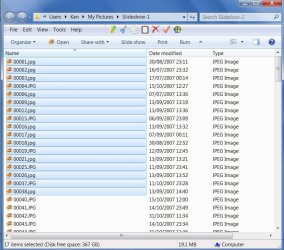
I don't usually use that bar at the bottom but just opened it and highlighted a few pics and the size showed (see s/shot)

You can right click on a page - choose 'sort by' and then 'more' and you get plenty of options (most of them useless) but they're there :)

Good luck.
 

Attachments

  • 2010-07-27_232916.jpg
    2010-07-27_232916.jpg
    176.9 KB · Views: 22
Last edited:

My Computer

Computer Manufacturer/Model Number
Acer 7738G
OS
Windows 7 Home Premium X64 SP1
CPU
Intel Core2 duo T6600
Memory
4gb
Graphics Card(s)
Nvidia GeForce GT 1gb
Hard Drives
2 X 500 gb

My Computer

Computer Manufacturer/Model Number
HP M9077c
OS
Windows 7 Home Premium 64bit
CPU
Intel(R)Core(TM)2 quad [email protected] 2.39GHz
Motherboard
ASUSeK
Memory
6GB DDR2 6400
Graphics Card(s)
GeForce 8500/512MB
Sound Card
Realtek High Def Audio
Monitor(s) Displays
HP w2408 LCD 24" widescreen
Screen Resolution
1920x1200
Cooling
6 pack of Bud
Keyboard
MS wireless Inteli
Mouse
MS wireless Inteli
I don't usually use that bar at the bottom but just opened it and highlighted a few pics and the size showed (see s/shot)

You can right click on a page - choose 'sort by' and then 'more' and you get plenty of options (most of them useless) but they're there :)

Good luck.

Now this is weird. What you have on your screenshot is the status bar. I can switch that on and off too. But I have this additional bar (see my screenshot above) where it displays the file icon and some other useless info. It can be switched off via the layout settings, but then it doesn't show me the file size at the bottom at all.
 

Attachments

  • expl2.jpg
    expl2.jpg
    568.8 KB · Views: 29

My Computer

OS
Win 7 Professional 64bit
CPU
Intel i7-3930K @ 3.2GHz
Memory
16 GB
Graphics Card(s)
NVIDIA GeForce GTX 650
Monitor(s) Displays
1 CRT, 1 LCD
Hard Drives
3 hard drives
I've managed to duplicate your bar at the bottom which is called the 'Details Bar' - but even that has the file size on it!!
If you right click on where it says '15 items selected' you can change the size of the bar and properties - don't know if that will help.

I'm getting the Status Bar from the 'view' menu at the top of the page - don't know if that makes any difference.
 

Attachments

  • 2010-07-28_120005.jpg
    2010-07-28_120005.jpg
    217.2 KB · Views: 23

My Computer

Computer Manufacturer/Model Number
Acer 7738G
OS
Windows 7 Home Premium X64 SP1
CPU
Intel Core2 duo T6600
Memory
4gb
Graphics Card(s)
Nvidia GeForce GT 1gb
Hard Drives
2 X 500 gb
Easter Egg...

I think the answer to the main question of the post is "customizing lower bar is possible, but only via geek-style operations and therefore is not recommended".

Open "regedit.exe" and go to the key section

HKEY_CLASSES_ROOT\SystemFileAssociations\

Select for instance the ".ppt", therefore going to

HKEY_CLASSES_ROOT\SystemFileAssociations\.ppt

You can see a variety of entries are present. The one you would be interested in could be "InfoTips" or "PreviewDetails" or something else (for sure it's one of them, only I dunno which).

I know, it's messy and unconfortable. Why the hell MS decided to do it I don't know...:eek:
 

My Computer

OS
Win 7 Professional 64bit
I'll try that and will let you know. Thank you! :)
 

My Computer

OS
Win 7 Professional 64bit
CPU
Intel i7-3930K @ 3.2GHz
Memory
16 GB
Graphics Card(s)
NVIDIA GeForce GTX 650
Monitor(s) Displays
1 CRT, 1 LCD
Hard Drives
3 hard drives
esha - kenC uses Classic Shell to display the file size in the status bar. He probably installed it and forgot about it :)
You can download it from here: Welcome to Classic Shell
The advantage is that it shows the total size even if more than 15 files are selected, and also shows details about the current file if only one is selected.
 

My Computer

Computer Manufacturer/Model Number
Me :) I build all my PCs
OS
Windows 7 Home 64, Vista Ultimate 64
Ivo - You're right - I do have Classic Shell. I didn't realize that it was CS that was allowing me to see that info.

Thanks.
 

My Computer

Computer Manufacturer/Model Number
Acer 7738G
OS
Windows 7 Home Premium X64 SP1
CPU
Intel Core2 duo T6600
Memory
4gb
Graphics Card(s)
Nvidia GeForce GT 1gb
Hard Drives
2 X 500 gb
esha - kenC uses Classic Shell to display the file size in the status bar. He probably installed it and forgot about it :)
You can download it from here: Welcome to Classic Shell
The advantage is that it shows the total size even if more than 15 files are selected, and also shows details about the current file if only one is selected.

Ivo - You're right - I do have Classic Shell. I didn't realize that it was CS that was allowing me to see that info.

Thanks.

Thank you both!.

BTW, you should really look at:
http://www.sevenforums.com/general-discussion/23504-windows-explorer-status-bar-does-not-show-file-size.html
There is a great discussion about the same topic + great tips and shortcuts.

And for more details about the great free source utility "classic shell":
Welcome to Classic Shell
 

My Computer

OS
Windows 7 Ultimate 32bit
CPU
AMD Phenom II x4 965 3.4GHz
Motherboard
Gigabyte GA-890FXA-UD5 rev2.0
Memory
G.SKILL F3-16000CL8D-4GBPIS (2GBx2)
Graphics Card(s)
Inno3d GTX480 1.5GB GDDR5
Monitor(s) Displays
LG FLATRON W2486L
Screen Resolution
1920x1080@60Hz
Hard Drives
Western Digital Caviar Black WD1002FAEX 1TB 64MB 7200RPM Sata III x3
PSU
Enermax MODU82+ 625W
Case
Thermaltake Element G Middle Tower
Back
Top