D Recovery Drive full

gerrmcke

New member
Local time
6:24 AM
Messages
6
A month ago I upgraded from Vista Home Premium to W7 Home Premium on my 8 mon old Toshiba Satellite L300 ..now recovery d drive is full..only 7 gigs ..I guess the backups have been going there and have not removed previous backups ..now processing is slower and I worried about a total freeze.( could some components of my OS be there as well?)
I used the disk manager and tried to add space onto my d from c but only ended up with an unallocated partition of 20g's ..couldn't figure out how to add to D..

CIs there a way to get into the d and delete backup files ..or as I read in another forum.. do I remove the partitions letters for the d ? would that just make it one big c drive? ..would that effect computers performance? how can I get that unallocated partion back to c ..or to d ? I could sure use some help ..thanks, gerry
 

My Computer

Computer Manufacturer/Model Number
Toshiba
OS
Windows 7 Home Premium
CPU
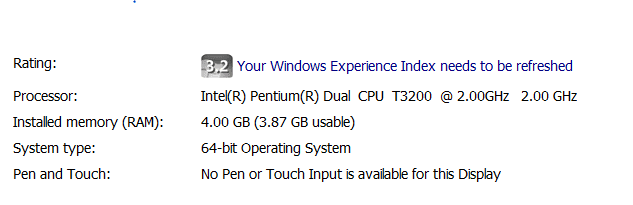
Intel Pentium R Dual T3200
A month ago I upgraded from Vista Home Premium to W7 Home Premium on my 8 mon old Toshiba Satellite L300 ..now recovery d drive is full..only 7 gigs ..I guess the backups have been going there and have not removed previous backups ..now processing is slower and I worried about a total freeze.( could some components of my OS be there as well?)
I used the disk manager and tried to add space onto my d from c but only ended up with an unallocated partition of 20g's ..couldn't figure out how to add to D..

CIs there a way to get into the d and delete backup files ..or as I read in another forum.. do I remove the partitions letters for the d ? would that just make it one big c drive? ..would that effect computers performance? how can I get that unallocated partion back to c ..or to d ? I could sure use some help ..thanks, gerry

Gerry Hi and welcome

I dont know how big your HD is. but there are a few things to consider.
1-do you want to back up (a good idea)
2-how big is the C:\ partition? win 7 needs about 25 gigs
3-slowness. can be either from a fragmented HD, too little space, too little ram etc

If you give us your specs we can help more

Ken J+
 

My Computer

Computer Manufacturer/Model Number
HP Pavillion dv-7 1005 Tx
OS
Win 8 Release candidate 8400
CPU
[email protected]
Memory
4 gigs
Graphics Card(s)
Nvidia 9600M
Sound Card
HD built-in
Monitor(s) Displays
17" Wxga
Screen Resolution
1440x900
Cooling
none
Internet Speed
45Mb down 5Mb up
Giving D more space is counterproductive. i assume that is your system recovery partition - and that should never be written into. It's only there for an emergency reinstallation. Open the partition (e.g. in Computer) and delete everything that does not belong there. If you don't know what, take a snip of the open partition and post it. We'll help you sort it out.
But that should not be the cause of a system slowdown. There must be other reasons. Maybe you can give more info of the circumstances.
The 20GBs you shrunk off your C you better put back in. You could add them to D, but that is a rather complicated procedure. I don't think you want to know. It is only easy when the free space is to the right of the partition (as seen in Disk Management).
 
Last edited:

My Computer

Computer Manufacturer/Model Number
HP, Dell, Gateway, Toshiba - 4 laptops and 2 desktops
OS
Vista, Windows7, Mint Mate, Zorin, Windows 8
CPU
from 1.6GHz Duo to i7
Monitor(s) Displays
2x HP w2207
Hard Drives
5x HDD, 7x SSD, 12x Externals
Keyboard
with trackball - no mices
Mouse
Trackball mice
Internet Speed
DSL 6000
Hi Gerry -

Can you please post back screenshots of your full Disk management drive map as well as the D: drive folder.

Use the Snipping Tool in Start Menu, attaching files using paper clip in reply box.
 
Last edited:

My Computer

Computer Manufacturer/Model Number
Toshiba
OS
Windows 7 Home Premium
CPU
Intel Pentium R Dual T3200
We need to know what's on your D partition. Please open that and take a screenshot.
 

My Computer

Computer Manufacturer/Model Number
HP, Dell, Gateway, Toshiba - 4 laptops and 2 desktops
OS
Vista, Windows7, Mint Mate, Zorin, Windows 8
CPU
from 1.6GHz Duo to i7
Monitor(s) Displays
2x HP w2207
Hard Drives
5x HDD, 7x SSD, 12x Externals
Keyboard
with trackball - no mices
Mouse
Trackball mice
Internet Speed
DSL 6000
A month ago I upgraded from Vista Home Premium to W7 Home Premium on my 8 mon old Toshiba Satellite L300 ..now recovery d drive is full..only 7 gigs ..I guess the backups have been going there and have not removed previous backups ..now processing is slower and I worried about a total freeze.( could some components of my OS be there as well?)
I used the disk manager and tried to add space onto my d from c but only ended up with an unallocated partition of 20g's ..couldn't figure out how to add to D..

CIs there a way to get into the d and delete backup files ..or as I read in another forum.. do I remove the partitions letters for the d ? would that just make it one big c drive? ..would that effect computers performance? how can I get that unallocated partion back to c ..or to d ? I could sure use some help ..thanks, gerry

Your D: drive is SUPPOSED to be full. It is made just large enough to hold the recovery files. You aren't supposed to put anything additional on that drive. Vista had a lower threshold before it would show the drive full message. You can make a registry entry that will turn off the message, but again, what you are seeing is normal.
 

My Computer

Computer Manufacturer/Model Number
Custom
OS
Windows 7 Ultimate RTM (Technet)
CPU
3.00 gigahertz Intel Core2 Duo E8400
Motherboard
ASUSTeK Computer INC. P5K/EPU Rev 1.xx
Memory
4GB
Graphics Card(s)
ATI Radeon X1950 Pro
Sound Card
Built in HD Audio
Monitor(s) Displays
22" Gateway LCD
Screen Resolution
1920 x 1200
Hard Drives
ST3160023A [Hard drive] (160.04 GB) -- drive 0, rev 8.01, ST3500630AS [Hard drive] (500.11 GB) -- drive 2, rev 3.AAK
ST3500630AS [Hard drive] (500.11 GB) -- drive 1, rev 3.AAK
Keyboard
Logitech G11
Mouse
Microsoft Wireless Laser Mouse 5000
Internet Speed
13.44 Mbps
Your D: drive is SUPPOSED to be full. It is made just large enough to hold the recovery files. You aren't supposed to put anything additional on that drive. Vista had a lower threshold before it would show the drive full message. You can make a registry entry that will turn off the message, but again, what you are seeing is normal.

He has only 2MB of free space. If should show red in Computer because he has fallen below 10% free space - that's how he probably spotted it. I suspect he wrote stuff on the partition. The normal culprit is file backup because it assumes D as default and people don't bother to change that. I hope he posts a snip of his open D. Then we can advise him which files are safe to delete.

Btw: some manufacturers leave quite a lot of free space on D - e.g. Gateway. But with HP it is always tight. Just enough to accomodate the 300MB minimum shadowstorage without turning red - in case someone turns system restore on..
 

My Computer

Computer Manufacturer/Model Number
HP, Dell, Gateway, Toshiba - 4 laptops and 2 desktops
OS
Vista, Windows7, Mint Mate, Zorin, Windows 8
CPU
from 1.6GHz Duo to i7
Monitor(s) Displays
2x HP w2207
Hard Drives
5x HDD, 7x SSD, 12x Externals
Keyboard
with trackball - no mices
Mouse
Trackball mice
Internet Speed
DSL 6000
I'm having trouble accessing my d drive files and folders...I unchecked "don't show hidden folders, Hide empty drives Hide extensions Hide protected Os ..etc"
but still couldn't open the files.. only came up with
see........D Drive.png

When I tried to open the folders it said I couldn't access them..would the file
Animal dated 17/01/2010 be just a backup because of the date
also ..I'm not sure how to put the unallocated drivefile back into drive c using Windowsdisk management utility..thanks again , Gerry
 

My Computer

Computer Manufacturer/Model Number
Toshiba
OS
Windows 7 Home Premium
CPU
Intel Pentium R Dual T3200
This is all very strange. Normally it is no problem opening D - it is just another volume. Could you explain again what this "animal" thing is.
If you want to add this healthy 7.5GB partition without a drive letter to the right of D (as seen in your Disk management) watch this video that I have made to explain it. It is towards the end of the video.
 

My Computer

Computer Manufacturer/Model Number
HP, Dell, Gateway, Toshiba - 4 laptops and 2 desktops
OS
Vista, Windows7, Mint Mate, Zorin, Windows 8
CPU
from 1.6GHz Duo to i7
Monitor(s) Displays
2x HP w2207
Hard Drives
5x HDD, 7x SSD, 12x Externals
Keyboard
with trackball - no mices
Mouse
Trackball mice
Internet Speed
DSL 6000
Capture.PNG

Looking at your Disk Mgmt screenshot, I don't see any reason D: cannot be deleted in Disk Mgmt and added to your C: drive. It doesn't appear to be a Recovery Partition, which is to the left of C:

The best recovery method is to save a Win7 Backup Image externally along with your backed up files.

Once deleted, here's how to extend your C: drive: http://www.sevenforums.com/tutorials/2670-partition-volume-extend.html

If you want us to take a look at your actual recovery partition, then post back a screenshot of its contents after unhiding files in Control Panel>Folder Options>View.
 
View attachment 49195

Looking at your Disk Mgmt screenshot, I don't see any reason D: cannot be deleted in Disk Mgmt and added to your C: drive. It doesn't appear to be a Recovery Partition, which is to the left of C:

The best recovery method is to save a Win7 Backup Image externally along with your backed up files.

Once deleted, here's how to extend your C: drive: http://www.sevenforums.com/tutorials/2670-partition-volume-extend.html

If you want us to take a look at your actual recovery partition, then post back a screenshot of its contents after unhiding files in Control Panel>Folder Options>View.


Greg, are you sure that little 1.46GB partition is the recovery partition. I know it says so, but it is too small to hold all the system files. Before we don't know what is in the D partition, I would not recommend to delete it.
 

My Computer

Computer Manufacturer/Model Number
HP, Dell, Gateway, Toshiba - 4 laptops and 2 desktops
OS
Vista, Windows7, Mint Mate, Zorin, Windows 8
CPU
from 1.6GHz Duo to i7
Monitor(s) Displays
2x HP w2207
Hard Drives
5x HDD, 7x SSD, 12x Externals
Keyboard
with trackball - no mices
Mouse
Trackball mice
Internet Speed
DSL 6000
A month ago I upgraded from Vista Home Premium to W7 Home Premium on my 8 month old Toshiba Satellite L300 ..now recovery d drive is full..only 7 gigs ..I guess the backups have been going there and have not removed previous backups ..now processing is slower and I worried about a total freeze.( could some components of my OS be there as well?)
I used the disk manager and tried to add space onto my d from c but only ended up with an unallocated partition of 20g's ..couldn't figure out how to add to D..

Is there a way to get into the d: and delete backup files ..or as I read in another forum.. do I remove the partitions letters for the d ? would that just make it one big c drive? ..would that effect computers performance? how can I get that unallocated partition back to c ..or to d ? I could sure use some help ..thanks, gerry
.
The System Recovery partition contains the factory image of the OS and all the software that came installed on your computer when you bought it. It's there so you can restore the system to the factory fresh condition as a last resort if the system becomes un-bootable. Now that you've upgraded to Windows 7 though you may want to consider removing the System Recovery partition. I would do so as long as you have (or can get) System Recovery DVDs. You might need them someday if you need to reinstall the Windows 7 Upgrade, which will require that Vista be present on the hard drive.

Regarding the lack of space on D: this is a common problem caused by the Windows Backup program storing backups on D: by default. You need to go into the Backup program settings and either point it to a different drive (such as an external hard drive) or disable it. Then you need to delete the existing backups on D: - that will free up enough space to stop the low disk space warning.

I recommend that you undo the changes you made to the partition structure. Normally Windows 7 creates a 100 megabyte partition to the left of C: It doesn't have a drive letter and it's there for maintenance and repair. Your partition which is left of C: is quite a bit larger, but I wouldn't mess with it. You can stretch C: into the unallocated space to the right. You cannot move D: to the left into that unallocated space without special tools.

What's the story with the last partition to the right of D: that also doesn't have a drive letter?
 

My Computer

Computer type
PC/Desktop
OS
Windows 7 x64
CPU
Intel Core2 Extreme Q6850 3.00GHz
Motherboard
EVGA 132-CK-NF79
Memory
8 GB
Graphics Card(s)
Radeon R7 260X
Sound Card
Xonar DS
Hard Drives
Hitachi Deskstar 1 tb
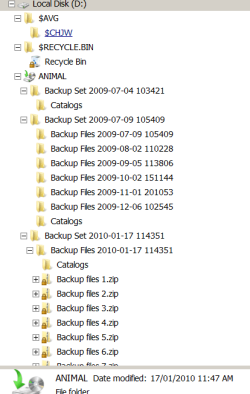
I finally got into D and it look likes its loaded with backups Here's a snip ..apparently there is imeg left of space..I didn't change the config so I wonder why the default backup was to D
Snip.............DDriveopenCapture.PNG do I just delete the backups?
Thanks for the tip on Disk Managerment I'll check it out
Thanks to everyone for their help ..almost done
 

My Computer

Computer Manufacturer/Model Number
Toshiba
OS
Windows 7 Home Premium
CPU
Intel Pentium R Dual T3200
Animal

BTW forgot to tell you ..Animal is the computers name
 

My Computer

Computer Manufacturer/Model Number
Toshiba
OS
Windows 7 Home Premium
CPU
Intel Pentium R Dual T3200
This is exactly as I suspected. Your files were backed up into there because you did not change the drive letter. You now have to move those backup files to another place. Best is to an external disk or a big USB stick. You can also burn them to DVD, but that is messy and I would not recommend that. And next time you back up your files, change the drive letter from D to your external drive. If you do that, all will be good and your troubles are over.
 

My Computer

Computer Manufacturer/Model Number
HP, Dell, Gateway, Toshiba - 4 laptops and 2 desktops
OS
Vista, Windows7, Mint Mate, Zorin, Windows 8
CPU
from 1.6GHz Duo to i7
Monitor(s) Displays
2x HP w2207
Hard Drives
5x HDD, 7x SSD, 12x Externals
Keyboard
with trackball - no mices
Mouse
Trackball mice
Internet Speed
DSL 6000
.made extra recovery dvds....now that I can access D I see each BU is basically a repeat of all the content of the previous , same files, folders..before I could see D I tried to back it up with dvds but it seemed to be endless ..so I used a 16g pen drive and it filled up and back up was incomplete... Can I just delete most of the backup content ..all but the last or just delete common files from previous BU's ..I have changed my backup default to E dvd drive.. Thanks for the link to the partition video ..most helpful
I'll follow the tips
again many thanks gerry
 

My Computer

Computer Manufacturer/Model Number
Toshiba
OS
Windows 7 Home Premium
CPU
Intel Pentium R Dual T3200
Do yourself a favor and buy an external drive. At this site you find good prices (provided you live in the US). The offerings at that site change daily. A PC must have at least 1 external drive, They are so useful. If you have a laptop, buy a 2.5" USB powered one. With a desktop I would prefer a 3.5" with it's own power. E.g. the 320GB WD for $59.99 is a reasonable deal. But Newegg (a very recommendable company) has deals all the time. just keep watching their site (newegg.com).
In the meantime, I suggest you just copy your own files to the 16GB pen drive. Just use Copy to Folder or drag them over. For your own files, 16GB should be enough. The system backup function copies all kinds of system files that you should not need there.
 

My Computer

Computer Manufacturer/Model Number
HP, Dell, Gateway, Toshiba - 4 laptops and 2 desktops
OS
Vista, Windows7, Mint Mate, Zorin, Windows 8
CPU
from 1.6GHz Duo to i7
Monitor(s) Displays
2x HP w2207
Hard Drives
5x HDD, 7x SSD, 12x Externals
Keyboard
with trackball - no mices
Mouse
Trackball mice
Internet Speed
DSL 6000
A related problem. I just installed Win7 on a Vista machine (Win7 Pro will not install as upgrade). Now the D:Recovery drive is the default and all new programs go there. It's full, but C: has plenty of space. Why is D: now the default, and how do I change back to C:?
 

My Computer

Computer Manufacturer/Model Number
Dell Inspiron 1521
OS
Windows 7
CPU
AMD
Could you post a picture of Disk Management. Then we see more clearly what's going on.
 

My Computer

Computer Manufacturer/Model Number
HP, Dell, Gateway, Toshiba - 4 laptops and 2 desktops
OS
Vista, Windows7, Mint Mate, Zorin, Windows 8
CPU
from 1.6GHz Duo to i7
Monitor(s) Displays
2x HP w2207
Hard Drives
5x HDD, 7x SSD, 12x Externals
Keyboard
with trackball - no mices
Mouse
Trackball mice
Internet Speed
DSL 6000
Back
Top