
Data Recovery after using diskpart clean command

Shadezzz

New member
Local time
12:45 AM
Messages
35
Location
Kuwait
Hello!
I wanted to install a fresh windows and here's what happened in details:

1. I couldn't install windows 7 on C Drive because it was a GPT partition (the error message stated that).
2. I followd a tutorial and i used diskpart but i selected partition 1 and then issued the clean command. I thought it would only format C Drive but the whole HDD was formatted.
3. Now the whole HDD was a single partition, i had only 2 drives C and D which has very very important data but they were merged and cleaned.
4. Again the problem continued and i couldn't install the windows so i used clean command 2 more times but the same result came out..
5. I changed boot from UEFI to Leagcy and i was successful at last to install windows.
6. I shrinked C Drive size and i created another Drive and assigned the letter D to it.
7. I used EaseUS data recovery, testdisk and linktool partition recovery but i didn't find my data.

I would be so grateful if someone helped me recover my data..please any help would be appreciated..
Thanks in advance.
 

My Computer

Computer type
PC/Desktop
OS
Windows 7 Ultimate 64bit.
jumanji please sir your help would be appreciated..
 

My Computer

Computer type
PC/Desktop
OS
Windows 7 Ultimate 64bit.
Had you stopped with just running Diskpart Clean and had come here without doing anything further, you would have had greater chances of recovering data from your D drive. Instead you have installed Windows on the whole drive obviously formatting it as a single volume and then shrunk it and have also created another D drive. With that you have lost the original D drive's volume boot record as well as the original Master File Table of the original D drive.

Your only option now is to run PhotoRec on your current D drive and ask it to rebuild the files from whatever it could find.

Before doing that just try Getdataback Simple. Download, install and run the free trial version of Getdataback simple here Data Recovery Software Products - Runtime Software Products (v3.00 English (8.80MB) Scan your system drive. It should also show your new D drive. Select it and see whether it shows any of the folders and files that were there originally.

I am off to bed now having returned to station just a few hours ago.
 

My Computer

OS
Windows 7 Home Premium 32 bit
Had you stopped with just running Diskpart Clean and had come here without doing anything further, you would have had greater chances of recovering data from your D drive. Instead you have installed Windows on the whole drive obviously formatting it as a single volume and then shrunk it and have also created another D drive. With that you have lost the original D drive's volume boot record as well as the original Master File Table of the original D drive.

Your only option now is to run PhotoRec on your current D drive and ask it to rebuild the files from whatever it could find.

Before doing that just try Getdataback Simple. Download, install and run the free trial version of Getdataback simple here Data Recovery Software Products - Runtime Software Products (v3.00 English (8.80MB) Scan your system drive. It should also show your new D drive. Select it and see whether it shows any of the folders and files that were there originally.

I am off to bed now having returned to station just a few hours ago.


Sorry for troubling you sir.
I'll try what you said and post the results tomorrow...but sir please there must be a way to recover the data back..i know i did a terrible mistake but i'm sure someone would help me out..
 

My Computer

Computer type
PC/Desktop
OS
Windows 7 Ultimate 64bit.
All files that are of any importance need at least one backup copy. Data that is "very very important" should have at the least 2 backup copies. There are all kinds of ways that data can be lost, some of which are preventable, others are not. With no backups it is only a matter of time until data is lost. Data recovery after an incident cannot be relied on.

Sorry, I can't help with data recovery.
 

My Computer

Computer type
PC/Desktop
Computer Manufacturer/Model Number
HP
OS
Windows 7 Pro 64 bit
CPU
Xeon W3520
Memory
8 GB
Graphics Card(s)
Nvidia Geforce 210
All files that are of any importance need at least one backup copy. Data that is "very very important" should have at the least 2 backup copies. There are all kinds of ways that data can be lost, some of which are preventable, others are not. With no backups it is only a matter of time until data is lost. Data recovery after an incident cannot be relied on.

Sorry, I can't help with data recovery.

I always make backups and i have 2 external HDDs for this purpose but i didn't backup my personal and work files since last August (almost 6 months without backup)...
 

My Computer

Computer type
PC/Desktop
OS
Windows 7 Ultimate 64bit.
Update:-

While searching for recovered data using EaseUS, i found about 20 files from my data but they are all 0 KB...
I think it's a good start..I mean at least some files were found..
 
Last edited:

My Computer

Computer type
PC/Desktop
OS
Windows 7 Ultimate 64bit.
I fear you are in for a job of recreating your last 6 months of work :( -- Zero byte-sized files to me do not good news make. However, I could be wrong! Please keep us posted. Going forward -- never again go more than one week without making a backup of your personal and work files.
 

My Computer

Computer type
PC/Desktop
Computer Manufacturer/Model Number
Antec desktop; Acer Aspire laptops
OS
Windows 7 Professional 64-bit
CPU
Desktop i5; Acers i5 & i7
Memory
desktop 16GB; 1 Acer 8GB & 1 Acer 16GB
Hard Drives
1TB split into 2 equal partitions [OS and data] usable by RJS
Internet Speed
AT&T DSL
Browser
FF, GChrome, msIE
Other Info
Windows 7 Firewall, Emsisoft AM/AV, MSE [scan-only], SpywareBlaster, Ruiware/BillP combine
I fear you are in for a job of recreating your last 6 months of work :( -- Zero byte-sized files to me do not good news make. However, I could be wrong! Please keep us posted. Going forward -- never again go more than one week without making a backup of your personal and work files.

I found some files already and i was able to recover them, but i just need guidance in order to recover most of the files..i found data from 2012 and they are in a very good shape but the most important data are not visible maybe because i'm doing something wrong but at least some files were shown during recovery and i recovered about 50 images and 7 excel sheets...
 

My Computer

Computer type
PC/Desktop
OS
Windows 7 Ultimate 64bit.
jumanji Hello sir! I found some files while using recovery like some images, excel sheets and even a movie! So i think the data is still there but i need some guiding using photorec because i don't want to mess up again..your help would be much appreciated..
 

My Computer

Computer type
PC/Desktop
OS
Windows 7 Ultimate 64bit.
Just curious to know what program you used to retrieve those files.

Yes, most of the data ( but not all) on your D drive may still be there and can be recovered with PhotoRec. The only negative point is you may not get the original folder structure and file names. You will get just the files without the original file names.

Now download "TestDisk & PhotoRec 7.0 (18 April 2015), Data Recovery" from here TestDisk Download - CGSecurity Extract it to the root of your system drive. Now you are ready to run photorec_win.exe from the Testdisk-7.0 folder.(CAUTION:You will only run photorec_win.exe. Do not at anytime run or experiment with testdisk_win.exe.)

Do you have another External drive with sufficient space to copy all your data? OK, Plug in only that external drive ( Plug out all other external drives and Flash drives) and create a folder named Recovery on it. This external disk and the Recovery folder in it will be your destination to copy the files.

Now follow the procedure under the topic Recovery in this thread Guide to using PhotoRec recovery software.

By way of some explanation, on the first screen you will see your System disk and also your destination disk. You will also see the drives with their drive letters.

You will highlight/select your system disk. You will also note the drive letter of your Destination external disk where you have created the Recovery folder.( For example if it is shown as Drive E: your destination to copy the files when you come to it will be Directory E:\Recovery)

In Step 4 the third Window you will see two partitions. Highlight the second partition which is your D: and from which you want to recover the data.

In the tenth Window you will select your destination to copy the files.

Please read my post #28 - Copying files listed by TestDisk during Recovery ( also applies to PhotoRec) - here My external hard drive suddenly became unllocated:
Note:Screenshot 5 onwards where the files are listed applies here. ( Do not run testdisk_win.exe.)

Please read first the given references and try to understand the methodology. And then work it out. If you have any doubts, while carrying out the work, post a screenshot and quit PhotoRec Window by clicking on the X on the top right in the Menu Bar.
 
Last edited:

My Computer

OS
Windows 7 Home Premium 32 bit
Just curious to know what program you used to retrieve those files.

Yes, most of the data ( but not all) on your D drive may still be there and can be recovered with PhotoRec. The only negative point is you may not get the original folder structure and file names. You will get just the files without the original file names.

Now download "TestDisk & PhotoRec 7.0 (18 April 2015), Data Recovery" from here TestDisk Download - CGSecurity Extract it to the root of your drive. Now you are ready to run photorec_win.exe from the Testdisk-7.0 folder.(CAUTION:You will only run photorec_win.exe. Do not at anytime run or experiment with testdisk_win.exe.)

Do you have another External drive with sufficient space to copy all your data? OK, Plug in only that external drive ( Plug out all other external drives and Flash drives) and create a folder named Recovery on it. This external disk and the Recovery folder in it will be your destination to copy the files.

Now follow the procedure under the topic Recovery in this thread Guide to using PhotoRec recovery software.

By way of some explanation, on the first screen you will see your System disk and also your destination disk. You will also see the drives with their drive letters.

You will highlight/select your system disk. You will also note the drive letter of your Destination external disk where you have created the Recovery folder.( For example if it is shown as Drive E: your destination to copy the files when you come to it will be Directory E:\Recovery)

In Step 4 the third Window you will see two partitions. Highlight the second partition which is your D: and from which you want to recover the data.

In the tenth Window you will select your destination to copy the files.

Please read my post #28 - Copying files listed by TestDisk during Recovery - here My external hard drive suddenly became unllocated:
Note:Screenshot 5 onwards where the files are listed applies here.

Please read first the given references and try to understand the methodology. And then work it out. If you have any doubts, while carrying out the work, post a screenshot and quit PhotoRec Window by clicking on the X on the top right in the Menu Bar.

Ok sir, i'll do exactly as you instruct but right now i'm at work and i don't have the laptop with me..i'll post as soon as possible with any updates and regarding the software used for recovery it's EaseUS, i recovered about 50 images, 7 excel sheets and a movie...
 
Last edited:

My Computer

Computer type
PC/Desktop
OS
Windows 7 Ultimate 64bit.
jumanji Sir please i have 2 questions..First should D: Drive possess the same size as before? (before formatting it was 475 GB and now after shrinking C: Drive and assigning the unallocated space, it's 300 GB).
Second, i don't have sufficient space on my external HDDs, is it possible that i create another partition and give it a different letter and assign about 200 GB to it?
 

My Computer

Computer type
PC/Desktop
OS
Windows 7 Ultimate 64bit.
** Do not do anything that will further write on the HD with the missing files. Again, do not do anything that will further write or alter or adjust the HD with the missing, earlier-deleted files. **
 

My Computer

Computer type
PC/Desktop
Computer Manufacturer/Model Number
Antec desktop; Acer Aspire laptops
OS
Windows 7 Professional 64-bit
CPU
Desktop i5; Acers i5 & i7
Memory
desktop 16GB; 1 Acer 8GB & 1 Acer 16GB
Hard Drives
1TB split into 2 equal partitions [OS and data] usable by RJS
Internet Speed
AT&T DSL
Browser
FF, GChrome, msIE
Other Info
Windows 7 Firewall, Emsisoft AM/AV, MSE [scan-only], SpywareBlaster, Ruiware/BillP combine
Those files you recovered -- where did you recover those files to? In short, are those recovered files on external media?
 

My Computer

Computer type
PC/Desktop
Computer Manufacturer/Model Number
Antec desktop; Acer Aspire laptops
OS
Windows 7 Professional 64-bit
CPU
Desktop i5; Acers i5 & i7
Memory
desktop 16GB; 1 Acer 8GB & 1 Acer 16GB
Hard Drives
1TB split into 2 equal partitions [OS and data] usable by RJS
Internet Speed
AT&T DSL
Browser
FF, GChrome, msIE
Other Info
Windows 7 Firewall, Emsisoft AM/AV, MSE [scan-only], SpywareBlaster, Ruiware/BillP combine
If you do not have enough byte-space on the external media that you are using to recover the recoverable to -- then go buy a larger external HD, I hope such is not that expensive where you live. 1-3TB usb ext HDs are very common now.

Concerning the HD containing the missing/deleted files -- do not do anything that will further write to or alter or adjust that HD.
 

My Computer

Computer type
PC/Desktop
Computer Manufacturer/Model Number
Antec desktop; Acer Aspire laptops
OS
Windows 7 Professional 64-bit
CPU
Desktop i5; Acers i5 & i7
Memory
desktop 16GB; 1 Acer 8GB & 1 Acer 16GB
Hard Drives
1TB split into 2 equal partitions [OS and data] usable by RJS
Internet Speed
AT&T DSL
Browser
FF, GChrome, msIE
Other Info
Windows 7 Firewall, Emsisoft AM/AV, MSE [scan-only], SpywareBlaster, Ruiware/BillP combine
Sorry for the delay. Was busy helping another OP in Ten Forums and another successful recovery Hard Drive seems corrupt. 1 Partition now showing as 3 Partitions? - Windows 10 Forums

As Roland suggested, do not do anything to your D drive. Do not write anything into it until you recover any data in it.. Do not create another partition in that disk.

You have to have another external drive to copy the data if and when available. You have to create a folder named Recovery in it which will be your destination to copy ( no need of a separate partition in the external drive. The Recovery folder will contain all your recovered files when you correctly steer it to that destination external drive folder).You have to have it connected before running PhotoRec and it should be seen in PhotoRec. If you do not have sufficient space, you can select and copy the most important data first to the extent of available space in that external drive and copy the rest later when you get a new external drive.

Your current D drive is only 300GB or so. You may be able to recover any data in it only. You may not be able to get the data in the other 150GB which is now part of your C drive. Recovering any data left in it is another project which can be done later.( Most data in it could have already been overwritten by the Windows you had installed. Your folly. Atleast now do not write anything to the D drive till you recover any data in it.)

Now run PhotoRec from the beginning with the destination external drive with the folder Recovery connected and show me each and every Window as you proceed for me to check where the hitch is.. ( Post the screenshots as seen in my thread Guide to using PhotoRec recovery software. You should do only that under the Topic Recovery in that thread.)

No need to be in a hurry. Take your time and do it slowly without making any mistakes. Does not matter even if you make any mistakes for PhotoRec does not write anything to the drive under recovery and you can run and rerun it any number of times..
 
Last edited:

My Computer

OS
Windows 7 Home Premium 32 bit
RolandJS jumanji Sir i can't find the Data anywhere! 2.PNG

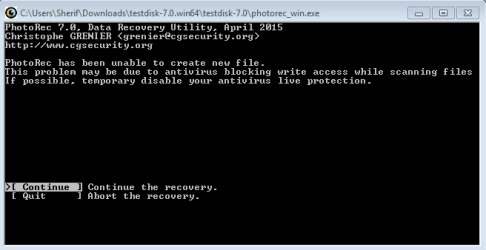
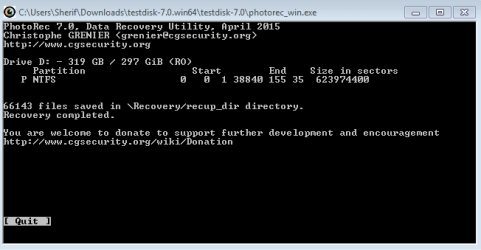
The Data is saved in C: Drive since its free space dropped from 144 GB to 80 GB but i did choose to save them in Recovery Folder in external hard disk....
Where is that recup directory ?!
 

My Computer

Computer type
PC/Desktop
OS
Windows 7 Ultimate 64bit.
Back
Top