Data Recovery after using diskpart clean command

Those files you recovered -- where did you recover those files to? In short, are those recovered files on external media?

I only chose those files to recover and i saved them to desktop..
 

My Computer

Computer type
PC/Desktop
OS
Windows 7 Ultimate 64bit.
I had told you to post each and every screenshot as you proceed with PhotoRec so that I can guide you / check where you are going wrong. You did not do it.

In one post you say " i did choose to save them in Recovery Folder in external hard disk...." and in the next post you say "I only chose those files to recover and i saved them to desktop.. "

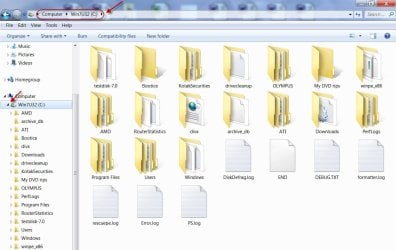
Anyway PhotoRec does say it has saved 66143 files in /Recovery/recup_dir. You have to search for it on your C drive. Please post a screenshot of the contents of your C: drive like in the following screenshot

20-02-2017 07-41-39.jpg

Where is your testdisk-7.0 folder? By default TestDisk saves the files in that folder. Open it and check whether your saved files are there.
 

My Computer

OS
Windows 7 Home Premium 32 bit
I had told you to post each and every screenshot as you proceed with PhotoRec so that I can guide you / check where you are going wrong. You did not do it.

In one post you say " i did choose to save them in Recovery Folder in external hard disk...." and in the next post you say "I only chose those files to recover and i saved them to desktop.. "

Anyway PhotoRec does say it has saved 66143 files in /Recovery/recup_dir. You have to search for it on your C drive. Please post a screenshot of the contents of your C: drive like in the following screenshot

View attachment 396497

Where is your testdisk-7.0 folder? By default TestDisk saves the files in that folder. Open it and check whether your saved files are there.

Sir the files i saved to desktop were the files recovered by EaseUS (50 images, 7 excel sheets and 1 movie) but the files recovered by photorec i did choose external disk recovery folder but they were saved to C:\ Recovery and i found them but no sign of my data at all. They are all old files dated 2012 and 2013 and i was unable to find any of the newer data..When i used EaseUS, it showed some files from the new data, some were 0 KB and some i was able to recover...any further instructions sir ?!
 

My Computer

Computer type
PC/Desktop
OS
Windows 7 Ultimate 64bit.
What all I can say is that you were unable to follow the instructions given in my post #28
Copying files listed by TestDisk during Recovery My external hard drive suddenly became unllocated: and steer the files to the correct destination on yor external drive.

Please take the help of some knowledgeable computer user and ask him to run PhotoRec and copy the files to the Recovery folder on the external drive.

(Please give him an External drive with atleast 300GB of free space in it. On that drive create a folder named Recovery and ask him to follow the instructions in the above reference [ when it comes to copying the files]. Plug in this external drive and then Run PhotoRec)

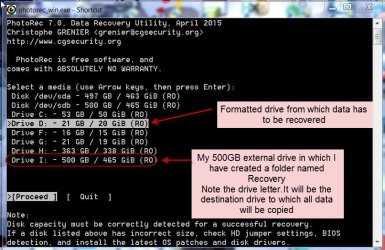
While running PhotoRec as per the Guide here Guide to using PhotoRec recovery software.. he should select the Disk from which you want to recover the data. At the sametime he should also note the drive letter of the external drive.( Final destination to copy will be Directory <that drive letter:> /Recovery)

When he reaches the screen 5. Fourth Window where you have to select the file Types you want to recover, ask him to press s to select all file types and then b to save setting and proceed. This will copy all file Types to the destination.

When copying is finished you do not find the files that you may be assuming were there,then those are not really there.

If you want me to guide you - after connecting the external drive on which you have created the folder named Recovery - run PhotoRec and post the first screen. Then we shall go step by step.

In a previous post itself I asked you to post each screen while running PhotoRec but you did not do it.

 

My Computer

OS
Windows 7 Home Premium 32 bit
What all I can say is that you were unable to follow the instructions given in my post #28
Copying files listed by TestDisk during Recovery My external hard drive suddenly became unllocated: and steer the files to the correct destination on yor external drive.

Please take the help of some knowledgeable computer user and ask him to run PhotoRec and copy the files to the Recovery folder on the external drive.

(Please give him an External drive with atleast 300GB of free space in it. On that drive create a folder named Recovery and ask him to follow the instructions in the above reference [ when it comes to copying the files]. Plug in this external drive and then Run PhotoRec)

While running PhotoRec as per the Guide here Guide to using PhotoRec recovery software.. he should select the Disk from which you want to recover the data. At the sametime he should also note the drive letter of the external drive.( Final destination to copy will be Directory <that drive letter:> /Recovery)

When he reaches the screen 5. Fourth Window where you have to select the file Types you want to recover, ask him to press s to select all file types and then b to save setting and proceed. This will copy all file Types to the destination.

When copying is finished you do not find the files that you may be assuming were there,then those are not really there.

If you want me to guide you - after connecting the external drive on which you have created the folder named Recovery - run PhotoRec and post the first screen. Then we shall go step by step.

In a previous post itself I asked you to post each screen while running PhotoRec but you did not do it.

I'am sorry sir, i will try running photorec again and i will follow you step by step and post screenshots. But sir i didn't find any files at all in those 66000 files..could this be a bad sign that my data already overwritten ?!
 

My Computer

Computer type
PC/Desktop
OS
Windows 7 Ultimate 64bit.
I can't say anything until PhotoRec is run properly. If run properly PhotoRec will reconstruct almost all file types it can. You can find the list of File types PhotoRec can reconstruct here File Formats Recovered By PhotoRec - CGSecurity

Any file type other than what is listed will not be recovered by PhotoRec.Check whether the file type you want to recover is listed in the above list.

If you know what file types you want to recover, you can select those file types while running PhotoRec. But this you only know. If you do not know then select all types by pressing s.
 
Last edited:

My Computer

OS
Windows 7 Home Premium 32 bit
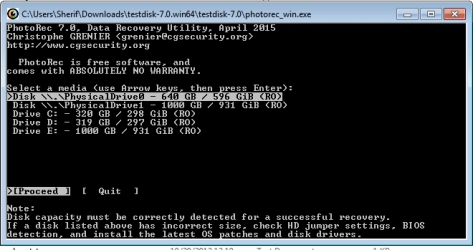
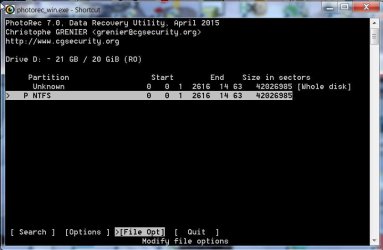
jumanji Sir, this is the first window of photorec, i choose Drive D:
3.PNG
 

My Computer

Computer type
PC/Desktop
OS
Windows 7 Ultimate 64bit.
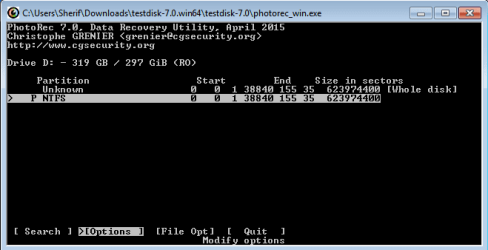
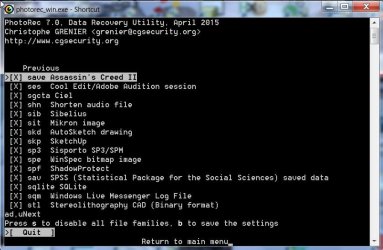
jumanji Second window, i choose File Opt and i select all files and pressed b to save then i choose P NTFS..

4.PNG
 

My Computer

Computer type
PC/Desktop
OS
Windows 7 Ultimate 64bit.
jumanji, Fifth window and i can't find my External HDD Recovery Folder in the selection menu...It only shows the contents of C: Drive..

7.PNG
 

My Computer

Computer type
PC/Desktop
OS
Windows 7 Ultimate 64bit.
jumani Sir, do you follow?! Right now i'm stuck on the fifth screen unable to locate my external HDD Recovery Folder.
 

My Computer

Computer type
PC/Desktop
OS
Windows 7 Ultimate 64bit.
Hi, hold on. Quit PhotoRec.

1. Are you in USA?

2. Is the local time shown correct?

3. We have to first fix up a time suitable for both of us to be online.

4. Do not keep on posting the screenshots one after the other. Post only one ccreenshot asked for and then wait till I instruct you to go to the next screen.

It is already past midnight and I am going to sleep now.

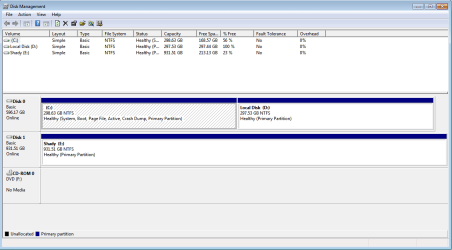
First post a screenshot of Windows Disk Managemnt showing your system drive and the external drive. I shall be able to see it only tomorrow 1300hrs that is twelve hours from now. We shall start PhotoRec after that.
 

My Computer

OS
Windows 7 Home Premium 32 bit
Hi, hold on. Quit PhotoRec.

1. Are you in USA?

2. Is the local time shown correct?

3. We have to first fix up a time suitable for both of us to be online.

4. Do not keep on posting the screenshots one after the other. Post only one ccreenshot asked for and then wait till I instruct you to go to the next screen.

It is already past midnight and I am going to sleep now.

First post a screenshot of Windows Disk Managemnt showing your system drive and the external drive. I shall be able to see it only tomorrow 1300hrs that is twelve hours from now. We shall start PhotoRec after that.

No sir, i'm in Kuwait and the local time now is 10:47 PM...We shall see about this tomorrow..

1.PNG
 

My Computer

Computer type
PC/Desktop
OS
Windows 7 Ultimate 64bit.
OK fine you are at GMT+3 and I am at GMT+5:30. Please change your time zone in USER CP. Settings &options>Edit Options> Date and Time options. Change Time Zone to GMT+3. That should show your correct Local Time in your post ( and I need not deduct 2:30 from my local time to get your local time. I am weak in mathematics :D)

Your TestDisk screenshots appear to be OK but I shall rework it and present it when I get back. ( I have an appointment with the optholmologist for my wife and running away now)
 
Last edited:

My Computer

OS
Windows 7 Home Premium 32 bit
I returned late and yet to do my workout. I shall return soon when I complete it.
 

My Computer

OS
Windows 7 Home Premium 32 bit
jumanji Take your time sir...i'am also at work now and will be available after 3 hours from now..
 

My Computer

Computer type
PC/Desktop
OS
Windows 7 Ultimate 64bit.
OK, the worksheet for you is ready. I still can't say what will be the final result. Our friend Bongolia in this thread Flash files restored but with generic names. Partition notfound. was able to get all the files using PhotoRec ( but without the folder structure and original file names) but was able to get the folder structure and original filenames using the free demo version of GetDataback simple. In your case using GetDataback simple is out of consideration since you have formatted D:.If data is still there PhotoRec will definitely reconstruct the files. Let us see your luck.

Run PhotoRec with your destination external drive plugged in.

Screen 1:

1Screen.jpg

Highlight/Select your formatted drive. Note the drive letter of your destination external drive.( In your case it may be different) [Proceed] is highlighted. Press Enter key

Screen 2:

2screen.jpg

Your drive D: partition P NTFS is highlighted. Move the highlight from [Search] to [File Opt]. Enter

Screen 3:

3screen.jpg

Toggle s to select/deselect all file types. If you know what file types you want to copy, you can deselect all types and select/highlight only those file types by putting X in [ ]. PhotoRec Scan will take less time. If you don't mind a long run, then select all file types. 300 GB will take quite a few hours.

Press b to save the selection. Do not forget

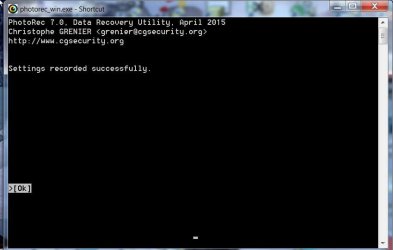
Screen 4:

4screen.jpg

Settings Saved. Press Enter.

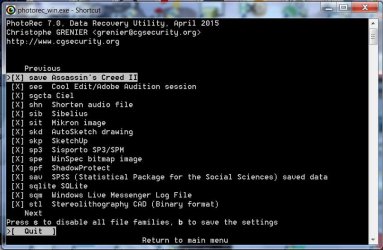
Screen 5:

5screen.jpg

[Quit] is highlighted. Press Enter to return to the main menu.

Screen 6:

6screen.jpg

Back to the main menu with Drive D: Partiton P NTFS highlighted.

Move highlight from [File Opt] to [Search] Press Enter.

Screen 7:

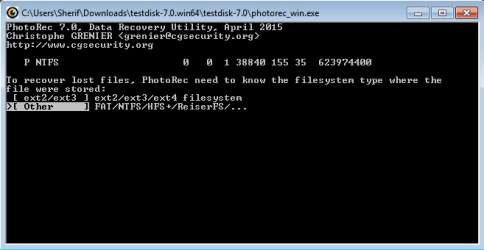
7screen.jpg

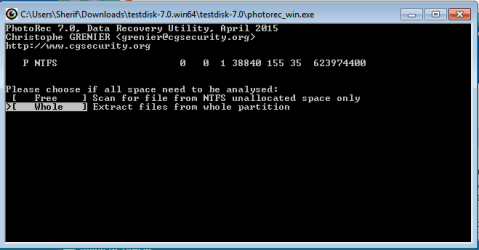
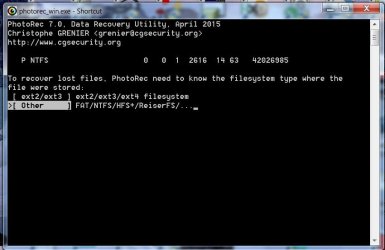
Highlight [Other] Press Enter.

Screen 8:

8screen0.jpg

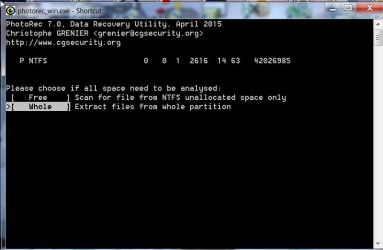
Highlight [Whole] Press Enter

Screen 9:

9screen.jpg

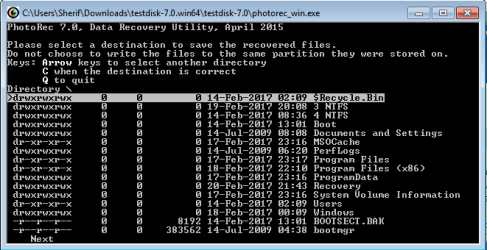
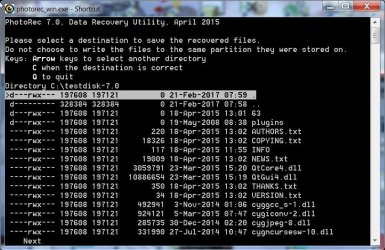
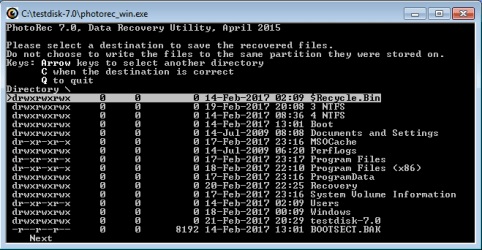
Select Destination: Default shown Directory ; \testdisk7-0. No No No We want Directory I: /Recovery

Press Left arrow key to go one level higher. EDITED: It is not the right arrow key but left arrow key

Screen 10:

10screen.jpg

You are at Directory C: \ Still a No No

Press Left arrow key once again EDITED : Again Left arrow key

So you will press the left arrow key twice.

Screen 11:

11screen.jpg

Voila! you see all the directories (drives) . Move the highlight to the drive letter of your external drive - which you noted in screen one.

Press Enter.

Screen 12:

12Screen.jpg

You are still in Directory I: \ that is the root. You got it. You can see all the folders on your external drive. Move the highlight to the Recovery Folder and press Enter

Screen 13:

13screen.jpg

Ahoy! you are in Directory I: \Recovery - your external drive Recovery Folder - your destination to copy

Why wait? Press C

Screen 14

14Screen.jpg

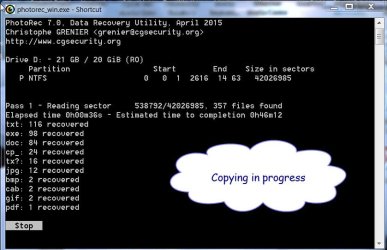
Copying starts

Screen15

15Screen.jpg

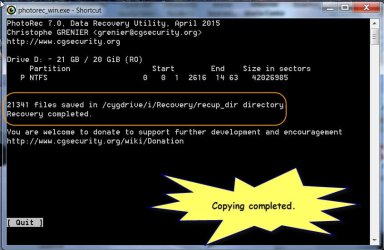
Copy completed

Press Enter to quit.

Open the Recovery folder and check whether the files have been copied.

Let us know whether thumbs up or Thumbs down.
 
Last edited:

My Computer

OS
Windows 7 Home Premium 32 bit
Note: I have edited my previous post. In screen 9 and screen 10 you will press the left arrow key to move one level up and reach your destination.
 

My Computer

OS
Windows 7 Home Premium 32 bit
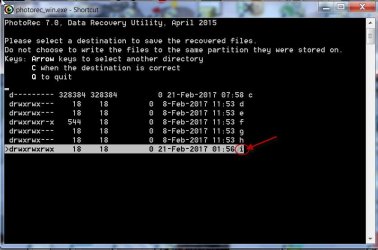
jumanji Sir, i'm stuck at screen 9..When i press left arrow key it goes nowhere!

1.PNG
 

My Computer

Computer type
PC/Desktop
OS
Windows 7 Ultimate 64bit.
Back
Top