Defragged?

spleenpoker

New member
Local time
11:11 PM
Messages
6
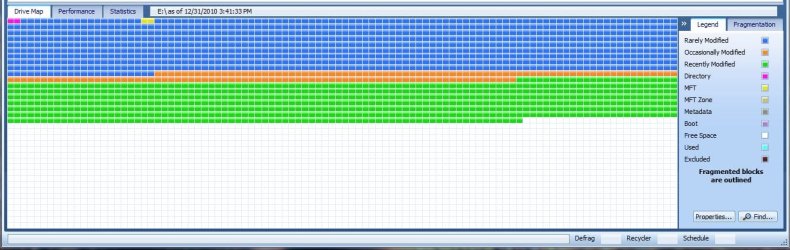
Hi, I have been using o&o defrag(latest version) for a year.. no problems. Today I checked the drive and the block were all over the place.

Here is a pic of my drive after O&O said it was 100% defragged(I had O&O do automatic defrags in the background). I just installed Defraggler to see if it made a difference. I would rather like an experts opinion.

Is this what its suppose to look like or did O&O mess up?

2qi7blw.jpg


Thanks.
 

My Computer

OS
Windows 7 Ultimate 32bit
Well, Id first like to start by saying, Im not very familiar with O&O at all, and what features it offers.


It doesn't appear as if any of the blocks are fragmented in your screen shot. So in a sense, it is correct. There is no frgmentation.
Now whether everything is placed for optimal performance is a different question entirely.

Deframenting, Consolodating Free Space, and File Placement are all different things, and many times are used together for optimal performance by many defragmenters..

Check your settings for that drive.
You may find it is set to defragment only. This method simply defragments all fragments, nothing more. So large spaces of free space would be normal.

Many 3rd Party defragmenters use different methods, called different things.
Perfect Disk for Example, has a Defrag Only option as well.

It also has a Consolodate Free Space option.
This method will Defragment and pack all your files close together, moving them to the outside edge of the drive (The fastest part)

There may also be options similar to PDs, that they call SmartPlacement
Essentially, it works the same as a Consolodate Defrag, only it uses file placement as well.
Defragmenting,Consolodating, and placing the least modified files on the outside edge, --> the most often modifies near the end.
This type of defrag is supposed to help reduce future fragmentation, and shorten defrag times theafter.

Some also have a Folder/Filename scheme that dfregs, Consolodates, but places all folders/files in alaphebetacl order.

My guess is you'll need to look through your options and change it to something other than Defrag Only, if you wish for your files to be packed closer together on the outer edge of the platters.

O&O may not name each defragment method the same as Perfect Disc does, but just read the desciption. It should be similar in the way it works to Defrag/Consolodate/Place Files.

As an example, this is what my Games drive looks like after a SmartPlacement Defrag.
 

Attachments

  • Capture.JPG
    Capture.JPG
    126.2 KB · Views: 31

My Computer

Computer Manufacturer/Model Number
Custom (Self Build)
OS
Windows 7 Home Premium 64bit
CPU
Intel Core i7 2700k
Motherboard
eVGA P67 SLI
Memory
8GB Mushkin Redline Ridgebacks @1866
Graphics Card(s)
EVGA GTX570 SC
Sound Card
XiFi Titanium HD
Monitor(s) Displays
LG W2453V
Screen Resolution
1920x1080
Hard Drives
Intel 320 80GB -- Intel X25-V 40GB --WD Black 1TB x2 -- WD Blue 640GB
PSU
Seasonic x750
Case
Corsair 600T SE White
Cooling
eVGA Superclocked CPU Cooler
Keyboard
Saitek Cyborg
Antivirus
Kaspersky
Browser
IE
Other Info
LG BD/DVD
As of now I only have 1 game installed on my fastest drive which so happens to be my OS drive (is that a good idea?) Also I would like to know what defrag to use so I can tell it to put that one installed game folder on my OS drive to the fastest part of the drive?

Thanks
 

My Computer

OS
Windows 7 Ultimate 32bit
Personally, I prefer having the OS with all installed apps on it own HD. (Or the 1st partition of a spinning drive).

I just use a SmartPlacement or Modified type of defrag fior the OS and Apps, as it does help reduce future fragmenting a bit.
If the drive is a SSD, only use a Consolodate type defrag on occasion.

If you have the option, I always like to put games on thier very own HD.
This way the drive is not busy untill you play a game and therefore a bit more responsive because the drive is dedicated to games only.
Also, no other files but the games themselves using space.


As to what type of defrag is the "best" to use ...

Honestly, I think this comes down to bit of personal preference & the what the drive is being used for.
IMHO its a bit hard to answer. I really like like the Smart Placement (aka Modified) type of deragmenting.

It works quite well for my needs, and I use it on my drives with the exception of SSDs.
So I would have to say its my personal "best" method".

Some of my drives get a few items modified quite often. So this method works out perfect for me.
Because, when the drive does get fragmented, the large majority is at the end of the drive, and future defrags take a short time to complete.


Hopefully others have different opinions to share as to the best method & why. :)

But I do think that whatever method you chose (in terms of file placement) it will perform better than a defrag only. Because it will be defragmenting, and consolodating everything nice and close together at the front of the drive.
The rest will simply be a decision of how you want the files placed.
 

My Computer

Computer Manufacturer/Model Number
Custom (Self Build)
OS
Windows 7 Home Premium 64bit
CPU
Intel Core i7 2700k
Motherboard
eVGA P67 SLI
Memory
8GB Mushkin Redline Ridgebacks @1866
Graphics Card(s)
EVGA GTX570 SC
Sound Card
XiFi Titanium HD
Monitor(s) Displays
LG W2453V
Screen Resolution
1920x1080
Hard Drives
Intel 320 80GB -- Intel X25-V 40GB --WD Black 1TB x2 -- WD Blue 640GB
PSU
Seasonic x750
Case
Corsair 600T SE White
Cooling
eVGA Superclocked CPU Cooler
Keyboard
Saitek Cyborg
Antivirus
Kaspersky
Browser
IE
Other Info
LG BD/DVD
Ok Thanks for the replies Wishmaster, so i installed PerfectDisk11 for SMARTPlacement. So i did the option "SmartPlacement Performance Aggressive" and this is what it looks like.. Same drive as pic i posted above.. Why isn't it putting the blocks altogether?

25yzpcj.jpg
 

My Computer

OS
Windows 7 Ultimate 32bit
Sorry if double posting is not allowed but 198 views and no one can answer my post above?
 

My Computer

OS
Windows 7 Ultimate 32bit
You need to check the defragmenting software to consolidate free space, btw why dont you try Puran Defrag?
 

My Computer

Computer type
PC/Desktop
OS
Microsoft Windows 10 Professional / Windows 7 Professional
CPU
Intel i5-3570
Motherboard
Lenovo Mahobay
Memory
16GB DDR3
Graphics Card(s)
AMD Radeon HD 7850 2GB
Sound Card
(1) Realtek HD Audio (2) AMD HD Audio
Monitor(s) Displays
LG LS192WS
Screen Resolution
1440 x 900 @ 32bit color
Hard Drives
(1) SUV300S37A/120G (2) ST3500413AS SATA Disk Device AHCI mode enabled.
PSU
Corsair HX620
Case
Thermaltake V4 Black Edition
Cooling
Cooler Master Hyper 212 + Artic Silver 5 on CPU/GPU
Keyboard
Dell SK-8115
Mouse
Razer Copperhead with MAPED mat (awesome!)
Internet Speed
100 Mbps up/down
Browser
Chrome
I have it set to aggressively consolidate free space. So i dont know. How is Puran Defrag?
 

My Computer

OS
Windows 7 Ultimate 32bit
Some of those files may be currently in use, and unable to be moved right now.

What Iwould suggest:
Run CCleaner to remove all TEMP files, before defragmenting.
As well as opening a CMD Prompt as ADMIN and run the advanced disk clean up.

For the Command its:

cleanmgr sageset:99

(In the window that pops up, check all the boxes. You may wish to keep your thumbnails, in whick case leave that box unchecked)

The to run it:
cleanmgr sagerun:99

It may also be a good idea afterwards, to reboot the machine, then defrag.
Sometimes this helps with files that are in use and can not be moved. It frees them back up.

You may also want to try the Default, or Standard Smart Placement.


BTW, I wasn't meaning go buy PD, it's just Im really only familiar with it and not so much O&O, which is why I used it as a example.
It is a good program though.
 

My Computer

Computer Manufacturer/Model Number
Custom (Self Build)
OS
Windows 7 Home Premium 64bit
CPU
Intel Core i7 2700k
Motherboard
eVGA P67 SLI
Memory
8GB Mushkin Redline Ridgebacks @1866
Graphics Card(s)
EVGA GTX570 SC
Sound Card
XiFi Titanium HD
Monitor(s) Displays
LG W2453V
Screen Resolution
1920x1080
Hard Drives
Intel 320 80GB -- Intel X25-V 40GB --WD Black 1TB x2 -- WD Blue 640GB
PSU
Seasonic x750
Case
Corsair 600T SE White
Cooling
eVGA Superclocked CPU Cooler
Keyboard
Saitek Cyborg
Antivirus
Kaspersky
Browser
IE
Other Info
LG BD/DVD
Ok Thanks wishmaster, So i did as you said and this is the result:

29eivza.jpg


What are all those "excluded" blocks randomly in the middle? I right click them and check the block viewer but it does say anything is there?

Thanks again for all the help
 

My Computer

OS
Windows 7 Ultimate 32bit
Glad I was able to help some :)

The Excluded marked in black is usually 1 of 2 things (or both)

Typically the Pagefile.
The Pagefile needs to be defragmented at boot time though, as it can not be moved while Windows is running. (Although this probably isn't really needed)

It also can contain System restore Points.
Which also, can not be moved while Windows is running.

You can delete all System Restore Points (except maybe the most recent)
And after the defrag make a new one. Or just delete all but most recent.


If you want to do a Boot Time defrag, just check the little box in PD's main Window "Boot Time" beside the drive you want done, and reboot your PC. It will handle the rest.
 

My Computer

Computer Manufacturer/Model Number
Custom (Self Build)
OS
Windows 7 Home Premium 64bit
CPU
Intel Core i7 2700k
Motherboard
eVGA P67 SLI
Memory
8GB Mushkin Redline Ridgebacks @1866
Graphics Card(s)
EVGA GTX570 SC
Sound Card
XiFi Titanium HD
Monitor(s) Displays
LG W2453V
Screen Resolution
1920x1080
Hard Drives
Intel 320 80GB -- Intel X25-V 40GB --WD Black 1TB x2 -- WD Blue 640GB
PSU
Seasonic x750
Case
Corsair 600T SE White
Cooling
eVGA Superclocked CPU Cooler
Keyboard
Saitek Cyborg
Antivirus
Kaspersky
Browser
IE
Other Info
LG BD/DVD
Back
Top