Desktop Background - Change

How to Change the Windows 7 Desktop Background

   Information
This will show you how to change your desktop background to either a wallpaper picture (image), solid color, or slideshow of you choice in Windows 7.

   Note
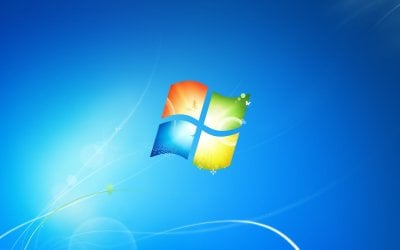
The default Windows 7 desktop background image is located in the folder below. If you had deleted it by mistake, you can click on the Download button below to download it in a ZIP file. See example screeenshot below.

C:\Windows\Web\Wallpaper\Windows\img0.jpg.


Download


   Tip

   Warning
The Windows 7 Starter edition does not include the Personalization features such as the change desktop background option.

Lets talk about Windows 7 Starter - Windows 7 Team Blog - The Windows Blog

The Windows 7 Home Basic edition does not have the Personalization feature either, and will only allow you to change the desktop background by right clicking on a image and clicking on Set as desktop background.

You can use the tutorial at the link below to be able to change the desktop background like in Personalization in the Windows 7 Starter and Home Basic editions.

How to Change the Desktop Background in Windows 7 Starter and Home Basic Editions


EXAMPLE: Default Windows 7 Desktop Background img0.jpg


OPTION ONE

To Change Desktop Background Wallpaper from Context Menu of Image
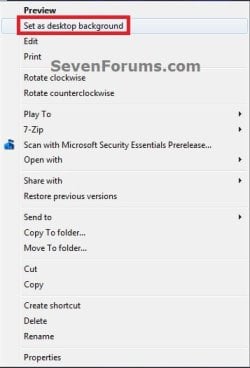
1. Right click on the image you want as your wallpaper, and click on Set as desktop background. (see screenshot below) Context-Menu.jpg


OPTION TWO

To Change Desktop Background Wallpaper in "Personalization" Settings

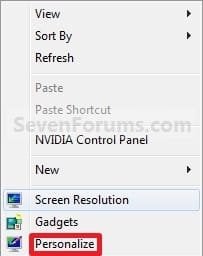
1. Right click on a empty space on the desktop and click on Personalize. (see screenshot below)
173d1230590219-desktop-background-change-right_click.jpg

2. Click on the Desktop Background link at the bottom of the window. (see screenshot below)
NOTE: The name in gray under Desktop Background is the current desktop background file name. Personalize.jpg
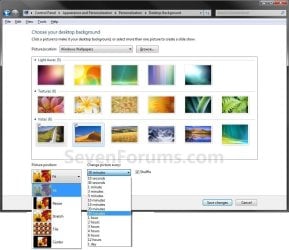
3. Select a Picture Location A) Click on the drop down arrow menu to select from the list of available picture folder locations, or click on the Browse button to navigate to the picture folder location. (see screenshot below step 7)
NOTE: To use another regional wallpaper, see the yellow TIP box at the top of the tutorial. To remove a folder from the Picture location, see How to Remove the Windows 7 Desktop Background Picture Location History.
B) Select the picture folder and click on Select Folder.
4. Select a Desktop Background A) Right click on an available picture, or click (check) on the box in the upper left corner of the picture, to select it. (see screenshot below step 7)
NOTE: You can continue to right click on the images to see it previewed on your desktop until you decide which one you like best.
5. Select the Picture Position A) Click on the drop down arrow menu, and click on the picture position you want for the desktop background. (see bottom of screenshot below step 7)
6. For a Desktop SlideShow A) For how, see: How to Create a Desktop Slideshow in Windows 7
7. Click on Save changes to apply the changes. (see screenshots below) change-2.jpg
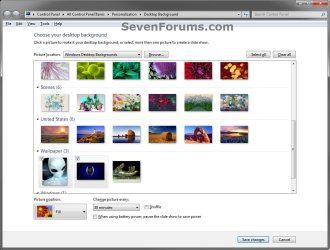
Desktop_Background.jpg

8. Close the Personalize window when done. (see screenshot below step 2)


OPTION THREE

To Change Desktop Background Wallpaper Manually in Registry Editor

1. Open the Start Menu, type regedit in the search box and press Enter.

2. If prompted by UAC, then click on Yes.

3. In regedit, navigate to the location below. (see screenshot below) HKEY_CURRENT_USER\Control Panel\Desktop

REG-1.jpg
4. In the right pane of the Desktop key in regedit, right click on the Wallpaper string value and click on Modify. (see screenshot above)

5. Type in the full path of the image file (ex: .jpg or .bmp), and click on OK. (see screenshot below)
NOTE: Be sure that the name of the image file does not contain any spaces in it. If it does, rename the image file first so that it doesn't. If you use a image file name with a space in it's name, then you would just get a solid black desktop background instead. Reg-2.jpg
6. Close regedit.

7. log off and log on to apply.
That's it,
Shawn


Attachments

  • Right_Click.jpg
    Right_Click.jpg
    7.6 KB · Views: 1,179,689
  • img0.zip
    img0.zip
    621.3 KB · Views: 99,391
Last edited:
Tutorial has been updated to add OPTION TWO for how to manually change the desktop background wallpaper in registry editor for only your user account. :)
 

My Computer

Computer type
PC/Desktop
Computer Manufacturer/Model Number
Self built custom
OS
64-bit Windows 11 Pro for Workstations
CPU
Intel i7-8700K OC'd to 5 GHz
Motherboard
ASUS ROG Maximus XI Formula Z390
Memory
64 GB (4x16GB) G.SKILL TridentZ RGB DDR4 3600 MHz
Graphics Card(s)
ASUS ROG-STRIX-GTX1080TI-O11G-GAMING
Sound Card
Integrated
Monitor(s) Displays
2 x Samsung Odyssey G7 27"
Screen Resolution
2560x1440
Hard Drives
1TB Samsung 990 PRO M.2,
4TB Samsung 990 PRO PRO M.2,
TerraMaster F8 SSD Plus NAS
PSU
Seasonic Prime Titanium 850W
Case
Thermaltake Core P3
Cooling
Corsair Hydro H115i
Keyboard
Logitech wireless K800
Mouse
Logitech MX Master 4
Internet Speed
2 Gb/s Download and 100 Mb/s Upload
Antivirus
Malwarebyte Anti-Malware Premium
Browser
Google Chrome
Other Info
Logitech Z625 speaker system,
Logitech BRIO 4K Pro webcam,
HP Color LaserJet Pro MFP M477fdn,
APC SMART-UPS RT 1000 XL - SURT1000XLI,
Galaxy S23 Plus phone
Desktop Background-Change

Cookieman, thanks for your reply. It looks like a winner except I confess I don't know how to do it. I set up my wallpaper by pulling up a jpg image and right click to the wallpaper option. Throughout the process I don't see an option for sizing the image to the screen. Obviously you have something else in mind. Can you please explain what process you're tracking.
Thanks!
 

My Computer

OS
Windows 7 Home Premium
Cookieman, thanks for your reply. It looks like a winner except I confess I don't know how to do it. I set up my wallpaper by pulling up a jpg image and right click to the wallpaper option. Throughout the process I don't see an option for sizing the image to the screen. Obviously you have something else in mind. Can you please explain what process you're tracking.
Thanks!

He's talking about the option in the lower left of this picture,


You get there by right clicking on the desktop and choosing the personalize option.
 

My Computer

Computer type
PC/Desktop
Computer Manufacturer/Model Number
Self Built
OS
Win 10 Pro x64
CPU
Intel I5-2500K @3.3GHz
Motherboard
Asrock P67 Extreme4
Memory
16GB G.Skill Ripjaws X (4x4GB)
Graphics Card(s)
EVGA GeForce 750 Ti SC 2GB
Sound Card
ASUS Xonar DG 5.1 Channels 24-bit 96KHz PCI Interface Sound
Monitor(s) Displays
auria eq2367
Screen Resolution
1920 x 1080
Hard Drives
250GB Samsung 850 EVO SSD
1TB WD Blue
1TB Hitachi
PSU
SeaSonic X 650W 80 Plus Gold
Case
Corsair Obsidian 750D
Cooling
Corsair H60, Three 140mm case fans
Keyboard
Logitech Wireless Keyboard K520
Mouse
Logitech Wireless Mouse M310
Internet Speed
Wave Broadband ~ 100 dn 5 up
Antivirus
Windows Defender, Malwarebytes Premium
Browser
Edge, IE11, Chrome
Other Info
Laptop specs: HP g7-1365dx /
CPU: AMD A6-3420M APU with Radeon(tm) HD Graphics /
RAM: Crucial 8Gb (2x4Gb) /
SSD: Crucial M4-CT128M4SSD2 ATA Device/ FW 000F /
GFX: AMD Radeon HD 6520G /
OS: Windows 10 Pro x64
Desktop Background-Change

Thanks, guys! I finally figured it out. That works nicely and solves the problem. I appreciate your help. This is a great forum.
 

My Computer

OS
Windows 7 Home Premium

My Computer

Computer type
PC/Desktop
Computer Manufacturer/Model Number
Self Built
OS
Win 10 Pro x64
CPU
Intel I5-2500K @3.3GHz
Motherboard
Asrock P67 Extreme4
Memory
16GB G.Skill Ripjaws X (4x4GB)
Graphics Card(s)
EVGA GeForce 750 Ti SC 2GB
Sound Card
ASUS Xonar DG 5.1 Channels 24-bit 96KHz PCI Interface Sound
Monitor(s) Displays
auria eq2367
Screen Resolution
1920 x 1080
Hard Drives
250GB Samsung 850 EVO SSD
1TB WD Blue
1TB Hitachi
PSU
SeaSonic X 650W 80 Plus Gold
Case
Corsair Obsidian 750D
Cooling
Corsair H60, Three 140mm case fans
Keyboard
Logitech Wireless Keyboard K520
Mouse
Logitech Wireless Mouse M310
Internet Speed
Wave Broadband ~ 100 dn 5 up
Antivirus
Windows Defender, Malwarebytes Premium
Browser
Edge, IE11, Chrome
Other Info
Laptop specs: HP g7-1365dx /
CPU: AMD A6-3420M APU with Radeon(tm) HD Graphics /
RAM: Crucial 8Gb (2x4Gb) /
SSD: Crucial M4-CT128M4SSD2 ATA Device/ FW 000F /
GFX: AMD Radeon HD 6520G /
OS: Windows 10 Pro x64
:cry:Hi all.....I'm new here so if I interupted something or posted this in the wrong place, I truly appologize......but......I've had this problem for a long time. I try to change my desktop background on Windows 7 Home Premium 64bit through Personalization, well, it will change.......for about 5 seconds, and then go back to that awful Zodiac background no matter what I do. Any help for me?:banghead::banghead:
 

My Computer

Computer Manufacturer/Model Number
Acer
OS
Windows 7 Home Premium 64bit
Hello damitz, and welcome to Seven Forums.

Have you applied any custom skins or anything like this to your Windows 7?

When you changed your desktop background, did you click on the OK button at the bottom to apply it? If not that would cause the background to revert back to what you had before like that when you close the "Desktop Background" window.

If you did click on "Save changes", then as a test, create a new account of the same type (ex: administrator) for yourself, and see how changing the desktop background works while logged in it.

Hope this helps for now, :)
Shawn
 
Last edited:

My Computer

Computer type
PC/Desktop
Computer Manufacturer/Model Number
Self built custom
OS
64-bit Windows 11 Pro for Workstations
CPU
Intel i7-8700K OC'd to 5 GHz
Motherboard
ASUS ROG Maximus XI Formula Z390
Memory
64 GB (4x16GB) G.SKILL TridentZ RGB DDR4 3600 MHz
Graphics Card(s)
ASUS ROG-STRIX-GTX1080TI-O11G-GAMING
Sound Card
Integrated
Monitor(s) Displays
2 x Samsung Odyssey G7 27"
Screen Resolution
2560x1440
Hard Drives
1TB Samsung 990 PRO M.2,
4TB Samsung 990 PRO PRO M.2,
TerraMaster F8 SSD Plus NAS
PSU
Seasonic Prime Titanium 850W
Case
Thermaltake Core P3
Cooling
Corsair Hydro H115i
Keyboard
Logitech wireless K800
Mouse
Logitech MX Master 4
Internet Speed
2 Gb/s Download and 100 Mb/s Upload
Antivirus
Malwarebyte Anti-Malware Premium
Browser
Google Chrome
Other Info
Logitech Z625 speaker system,
Logitech BRIO 4K Pro webcam,
HP Color LaserJet Pro MFP M477fdn,
APC SMART-UPS RT 1000 XL - SURT1000XLI,
Galaxy S23 Plus phone
Sorry it took so long to reply, but, I've been trying your suggestions. I've downloaded themes from the Microsoft Windows 7 site and that's what I've been trying to use. I've clicked the "sve Changes" button after choosing a picture, and, as I"ve said....it will change the picture for about 10 seconds and then goes back to the Zodiac picture. NOW, I created another admistrator account for myself and that keeps the picture I choose, but, then I lose all of my settings and stuff. Thank you so very much for giving me your advise, but, is there any way to keep all of my settings and programs, etc., and still change the picture?
And again, thank you very much---my sanity has returned!!!

I take it alllll back......the bunnies are still there. What happened? This is GREAT!!! I owe you BIG TIME!!!!!!!!! THANK YOU, THANK YOU, THANK YOU!!!!!!!
 
Last edited:

My Computer

Computer Manufacturer/Model Number
Acer
OS
Windows 7 Home Premium 64bit
You're welcome.

Well, since it works just fine in the new account, it's not a system setting and must be some change made in that original account causing it. I'd say try a system restore with a restore point, but since you say it's been like this for a long time, you most likely wouldn't have a restore point available dated before this started.

I'm not sure what else to suggest other than using the new account instead, and copying over all of your favorites, shortcuts, and redo your settings. :(
 

My Computer

Computer type
PC/Desktop
Computer Manufacturer/Model Number
Self built custom
OS
64-bit Windows 11 Pro for Workstations
CPU
Intel i7-8700K OC'd to 5 GHz
Motherboard
ASUS ROG Maximus XI Formula Z390
Memory
64 GB (4x16GB) G.SKILL TridentZ RGB DDR4 3600 MHz
Graphics Card(s)
ASUS ROG-STRIX-GTX1080TI-O11G-GAMING
Sound Card
Integrated
Monitor(s) Displays
2 x Samsung Odyssey G7 27"
Screen Resolution
2560x1440
Hard Drives
1TB Samsung 990 PRO M.2,
4TB Samsung 990 PRO PRO M.2,
TerraMaster F8 SSD Plus NAS
PSU
Seasonic Prime Titanium 850W
Case
Thermaltake Core P3
Cooling
Corsair Hydro H115i
Keyboard
Logitech wireless K800
Mouse
Logitech MX Master 4
Internet Speed
2 Gb/s Download and 100 Mb/s Upload
Antivirus
Malwarebyte Anti-Malware Premium
Browser
Google Chrome
Other Info
Logitech Z625 speaker system,
Logitech BRIO 4K Pro webcam,
HP Color LaserJet Pro MFP M477fdn,
APC SMART-UPS RT 1000 XL - SURT1000XLI,
Galaxy S23 Plus phone
OH< NO.....somehow....I switched back to my original log-in, and, it's now keeping the correct desktop background. Whatever you've suggested was magic. Thank you again!!!!
 

My Computer

Computer Manufacturer/Model Number
Acer
OS
Windows 7 Home Premium 64bit
That's great news. I'm happy to hear it's working properly now for you. :)
 

My Computer

Computer type
PC/Desktop
Computer Manufacturer/Model Number
Self built custom
OS
64-bit Windows 11 Pro for Workstations
CPU
Intel i7-8700K OC'd to 5 GHz
Motherboard
ASUS ROG Maximus XI Formula Z390
Memory
64 GB (4x16GB) G.SKILL TridentZ RGB DDR4 3600 MHz
Graphics Card(s)
ASUS ROG-STRIX-GTX1080TI-O11G-GAMING
Sound Card
Integrated
Monitor(s) Displays
2 x Samsung Odyssey G7 27"
Screen Resolution
2560x1440
Hard Drives
1TB Samsung 990 PRO M.2,
4TB Samsung 990 PRO PRO M.2,
TerraMaster F8 SSD Plus NAS
PSU
Seasonic Prime Titanium 850W
Case
Thermaltake Core P3
Cooling
Corsair Hydro H115i
Keyboard
Logitech wireless K800
Mouse
Logitech MX Master 4
Internet Speed
2 Gb/s Download and 100 Mb/s Upload
Antivirus
Malwarebyte Anti-Malware Premium
Browser
Google Chrome
Other Info
Logitech Z625 speaker system,
Logitech BRIO 4K Pro webcam,
HP Color LaserJet Pro MFP M477fdn,
APC SMART-UPS RT 1000 XL - SURT1000XLI,
Galaxy S23 Plus phone
I don't know what I did wrong here, I replied but it did stick....so---I switched back to my original account and changed desktop backgrounds there and it seems to be staying now. I don't know what kind of magic that you have, But, I get to keep my settings and all that good stuff!!! Thank you so very, very much!!~!!!!@##!@!!!!
 

My Computer

Computer Manufacturer/Model Number
Acer
OS
Windows 7 Home Premium 64bit
It's just that classified alien tech. ;)
 

My Computer

Computer type
PC/Desktop
Computer Manufacturer/Model Number
Self built custom
OS
64-bit Windows 11 Pro for Workstations
CPU
Intel i7-8700K OC'd to 5 GHz
Motherboard
ASUS ROG Maximus XI Formula Z390
Memory
64 GB (4x16GB) G.SKILL TridentZ RGB DDR4 3600 MHz
Graphics Card(s)
ASUS ROG-STRIX-GTX1080TI-O11G-GAMING
Sound Card
Integrated
Monitor(s) Displays
2 x Samsung Odyssey G7 27"
Screen Resolution
2560x1440
Hard Drives
1TB Samsung 990 PRO M.2,
4TB Samsung 990 PRO PRO M.2,
TerraMaster F8 SSD Plus NAS
PSU
Seasonic Prime Titanium 850W
Case
Thermaltake Core P3
Cooling
Corsair Hydro H115i
Keyboard
Logitech wireless K800
Mouse
Logitech MX Master 4
Internet Speed
2 Gb/s Download and 100 Mb/s Upload
Antivirus
Malwarebyte Anti-Malware Premium
Browser
Google Chrome
Other Info
Logitech Z625 speaker system,
Logitech BRIO 4K Pro webcam,
HP Color LaserJet Pro MFP M477fdn,
APC SMART-UPS RT 1000 XL - SURT1000XLI,
Galaxy S23 Plus phone
Back
Top