Desktop Background Wallpaper - Change in Windows 7 Starter

How to Change Desktop Background Wallpaper in Windows 7 Starter and Home Basic Editions

   Information
By default the Windows 7 Starter and Windows 7 Home Basic editions do not include the Personalization features such as change desktop background, Desktop Slideshow, Screen Saver, and Windows Color and Appearance.


This tutorial will show you how to add these features to the Windows 7 Starter and Windows 7 Home Basic editions.
  • For free desktop background wallpapers from Microsoft, see: Desktop backgrounds (wallpaper) - Microsoft Windows
  • By default, the Windows 7 Home Basic edition will only allow you to change the desktop background by right clicking on a image and clicking on Set as desktop background.
  • If you plan on doing a in-place upgrade to another higher level edition of Windows 7 in the future, then be sure to uninstall this Oceanis Change Background W7 or Personalization Panel program first to avoid incompatibility issues with it in the new edition of Windows 7. It was designed to only work in the Windows 7 Starter and Home Basic editions.


OPTION ONE

Using the "Oceanis Change Background W7" Program


   Note
This will show you how to download and use the program Oceanis Change Background W7 provided by Oceanis so that you can change the desktop background with a optional desktop slideshow (shuffle) in the Windows 7 Starter and Home Basic editions.


If the Oceanis program is closed, then the desktop background goes with it. You will need to leave the Oceanis program running to keep the background.
  • You must be using the Windows 7 Basic theme.
  • If the Oceanis Change Background W7 program no longer works properly after installing some Windows Updates, then uninstall and reinstall the Oceanis Change Background W7 program to have it run properly again.
  • If you get the black wallpaper in Windows 7 Starter, then:
  • Run a sfc /scannow command, and restart the computer afterwards. You may have some corrupted system files causing the background wallpaper to not display.
1. Click on the Download button below to download the Oceanis Change Background W7 ZIP file provided by Oceanis, click on Save, and save it to your Desktop.

Download


2. Open the downloaded ZIP file, extract (drag and drop) the exe file below to your desktop, and run it.
NOTE: You will be prompted to restart the computer to finish installing this program.
Oceanis_Change_Background_W7.exe
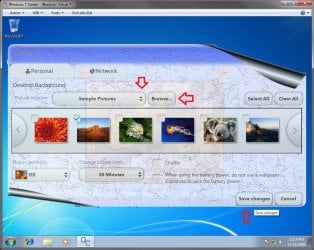
3. When your computer restarts, you will see this as your desktop background. Click on the Oceanis Change Background W7 shortcut to change your desktop background. (see screenshot below)
Program1.jpg
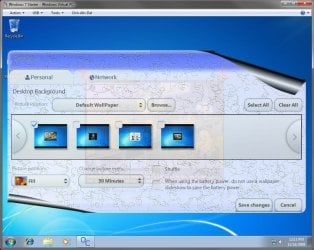
4. Browse to the images that you want to use and check (select) a image, or more than one image to have a desktop slideshow. Select the Picture position for how you want the images displayed, and any desktop slideshow settings if you selected more than one image. (see screenshot below)
NOTE: These options are just like the default ones in the other editions of Windows 7 here that are now being allowed by this program by Oceanis for the Windows 7 Starter edition.
Program.jpg

Program3.jpg
5. When done, click on Save changes. (see screenshots above)


OPTION TWO

Using the "Personalization Panel" Program


NOTE: This will show you how to download and use the Personalization Panel program to add Personalization to the desktop context menu to be able to change the desktop background, Windows Color and Appearance, Sounds, and Screen Saver in the Windows 7 Starter and Home Basic editions. This program does not add the desktop slideshow feature though.
1. Download and install the Personalization Panel program using Regular setup option at the Download link below.

Download


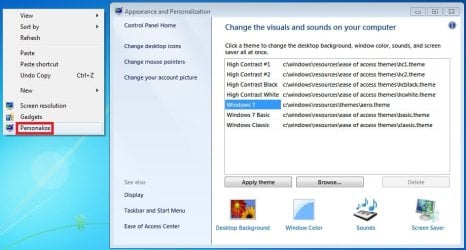
2. When finished installing, you can now right click on the desktop and click on Personalization.

3. If prompted by UAC, then click on Yes.

4. From here you can select and set the Appearance and Personalization options you like. (see screenshot below)
Personalize-1.jpg
5. Desktop Background
A) In Windows Starter
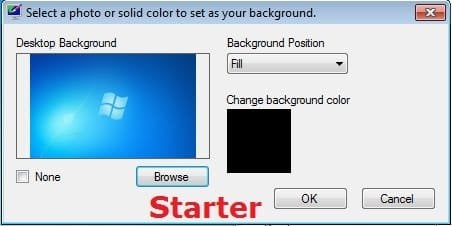
Starter-1.jpg
B) In Windows Home Basic
Basic-1.jpg
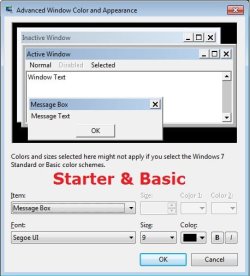
6. Windows Color
A) In Windows Starter
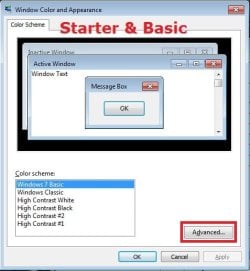
Starter-2.jpg

Starter-3.jpg
B) In Windows Home Basic, you will see this below first then the screenshots above.
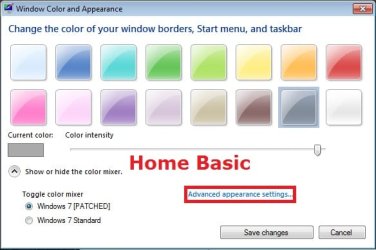
Basic-2A.jpg
7. Sounds
A) This is the same Sounds settings as in the other editions of Windows 7.
8. Screen Saver
A) This is the same Screen Saver settings as in the other editions of Windows 7.
That's it,
Shawn


Attachments

Last edited:
It may be a piece or software that is installed on your computer, or came preinstalled on your computer, that could be preventing it from working properly. I just not sure why. :(


Hi Brink,

I was carefully reading through the Seven Forum and I notice I never did not do anything with UAC settings..Maybe that is the problem. I saw where you asked some one is the UAC turned off? I see where it can be adjusted with a slider..For Oceanis program should it be turned on or off? Just trying to figure out why this program is not working. Thanks!
 

My Computer My Computer

At a glance

windows 7 starter
OS
windows 7 starter
It should be turned on, but you can try both to see if one may work better for you.
 

My Computer My Computer

At a glance

64-bit Windows 11 Pro for WorkstationsIntel i7-8700K OC'd to 5 GHz64 GB (4x16GB) G.SKILL TridentZ RGB DDR4 3600...ASUS ROG-STRIX-GTX1080TI-O11G-GAMING
Computer type
PC/Desktop
Computer Manufacturer/Model Number
Self built custom
OS
64-bit Windows 11 Pro for Workstations
CPU
Intel i7-8700K OC'd to 5 GHz
Motherboard
ASUS ROG Maximus XI Formula Z390
Memory
64 GB (4x16GB) G.SKILL TridentZ RGB DDR4 3600 MHz
Graphics Card(s)
ASUS ROG-STRIX-GTX1080TI-O11G-GAMING
Sound Card
Integrated
Monitor(s) Displays
2 x Samsung Odyssey G7 27"
Screen Resolution
2560x1440
Hard Drives
1TB Samsung 990 PRO M.2,
4TB Samsung 990 PRO PRO M.2,
TerraMaster F8 SSD Plus NAS
PSU
Seasonic Prime Titanium 850W
Case
Thermaltake Core P3
Cooling
Corsair Hydro H115i
Keyboard
Logitech wireless K800
Mouse
Logitech MX Master 4
Internet Speed
2 Gb/s Download and 100 Mb/s Upload
Antivirus
Malwarebyte Anti-Malware Premium
Browser
Google Chrome
Other Info
Logitech Z625 speaker system,
Logitech BRIO 4K Pro webcam,
HP Color LaserJet Pro MFP M477fdn,
APC SMART-UPS RT 1000 XL - SURT1000XLI,
Galaxy S23 Plus phone
I am Getting Closer

Hi Brink,

After installing Oceanis several...I mean several times, I FINALLY got it to open. :D I am step 6. on the tutorial. I am not understanding the Browse. I only see 4 different screenshots. I am hoping there are more to pick from. Once I decide on the wallpaper of my chose, will the wallpaper fill the entire screen? After I figure that I do I restart the computer and open Oceanis to run? I am happy that I got the Oceanis to open, just need to figure out Step 6. and Step 7.

Thanks for all of your help and patience.
 

My Computer My Computer

At a glance

windows 7 starter
OS
windows 7 starter
That's great news Poochie. :party:

Those would just be 4 default images that are include with the program. To select images of your own that are saved on your computer, you would click on the Browse button, navigate to and select the folder where you have your images saved in, and click OK to then see those images in the display pane to check (select) from.
 

My Computer My Computer

At a glance

64-bit Windows 11 Pro for WorkstationsIntel i7-8700K OC'd to 5 GHz64 GB (4x16GB) G.SKILL TridentZ RGB DDR4 3600...ASUS ROG-STRIX-GTX1080TI-O11G-GAMING
Computer type
PC/Desktop
Computer Manufacturer/Model Number
Self built custom
OS
64-bit Windows 11 Pro for Workstations
CPU
Intel i7-8700K OC'd to 5 GHz
Motherboard
ASUS ROG Maximus XI Formula Z390
Memory
64 GB (4x16GB) G.SKILL TridentZ RGB DDR4 3600 MHz
Graphics Card(s)
ASUS ROG-STRIX-GTX1080TI-O11G-GAMING
Sound Card
Integrated
Monitor(s) Displays
2 x Samsung Odyssey G7 27"
Screen Resolution
2560x1440
Hard Drives
1TB Samsung 990 PRO M.2,
4TB Samsung 990 PRO PRO M.2,
TerraMaster F8 SSD Plus NAS
PSU
Seasonic Prime Titanium 850W
Case
Thermaltake Core P3
Cooling
Corsair Hydro H115i
Keyboard
Logitech wireless K800
Mouse
Logitech MX Master 4
Internet Speed
2 Gb/s Download and 100 Mb/s Upload
Antivirus
Malwarebyte Anti-Malware Premium
Browser
Google Chrome
Other Info
Logitech Z625 speaker system,
Logitech BRIO 4K Pro webcam,
HP Color LaserJet Pro MFP M477fdn,
APC SMART-UPS RT 1000 XL - SURT1000XLI,
Galaxy S23 Plus phone
this is awesome! thanksssss
 

My Computer My Computer

At a glance

Windows 8.1 Pro 64-BitIntel Core i5-4460 @ 3.20GHz8.00GB Dual-Channel DDR3 @ 799MHz (11-11-11-28)1023MB NVIDIA GeForce GTX 560 Ti (Gigabyte)
Computer type
PC/Desktop
OS
Windows 8.1 Pro 64-Bit
CPU
Intel Core i5-4460 @ 3.20GHz
Motherboard
Gigabyte Technology Co., Ltd. H97-D3H-CF (SOCKET 0)
Memory
8.00GB Dual-Channel DDR3 @ 799MHz (11-11-11-28)
Graphics Card(s)
1023MB NVIDIA GeForce GTX 560 Ti (Gigabyte)
Monitor(s) Displays
SyncMaster (1920x1080@59Hz)
Screen Resolution
1980 X 1080
Hard Drives
488GB Western Digital WDC WD5000AAKS-00M9A0 ATA Device (IDE)
That's great news Poochie. :party:

Those would just be 4 default images that are include with the program. To select images of your own that are saved on your computer, you would click on the Browse button, navigate to and select the folder where you have your images saved in, and click OK to then see those images in the display pane to check (select) from.

Ok...not time to party just yet. This is very new to me. I have not saved any images. I thought the images would be in the Oceanis program. Not understanding.... Do I have to go online and save different images in a folder? Where do I get the different images from? Help!!!!:confused:

Do I go to Images for Wallpaper, choose the image or images I like, then right click on copy image or do I right click on copy image URL to the folder? You can tell...I am clueless and this is all new to me. Thank you
 
Last edited by a moderator:

My Computer My Computer

At a glance

windows 7 starter
OS
windows 7 starter
You're welcome Poochie,

No, the program only comes with those 4 sample wallpapers.

Yes, you would have to download the wallpapers that you like from the internet, save them to say your C:\Users\(user-name)\My Pictures folder (or where you like), then "Browse" to that folder from within the Oceanis program to check the one you want as a wallpaper in the program.

You can use www.Google.com to search for "wallpapers". The site below is a good one for wallpapers. Usually you will have to click on the wallpaper at a site until you see the full size version of it, right click on the image and click on Save picture as, than save it in the folder on your computer of your choice.

http://wallpapers.jurko.net/
 

My Computer My Computer

At a glance

64-bit Windows 11 Pro for WorkstationsIntel i7-8700K OC'd to 5 GHz64 GB (4x16GB) G.SKILL TridentZ RGB DDR4 3600...ASUS ROG-STRIX-GTX1080TI-O11G-GAMING
Computer type
PC/Desktop
Computer Manufacturer/Model Number
Self built custom
OS
64-bit Windows 11 Pro for Workstations
CPU
Intel i7-8700K OC'd to 5 GHz
Motherboard
ASUS ROG Maximus XI Formula Z390
Memory
64 GB (4x16GB) G.SKILL TridentZ RGB DDR4 3600 MHz
Graphics Card(s)
ASUS ROG-STRIX-GTX1080TI-O11G-GAMING
Sound Card
Integrated
Monitor(s) Displays
2 x Samsung Odyssey G7 27"
Screen Resolution
2560x1440
Hard Drives
1TB Samsung 990 PRO M.2,
4TB Samsung 990 PRO PRO M.2,
TerraMaster F8 SSD Plus NAS
PSU
Seasonic Prime Titanium 850W
Case
Thermaltake Core P3
Cooling
Corsair Hydro H115i
Keyboard
Logitech wireless K800
Mouse
Logitech MX Master 4
Internet Speed
2 Gb/s Download and 100 Mb/s Upload
Antivirus
Malwarebyte Anti-Malware Premium
Browser
Google Chrome
Other Info
Logitech Z625 speaker system,
Logitech BRIO 4K Pro webcam,
HP Color LaserJet Pro MFP M477fdn,
APC SMART-UPS RT 1000 XL - SURT1000XLI,
Galaxy S23 Plus phone
You're welcome Poochie,

No, the program only comes with those 4 sample wallpapers.

Yes, you would have to download the wallpapers that you like from the internet, save them to say your C:\Users\(user-name)\My Pictures folder (or where you like), then "Browse" to that folder from within the Oceanis program to check the one you want as a wallpaper in the program.

You can use www.Google.com to search for "wallpapers". The site below is a good one for wallpapers. Usually you will have to click on the wallpaper at a site until you see the full size version of it, right click on the image and click on Save picture as, than save it in the folder on your computer of your choice.

Jurko Wallpapers. Destkop wallpaper stock


Hi Brink,

FINALLY....IT WORKED!!!!! Yeah!:party: Now when I close the netbook, will I have to repeat that last step or will the wallpaper stay on the screen? I am really happy to have something different, instead of the very boring blue screen. Thank you SO much! Have a gr8 week-end.:):party:
 

My Computer My Computer

At a glance

windows 7 starter
OS
windows 7 starter
You're most welcome Poochie. :)

You should only have to repeat when you want to change the wallpaper.
 

My Computer My Computer

At a glance

64-bit Windows 11 Pro for WorkstationsIntel i7-8700K OC'd to 5 GHz64 GB (4x16GB) G.SKILL TridentZ RGB DDR4 3600...ASUS ROG-STRIX-GTX1080TI-O11G-GAMING
Computer type
PC/Desktop
Computer Manufacturer/Model Number
Self built custom
OS
64-bit Windows 11 Pro for Workstations
CPU
Intel i7-8700K OC'd to 5 GHz
Motherboard
ASUS ROG Maximus XI Formula Z390
Memory
64 GB (4x16GB) G.SKILL TridentZ RGB DDR4 3600 MHz
Graphics Card(s)
ASUS ROG-STRIX-GTX1080TI-O11G-GAMING
Sound Card
Integrated
Monitor(s) Displays
2 x Samsung Odyssey G7 27"
Screen Resolution
2560x1440
Hard Drives
1TB Samsung 990 PRO M.2,
4TB Samsung 990 PRO PRO M.2,
TerraMaster F8 SSD Plus NAS
PSU
Seasonic Prime Titanium 850W
Case
Thermaltake Core P3
Cooling
Corsair Hydro H115i
Keyboard
Logitech wireless K800
Mouse
Logitech MX Master 4
Internet Speed
2 Gb/s Download and 100 Mb/s Upload
Antivirus
Malwarebyte Anti-Malware Premium
Browser
Google Chrome
Other Info
Logitech Z625 speaker system,
Logitech BRIO 4K Pro webcam,
HP Color LaserJet Pro MFP M477fdn,
APC SMART-UPS RT 1000 XL - SURT1000XLI,
Galaxy S23 Plus phone
You're most welcome Poochie. :)

You should only have to repeat when you want to change the wallpaper.

I can begin to enjoy my new netbook with different wallpaper now. Thanks again!:party:
 

My Computer My Computer

At a glance

windows 7 starter
OS
windows 7 starter
Oceanis Program Is The Bomb!

Hi Brink,

I just wanted to let you know that I am so glad to find this Oceanis Program. I was a little upset after purchasing a new netbook to discover that window 7 starter, I could not change the wallpaper background. After finding the Seven Forum with the Oceanis download...I could not be happier with the software. Installing the Oceanis program was very complex for me, but it is up and working great! This program is awesome...I have found so many unique wallpaper images. Thanks again for your help!:party::thumbsup:
 

My Computer My Computer

At a glance

windows 7 starter
OS
windows 7 starter
You're most welcome Poochie. I'm happy to hear that it has made using your Windows 7 Stater netbook more enjoyable.
smile.gif
 

My Computer My Computer

At a glance

64-bit Windows 11 Pro for WorkstationsIntel i7-8700K OC'd to 5 GHz64 GB (4x16GB) G.SKILL TridentZ RGB DDR4 3600...ASUS ROG-STRIX-GTX1080TI-O11G-GAMING
Computer type
PC/Desktop
Computer Manufacturer/Model Number
Self built custom
OS
64-bit Windows 11 Pro for Workstations
CPU
Intel i7-8700K OC'd to 5 GHz
Motherboard
ASUS ROG Maximus XI Formula Z390
Memory
64 GB (4x16GB) G.SKILL TridentZ RGB DDR4 3600 MHz
Graphics Card(s)
ASUS ROG-STRIX-GTX1080TI-O11G-GAMING
Sound Card
Integrated
Monitor(s) Displays
2 x Samsung Odyssey G7 27"
Screen Resolution
2560x1440
Hard Drives
1TB Samsung 990 PRO M.2,
4TB Samsung 990 PRO PRO M.2,
TerraMaster F8 SSD Plus NAS
PSU
Seasonic Prime Titanium 850W
Case
Thermaltake Core P3
Cooling
Corsair Hydro H115i
Keyboard
Logitech wireless K800
Mouse
Logitech MX Master 4
Internet Speed
2 Gb/s Download and 100 Mb/s Upload
Antivirus
Malwarebyte Anti-Malware Premium
Browser
Google Chrome
Other Info
Logitech Z625 speaker system,
Logitech BRIO 4K Pro webcam,
HP Color LaserJet Pro MFP M477fdn,
APC SMART-UPS RT 1000 XL - SURT1000XLI,
Galaxy S23 Plus phone
Change win7 starter desktop image without program/regedit fiddle

Hi,

I'm not sure if this is the right place to put this reply and I normally don't post on forums, but since I have spend hours to figure this out I decided to post this and maybe it is useful to happy windows 7 starter users who are also frustrated that they have to look at the windows logo all the time on their desktop.

I myself am very happy with my eee 1015pem but was fed up withe the logo on my desktop. So I searched many hours on the web for the best way to change it. But all the solutions involve an exra programm running (I don't want that on my netbook) or fiddling with regedit.


This is how:
1- go to C:\Windows\Web\Wallpaper\Windows
2- right click the file img0 > properties > details
3- click remove all personal data (undelined below in the box)
4- remove ALL data (if you dont have permission; fiddle security settings untill you do)
5- pick a desktop .jpg you like as desktop image and place it the same folder as img0.jpg
6- rename the original img0 to something else
7- rename your new image to img0
Done

let me know if this works (it did for me)


My Computer My Computer

At a glance

windows 7 starter 32atom dualcore 1500mhz2g
Computer Manufacturer/Model Number
asus eee 1015pem
OS
windows 7 starter 32
CPU
atom dualcore 1500mhz
Motherboard
-
Memory
2g
Okay, this sounded really good at first. Got me excited. But... I installed it... and I'm probably wrong, (I hope I am) but all it seems like it will let me do is have those default backrounds. I want to be able to maybe have a backround from Google images or My Pictures. Help?

okay, I just had to find the file. and I found my pictures that I saved from Google images... and then I pressed "save" and my backround was the LAME windows backround that it originally was!!! :(

I'm sooooo sorry. I'm an idiot, I figured it out. THANK YOU VERY MUCH!
 
Last edited by a moderator:

My Computer My Computer

At a glance

Window 7 Starter
Computer Manufacturer/Model Number
Mini 210-2160NR
OS
Window 7 Starter
Hi,

I think you did something wrong because the core goal of these steps is to let you choose the picture you like... Did you remove all property information of the default img0 so you can change its name? And afterthat did you rename the new image to img0?

I guess also that you need to put the picures you like in C:\Users\Public\Pictures\Sample Pictures and nowhere else, but I am not sure. May be that is chageable also

I didn't noticed your last sentence. So it worked for you?
 
Last edited by a moderator:

My Computer My Computer

At a glance

windows 7 starter 32atom dualcore 1500mhz2g
Computer Manufacturer/Model Number
asus eee 1015pem
OS
windows 7 starter 32
CPU
atom dualcore 1500mhz
Motherboard
-
Memory
2g
Hello Ronald,

I think Alyssa used the program in the tutorial.


As I mentioned to you before - I have been using the same method for my pe builds for a long time.

Sorry you spent hours figuring it out - I could have told you.

You're right, it seems the most obvious and easiest way to do it.
 

My Computers My Computers

  • At a glance

    7 X64i5 84002x8gb 3200mhz
    Computer type
    PC/Desktop
    OS
    7 X64
    CPU
    i5 8400
    Motherboard
    gigabyte b365m ds3h
    Memory
    2x8gb 3200mhz
    Hard Drives
    various
    PSU
    pure power 11 400w cm
    Case
    Coolermaster
    Cooling
    cryorig m9i
  • At a glance

    7x64g54008gb ddr4 2400
    Computer type
    PC/Desktop
    OS
    7x64
    CPU
    g5400
    Motherboard
    ga b365m ds3h
    Memory
    8gb ddr4 2400
    PSU
    xfx pro 450w
@SIW2

You might be right she replied on the programm ;-)

I figure that it is because you use PE3 that you change your desktop wallpaper this way and not the usual windows way?
 

My Computer My Computer

At a glance

windows 7 starter 32atom dualcore 1500mhz2g
Computer Manufacturer/Model Number
asus eee 1015pem
OS
windows 7 starter 32
CPU
atom dualcore 1500mhz
Motherboard
-
Memory
2g
Hi in windows 7 starter you can use wallpapers from internet or any other image you like. You don't need to turn to windows classic and you don't need an extra programm such as oceanic and you don't need to fiddle your registry. Just unlock the wallpaper:

1- go to C:\Windows\Web\Wallpaper\Windows
2- right click the file img0 > properties > details
3- click remove all personal data (undelined below in the box)
4- remove all personal data (if you dont have permission; change security settings for this folder)
5- pick a desktop .jpg you like as desktop image and place it the same folder as img0.jpg
6- rename the original img0 to something else
7- rename your new image to img0

>>you only have to do this ONCE

PS: And for those who want to change their wallpaper frequently windows 7 starter has a standard tool build in for for that.
 

My Computer My Computer

At a glance

windows 7 starter 32atom dualcore 1500mhz2g
Computer Manufacturer/Model Number
asus eee 1015pem
OS
windows 7 starter 32
CPU
atom dualcore 1500mhz
Motherboard
-
Memory
2g
Ronald,

I would love to add this as another option in the tutorial, but I just cannot get it to work in my Windows 7 Starter virtual machine. I followed your steps above and in your DOC files in your other thread, but all I get is a black wallpaper instead after restarting.

Is there anything that is not included in these steps that may also need to be done?
 

My Computer My Computer

At a glance

64-bit Windows 11 Pro for WorkstationsIntel i7-8700K OC'd to 5 GHz64 GB (4x16GB) G.SKILL TridentZ RGB DDR4 3600...ASUS ROG-STRIX-GTX1080TI-O11G-GAMING
Computer type
PC/Desktop
Computer Manufacturer/Model Number
Self built custom
OS
64-bit Windows 11 Pro for Workstations
CPU
Intel i7-8700K OC'd to 5 GHz
Motherboard
ASUS ROG Maximus XI Formula Z390
Memory
64 GB (4x16GB) G.SKILL TridentZ RGB DDR4 3600 MHz
Graphics Card(s)
ASUS ROG-STRIX-GTX1080TI-O11G-GAMING
Sound Card
Integrated
Monitor(s) Displays
2 x Samsung Odyssey G7 27"
Screen Resolution
2560x1440
Hard Drives
1TB Samsung 990 PRO M.2,
4TB Samsung 990 PRO PRO M.2,
TerraMaster F8 SSD Plus NAS
PSU
Seasonic Prime Titanium 850W
Case
Thermaltake Core P3
Cooling
Corsair Hydro H115i
Keyboard
Logitech wireless K800
Mouse
Logitech MX Master 4
Internet Speed
2 Gb/s Download and 100 Mb/s Upload
Antivirus
Malwarebyte Anti-Malware Premium
Browser
Google Chrome
Other Info
Logitech Z625 speaker system,
Logitech BRIO 4K Pro webcam,
HP Color LaserJet Pro MFP M477fdn,
APC SMART-UPS RT 1000 XL - SURT1000XLI,
Galaxy S23 Plus phone
@brink

The black background is the default setting in windows 7 starter theme. After unblocking the default wall paper image you can set the back ground color the normal way.

There are no more steps to it. To set a different picture your registry has to have default settings, so may be you have altered your registry setting earlier (as I recently did by using cc cleaner on my registry after deleting al wall papers and just use a color I like). What the default wall paper registry settings are I don't know.

I will check if I can reset this and let you know.

best wishes

Ronald
 

My Computer My Computer

At a glance

windows 7 starter 32atom dualcore 1500mhz2g
Computer Manufacturer/Model Number
asus eee 1015pem
OS
windows 7 starter 32
CPU
atom dualcore 1500mhz
Motherboard
-
Memory
2g
Back
Top