How to Change Desktop Background Wallpaper in Windows 7 Starter and Home Basic Editions
Information
By default the Windows 7 Starter and Windows 7 Home Basic editions do not include the Personalization features such as change desktop background, Desktop Slideshow, Screen Saver, and Windows Color and Appearance.
This tutorial will show you how to add these features to the Windows 7 Starter and Windows 7 Home Basic editions.
This tutorial will show you how to add these features to the Windows 7 Starter and Windows 7 Home Basic editions.
- For free desktop background wallpapers from Microsoft, see: Desktop backgrounds (wallpaper) - Microsoft Windows
- By default, the Windows 7 Home Basic edition will only allow you to change the desktop background by right clicking on a image and clicking on Set as desktop background.
- If you plan on doing a in-place upgrade to another higher level edition of Windows 7 in the future, then be sure to uninstall this Oceanis Change Background W7 or Personalization Panel program first to avoid incompatibility issues with it in the new edition of Windows 7. It was designed to only work in the Windows 7 Starter and Home Basic editions.
OPTION ONE
Using the "Oceanis Change Background W7" Program
Note
This will show you how to download and use the program Oceanis Change Background W7 provided by Oceanis so that you can change the desktop background with a optional desktop slideshow (shuffle) in the Windows 7 Starter and Home Basic editions.
If the Oceanis program is closed, then the desktop background goes with it. You will need to leave the Oceanis program running to keep the background.
If the Oceanis program is closed, then the desktop background goes with it. You will need to leave the Oceanis program running to keep the background.
- You must be using the Windows 7 Basic theme.
- If the Oceanis Change Background W7 program no longer works properly after installing some Windows Updates, then uninstall and reinstall the Oceanis Change Background W7 program to have it run properly again.
- If you get the black wallpaper in Windows 7 Starter, then:
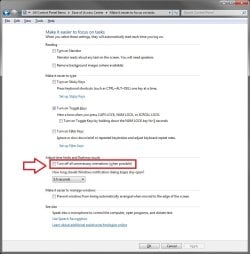
- Double check to make sure that the Remove background images (where available) box is unchecked in the Ease of Access Center.
- Change the Color Scheme to Windows Classic and click on Apply, then change it to Windows Basic and click on OK.
- If non of the above helped, then also see if this solution by Foe may be a possible fix.
- Run a sfc /scannow command, and restart the computer afterwards. You may have some corrupted system files causing the background wallpaper to not display.
Download
2. Open the downloaded ZIP file, extract (drag and drop) the exe file below to your desktop, and run it.
NOTE: You will be prompted to restart the computer to finish installing this program.
Oceanis_Change_Background_W7.exe
3. When your computer restarts, you will see this as your desktop background. Click on the Oceanis Change Background W7 shortcut to change your desktop background. (see screenshot below)

4. Browse to the images that you want to use and check (select) a image, or more than one image to have a desktop slideshow. Select the Picture position for how you want the images displayed, and any desktop slideshow settings if you selected more than one image. (see screenshot below)
NOTE: These options are just like the default ones in the other editions of Windows 7 here that are now being allowed by this program by Oceanis for the Windows 7 Starter edition.
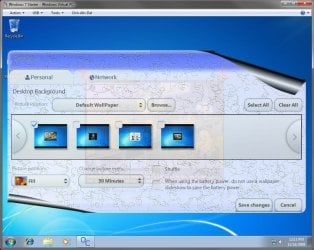
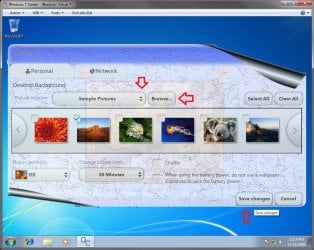
5. When done, click on Save changes. (see screenshots above)
OPTION TWO
Using the "Personalization Panel" Program
NOTE: This will show you how to download and use the Personalization Panel program to add Personalization to the desktop context menu to be able to change the desktop background, Windows Color and Appearance, Sounds, and Screen Saver in the Windows 7 Starter and Home Basic editions. This program does not add the desktop slideshow feature though.
1. Download and install the Personalization Panel program using Regular setup option at the Download link below.
Download
2. When finished installing, you can now right click on the desktop and click on Personalization.
3. If prompted by UAC, then click on Yes.
4. From here you can select and set the Appearance and Personalization options you like. (see screenshot below)
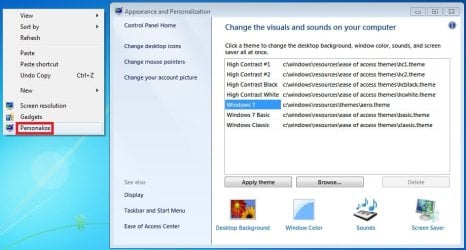
5. Desktop Background
A) In Windows Starter
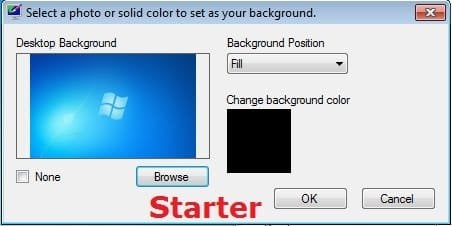
B) In Windows Home Basic

6. Windows Color
A) In Windows Starter
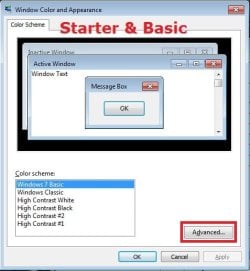
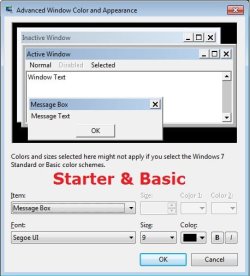
B) In Windows Home Basic, you will see this below first then the screenshots above.
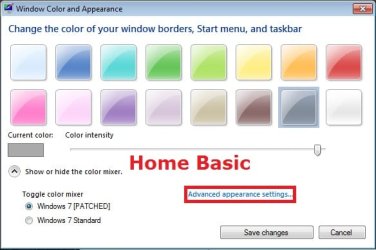
7. Sounds
A) This is the same Sounds settings as in the other editions of Windows 7.
8. Screen Saver
A) This is the same Screen Saver settings as in the other editions of Windows 7.
That's it,
Shawn
Related Tutorials
- How to Change the Windows 7 Desktop Background
- How to Create a Desktop Slideshow in Windows 7
- How to Enable Aero in Unsupported Editions of Windows 7
- How to Remove Background Images to have Only Solid Colors in Windows 7
- How to Change the Window Color and Appearance in Windows 7
- How to Change the Screen Saver in Windows 7
- How to Change or Save a Windows 7 Theme
- How to Create a Windows 7 Personalization Shortcut
Attachments
Last edited: