Solved Disk structure is corrupt and unreadable

shokan2

New member
Member
VIP
Local time
9:07 AM
Messages
108
A WD My Passport 2TB USB drive started giving me beeps at startup and shutdown a few days ago. Today I cannot access the drive contents and get the message in the thread title. I also got messages before this saying the disk needed to be formatted. Tried a new cable from another WD My Passport, didn't change anything. Tried it on another computer, same message.

Right click drive, Properties > Tools Tab > Check Now. Says Windows cannot access the drive.

Have I permanently lost the drive contents?
 
Last edited:

My Computer

OS
Windows 7 Pro 64bit
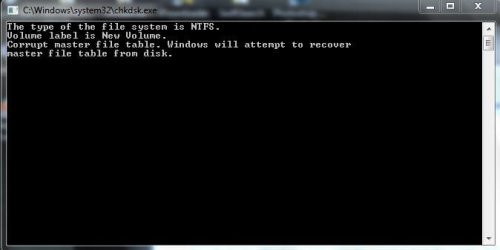
OP again. Tried this: run > cmd > chkdsk e: /f

See the attached for the result. The prompt in the box is blinking but nothing seems to be happening.

Tried Recuva. Disk not accessible.

Pandora Recovery, "device not ready", it's greyed out.

Tried wiping free space with CCleaner. Says the drive has an unrecognized file system.

In Manage, I see the drive is shown as RAW. Also, tried changing the drive letter, but this brings up "the drive needs to be reformatted".
 

Attachments

  • Capture1.JPG
    Capture1.JPG
    20.7 KB · Views: 111
Last edited:

My Computer

OS
Windows 7 Pro 64bit
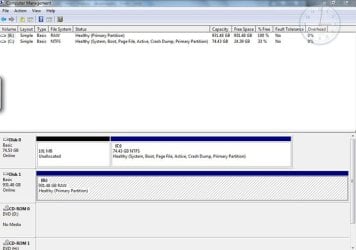
Please post a screenshot Of Windows Disk Management with only your problem external drive connected.

http://www.sevenforums.com/tutorials/274797-disk-management-post-screen-capture-image.html

Please make sure to hide the Console Tree and Action Pane by clicking on the Hide/Show buttons in the Tool Bar and take a snapshot of full screen view without any truncation.

In the above chkdsk screenshot, allow sufficient time for Windows for correction till you get some message. If Windows cannot recover the MFT you will get a message that "Windows cannot recover the master file table, CHKDSK aborted". You have to wait. It is a bad practice to abort chkdsk yourself- that can make matters worse.
 
Last edited:

My Computer

OS
Windows 7 Home Premium 32 bit
Here is the capture.
 

Attachments

  • Manage1.jpg
    Manage1.jpg
    54.4 KB · Views: 19

My Computer

OS
Windows 7 Pro 64bit
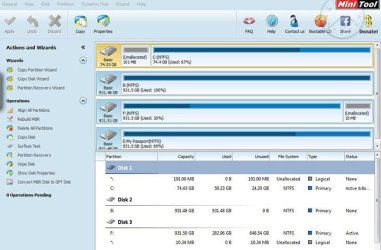
OK, let us now check with Partition Wizard.

Download and install Partition Wizard Home Edition v8.1.1 Free download Magic Partition Manager Software, partition magic alternative, free partition magic, partition magic Windows 7 and server partition software - Partition Wizard Online

Run Partition Wizard and post the screenshot of the Main Window to see what your drive says in it.

If it does not show as "Bad Disk", you may run the Partition Recovery Wizard in it and run a Quick Scan.

At the end of the quick scan, post a screen shot of the resulting screen.

Don't you intend to sleep?:)
 

My Computer

OS
Windows 7 Home Premium 32 bit
OK, let us now check with Partition Wizard.

Download and install Partition Wizard Home Edition v8.1.1 Free download Magic Partition Manager Software, partition magic alternative, free partition magic, partition magic Windows 7 and server partition software - Partition Wizard Online

Run Partition Wizard and post the screenshot of the Main Window to see what your drive says in it.

If it does not show as "Bad Disk", you may run the Partition Recovery Wizard in it and run a Quick Scan.

At the end of the quick scan, post a screen shot of the resulting screen.

Don't you intend to sleep?:)
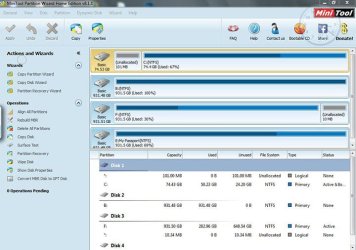
Partition Wizard result capture attached. B is the drive with the problem.

Quick Scan running and will take probably 2-3 hours at the rate it's going.

Too much caffeine yesterday. Is there hope for recovery (for the drive, that is)? :)
 

Attachments

  • PartionWizard.jpg
    PartionWizard.jpg
    69.2 KB · Views: 19

My Computer

OS
Windows 7 Pro 64bit
As long as the Disk does not show up as a Bad Disk, there is hope for recovery.

Your Disk Management showed only one external drive. Now you have one too many.

It is always advisable to have only the problem drive connected so that there is absolutely no confusion.

Now you have to say it is the B drive. I would have known it myself had you only the problem drive connected.

Anyway let the quick scan complete ( you can go to sleep :)) After completion post the screenshot.

Absolutely no hurrying up. That is why I said you can go to sleep instead of sitting in front of the computer and twiddling your fingers. :)

*yawn* I shall be away from my comp for my after lunch nap. But don't worry we have any number of people here well-versed in PW who can guide you even in my absence.
 

My Computer

OS
Windows 7 Home Premium 32 bit
connected.

Anyway let the quick scan complete ( you can go to sleep :)) After completion post the screenshot.

Absolutely no hurrying up. That is why I said you can go to sleep instead of sitting in front of the computer and twiddling your fingers. :)
I'll have to twiddle my fingers at work because that's where I have to go now. Actually, because my fingers will be crossed, twiddling will not be an option. Will post pic when it's done later.

The new drive is there because I started to empty it in anticipation of using something called Asoftech Recovery and have a drive for it to load onto. Didn't do it when I saw your suggestion for Partition Recovery software.
 

My Computer

OS
Windows 7 Pro 64bit
If this is successful, will I need a free space volume on another drive to copy the partition contents to, equal to the partition size? In the case of the problem disk, it is already mostly full with the main contents partition (931 GB of 1 TB), no space.

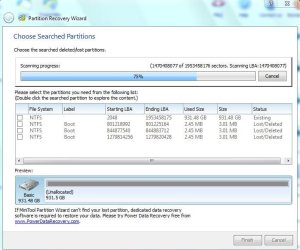
Quick Scan 75% currently, screenshot.
 

Attachments

  • Capture.JPG
    Capture.JPG
    60.4 KB · Views: 108

My Computer

OS
Windows 7 Pro 64bit
If partition Recovery is successful, you may be able to access the drive as before and there will therefore be no need to copy. ( Note the word IF.)

Wait for the scan to complete. Do not abort the scan for any reason.

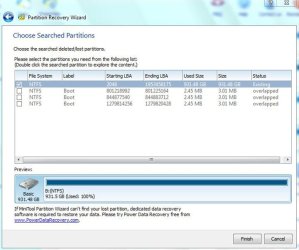
Once the scan is completed, put a tick mark against the first partition in the list 931.48GB Existing.

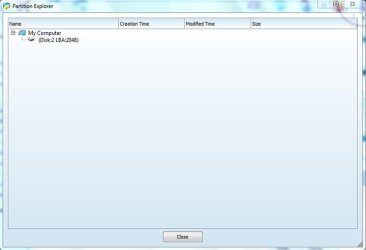
After that selection double click on that. 1.Does the Partition Explorer show all your files? Close the Partition Explorer

2. Does the preview disk map show your full drive with no unallocated space?

Then click on finish. You will then be probably taken to the main screen.

Does your drive have a drive letter?

If not right click on it and give a drive letter.

The leftside Pane will show you the pending actions.

Click on Apply on the top menu bar to complete the action.

If all goes well, you should be able to access your drive as before.

Safely remove your drive and plug it in again.

Is everything OK?

I have given all the above steps since it is time for me to retire. May be I will be awake for another hour.
( Like you I may not forgo my sleep and I always take a cup of hot coffee before retiring and the caffeine puts me to sleep. :))

If you still have problems others here may help you. Or else I shall see you after another eight hours.
 

My Computer

OS
Windows 7 Home Premium 32 bit
Didn't work apparently. I double clicked on the first line (after filling check mark), and got the second screen. No contents, just 'Disk:2 LBA:2048'. Drive B is the one. Still 'RAW' in Manage.
 

Attachments

  • Capture1.JPG
    Capture1.JPG
    67.5 KB · Views: 12
  • Capture2.JPG
    Capture2.JPG
    29.9 KB · Views: 12
  • Capture3.JPG
    Capture3.JPG
    72.9 KB · Views: 13
Last edited:

My Computer

OS
Windows 7 Pro 64bit
OK, for clarity's sake, post the screenshot of PW main screen again and then the screenshot of Windows Disk Management.( Please remove all other external drives)

I presume that zero operations were pending and therefore you couldn't Apply.

If you remember you ran check disk and it gave out a message that MFT is corrupted.

Now repeat the same Check disk process.

If you get the same MFT corrupted message and the cursor keeps blinking, it denotes check disk is running in the background. Do not abort. Allow check disk to complete which again will take a long time , perhaps as long as it took for PW Quick Scan.

Let us see what message you get at the end.

If check disk repairs the MFT well and good. If on the other hand it throws out a message could not repair and aborts itself ( my post #3), we shall then proceed to use TestDisk to repair the MFT.
 
Last edited:

My Computer

OS
Windows 7 Home Premium 32 bit
OK, for clarity's sake, post the screenshot of PW main screen again and then the screenshot of Windows Disk Management.( Please remove all other external drives)

I presume that zero operations were pending and therefore you couldn't Apply.

If you remember you ran check disk and it gave out a message that MFT is corrupted.

Now repeat the same Check disk process.

If you get the same MFT corrupted message and the cursor keeps blinking, it denotes check disk is running in the background. Do not abort. Allow check disk to complete which again will take a long time , perhaps as long as it took for PW Quick Scan.

Let us see what message you get at the end.

If check disk repairs the MFT well and good. If on the other hand it throws out a message could not repair and aborts itself ( my post #3), we shall then proceed to use TestDisk to repair the MFT.
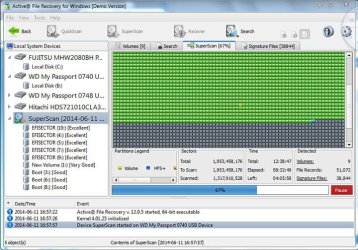
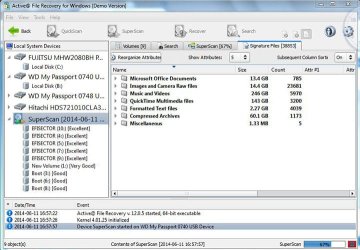
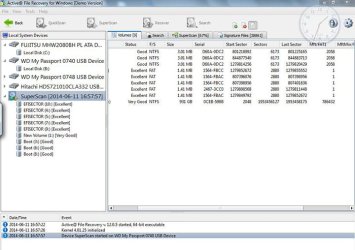
Yesterday, I started a demo of Active File Recovery for Windows (LSoft) and it's at 64% after about nine hours. I'll see what happens. FYI, I've attached a capture of the program scan screen in progress and the Signatures tab, which I assume is what it has found so far. The third is the Volumes tab.

After Partition Wizard yesterday, btw, I recall getting an MFT corrupt message with chkdsk. In any case, I'm waiting for results of "Super Scan" with this other program. Thank you and will post back.
 

Attachments

  • Capture1.JPG
    Capture1.JPG
    110.4 KB · Views: 12
  • Capture2.JPG
    Capture2.JPG
    78.6 KB · Views: 12
  • Capture3.JPG
    Capture3.JPG
    68.4 KB · Views: 12

My Computer

OS
Windows 7 Pro 64bit
OK, no problems.

I have seen it as a method to recover files. NTFS: repairing a corrupt master file table "In this case we recommend you to use third party software, like Active@ UNERASER for DOS or Active@ File Recovery for Windows to access and save your files to another drive, and then reformat the partition."

I am glad you are trying it. Keep us posted of the results.

Once you finish with it and copied all your files successfully to another external drive , I would like you to try MFT Repair with Test Disk.

It is a simple process. The MFT is normally backed up in an MFT Mirror file.

TestDisk will check whether the backup MFT Mirror is OK. If it is OK it will rewrite the MFT with that backup. One can then access the whole drive as before - no need to copy to another external disk. If the MFT Mirror is also corrupted TestDisk will say so and then data recovery by a suitable software is the only option. TestDisk recommends Zero Assumption Recovery (ZAR) which does not depend upon a file system to be present. So even with a corrupt Master File Table, it can reconstruct the data to copy it. I am not sure whether ZAR is freeware. I think only for Media files like Photo, Video and mp3 it is free.

PhotoRec in TestDisk can also find and reconstruct the files without depending on a filesystem and PhotoRec can recover almost all types of files for free - not necessarily the media files only - and that is the route I normally recommend.I have atleast one user report which says while most other data recovery programs recovered files but with errors, recovery with PhotoRec was perfect and without any errors.

So you need to check that the recovered files by whatever method you employ are also error free and maintains data integrity.

Your experience with Active @File Recovery and then with TestDisk MFT repair will be a valuable information to us.

So keep going and let us know how everything unfurls.

EDIT: once you finish with the present process, I can guide you on MFT Repair with TestDisk, if need be. http://www.cgsecurity.org/wiki/Advanced_NTFS_Boot_and_MFT_Repair
 

My Computer

OS
Windows 7 Home Premium 32 bit
Hello Jumanji. The program progress is at 93% and I have to go to work now. This process of trying to recover files is a new arena for me and is exciting.

I'm confident I'll get some good results with the new information you gave in addition to whatever comes from Active Recovery for Windows. I have Test Disk ready to go for later today.

("Jumanji"... a guy named Chris van Allsburg, who was a couple years ahead of me at Rhode Island School of Design back in the 70s, wrote and illustrated a brilliant book for children by that name. Also, The Polar Express. FYI, his medium for the illustrations was charcoal dust, which gave a unique smoothly gradated effect. Both books became movies, as you know. Talented guy.)
 

My Computer

OS
Windows 7 Pro 64bit
Ah, this demo version won't allow me to extract found files because of size. So, I'll take a look at Test Disk now.

Of my options, which will give me the best chance of getting videos contained in their original folders?
 

My Computer

OS
Windows 7 Pro 64bit
Test Disk:

Screen 1 : Select No log - Enter

Screen 2 : Select your External Drive > Proceed Enter

Screen 3: Select Intel Enter

screen 4: Advanced File System Utilities - Enter

Screen 5 Boot - Enter

I think from thereon you can find your way. I do not know what will come next in your case. I have to learn from you. :)

As I had already told in case MFT repair with TestDisk is not possible or we get lost not knowing what do to with it, I shall bet upon PhotoRec. It is going to take an excruciatingly long scan but in the end there is every likleihood that you will thank your stars for being so patient.
 

My Computer

OS
Windows 7 Home Premium 32 bit
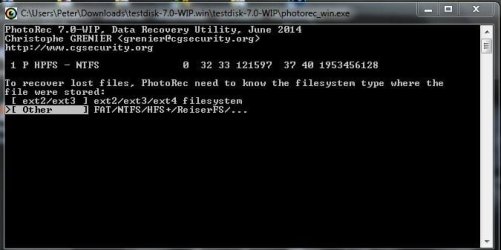
This is the third (I think) PhotoRec screen. I don't know what to do here. Only the up/ down arrow keys work here so only 'OTHER' and '[ EXT2/EXT3 ]' are highlight-able. There is a blinking underscore prompt at the end of the three dots.
 

Attachments

  • Test Disk 1.JPG
    Test Disk 1.JPG
    31.9 KB · Views: 62

My Computer

OS
Windows 7 Pro 64bit
No, first use TestDisk and try to repair MFT.

Only if Repair MFT fails, you will go on to data Recovery with PhotoRec.

Did you miss reading the first few lines on my previous post?

Run Test Disk.
 

My Computer

OS
Windows 7 Home Premium 32 bit
No, first use TestDisk and try to repair MFT.

Only if Repair MFT fails, you will go on to data Recovery with PhotoRec.

Did you miss reading the first few lines on my previous post?

Run Test Disk.
Read it, but didn't absorb it. This is new stuff. Going to Test Disk
 

My Computer

OS
Windows 7 Pro 64bit
Back
Top