Drive Icon - Change

How to Change a Drive Icon in Vista, Windows 7, and Windows 8


   Information
This tutorial will show you how to change a drive icon for an internal or external drive that has a drive letter in the Computer window to any icon you want for just your or all user accounts in Vista, Windows 7, and Windows 8.

   Tip
If your default drive icon is missing or was changed and you did not do it with the methods below, then look for a hidden (not always hidden though) autorun.inf file (OPTION ONE below) in the root directory of the affected drive, right click on the autorun.inf file, and click on Delete. Next, approve the deletion. If this was an external device, then you may need to disconnect and reconnect the device for the icon to appear afterwards.

   Warning
If you select to use a custom icon of your own, then it must be a 256x256 pixel icon (.ico) file for it to display properly in all icon sizes.


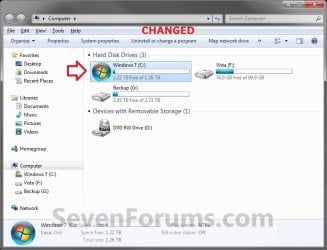
EXAMPLE: C Drive icon - Default and Changed
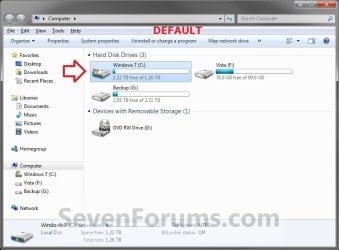
Default.jpg

Changed.jpg


OPTION ONE

Change a Drive Icon using a "autorun.inf" File


NOTE: While this option can be used for any drive, it is really useful for external drives like a USB flash drive.
1. Set your known file extentions to no longer be hidden.
NOTE: This way you will be able to rename the file extension in step 3 below.

2. Connect and/or open the drive that you want to change the icon of.

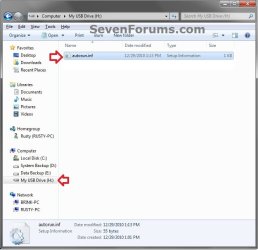
3. In the root of the drive that you want to change the icon of, right click or press and hold on an empty space, and click/tap on New and Text Document. Rename this .txt file to autorun.inf, and press Enter. (see screenshots below)
NOTE: If you already have a autorun.inf file in the root of this drive, then skip this step and proceed to step 4.
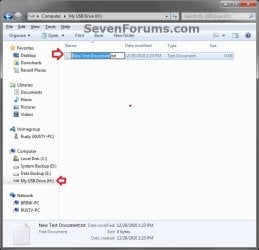
Step1.jpg

Step2.jpg

4. Copy the icon .ico file (ex: Thumb_Drive.ico) that you want to use to the root of the drive that you want to change the icon of. (see right screenshot below)
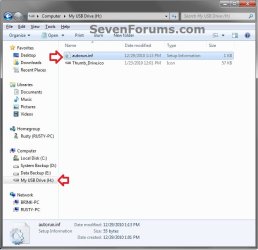
Step3.jpg
5. If this is a New autorun.inf File
A) Open the autorun.inf file, then type each line below followed by pressing enter. (see screenshot below)
NOTE: Substitute icon file name with the actual name of your icon file (ex: Thumb_Drive.ico) from step 4.
Code:
[autorun]
icon="[B][COLOR=red]icon file name[/COLOR][/B].ico"
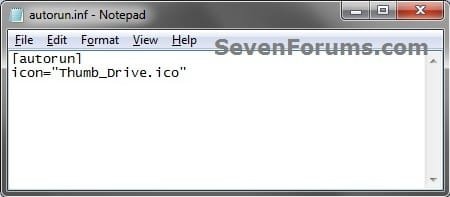
Icon.jpg
B) Click/tap on File (menu bar) and Save, then close the autorun.inf file. (see screenshot above)
6. If you already have an autorun.inf File
NOTE: Be sure that you also check the Show hidden files, folders, and drives option in Folder Options in case the existing autorun.inf file (if there) may have been hidden.
A) Open the autorun.inf file, then add or change the icon= line below. (see screenshots below)
NOTE: Substitute icon file name with the actual name of your icon file (ex: Thumb_Drive.ico) from step 4.
Code:
[autorun]
[B]icon="[COLOR=red]icon file name[/COLOR].ico"[/B]
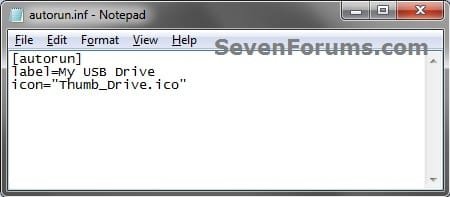
Icon.jpg

TXT_file.jpg

B) Click/tap on File (menu bar) and Save, then close the autorun.inf file. (see screenshots above)
7. If this is for an Internal or eSATA Dive
A) Restart the computer to apply.
8. If this is for an External Dive
A) Unplug and plug in the drive to apply.
9. Open the Computer window to see the changes.

   Note
To Restore the Default Icon


You would just need to do either option below and repeat steps 7 to 9 above.
  • Delete the autorun.inf and .ico file.
OR

  • If you have other lines (ex: label=) in the autorun.inf while editing it that you wish to continue using, then remove the icon= line entry for the drive, and save the changes.


OPTION TWO

Change a Drive Icon in Registry Editor for Current User Account Only


1. If you did OPTION ONE previously, then you will need to either remove the icon=icon file name.ico entry from the autorun.inf file, or delete the autorun.inf file in the root of the drive that you want to change the icon of.

2. Press the Windows + R keys to open the Run dialog, type regedit, and press Enter.

3. If prompted by UAC, then click/tap on Yes (Windows 7/8) or Continue (Vista).

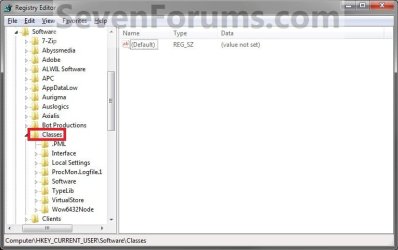
4. In regedit, navigate to the location below. (see screenshot below)
HKEY_CURRENT_USER\Software\Classes
Current_Step1.jpg
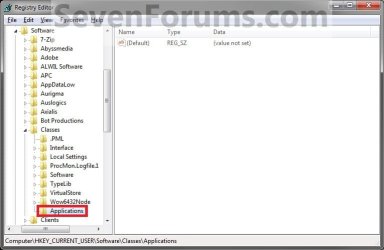
5. In the left pane, right click on Classes, click/tap on New and Key, type Applications, and press Enter.
NOTE: If you already have the Applications key under Classes, then go to step 6. (see screenshot above and below)
Current_Step2.jpg
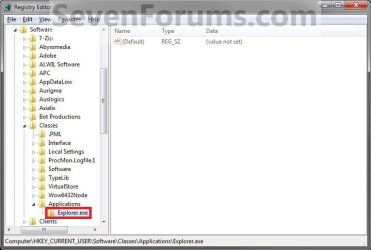
6. In the left pane, right click on Applications, click/tap on New and Key, type Explorer.exe, and press Enter.
NOTE: If you already have the Explorer.exe key under Applications, then go to step 7. (see screenshot above and below)
Current_Step3.jpg
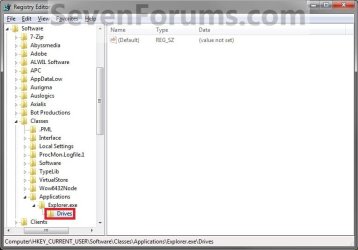
7. In the left pane, right click on Explorer.exe, click/tap on New and Key, type Drives, and press Enter.
NOTE: If you already have the Drives key under Explorer.exe, then go to step 8. (see screenshot above and below)
Current_Step4.jpg
8. In the left pane, right click on Drives, click/tap on New and Key, type the drive letter (ex: C ) that you want to change the icon for, and press Enter.
NOTE: If you already have the drive letter (ex: C ) key under Drives, then go to step 9. (see screenshot above and below)
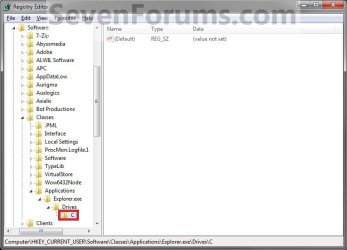
Current_Step5.jpg
9. In the left pane, right click on the drive letter (ex: C ), click/tap on New and Key, type DefaultIcon, and press Enter.
NOTE: If you already have the DefaultIcon key under the drive letter (ex: C ), then go to step 10, 11, or 12. (see screenshot above and below)
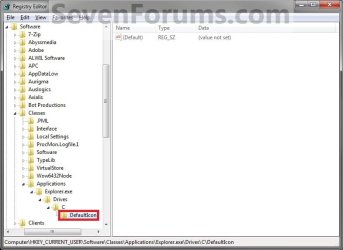
Current_Step6.jpg
10. To Restore the Default Drive Icon
A) Right click on the drive letter (ex: C ) from step 8 above that you want to restore, and click/tap on Delete and Yes. (see screenshot below step 8)

B) Go to step 14.
11. To Use a Custom Icon of Your Own
A) Make sure that the icon is unblocked if not already.

B) Make sure that the icon is located in a folder where you have access permission rights. The icon will need to stay here for as long as you are using it for the drive icon, otherwise it will break the link and no longer display as the drive's icon.

C) In the right pane of DefaultIcon, double click/tap on (Default) to modify it. (see screenshot below step 9)

D) In the Modify window, type this below, and click/tap on OK. (see screenshot below)
NOTE: Substitute with your icons full path and name with file extension in quotes instead.

Code:
"[B][COLOR=red]full path of the icon file with file extension[/COLOR][/B]"
FOR EXAMPLE:
Code:
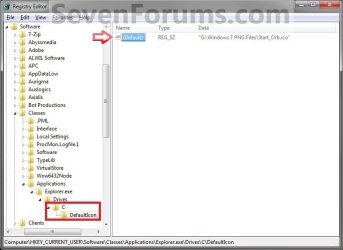
"G:\Windows 7 PNG Files\Start_Orb.ico"
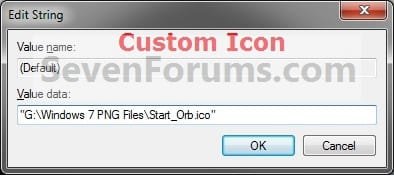
Current_Step7.jpg
E) Go to step 13.
12. To Use another Icon Included in Windows 7
A) Download and install the free program IconViewer for your 32-bit or 64-bit Windows 7.
NOTE: This program will add a Icons tab to files (ex: imageres.dll) that contain a icon library in them so you can see the icons available in it.

B) In Windows Explorer, navigate to C:\Windows\System32\imageres.dll and right click on imageres.dll, click on Properties, and click on the Icons tab.
NOTE: You can use any of the Windows 7 files that include icons in them that you want though. This is just the most common one.

C) Scroll through the icons and make note of the icon number of the one you want to use to replace the default file extension icon with, then close the properties window. (see screenshot below)
NOTE: For example, icon number 36 for the default C drive icon.
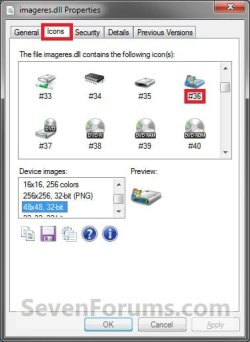
Icon_Viewer.jpg
D) In the right pane of DefaultIcon, double click/tap on (Default) to modify it. (see screenshot below step 9)

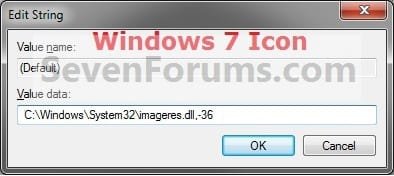
E) In the Modify window, type in the location below, and click/tap on OK. (see screenshot below)

Code:
[B][COLOR=red](full path of the Windows 7 file with file extension)[/COLOR][/B],-[B][COLOR=red]####[/COLOR][/B]
FOR EXAMPLE:
Code:
C:\Windows\System32\imageres.dll,-36
Windows7_Icon.jpg
13. The registry should look similar to this now depending on the icon path you entered in either step 11 or 12. (see screenshot below)
Current_Step8.jpg
12. Close Regedit.

13. The changes should be immediate, but in some cases you may need to restart the computer to apply the changes. If the drive icon does not change for you using this option, then try OPTION ONE or OPTION THREE to change it instead.


OPTION THREE

Change a Drive Icon in Registry Editor for All User Accounts


NOTE: You must be logged in as an administrator to be able to do this option.
1. If you did OPTION ONE previously, then you will need to either remove the icon=icon file name.ico entry from the autorun.inf file, or delete the autorun.inf file in the root of the drive that you want to change the icon of.

2. Press the Windows + R keys to open the Run dialog, type regedit, and press Enter.

3. If prompted by UAC, then click/tap on Yes (Windows 7/8) or Continue (Vista).

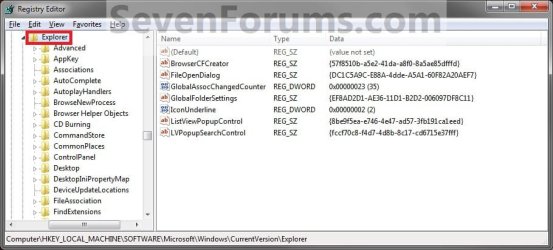
4. In regedit, navigate to the location below. (see screenshot below)
HKEY_LOCAL_MACHINE\SOFTWARE\Microsoft\Windows\CurrentVersion\Explorer
All_Step1.jpg
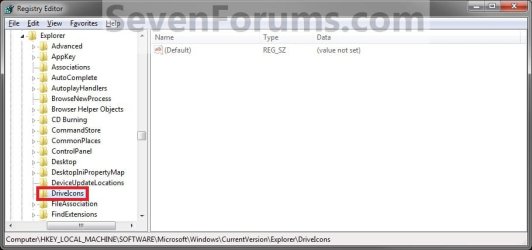
5. In the left pane, right click on Explorer, click/tap on New and Key, type DriveIcons, and press Enter.
NOTE: If you already have the DriveIcons key under Explorer, then go to step 6. (see screenshot above and below)
All_Step2.jpg
6. In the left pane, right click on DriveIcons and click/tap on New and Key, type the drive letter (ex: C ) that you want to change the icon for, and press Enter.
NOTE: If you already have the drive letter (ex: C ) key under DriveIcons, then go to step 7. (see screenshot above and below)
All_Step3.jpg
7. In the left pane, right click on the drive letter (ex: C ), click/tap on New and Key, type DefaultIcon, and press Enter.
NOTE: If you already have the DefaultIcon key under the drive letter (ex: C ), then go to step 8, 9, or 10. (see screenshot above and below)
All_Step4.jpg
8. To Restore the Default Drive Icon
A) Right click on the drive letter (ex: C ) from step 6 above that you want to restore, and click/tap on Delete and Yes. (see screenshot below step 6)

B) Go to step 12.
9. To Use a Custom Icon of Your Own
A) Make sure that the icon is unblocked if not already.

B) Make sure that the icon is located in a folder (ex: a C:\Users\Public folder) where all users (everyone) have access permission rights. The icon will need to stay here for as long as you are using it for the drive icon, otherwise it will break the link and no longer display as the drive's icon.

C) In the right pane of DefaultIcon, double click/tap on (Default) to modify it. (see screenshot below step 7)

D) In the Modify window, type this below, and click/tap on OK. (see screenshot below)
NOTE: Substitute with your icons full path and name with file extension in quotes instead.

Code:
"[B][COLOR=red]full path of the icon file with file extension[/COLOR][/B]"
FOR EXAMPLE:
Code:
"G:\Windows 7 PNG Files\Start_Orb.ico"
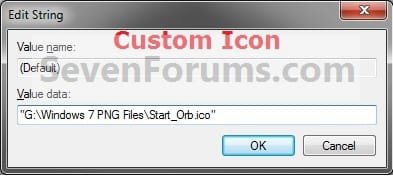
All_Step5.jpg
   Warning
The custom icon file that you are using must be saved at a location that can be accessed by all user accounts for it to be displayed in all user accounts. For example, in the C:\Users\Public folder.


E) Go to step 11.
10. To Use another Icon Included in Windows 7
A) Download and install the free program IconViewer for your 32-bit or 64-bit Windows 7.
NOTE: This program will add a Icons tab to files (ex: imageres.dll) that contain a icon library in them so you can see the icons available in it.

B) In Windows Explorer, navigate to C:\Windows\System32\imageres.dll and right click on imageres.dll, click on Properties, and click on the Icons tab.
NOTE: You can use any of the Windows 7 files that include icons in them that you want though. This is just the most common one.

C) Scroll through the icons and make note of the icon number of the one you want to use to replace the default file extension icon with, then close the properties window. (see screenshot below)
NOTE: For example, icon number 36 for the default C drive icon.
Icon_Viewer.jpg
D) In the right pane of DefaultIcon, double click/tap on (Default) to modify it. (see screenshot below step 7)

E) In the Modify window, type in the location below, and click/tap on OK. (see screenshot below)

Code:
[B][COLOR=red](full path of the Windows 7 file with file extension)[/COLOR][/B],-[B][COLOR=red]####[/COLOR][/B]
FOR EXAMPLE:
Code:
C:\Windows\System32\imageres.dll,-36
Windows7_Icon.jpg
11. The registry should look similar to this now depending on the icon path you entered in either step 9 or 10. (see screenshot below)
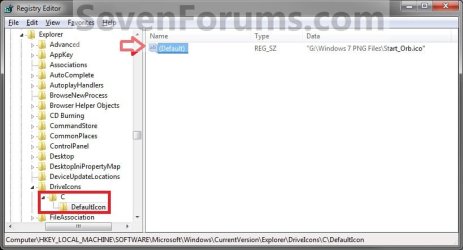
All_Step6.jpg
12. Close Regedit.

13. The changes should be immediate, but in some cases you may need to restart the computer to apply the changes.
That's it,
Shawn


Last edited:
Change Icon for Droid?

I tried this same strategy for my Motorola Droid 2, it didn't really work, is there a way that I could possibly do this for my droid? or just change the icon in general, i only want it for my computer so it doesnt need to be on the droid but that would be cool too :)
 

My Computer My Computer

Computer Manufacturer/Model Number
Toshiba/Qosmio X505-Q892
OS
Windows 7 Ultimate x64
CPU
Intel i5
Memory
4GB
Graphics Card(s)
GeForce GTX 460M
Sound Card
---
Hard Drives
500GB internal, 2TB external
Mouse
Microsoft Habu
Hello mhelseth,

I'm not sure this would work with a Droid 2 smartphone. :(
 

My Computer My Computer

Computer type
PC/Desktop
Computer Manufacturer/Model Number
Self built custom
OS
64-bit Windows 11 Pro for Workstations
CPU
Intel i7-8700K OC'd to 5 GHz
Motherboard
ASUS ROG Maximus XI Formula Z390
Memory
64 GB (4x16GB) G.SKILL TridentZ RGB DDR4 3600 MHz
Graphics Card(s)
ASUS ROG-STRIX-GTX1080TI-O11G-GAMING
Sound Card
Integrated
Monitor(s) Displays
2 x Samsung Odyssey G7 27"
Screen Resolution
2560x1440
Hard Drives
1TB Samsung 990 PRO M.2,
4TB Samsung 990 PRO PRO M.2,
TerraMaster F8 SSD Plus NAS
PSU
Seasonic Prime Titanium 850W
Case
Thermaltake Core P3
Cooling
Corsair Hydro H115i
Keyboard
Logitech wireless K800
Mouse
Logitech MX Master 4
Internet Speed
2 Gb/s Download and 100 Mb/s Upload
Antivirus
Malwarebyte Anti-Malware Premium
Browser
Google Chrome
Other Info
Logitech Z625 speaker system,
Logitech BRIO 4K Pro webcam,
HP Color LaserJet Pro MFP M477fdn,
APC SMART-UPS RT 1000 XL - SURT1000XLI,
Galaxy S23 Plus phone
yeah i was trying to figure out why and it turns out that every time my phone is unplugged, it deletes the autorun file because its a security threat :(
So I guess I will have to do without :/
 

My Computer My Computer

Computer Manufacturer/Model Number
Toshiba/Qosmio X505-Q892
OS
Windows 7 Ultimate x64
CPU
Intel i5
Memory
4GB
Graphics Card(s)
GeForce GTX 460M
Sound Card
---
Hard Drives
500GB internal, 2TB external
Mouse
Microsoft Habu
mhelseth,

Does any of the other options work to change the icon if you use the drive letter that is assigned to the smartphone?
 

My Computer My Computer

Computer type
PC/Desktop
Computer Manufacturer/Model Number
Self built custom
OS
64-bit Windows 11 Pro for Workstations
CPU
Intel i7-8700K OC'd to 5 GHz
Motherboard
ASUS ROG Maximus XI Formula Z390
Memory
64 GB (4x16GB) G.SKILL TridentZ RGB DDR4 3600 MHz
Graphics Card(s)
ASUS ROG-STRIX-GTX1080TI-O11G-GAMING
Sound Card
Integrated
Monitor(s) Displays
2 x Samsung Odyssey G7 27"
Screen Resolution
2560x1440
Hard Drives
1TB Samsung 990 PRO M.2,
4TB Samsung 990 PRO PRO M.2,
TerraMaster F8 SSD Plus NAS
PSU
Seasonic Prime Titanium 850W
Case
Thermaltake Core P3
Cooling
Corsair Hydro H115i
Keyboard
Logitech wireless K800
Mouse
Logitech MX Master 4
Internet Speed
2 Gb/s Download and 100 Mb/s Upload
Antivirus
Malwarebyte Anti-Malware Premium
Browser
Google Chrome
Other Info
Logitech Z625 speaker system,
Logitech BRIO 4K Pro webcam,
HP Color LaserJet Pro MFP M477fdn,
APC SMART-UPS RT 1000 XL - SURT1000XLI,
Galaxy S23 Plus phone
what did you mean by other options? I did assign it a drive letter (Z:) and when i try to change the icon through properties it doesnt even say there is an original Icon, it is strange. so when I click to change it, nothing happens. Or did you mean the other options on this thread? I havent tried any of those but I will now!
 

My Computer My Computer

Computer Manufacturer/Model Number
Toshiba/Qosmio X505-Q892
OS
Windows 7 Ultimate x64
CPU
Intel i5
Memory
4GB
Graphics Card(s)
GeForce GTX 460M
Sound Card
---
Hard Drives
500GB internal, 2TB external
Mouse
Microsoft Habu
Awesome! I just tried the second option and it worked flawlessly, thanks brink for these amazing tutorials!
 

My Computer My Computer

Computer Manufacturer/Model Number
Toshiba/Qosmio X505-Q892
OS
Windows 7 Ultimate x64
CPU
Intel i5
Memory
4GB
Graphics Card(s)
GeForce GTX 460M
Sound Card
---
Hard Drives
500GB internal, 2TB external
Mouse
Microsoft Habu
Yep, I meant another option in the tutorial. I'm happy to hear that it worked for you. :)
 

My Computer My Computer

Computer type
PC/Desktop
Computer Manufacturer/Model Number
Self built custom
OS
64-bit Windows 11 Pro for Workstations
CPU
Intel i7-8700K OC'd to 5 GHz
Motherboard
ASUS ROG Maximus XI Formula Z390
Memory
64 GB (4x16GB) G.SKILL TridentZ RGB DDR4 3600 MHz
Graphics Card(s)
ASUS ROG-STRIX-GTX1080TI-O11G-GAMING
Sound Card
Integrated
Monitor(s) Displays
2 x Samsung Odyssey G7 27"
Screen Resolution
2560x1440
Hard Drives
1TB Samsung 990 PRO M.2,
4TB Samsung 990 PRO PRO M.2,
TerraMaster F8 SSD Plus NAS
PSU
Seasonic Prime Titanium 850W
Case
Thermaltake Core P3
Cooling
Corsair Hydro H115i
Keyboard
Logitech wireless K800
Mouse
Logitech MX Master 4
Internet Speed
2 Gb/s Download and 100 Mb/s Upload
Antivirus
Malwarebyte Anti-Malware Premium
Browser
Google Chrome
Other Info
Logitech Z625 speaker system,
Logitech BRIO 4K Pro webcam,
HP Color LaserJet Pro MFP M477fdn,
APC SMART-UPS RT 1000 XL - SURT1000XLI,
Galaxy S23 Plus phone
@ Shawn

Jenn,

You might see if clearing both the thumbnail cache and icon cache may help first. If not, then delete the autorun.inf file, restart, and try again to see if they still show or not to start over.


Hi Shawn,

Well I don't know which of the above suggestions
helped but bottom line I
am finally HEART free.

I had no problem with clearing the Thumbnail Cache
but a totally different story with
Icon Cache.

I downloaded the bat file but every time I tried
to run it I got
an error message
(btw, I did go to properties and unblocked it) ...


I'd get the following error message about not
being able to locate the path specified.

I'd click Y to restart then get the message
"Restart Aborted"

LostIcon6.jpg


I finally decided to skip this step and delete both the
heart icon and the autorun.ini file.


I then re-started the computer and the generic icon
was back on the G: drive
but all my assigned folder icons
were now missing and the dreaded RED HEART

was still present in ALL the sub-folders ...
I'm like
groooansmileyf.gif
Omigosh NO ~!!


I started all the way back over ...
Cleared the Thumbnail Cache,
used YOUR manual instructions for clearing Icon Cache.

The computer rebooted
I did the Safely Remove G: drive waited a minute
and then re-plugged the drive back in.
Finally all the RED HEART icons were gone.


Now I need to assign an icon to the G: drive ..
(
I'm almost afraid to try it again
giggleshysmile.gif
)

but I really need a Drive Icon I can spot fast.

Is there a way you know of to reassign all those
missing folder icons without having to physically
browse to the stored icon again ??

I can open each .ini file and see what icon
was used
and the path of where the icon is ....
but it'll take a long time to do all of those.

Thank YOU for all your help.

Jenn

HumanKeyBoard.gif


My Computer My Computer

Computer type
Laptop
Computer Manufacturer/Model Number
HP Pavilion m7 Notebook PC
OS
Microsoft Windows 7 Home Premium, Service Pack 1 64-bit
CPU
Intel(R) Core(TM) CPU i7-3610QM CPU 2.30 GHz
Memory
8 GB Ram
Graphics Card(s)
Intel(R) HD Graphics 4000
Sound Card
IDT High Definition Audio CODEC
Hard Drives
Local Disk (C:) 697 GB Free of 909 GB
Recovery Disk (D:)
Antivirus
Webroot Secure/Anywhere 9.0.24.49
Browser
Firefox Quantum 65.0.2
Jenn,

I'm happy to hear that your folders are now heartless, but I'm sure that you're not. :)

The error message you see from running the BAT file to clear the icon cache just means that the IconCache.db file had already been deleted. That's all. After restarting the computer the IconCache.db file will automatically be recreated fresh and reset.

You could try using OPTION TWO or OPTION THREE in this tutorial to change the drive icon of the G: drive to see if that would work better than using the autorun.inf file.

I'm not sure what you mean by missing folder icons. What icons are missing on them? Could you post a screenshot of what they look like now?
 

My Computer My Computer

Computer type
PC/Desktop
Computer Manufacturer/Model Number
Self built custom
OS
64-bit Windows 11 Pro for Workstations
CPU
Intel i7-8700K OC'd to 5 GHz
Motherboard
ASUS ROG Maximus XI Formula Z390
Memory
64 GB (4x16GB) G.SKILL TridentZ RGB DDR4 3600 MHz
Graphics Card(s)
ASUS ROG-STRIX-GTX1080TI-O11G-GAMING
Sound Card
Integrated
Monitor(s) Displays
2 x Samsung Odyssey G7 27"
Screen Resolution
2560x1440
Hard Drives
1TB Samsung 990 PRO M.2,
4TB Samsung 990 PRO PRO M.2,
TerraMaster F8 SSD Plus NAS
PSU
Seasonic Prime Titanium 850W
Case
Thermaltake Core P3
Cooling
Corsair Hydro H115i
Keyboard
Logitech wireless K800
Mouse
Logitech MX Master 4
Internet Speed
2 Gb/s Download and 100 Mb/s Upload
Antivirus
Malwarebyte Anti-Malware Premium
Browser
Google Chrome
Other Info
Logitech Z625 speaker system,
Logitech BRIO 4K Pro webcam,
HP Color LaserJet Pro MFP M477fdn,
APC SMART-UPS RT 1000 XL - SURT1000XLI,
Galaxy S23 Plus phone
Jenn,

I'm happy to hear that your folders are now heartless, but I'm sure that you're not. :)

The error message you see from running the BAT file to clear the icon cache just means that the IconCache.db file had already been deleted. That's all. After restarting the computer the IconCache.db file will automatically be recreated fresh and reset.

You could try using OPTION TWO or OPTION THREE in this tutorial to change the drive icon of the G: drive to see if that would work better than using the autorun.inf file.

I'm not sure what you mean by missing folder icons. What icons are missing on them? Could you post a screenshot of what they look like now?

Hi Shawn,

Thanks for the laugh, and although I am now
THANKFULLY "Heartless" on the drive,
personally I still have my sweet heart ..
laugh3.gif


What I lost in getting rid of the Hearts, was FOLDERS ONLY icon/picture
that I had assigned a dedicated one to so I could locate that folder faster ..
Now it's showing a picture of a regular folder.

BEFORE: (Kind of, I adjusted one of the earlier screenshots)
LostIcon9.jpg


CURRENTLY:
( I had already assigned a new icon/picture to the D: drive Backup Folder)

LostIcon7.jpg

I guess the only way to get those back on to the folders is to manually
browse back to the icon I previously used and re-assign it.

I'm not complaining I really wanted to LOOSE that Heart thing.
I was just curious if there was a trick to get those back without
all the time consuming stuff.

Btw, I got so distracted looking at all the Hearts ..
I'm no longer a HEART person ..
I'm now a Butterfly Gal ... the old G: drive is currently a Butterfly.
LostIcon8.jpg


I want to Thank YOU for all the help and the neat tutorials ...
Especially the time you must have devoted to writing them.

wwinesmiley3.gif
Jenn
 

My Computer My Computer

Computer type
Laptop
Computer Manufacturer/Model Number
HP Pavilion m7 Notebook PC
OS
Microsoft Windows 7 Home Premium, Service Pack 1 64-bit
CPU
Intel(R) Core(TM) CPU i7-3610QM CPU 2.30 GHz
Memory
8 GB Ram
Graphics Card(s)
Intel(R) HD Graphics 4000
Sound Card
IDT High Definition Audio CODEC
Hard Drives
Local Disk (C:) 697 GB Free of 909 GB
Recovery Disk (D:)
Antivirus
Webroot Secure/Anywhere 9.0.24.49
Browser
Firefox Quantum 65.0.2
You're most welcome Jenn. :)

Yeah, unfortunately you would need to manually customize each folder icon that you do not want the default icon/thumbnail preview for. :(
 

My Computer My Computer

Computer type
PC/Desktop
Computer Manufacturer/Model Number
Self built custom
OS
64-bit Windows 11 Pro for Workstations
CPU
Intel i7-8700K OC'd to 5 GHz
Motherboard
ASUS ROG Maximus XI Formula Z390
Memory
64 GB (4x16GB) G.SKILL TridentZ RGB DDR4 3600 MHz
Graphics Card(s)
ASUS ROG-STRIX-GTX1080TI-O11G-GAMING
Sound Card
Integrated
Monitor(s) Displays
2 x Samsung Odyssey G7 27"
Screen Resolution
2560x1440
Hard Drives
1TB Samsung 990 PRO M.2,
4TB Samsung 990 PRO PRO M.2,
TerraMaster F8 SSD Plus NAS
PSU
Seasonic Prime Titanium 850W
Case
Thermaltake Core P3
Cooling
Corsair Hydro H115i
Keyboard
Logitech wireless K800
Mouse
Logitech MX Master 4
Internet Speed
2 Gb/s Download and 100 Mb/s Upload
Antivirus
Malwarebyte Anti-Malware Premium
Browser
Google Chrome
Other Info
Logitech Z625 speaker system,
Logitech BRIO 4K Pro webcam,
HP Color LaserJet Pro MFP M477fdn,
APC SMART-UPS RT 1000 XL - SURT1000XLI,
Galaxy S23 Plus phone
thanks brink
 

My Computer My Computer

Computer Manufacturer/Model Number
Amilo M3438g
OS
Windows 7 Home Premium 32bit
CPU
?
Motherboard
?
Memory
2GB Ram
Graphics Card(s)
nVidia GeForce 6800
Sound Card
Realtek
Monitor(s) Displays
Laptop Screen
Screen Resolution
1440x900
Hard Drives
2 - HDD
PSU
?
Case
Laptop
Cooling
?
Keyboard
UK Layout - into laptop
Mouse
Microsoft Wireless Mobile Mouse 1000
Internet Speed
30mbps (VirginMedia)
Other Info
Fujitsu Siemens Computers Amilo M3438G with 2GHz Processor
You're welcome Thomas. :)
 

My Computer My Computer

Computer type
PC/Desktop
Computer Manufacturer/Model Number
Self built custom
OS
64-bit Windows 11 Pro for Workstations
CPU
Intel i7-8700K OC'd to 5 GHz
Motherboard
ASUS ROG Maximus XI Formula Z390
Memory
64 GB (4x16GB) G.SKILL TridentZ RGB DDR4 3600 MHz
Graphics Card(s)
ASUS ROG-STRIX-GTX1080TI-O11G-GAMING
Sound Card
Integrated
Monitor(s) Displays
2 x Samsung Odyssey G7 27"
Screen Resolution
2560x1440
Hard Drives
1TB Samsung 990 PRO M.2,
4TB Samsung 990 PRO PRO M.2,
TerraMaster F8 SSD Plus NAS
PSU
Seasonic Prime Titanium 850W
Case
Thermaltake Core P3
Cooling
Corsair Hydro H115i
Keyboard
Logitech wireless K800
Mouse
Logitech MX Master 4
Internet Speed
2 Gb/s Download and 100 Mb/s Upload
Antivirus
Malwarebyte Anti-Malware Premium
Browser
Google Chrome
Other Info
Logitech Z625 speaker system,
Logitech BRIO 4K Pro webcam,
HP Color LaserJet Pro MFP M477fdn,
APC SMART-UPS RT 1000 XL - SURT1000XLI,
Galaxy S23 Plus phone
thank you so much, this tutorial help me to recover my drive icon
i previously install Harddisk Sentinels and it changed my drive icon to HD sentinel icon, when i uninstalled it my drive icon went blank, i was desperate

thanks so much, you guys rawkkkk!! ^^
 

My Computer My Computer

OS
Windows 7 Ultimate 32 Bit
You're most welcome Boulve, and welcome to Seven Forums. :)
 

My Computer My Computer

Computer type
PC/Desktop
Computer Manufacturer/Model Number
Self built custom
OS
64-bit Windows 11 Pro for Workstations
CPU
Intel i7-8700K OC'd to 5 GHz
Motherboard
ASUS ROG Maximus XI Formula Z390
Memory
64 GB (4x16GB) G.SKILL TridentZ RGB DDR4 3600 MHz
Graphics Card(s)
ASUS ROG-STRIX-GTX1080TI-O11G-GAMING
Sound Card
Integrated
Monitor(s) Displays
2 x Samsung Odyssey G7 27"
Screen Resolution
2560x1440
Hard Drives
1TB Samsung 990 PRO M.2,
4TB Samsung 990 PRO PRO M.2,
TerraMaster F8 SSD Plus NAS
PSU
Seasonic Prime Titanium 850W
Case
Thermaltake Core P3
Cooling
Corsair Hydro H115i
Keyboard
Logitech wireless K800
Mouse
Logitech MX Master 4
Internet Speed
2 Gb/s Download and 100 Mb/s Upload
Antivirus
Malwarebyte Anti-Malware Premium
Browser
Google Chrome
Other Info
Logitech Z625 speaker system,
Logitech BRIO 4K Pro webcam,
HP Color LaserJet Pro MFP M477fdn,
APC SMART-UPS RT 1000 XL - SURT1000XLI,
Galaxy S23 Plus phone
Thanks for the great tutorial, Brink. I think I am having some issues with my ico file. I downloaded the Porsche.ico file from earlier in this thread and got it to work successfully using the Registry option. However, when I use my ico it doesn't seem to work. I created the file as a png with Fireworks and used png2ico to convert it. It's a 128 x 128 (the same dimensions as the Porsche file).

Here is the file:
View attachment Boxcryptor.zip

Any thoughts?

Thanks in advance!
 

My Computer My Computer

OS
Windows 7 Professional x64
Hello Mitch, and welcome to Seven Forums.

The icon is working fine for me, so there must have been a mistake made somewhere along the way. Double check to make sure that you have the icon unblocked and in a location that any user account set to use it has access rights to it.

Which option did you use?

icon.jpg
 

My Computer My Computer

Computer type
PC/Desktop
Computer Manufacturer/Model Number
Self built custom
OS
64-bit Windows 11 Pro for Workstations
CPU
Intel i7-8700K OC'd to 5 GHz
Motherboard
ASUS ROG Maximus XI Formula Z390
Memory
64 GB (4x16GB) G.SKILL TridentZ RGB DDR4 3600 MHz
Graphics Card(s)
ASUS ROG-STRIX-GTX1080TI-O11G-GAMING
Sound Card
Integrated
Monitor(s) Displays
2 x Samsung Odyssey G7 27"
Screen Resolution
2560x1440
Hard Drives
1TB Samsung 990 PRO M.2,
4TB Samsung 990 PRO PRO M.2,
TerraMaster F8 SSD Plus NAS
PSU
Seasonic Prime Titanium 850W
Case
Thermaltake Core P3
Cooling
Corsair Hydro H115i
Keyboard
Logitech wireless K800
Mouse
Logitech MX Master 4
Internet Speed
2 Gb/s Download and 100 Mb/s Upload
Antivirus
Malwarebyte Anti-Malware Premium
Browser
Google Chrome
Other Info
Logitech Z625 speaker system,
Logitech BRIO 4K Pro webcam,
HP Color LaserJet Pro MFP M477fdn,
APC SMART-UPS RT 1000 XL - SURT1000XLI,
Galaxy S23 Plus phone
I re-created the ico, this time by using iconviewer to extract the ico from a .exe file that uses the same icon. Tried it again and it worked this time. Not sure why I was having trouble with the first file. Maybe a cache issue or something.

Thanks for double-checking! I was using the registry option.

Cheers and keep up the great work!

Mitch
 

My Computer My Computer

OS
Windows 7 Professional x64
You're welcome Mitch. I'm happy to hear that you got it working. :)
 

My Computer My Computer

Computer type
PC/Desktop
Computer Manufacturer/Model Number
Self built custom
OS
64-bit Windows 11 Pro for Workstations
CPU
Intel i7-8700K OC'd to 5 GHz
Motherboard
ASUS ROG Maximus XI Formula Z390
Memory
64 GB (4x16GB) G.SKILL TridentZ RGB DDR4 3600 MHz
Graphics Card(s)
ASUS ROG-STRIX-GTX1080TI-O11G-GAMING
Sound Card
Integrated
Monitor(s) Displays
2 x Samsung Odyssey G7 27"
Screen Resolution
2560x1440
Hard Drives
1TB Samsung 990 PRO M.2,
4TB Samsung 990 PRO PRO M.2,
TerraMaster F8 SSD Plus NAS
PSU
Seasonic Prime Titanium 850W
Case
Thermaltake Core P3
Cooling
Corsair Hydro H115i
Keyboard
Logitech wireless K800
Mouse
Logitech MX Master 4
Internet Speed
2 Gb/s Download and 100 Mb/s Upload
Antivirus
Malwarebyte Anti-Malware Premium
Browser
Google Chrome
Other Info
Logitech Z625 speaker system,
Logitech BRIO 4K Pro webcam,
HP Color LaserJet Pro MFP M477fdn,
APC SMART-UPS RT 1000 XL - SURT1000XLI,
Galaxy S23 Plus phone
My autorun.inf files stopped working... any idea why?
 

My Computer My Computer

Computer Manufacturer/Model Number
Dell Inspiron 1420
OS
Windows 7 Enterprise SP1 x64
CPU
Intel Core 2 Duo T7300 2GHz
Memory
3GB
Graphics Card(s)
GeForce 8400M GS
Screen Resolution
1440x900
Back
Top