Drive Spaces

qureshigmustafa

New member
Local time
1:27 PM
Messages
9
I have Windows 7 installed on my laptop.
I have two drives one Drive C i.e. System Drive and other is Drive D.
I have 320 GB Hard Drive.
60GB on Drive C and around 230GB on Drive D.
I am facing a strange problem in my system.
Drive C is almost 50GB filled with Windows, System Updates and Program Files. So I guess there is not much of a problem.
But when it comes to Drive D, I have saved the data only around 140GB out of 230GB available, but even though it shows that its almost 220GB used. How is it possible?
I have checked all the available folders including hidden and calculated the data saved and its around 140GB.
Please help me... I have Microsoft Security Essentials and it doesn't show any Viruses. So it can be assumed that there is no Virus problem in the Drive. What should I do to make it good.
 

My Computer

OS
Windows 7 Home Premium 64bit
I have Windows 7 installed on my laptop.
I have two drives one Drive C i.e. System Drive and other is Drive D.
I have 320 GB Hard Drive.
60GB on Drive C and around 230GB on Drive D.
I am facing a strange problem in my system.
Drive C is almost 50GB filled with Windows, System Updates and Program Files. So I guess there is not much of a problem.
But when it comes to Drive D, I have saved the data only around 140GB out of 230GB available, but even though it shows that its almost 220GB used. How is it possible?
I have checked all the available folders including hidden and calculated the data saved and its around 140GB.
Please help me... I have Microsoft Security Essentials and it doesn't show any Viruses. So it can be assumed that there is no Virus problem in the Drive. What should I do to make it good.

Hi -- Could you post your Disk Management for us to look at. Use your Snipping Tool to post it. If not familiar with the process, use this tutorial.
http://www.sevenforums.com/tutorials/9733-screenshots-files-upload-post-seven-forums.html
 

My Computer

Computer type
PC/Desktop
Computer Manufacturer/Model Number
Custom Build
OS
Windows 7 Home Premium 32-Bit - Build 7600 SP1
CPU
Intel Core i3-2120 3.30Ghz
Motherboard
Asus P8Z68-V LX Intel Z68 Socket H2 ATX
Memory
Kingston 4 GB DDR3 1333 mhz
Graphics Card(s)
AMD Radeon HD6670
Sound Card
Sound Blaster Audigy SE 24-Bit
Monitor(s) Displays
Asus VE228
Screen Resolution
1440 X 900
Hard Drives
OCZ Vertex 3 120 GB Sata 3 SSD ==
Kingston SH103/S3 120 G Hyper X 120 GB SSD ==
Western Digital 500 GB Caviar Green 7200 RPM ==
PSU
Corsair CX600M == 600 Watt
Case
NZXT Apollo - Silver with Clear Side Panel
Cooling
Three 120 mm Fans
Keyboard
Microsoft Natural 4000
Mouse
Microsoft Custom Optical 3000
Internet Speed
AT&T Fiber Optic Wireless Network
Antivirus
Microsoft Security Essentials
Browser
Chrome
Other Info
120 mm Blue LED Fan -- Three Blue LED Lazer Light Sticks
Disk Management?
Please tell me what exactly you want, I didn't get that Disk Management?
 

My Computer

OS
Windows 7 Home Premium 64bit
Disk Management?
Please tell me what exactly you want, I didn't get that Disk Management?

Go to your round Windows logo in the bottom left corner of your screen and click on it. In the area above it type == Disk Management == (without the equal marks) and hit enter. Disk Management will pop up on your screen. Be sure and expand the columns so we can read all of the wording in it.
 

My Computer

Computer type
PC/Desktop
Computer Manufacturer/Model Number
Custom Build
OS
Windows 7 Home Premium 32-Bit - Build 7600 SP1
CPU
Intel Core i3-2120 3.30Ghz
Motherboard
Asus P8Z68-V LX Intel Z68 Socket H2 ATX
Memory
Kingston 4 GB DDR3 1333 mhz
Graphics Card(s)
AMD Radeon HD6670
Sound Card
Sound Blaster Audigy SE 24-Bit
Monitor(s) Displays
Asus VE228
Screen Resolution
1440 X 900
Hard Drives
OCZ Vertex 3 120 GB Sata 3 SSD ==
Kingston SH103/S3 120 G Hyper X 120 GB SSD ==
Western Digital 500 GB Caviar Green 7200 RPM ==
PSU
Corsair CX600M == 600 Watt
Case
NZXT Apollo - Silver with Clear Side Panel
Cooling
Three 120 mm Fans
Keyboard
Microsoft Natural 4000
Mouse
Microsoft Custom Optical 3000
Internet Speed
AT&T Fiber Optic Wireless Network
Antivirus
Microsoft Security Essentials
Browser
Chrome
Other Info
120 mm Blue LED Fan -- Three Blue LED Lazer Light Sticks
dear
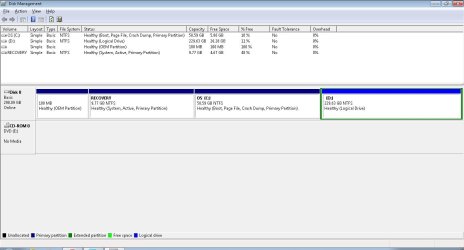
I have attached the screenshot of the Disk Management you asked for...

please help me
the % of free space that is shown is in my view wrong.. because I have personally checked every folder of my Stuff and calculated the space of the same and it is 140GB where this disk management shows about 200GB space used...
 

Attachments

  • screenshot.jpg
    screenshot.jpg
    70.4 KB · Views: 16

My Computer

OS
Windows 7 Home Premium 64bit
cool. That confirms that your drive does indeed have stuff on it. You (the user) don't see all files, windows hides its own stuff from you to make screwing it up more difficult.

First thing to check, go look at the Recycle Bin (if you don't see it do this to see it). The files deleted usually go in there but are still physically on your drive (so you can undo a badly done delete). Delete them by right-clicking the recycle bin and selecting empty recycle bin. Or open it and select what files you want to delete send back the others in their original place.

The second thing to do is looking at the size of recycle bin's dedicated space,
on the desktop, right-click Recycle Bin, and then click Properties.

Under Recycle Bin Location, click the location of the Recycle Bin you want to change (likely your D drive).

Click Custom size, and then, in the Maximum size (MB) box, enter a maximum storage size (in megabytes) for the Recycle Bin. For most uses, more than a few GBs is overkill.

Click OK.

If this does not free up space, that windows is saving something of its things there. Let's find out.

Open Folder Options by clicking the Start button , clicking Control Panel, clicking Appearance and Personalization, and then clicking Folder Options.

Click the View tab.

Under Advanced settings, click Show hidden files and folders and untick the "hide system files and folders", and then click OK. (it should give you a warning that it's not a safe option, say OK, we just need it temporarily to see what is going on, afterwards you should undo this)

Now go in the D drive and see if there is anything new, post a screenshot of it if there is. Don't delete anything you see this way, we have to find out what it is first.
 

My Computer

Computer type
PC/Desktop
Computer Manufacturer/Model Number
custom built
OS
Win 7 Pro 64-bit 7601
CPU
AMD Phenom 9650 QuadCore, revision DR-B3
Motherboard
ASUS M4A78
Memory
5 GB yes I run 2x 2GB and 1x 1GB, different brand, spank me.
Graphics Card(s)
NVIDIA GeForce 9800 GT 512 Mb, unknown manufacturer.
Sound Card
Crappy Realtek Integrated Audio
Monitor(s) Displays
Fujitsu Siemens P19-3P
Screen Resolution
1280 x 1024 x 32 bits @ 60 Hz Oh yeah, 4:3 rocks!
Hard Drives
(1) MAXTOR S TM3320613AS SATA Disk Device (2) STM35004 18AS SATA Disk Device (3) TOSHIBA USB 2.5"-HDD
PSU
whatever, around 450w
Case
Scavenged from old company PC, 10+ years old
Cooling
CPU fan, GPU fan, case fan, nothing fancy
Keyboard
Microsoft, PS/2, white.
Mouse
Optical, logitec.
Internet Speed
effective max speeds: 70-ish kB/s down 30-ish kB/s up
Antivirus
Avira, free edition.
Browser
Firefox with FXChrome to make it look like Google Chrome :P
Other Info
Was discarded by previous owner due to "horrible performance".
Was running Win Xp from a IDE drive. Yeah. Was a pain.
SATA II drive and Win7 and it zips away! Yay!
Thanks a bundle...
But dear I faced the same problem maybe around 6 months ago or even more.... The drive was almost full so I started deleting unnecessary files and and when I deleted my Songs Folder it was just few GBs but it turned like it had all the stuff with all the space I was looking for. So again I started deleting the same unnecessary folders but this it was vacating only the space the Folder possessed. So I thought to use this Forum...
So it seems there is still some 50Gbs space not shown anywhere on the Hidden System Folders.... Maybe I start deleting Folders again....!!!
 

My Computer

OS
Windows 7 Home Premium 64bit
Thanks a bundle...
But dear I faced the same problem maybe around 6 months ago or even more.... The drive was almost full so I started deleting unnecessary files and and when I deleted my Songs Folder it was just few GBs but it turned like it had all the stuff with all the space I was looking for. So again I started deleting the same unnecessary folders but this it was vacating only the space the Folder possessed. So I thought to use this Forum...
So it seems there is still some 50Gbs space not shown anywhere on the Hidden System Folders.... Maybe I start deleting Folders again....!!!

Do not start deleting things until we find out more about the situation. You are going to delete the wrong thing and then the PC won't boot at all. == First question. Are you having any problem at all starting your PC? Is it normal? == Second Question. On Drive D:, do you have a lot of programs? Why do you think it is not full?
 

My Computer

Computer type
PC/Desktop
Computer Manufacturer/Model Number
Custom Build
OS
Windows 7 Home Premium 32-Bit - Build 7600 SP1
CPU
Intel Core i3-2120 3.30Ghz
Motherboard
Asus P8Z68-V LX Intel Z68 Socket H2 ATX
Memory
Kingston 4 GB DDR3 1333 mhz
Graphics Card(s)
AMD Radeon HD6670
Sound Card
Sound Blaster Audigy SE 24-Bit
Monitor(s) Displays
Asus VE228
Screen Resolution
1440 X 900
Hard Drives
OCZ Vertex 3 120 GB Sata 3 SSD ==
Kingston SH103/S3 120 G Hyper X 120 GB SSD ==
Western Digital 500 GB Caviar Green 7200 RPM ==
PSU
Corsair CX600M == 600 Watt
Case
NZXT Apollo - Silver with Clear Side Panel
Cooling
Three 120 mm Fans
Keyboard
Microsoft Natural 4000
Mouse
Microsoft Custom Optical 3000
Internet Speed
AT&T Fiber Optic Wireless Network
Antivirus
Microsoft Security Essentials
Browser
Chrome
Other Info
120 mm Blue LED Fan -- Three Blue LED Lazer Light Sticks
Thanks a bundle...
But dear I faced the same problem maybe around 6 months ago or even more.... The drive was almost full so I started deleting unnecessary files and and when I deleted my Songs Folder it was just few GBs but it turned like it had all the stuff with all the space I was looking for. So again I started deleting the same unnecessary folders but this it was vacating only the space the Folder possessed. So I thought to use this Forum...
So it seems there is still some 50Gbs space not shown anywhere on the Hidden System Folders.... Maybe I start deleting Folders again....!!!
I gave you some instructions to fix the issue and give us some more info to help you toubleshoot. What about trying to follow them? They may solve the issue.

As long as you don't delete stuff in the C drive you will only lose your own data, but if you delete stuff from the c drive, you risk killing your computer.
Not that I'm going to lose my sleep over it, but really, you shouldn't do that.
 

My Computer

Computer type
PC/Desktop
Computer Manufacturer/Model Number
custom built
OS
Win 7 Pro 64-bit 7601
CPU
AMD Phenom 9650 QuadCore, revision DR-B3
Motherboard
ASUS M4A78
Memory
5 GB yes I run 2x 2GB and 1x 1GB, different brand, spank me.
Graphics Card(s)
NVIDIA GeForce 9800 GT 512 Mb, unknown manufacturer.
Sound Card
Crappy Realtek Integrated Audio
Monitor(s) Displays
Fujitsu Siemens P19-3P
Screen Resolution
1280 x 1024 x 32 bits @ 60 Hz Oh yeah, 4:3 rocks!
Hard Drives
(1) MAXTOR S TM3320613AS SATA Disk Device (2) STM35004 18AS SATA Disk Device (3) TOSHIBA USB 2.5"-HDD
PSU
whatever, around 450w
Case
Scavenged from old company PC, 10+ years old
Cooling
CPU fan, GPU fan, case fan, nothing fancy
Keyboard
Microsoft, PS/2, white.
Mouse
Optical, logitec.
Internet Speed
effective max speeds: 70-ish kB/s down 30-ish kB/s up
Antivirus
Avira, free edition.
Browser
Firefox with FXChrome to make it look like Google Chrome :P
Other Info
Was discarded by previous owner due to "horrible performance".
Was running Win Xp from a IDE drive. Yeah. Was a pain.
SATA II drive and Win7 and it zips away! Yay!
See I won't delete any system files or folders... I'll only delete the stuff which is not for any urgent use, like my songs and movies or any software backups...
As far as Sir bobafetthotmail's instructions are concerned I did that and found nothing that can solve my problem.... See I changed the Recycle Bin space to 2GB each for Drive C and drive D, earlier it was 1350Mb for Drive C and aroung 13GB for Drive D. But no change...
And when it comes to unticking the hide system files in Folder Options is concerned I did that but found not any file that equals the space that is missing in my Drive D....

To Sir Bigmck
actually I am not going to delete any system files.... I will just delete unnecessary files and folders like songs etc....
Question 1. I have no problem in booting maybe a bit slower than before... maybe, not sure.... its like unnoticeable...
Question 2. I have got huge data... like personal data, Pics, MS Word Files and my thesis work on big Softwares, I have not installed any software on Drive D all softwares are installed on Drive C and there is no such problem in it.
I have only saved my documents and other stuff no installed softwares... but yes i have kept the backups of the softwares drivers etc...
Now why do I feel its not full, because I have calculated each file and folder in my Drive D, it shows on about 140GB of data but when I right click on Drive D it says only 26+Gb remaining out of 229GB... so there is a gap of 60GB which is missing....
This is a problem I want to solve.... what it can be... I mean i have no idea whether it is a virus or something else... But i have Microsoft Security Essentials installed and it shows nothing of that sort i mean virus etc....
 

My Computer

OS
Windows 7 Home Premium 64bit
Now why do I feel its not full, because I have calculated each file and folder in my Drive D, it shows on about 140GB of data but when I right click on Drive D it says only 26+Gb remaining out of 229GB... so there is a gap of 60GB which is missing....
This is a problem I want to solve.... what it can be... I mean i have no idea whether it is a virus or something else... But i have Microsoft Security Essentials installed and it shows nothing of that sort i mean virus etc....

I have never heard of this happening. Disk Management is pretty accurate. You have calculated and there is a 60 GB difference. You could have calculated wrong and there are some hidden files you are not adding. I don't think anything is wrong. If your laptop will hold an additional drive, you should start looking for one. I suppose you could also put some files on an external HD. Do yourself a favor and don't just delete your files because you don't have room. One day you will want all of those pictures and songs that you deleted. Good luck.
 

My Computer

Computer type
PC/Desktop
Computer Manufacturer/Model Number
Custom Build
OS
Windows 7 Home Premium 32-Bit - Build 7600 SP1
CPU
Intel Core i3-2120 3.30Ghz
Motherboard
Asus P8Z68-V LX Intel Z68 Socket H2 ATX
Memory
Kingston 4 GB DDR3 1333 mhz
Graphics Card(s)
AMD Radeon HD6670
Sound Card
Sound Blaster Audigy SE 24-Bit
Monitor(s) Displays
Asus VE228
Screen Resolution
1440 X 900
Hard Drives
OCZ Vertex 3 120 GB Sata 3 SSD ==
Kingston SH103/S3 120 G Hyper X 120 GB SSD ==
Western Digital 500 GB Caviar Green 7200 RPM ==
PSU
Corsair CX600M == 600 Watt
Case
NZXT Apollo - Silver with Clear Side Panel
Cooling
Three 120 mm Fans
Keyboard
Microsoft Natural 4000
Mouse
Microsoft Custom Optical 3000
Internet Speed
AT&T Fiber Optic Wireless Network
Antivirus
Microsoft Security Essentials
Browser
Chrome
Other Info
120 mm Blue LED Fan -- Three Blue LED Lazer Light Sticks
I have never heard of this happening. Disk Management is pretty accurate. You have calculated and there is a 60 GB difference. You could have calculated wrong and there are some hidden files you are not adding. I don't think anything is wrong. If your laptop will hold an additional drive, you should start looking for one. I suppose you could also put some files on an external HD. Do yourself a favor and don't just delete your files because you don't have room. One day you will want all of those pictures and songs that you deleted. Good luck.


hmmm... Well I'll see if there is any miscalculation on my part!!! yeah External HD is one good option... Thanks anyways for your kind help and concern... I will remain in contact for any help required in future and hope for the same response :)...
 

My Computer

OS
Windows 7 Home Premium 64bit
Back
Top