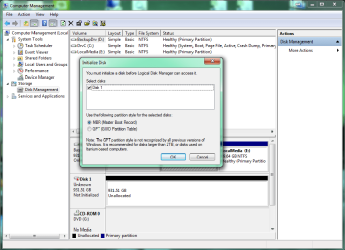
I had a computer with a Win10 upgrade go bad. Pulled the drive, attached to USB Bridge and connected to my Win7 machine but the partition is empty. Is this normal?
USB Bridge??? What is it? Can you please be more specific as to what that USB bridge is? Do you mean SATA to USB adapter?
Also furnish full details of your Windows 10 Disk - Manufacturer, model no, Capacity. Define what exactly was the problem. Was your Windows 10 installation working properly before? And then what happened?
Partition empty? Post a screenshot of Windows Disk Management.
Yes, SATA to USB adapter.
Hopefully this attached image works...
Samsung 1TB HDD
Machine was upgraded from Win 7 to Win 10 and was working fine (as far as I am aware...). Recently, another upgrade rendered the PC non functional in a boot loop. I pulled the drive in an attempt to rescue datafiles, this is what I found.
You had had a previous incident of losing a data partition when trying to restore an image after a failed upgrade. Did you learn a lesson from it? The lesson is that you must always have a one to one backup ( not an image) of all your data.
Run it and post a screenshot of how your drive looks like in it. ( The very first screen after you launch it)
Then run Partition Recovery Wizard.On the left Pane click on Partition Recovery Wizard > Next > Select your Drive > Next > Full Disk > Next > QuickScan > Next. Allow the quick scan to complete. At the end of the quickscan you will get a window showing all the found partitions. Post a screenshot of it ( only that Window. No need of any background).After you have taken the screenshot click on Cancel button on that Window and close PW. You can run it again if need be.