Dual Boot - Delete a OS

How to Properly Delete a OS in a Dual Boot

   Information
Deleting a double booted OS may seem simple - you just delete the partition with the OS you want to get rid of and you are done. Well, it is not that easy. With said approach you may get yourself into a lot of trouble. This tutorial describes a safe way how to properly delete a double booted OS.


Step 1 - Check where the bootmgr resides
Open Disk Management and find the partition that is marked "active". That is the partition that contains the bootmgr. If there are several active partitions, you have to look for the system flag - best seen in Computer.

The active partition is usually from the OS that was on the system first - e.g. if you installed Windows 7 on an XP system, the XP system would be the active partition. But there are also other cases.

If Windows 7 was the first OS on the system, then your bootmgr resides most likely in a separate system partition which is usually small.

If you installed Windows 7 as first OS to a disk that was not attached to the Sata port0, it can very well be that the bootmgr resides on an arbitrary partition on the disk that is attached to port0.

If you have e.g. a Dell system, your bootmgr may be on the recovery partition. Other OEMs may do the same, but I was not able to verify that.

This is the example of my current system. Note the two last partitions which are Windows 7 and Windows 8. The Windows 7 partition is marked as active. You also see that I have no small system partition because I have eliminated that partition after I moved the bootmgr from that small system partition to the Windows 7 partition.
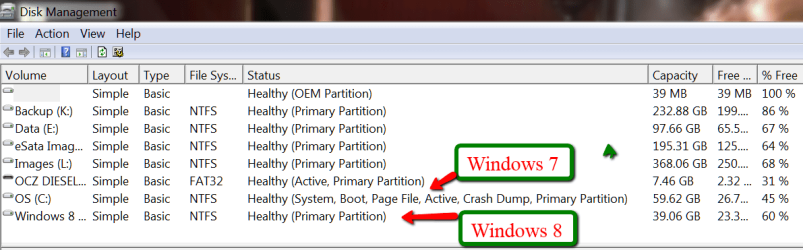

pic 1.png

If I would delete the Windows 7 partition, my Windows 8 would not boot any more because it would have lost it's bootmgr that is in cohabitation with the Windows7 bootmgr.

In order to avoid such an unfortunate situation, we launch the system that we want to retain and move the bootmgr to that system's OS partition. Here is how.
Step 2 - Delete the unwanted OS partition and reuse the space (Optional)
Stay in the OS that you want to keep and open Disk Management. Right click on the partition that contains the OS you want to delete and Delete Volume. Then right click on the deleted volume and Delete Partition. Now you should have "Freespace" where this partition originally was.

With Disk Management, you can define a new partition in that freespace or you can add it to the partition that shows to the left of that freespce. Just click on the partition which is to the left and Extend Volume.

If, however, you want to add that freespace to a partition that is to the right of the freespace, then you have to use an external tool. I suggest the bootable CD of Partition Wizard. Here is how.

A word of caution: before you manipulate partitions with Partition Wizard, make an image of all partitions on that disk. I once lost all my partitions on a disk because I made a small mistake manipulating one partition with Partition Wizard. For imaging I recommend Free Macrium. Here is how.
Step 3 - Cleanup the bootmgr
Now that we removed one OS, we have a surplus entry in the bootmgr. We will remove this entry with EasyBCD. As you can see in the picture, the operation takes only 4 clicks.

EasyBCD is a very handy tool for a variety of operations on the bootmgr. You should have that in your toolkit anyhow.
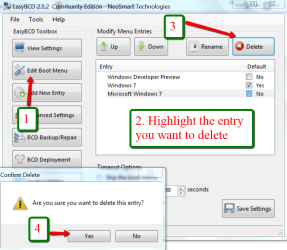

pic 2.png


If you stop at this step, the MBR is still in a double boot configuration and when you boot, the BIOS will present you the black screen where you have to choose the operating sytem - although only one operating system is present. This is not a disaster, but it is an unnecessary step that requires your intervention.

The next two steps will reset the MBR to your current OS and then your system will automatically boot into that.

Important: You absolutely have to execute both Steps 4 and Step 5. If you only do Step 4, your system will not boot any more.

Step 4 - Clean the MBR
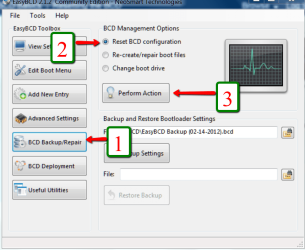
Pic 3.png


Step 5 - Reset MBR with the entry of the current OS
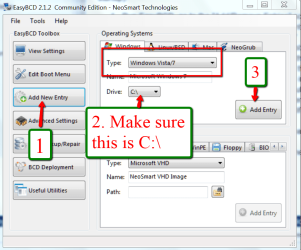
Pic 4.png


Last edited:
Thanks yep popups galore but bailed in time and mbam/ sas/ even mse blocked so it's all good,
View attachment 336709
 
Last edited:

My Computer My Computer

Computer type
PC/Desktop
Computer Manufacturer/Model Number
Custom assembled by me :}
OS
Win-7-Pro64bit 7-H-Prem-64bit
CPU
i7-5930K 2nd i9-9940x both water blocked VRM's too
Motherboard
ASUS SABERTOOTH X99 2nd ASUS x299 Apex
Memory
Trident-z 3200C14 2nd Trident-z 3600C16
Graphics Card(s)
EVGA 1080ti ftw3 2nd Titan Xp both water blocked
Sound Card
Built-in Realtek
Monitor(s) Displays
1-AOC G2460PG 24"G-Sync 144Hz/ 2nd 1-ASUS VG248QE 24" 144Hz
Screen Resolution
1920 x 1080 144Hz
Hard Drives
2-Samsung M.2 Evo & Evo Plus
2-Samsung 850 EVO 500GB SSD's/ 3-2.5 W.D. Black 1tb-&3-1tb/3-3.5 WD Black 1tb hdd's
PSU
EVGA SuperNOVA 1000-P2 2nd 1200-P2
Case
2-Corsair Obsidian Series 450D Black ATX Mid Tower
Cooling
Custom water loops
Keyboard
Logitech G710+/ 2nd Logitech G910
Mouse
2-RedDragon M901 Perdition 16400 dpi Gaming mouse = wired
Internet Speed
Comcast Ping 19ms 89.31mbps download speed 6.12mbps upload
Antivirus
Malwarebytes Pro/ Superantispyware Pro
Browser
FireFox & Pale moon
Other Info
2nd ASUS X299 Apex/Intel i9-9940x with Custom water loop/7H-Prem-x64/Corsair 450D case/Ram Trident-z 3600C16 4x8gb / Samsung970Evo plus 500gb SSD/Dual ssd EZ swap evo/PSU EVGA SuperNova 1200w-P2 80+Platinum/GPU Titan Xp /8-ML-140 on push-pull on 2-280GTX rads
whs, Thank you alot for this easy & clear tutorial! It helped me alot, easyBCD is quite the .wizard
 

My Computer My Computer

Computer type
Laptop
Computer Manufacturer/Model Number
Asus
OS
Windows 7 Professional/Homepremium 64bit.
CPU
i7 720QM
Motherboard
Asus?
Memory
2x 500 GB
Graphics Card(s)
ATI Mobility Radeon HD 5730 a 1GB.
Antivirus
MSE
Browser
Chrome, Firefox
You are quite welcome.
 

My Computer My Computer

Computer Manufacturer/Model Number
HP, Dell, Gateway, Toshiba - 4 laptops and 2 desktops
OS
Vista, Windows7, Mint Mate, Zorin, Windows 8
CPU
from 1.6GHz Duo to i7
Monitor(s) Displays
2x HP w2207
Hard Drives
5x HDD, 7x SSD, 12x Externals
Keyboard
with trackball - no mices
Mouse
Trackball mice
Internet Speed
DSL 6000
Hi folks!

Would appreciate some help with the following...been looking at this for a couple of days, and have not been able to get off the ground with it.

In the process of "downsizing", have a laptop and a desktop that I am giving to friends. Both machines have a Windows 7 and Vista dual boot.

On the laptop, Windows 7 was installed when purchased, and Vista was installed later by me.
After reading Brink's excellent tutorial http://www.sevenforums.com/tutorials/2282-default-operating-system-change-default-boot-os.html used Option Four, EasyBCD, and did the following:

1, Pressed Edit Boot Menu, and selected Windows 7 as the default OS to start in the Windows Boot Manager.
2. Pressed Edit Boot Menu, selected Windows Vista, and deleted the menu entry for Vista, so it is no longer seen as a booting option.

However, to my understanding, deleting the Vista menu entry does not delete the operating system itself. To permanently remove Vista, will need to format its partition.

So, here I am in front of this excellent tutorial by whs, but, formatting the Vista partition seems more complicated to me than changing the default boot OS, and my level of confidence at this point is shot.
I would appreciate some expert eyes taking a look! :D

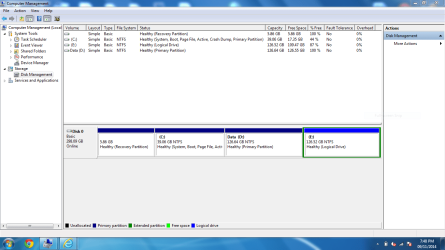
Disk Management shows C:\ as Active, and presumed it is the partition that contains the bootmgr since there are no other partitions tagged as Active. However, the following comment concerns me: "If Windows 7 was the first OS on the system, then your bootmgr resides most likely in a separate system partition which is usually small." since DM also shows a small Recovery Partition of 5.86 GB!

Capture DM.PNG

Question #1: Do I need to copy the Bootmgr file to C:\ using EasyBCD and this tutorial:
http://www.sevenforums.com/tutorials/209885-bootmgr-move-c-easybcd.html

Question #2: Are there any other considerations I need to keep in mind here, like, Partition E:\, which EasyBCD shows as having Vista, is a Logical partition?

Thank you in advance for your help!!
 

My Computer My Computer

Computer type
PC/Desktop
Computer Manufacturer/Model Number
An ol' eMachines
OS
Windows 7 Home Premium
Internet Speed
Fine for me...I'm retired!
Windows 7 on C is booting both OS's as signified by the System flag. We know you're booted into it by the "Boot" flag signifying the presently-booted OS.

Since you said you installed Vista last and it appears (by space used) to have been installed on E then you can simply delete E in Disk Mgmt since it has no boot files on it . Partition or Volume - Delete

C is way too small so since the Data partition is empty I would delete it as well, Extend C by at least another 70-80gb, then if you want create a New Data partition to its right labeled "Data".
Partition or Volume - Extend
Partition or Volume - Create New

Or you could just delete the last two partitions and Extend C all the way across which is as easy as clicking Next on every choice for Disk Mgmt Extend.
 
Thanks Greg!! I appreciate your help on this.

Will read all the info on the links, try to apply it, and see what happens. Will post back.

I do have a question, in the first sentence you mention the boot flag. Please pardon my ignorance, but, I can't remember where to look for the boot flag. Is it determined by looking in the Status area of Partition C:\?

Have a great day!! :)
 

My Computer My Computer

Computer type
PC/Desktop
Computer Manufacturer/Model Number
An ol' eMachines
OS
Windows 7 Home Premium
Internet Speed
Fine for me...I'm retired!
It is the label which appears on the partition and in the listings above the drive map in Disk Mgmt.

Those labels are also called flags.
 
Thanks for the info, Greg!

Thought there was a column of its own titled "Flags" somewhere. Maybe it is on another program I've seen...

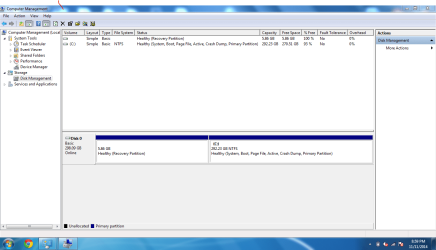
Your instructions went quite well. The new DM capture looks good (I hope)!

Capturedm2.png


Next, on the Desktop, Windows Vista was installed by Compaq.
Windows 7 Ultimate was installed by me at a later time.

This is the info from EasyBCD:

There are a total of 2 entries listed in the bootloader.

Default: Windows 7
Timeout: 30 seconds
Boot Drive: D:\

Entry #1
Name: Windows 7
BCD ID: {current}
Drive: C:\
Bootloader Path: \Windows\system32\winload.exe

Entry #2
Name: Microsoft Windows Vista
BCD ID: {28c60e58-ec36-11db-b670-001921dbe361}
Drive: D:\
Bootloader Path: \Windows\system32\winload.exe

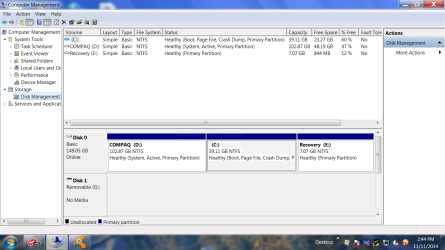
This is what DM shows:

Capture DesktopDM2.PNG


If possible, would like to remove Vista, and just have Windows 7.
This one might not be as easy as the Laptop...

Thanks again for your help.
 

My Computer My Computer

Computer type
PC/Desktop
Computer Manufacturer/Model Number
An ol' eMachines
OS
Windows 7 Home Premium
Internet Speed
Fine for me...I'm retired!
First move the Bootmgr - Move to C:\ with EasyBCD - Windows 7 Forums

Back up your files from C and D, and a Macrium Imaging backup if you don't think you could do without that Win7 install if something should go wrong.

Then boot the PW disk to Delete D:/COMPAQ, click OK, Apply.

Next rightclick on C to Resize, drag the left border all the way to the left end of the HD, Click OK, Apply

Now highlight the disk #, from PW Disk tab select Rebuild MBR, OK, Apply.

Reboot to see if Win7 will boot. If not it may be necessary to run a Startup Repair or two when resizing on the boot sector.

If you want the space you can also delete Recovery and Extend C to the right. But if you think you'd ever want to restore to factory condition you can also keep it since you can manually Boot Recovery Partition using EasyBCD .
 
Last edited:

My Computer My Computer

Computer type
PC/Desktop
Computer Manufacturer/Model Number
An ol' eMachines
OS
Windows 7 Home Premium
Internet Speed
Fine for me...I'm retired!
Greg,

Followed the PW instructions to delete Compaq D:, resized what was supposed to be C: (left and right to occupy unallocated space), and last, selected Rebuild MBR. All actions completed successfully.

Did notice that the partition where Windows 7 is supposed to be did not show up as C:, and its status was: None
The Recovery E: partition showed its name and letter, but its status was also: None

When done, booted, and got the following:
"Reboot and select a proper boot device or insert Boot Media in selected boot device and press a key..."

What course of action do you suggest at this point?

BTW, did find the Windows 7 Ultimate CD.

Once again, thanks for your help on all this.
 

My Computer My Computer

Computer type
PC/Desktop
Computer Manufacturer/Model Number
An ol' eMachines
OS
Windows 7 Home Premium
Internet Speed
Fine for me...I'm retired!
Confirm that C is Partition Marked Active and then run Startup Repair - Run 3 Separate Times to write the boot files to C.

If there is any problem then please post back a camera snap of the PW drive map, or let us know the labels on each partition.

IF Startup Repair x3 cannot get it started then:

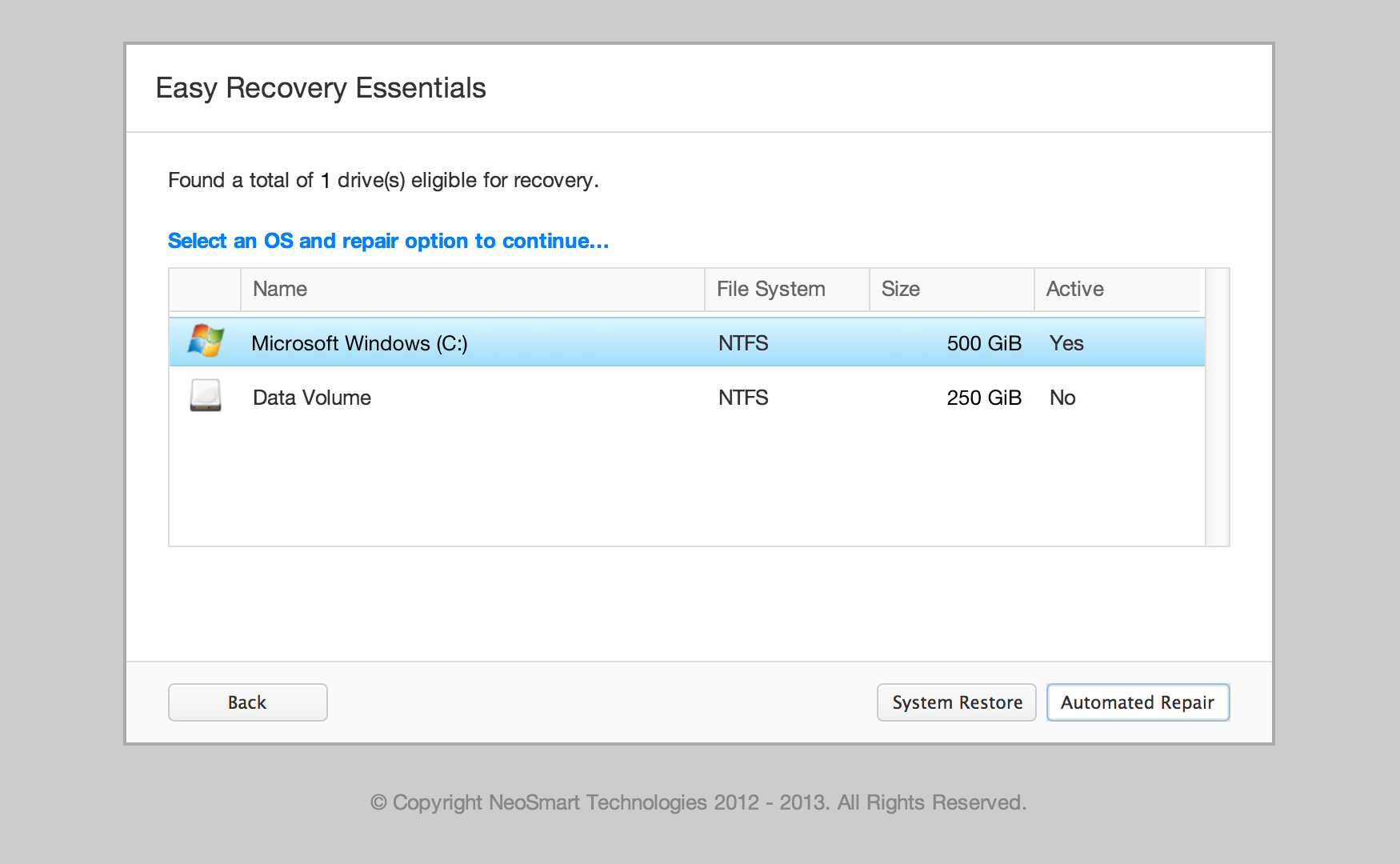
  1. Download Easy Recovery Essentials.
  2. Burn the image. Follow these instructions on how to burn the bootable ISO image very carefully, as making a bootable CD can be tricky! Alternatively, these instructions explain how to create a bootable EasyRE recovery USB stick/drive.
  3. Boot up your PC from the Easy Recovery Essentials CD or USB you created.
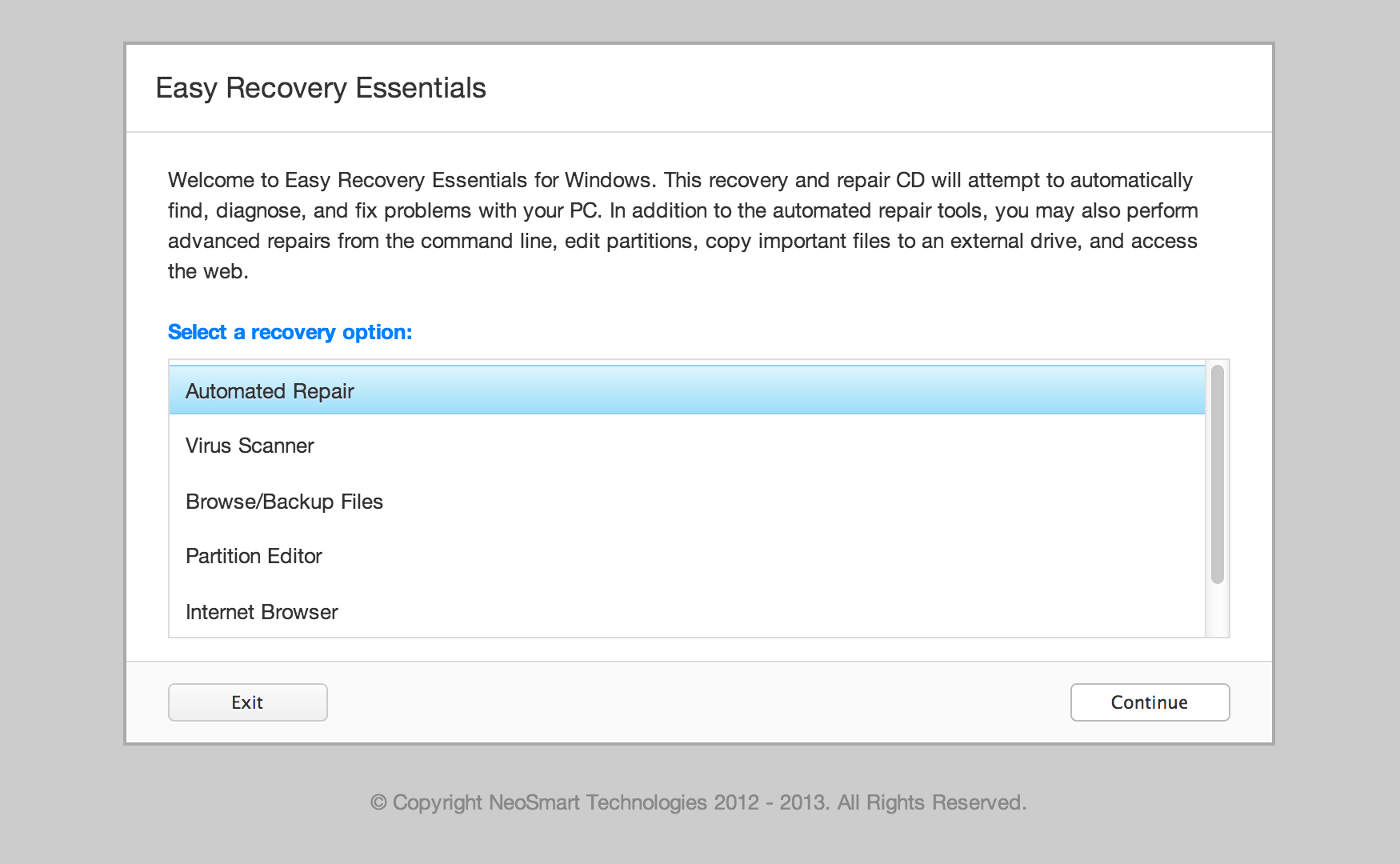
  4. Once EasyRE is running, choose the “Automated Repair” option and click Continue. Choose “Automated Repair” in Easy Recovery Essentials
  5. After EasyRE scans your computer’s drives, identify and select the drive letter for your Windows installation from the list, and then click on the Automated Repair button to begin. Choose the drive associated with the Windows installation you’re trying to repair.
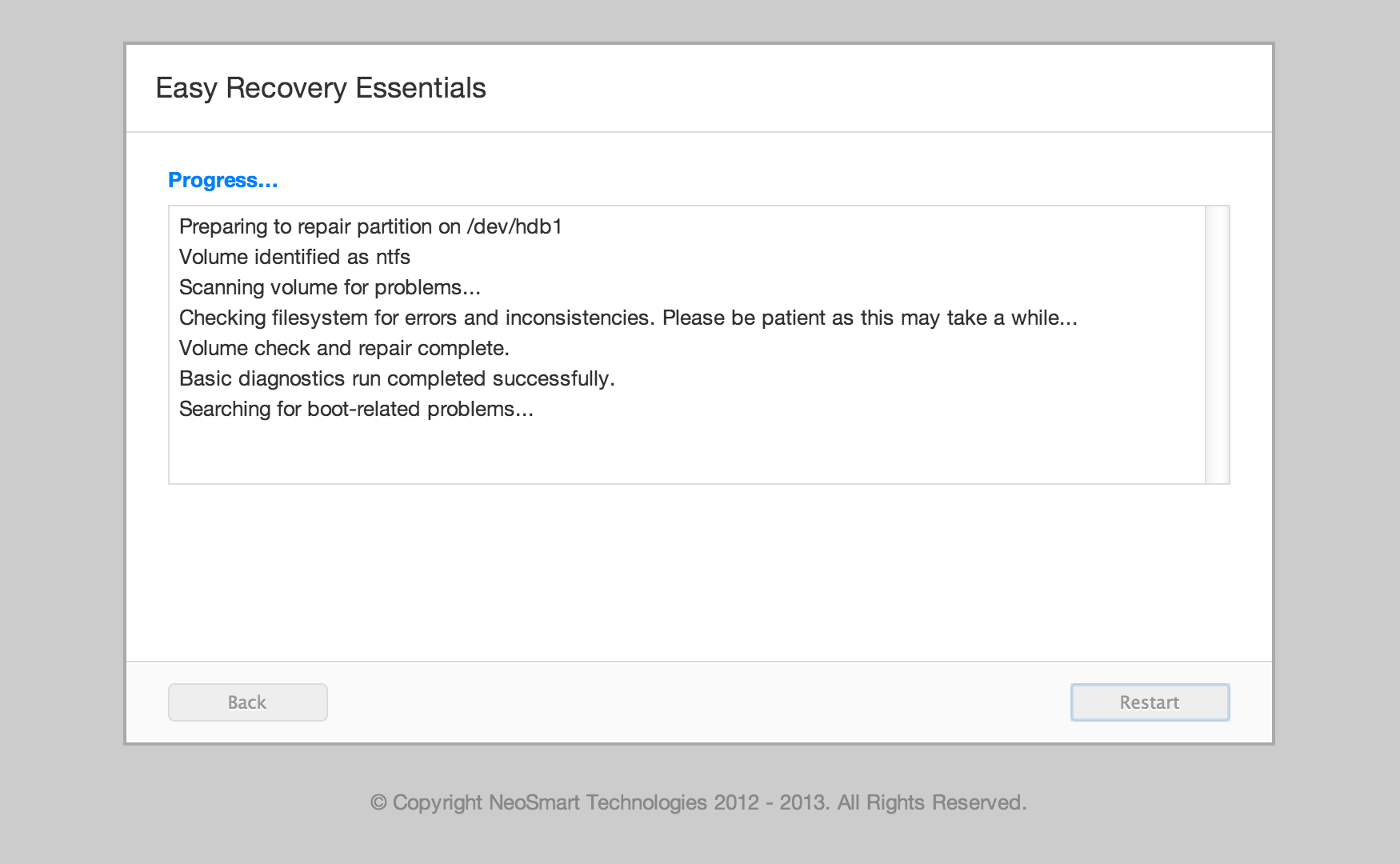
  6. Easy Recovery Essentials will start analyzing the selected drive for problems. EasyRE will test for and attempt to automatically correct errors with the disk, partition, bootsector, filesystem, bootloader, and registry. No intervention is required, as EasyRE’s repair is fully automated: Easy Recovery Essentials searches for errors and makes corrections to the selected Windows installation.
  7. Once the process is complete, EasyRE will report its findings. Click on the Restart button to reboot your PC and test the changes.
 
Last edited:
Thanks for the info, Greg!

Since the Windows 7 CD is available, decided to use it, and that way the computer recipient will start clean, and I will not have to engage into doing a deep clean.

Everything went well. Still in the process of downloading an AV, Windows Updates, etc., but, do not expect any problems.

Your help is really appreciated, and I cannot thank you enough.

My attempt to give you a rep did not work...have to spread more of them around.
However, in my book, you are a top gun!! :D


.
 
Last edited:

My Computer My Computer

Computer type
PC/Desktop
Computer Manufacturer/Model Number
An ol' eMachines
OS
Windows 7 Home Premium
Internet Speed
Fine for me...I'm retired!
Really glad to hear it Marie. :geek:

Take good care and come back to visit when you can :)
 
Well, all was going smooth installing an AV, MBAM, Windows Updates, but something happened that the Desktop will not connect to the Internet.

Keep getting:
"The remote device or resource won't accept the connection."
"Connection with server cannot be established."

In Device Manager there was a Teredo Tunneling Pseudo-Interface with a yellow flag. I removed it and restarted, but, it was not there after the reboot, so, it did not re-install.

Guess I am headed to the Networking forum and hope to get some help there.

I have helped others bring back an Internet connection using an elevated command prompt, but my brain has been replaced with marbles...know that I've done it, but, blank as to how. :huh:
 

My Computer My Computer

Computer type
PC/Desktop
Computer Manufacturer/Model Number
An ol' eMachines
OS
Windows 7 Home Premium
Internet Speed
Fine for me...I'm retired!
Thanks a lot

Dear Thanks a lot for sharing such useful tutorial. I am really glad... Allah bless you...
Thanks a lot again Dear...
 

My Computer My Computer

Computer type
Laptop
Computer Manufacturer/Model Number
Dell
OS
Microsoft Windows 8.1 Professional 32-bit and Microsoft Windows 7 Professional 32-bit
Memory
2 GB
Hard Drives
320 GB
Antivirus
Bit Defender on Win 8.1 & Microsoft Security Essential on 7
Browser
Google Chrome and Internet Explorer
Hi!

Thanks for the great tut !! However, after a long research (and about 4/5 boot files repair with WinRE), I believe it misses a very important part, which will cause the system NOT to boot : it cant find any boot file.


You miss a final step 6 !
Under "BCD BACKUP", you have to launch "Re-create boot files" !

I have tested this many times to make sure. Without doing it, the bios wont find the "boot files"
But when doing Step 4 - Reset the BCD / Step 5 - Adding a new entry / Step 6 - Reset the Mbr it works


To my "understanding", there are two parts : the boot files // the boot data config
- When hitting Reset BCD, I guess it will erase everything, files included.
- When adding new entry, you setup the boot data again, but not the files
- When hitting Recreate boot file, you copy the file again.

Files + data = Boot :p

Followed exactly and without any errors. the excellent TUT from WHS Steps 1,3,4,5 plus your suggested Step 6. After successfully changing in Step 1 the boot record in XP (D) to Windows 7 (C), I changed the first boot HDD in the BIOS to the HDD with Windows 7 (C)

Result: eliminated XP from the dual boot and now I have duplicate entries for Windows 7 in the dual boot startup window. Windows 7 boots correctly but the dual boot screen with the duplicate entries still appears. I no longer have a need for a dual boot and wish to eliminate the screen options at start up. I assume the solution is simply going to EasyBCD> Edit Menu> select an entry > Delete > Yes> Save Settings. If there is only one entry, the boot menu itself will be hidden and the computer will automatically be booted into the remaining OS. If there is no need for any boot options I suppose selecting "Skip the Boot Menu" in Timeout Options should do the trick.

Before trying that I wanted to get some feedback.

¿? TIA
 
Last edited:

My Computer My Computer

OS
windows 7 ultimate x64
Back
Top