
Dual Boot Installation with Windows 7 and Vista

How to Setup a Dual Boot Installation with Windows 7 and Vista

   Information
This will show you how to install Windows 7 and Vista to dual boot with when you already have either Windows 7 or Vista installed first.
   Note
With a dual boot installaton, you will have two operating systems (OS) installed. When you start the computer, you will have the choice to choose which OS you would like to start up to. This method is the easiest way of doing a dual boot with these two operating systems.
   Tip
When dual booting with another OS (ex: Vista or XP), you may not always have that OS partition show up in Computer with a driver letter in Windows 7. If this happens, then you will just need to add a drive letter to the OS (ex: Vista or XP) partition in Windows 7 Disk Management for it to show up in Computer with a driver letter.
   Warning
Windows 7 Minimum Hardware Requirements:

NOTE: For more iformation on this, see: Windows 7 system requirements
  • 1 GHz 32-bit or 64-bit processor
  • 1 GB RAM for 32-bit Windows 7 OR 2 GB RAM for 64-bit Windows 7
  • 16 GB available disk space 32-bit Windows 7 OR 20 GB for 64-bit Windows 7
  • Support for DirectX 9 graphics with 128 MB memory (in order to enable Aero theme)
  • DVD-R/W Drive
  • Internet or phone access to activate Windows 7.
Vista Minimum Hardware Requirements:
NOTE: For more information, see: Microsoft Windows Vista: Recommended System Requirements

Vista Home Basic
  • Processor: 1GHz (32 or 64 bit)
  • System Memory (RAM): 512MB
  • Hard Drive: 20GB with 15GB available for Vista
  • Video Card: 32MB Memory and DirectX 9 Support
  • DVD-ROM Drive
Vista Home Premium, Business, or Ultimate
  • Processor: 1GHz (32 or 64 bit)
  • System Memory (RAM): 1GB
  • Hard Drive: 40GB with 15GB available for Vista
  • Video Card: 128MB Memory, DirectX 9 Support with: WDDM Driver, Pixel Shader 2.0, 32bits per pixel
  • DVD-ROM Drive

EXAMPLE: Windows Boot Manager
NOTE: This is the boot screen where you select what operating system that you would like to start. By default, you have 30 seconds to choose another operating system before the default operating system will start automatically.
Boot_Manager.jpg


Here's How:
1. If Installing Second OS on a Separate Hard Drive
NOTE: This is if you are going to install the second OS (Windows 7 or Vista) on a separate hard drive than the first OS in installed on.
A) Go to step 3.
2. If Installing Second OS on another Partition on the Same Hard Drive
NOTE: This is if you are going to install the second OS (Windows 7 or Vista) on a different partition on the same hard drive than the first OS is installed on.
A) If Vista was installed first, then create a new partition for Windows 7 (second OS) to be installed on later if you do not already have one to use. (See screenshot below)
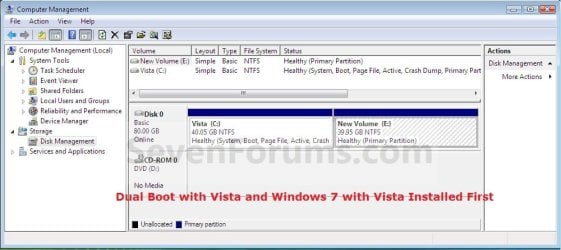
Create_Windows7_Partition_.jpg
B) If Windows 7 was installed first, then create a new partition for Vista (second OS) to be installed on later if you do not already have one to use. (See screenshot below)
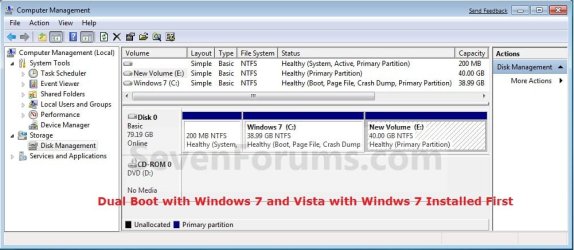
Create_Vista_Partition_.jpg
3. Insert the second OS (Windows 7 or Vista) installation DVD, and restart the computer to start installing it.
A) If Vista was installed first, then select the new partition (step 2A) or drive and do a clean install of Windows 7 (second OS) on it. (See screenshot below)
Windows7_Partition.jpg
B) If Windows 7 was installed first, then select the new partition (step 2B) or drive and do a clean install of Vista (second OS) on it. (See screenshot below)
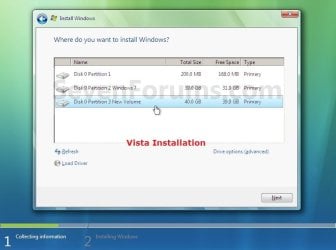
Vista_Partition.jpg
4. When the second OS is finished installing you will now have the option to select which OS to start to in the Windows Boot Manager screen at start up. (See example screenshot at the top of the tutorial)
NOTE: Whatever OS you install last will be the OS listed first in the Windows Boot Manager screen at startup.

5. This is what you will see in Disk Management below if you installed the second OS on another partition on the same hard drive (step 2).
A) If Vista was installed first. (See screenshot below)
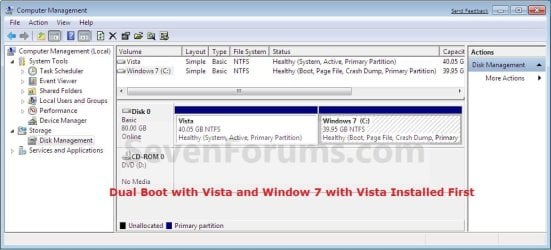
Disk_Management-Windows7.jpg
B) If Windows 7 was installed first. (See screenshot below)
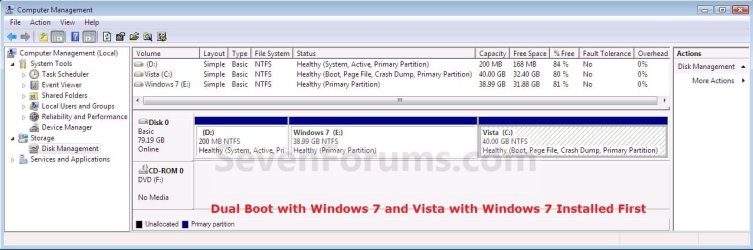
Disk_Management-Vista.jpg
That's it,
Shawn


Last edited:
Hi Howard,

E.g. Vista is installed first.

Install 7 in the normal way by booting the dvd - install 7 to another partition and when you boot into 7 - it will see itself as C.

7 will see Vista as a different letter - which you will assign with 7 Disk Management.

That is the letter 7 will see Vista as. It does not affect the letter Vista sees itself as having.

When you boot back into Vista - Vista still sees itself as C and everything installed there is as was.

Whichever you are booted into sees itself as C.

Whichever is the Active partition during installation will contain the boot critical files.

If you wish to avoid that - Create another partition from within Vista using Disk Management - give it the drive letter of your choice- Install virtual dvd drive in Vista and pick up the 7 iso with that - run the 7 installation from within Vista.

Point the 7 installer at the partition you just created for it.

7 will take whatever drive letter you gave the partition you made to install it on.

Again , the boot critical files will be on the Active partition at the time of installation.
 

My Computers My Computers

  • At a glance

    7 X64i5 84002x8gb 3200mhz
    Computer type
    PC/Desktop
    OS
    7 X64
    CPU
    i5 8400
    Motherboard
    gigabyte b365m ds3h
    Memory
    2x8gb 3200mhz
    Hard Drives
    various
    PSU
    pure power 11 400w cm
    Case
    Coolermaster
    Cooling
    cryorig m9i
  • At a glance

    7x64g54008gb ddr4 2400
    Computer type
    PC/Desktop
    OS
    7x64
    CPU
    g5400
    Motherboard
    ga b365m ds3h
    Memory
    8gb ddr4 2400
    PSU
    xfx pro 450w
Hi Howard,

E.g. Vista is installed first.

Install 7 in the normal way by booting the dvd - install 7 to another partition and when you boot into 7 - it will see itself as C.

7 will see Vista as a different letter - which you will assign with 7 Disk Management.

That is the letter 7 will see Vista as. It does not affect the letter Vista sees itself as having.

When you boot back into Vista - Vista still sees itself as C and everything installed there is as was.

Whichever you are booted into sees itself as C.

That is not acceptable.

C has to always have Vista and, say, G has to always have Win 7.

Whichever is the Active partition during installation will contain the boot critical files.

I really do not care where the boot files live, as long as I have the choice of OS when I boot.

If you wish to avoid that - Create another partition from within Vista using Disk Management - give it the drive letter of your choice- Install virtual dvd drive in Vista and pick up the 7 iso with that - run the 7 installation from within Vista.

Do you mean create two partitions in Vista?
Into one, say, G , I would install Win 7 using drive letter G, and C would be retained for whatever.
And. a 2nd partition into which I would have copied the content of the Win 7 installation media.

I do not understand "Install virtual dvd drive in Vista and pick up the 7 iso with that".

Point the 7 installer at the partition you just created for it.

7 will take whatever drive letter you gave the partition you made to install it on.

Again , the boot critical files will be on the Active partition at the time of installation.

In this case the boot critical files will end up on C?
And when booted to Win 7, C will have the Vista files and G would have Win 7?
 

My Computer My Computer

At a glance

Vista
OS
Vista
I think installing from a virtual drive is the way to go for what you want.

I did that and the drive letters are the same all the time - whichever o/s I am booted into.

It is very easy to do with a free app.

The only snag is:

If you are on 64 bit you can install either 64 or 32 bit o/s from a virtual drive.

If you are on 32 bit - you can only use a virtual drive to install a 32bit o/s from.

Assuming that is not a problem , you can do it with the free (unregistered ) version of PowerIso.

PowerISO - Create, Edit, Compress, Encrypt, Split, Mount, Extract ISO file, ISO/BIN converter, Virtual Drive
 

My Computers My Computers

  • At a glance

    7 X64i5 84002x8gb 3200mhz
    Computer type
    PC/Desktop
    OS
    7 X64
    CPU
    i5 8400
    Motherboard
    gigabyte b365m ds3h
    Memory
    2x8gb 3200mhz
    Hard Drives
    various
    PSU
    pure power 11 400w cm
    Case
    Coolermaster
    Cooling
    cryorig m9i
  • At a glance

    7x64g54008gb ddr4 2400
    Computer type
    PC/Desktop
    OS
    7x64
    CPU
    g5400
    Motherboard
    ga b365m ds3h
    Memory
    8gb ddr4 2400
    PSU
    xfx pro 450w
I think installing from a virtual drive is the way to go for what you want.

I did that and the drive letters are the same all the time - whichever o/s I am booted into.

It is very easy to do with a free app.

The only snag is:

If you are on 64 bit you can install either 64 or 32 bit o/s from a virtual drive.

If you are on 32 bit - you can only use a virtual drive to install a 32bit o/s from.

Assuming that is not a problem , you can do it with the free (unregistered ) version of PowerIso.

PowerISO - Create, Edit, Compress, Encrypt, Split, Mount, Extract ISO file, ISO/BIN converter, Virtual Drive

Why mess with a virtual drive?

Can not I copy the Win 7 media to a separate partition in Vista and then install from that partition?

But how is that any different from booting to Vista and running the Win 7 setup from the Win 7 media? Same files, n'est-ce pas?
 

My Computer My Computer

At a glance

Vista
OS
Vista
Vista will have all it's programs, applications and shortcuts installed on C.

When you boot to Win 7 and install any programs, applications and shortcuts they will be on C. Install Win 7 from a booted DVD on the G drive, and when you boot to 7, it will be C. It's not like you will be running programs on the G drive when you are booted to Vista.
 

My Computer My Computer

At a glance

Dual boot to Vista and Windows 7 Home PremiumP86006Gnvidia
Computer Manufacturer/Model Number
HP pavillion dv7 1285dx Notebook
OS
Dual boot to Vista and Windows 7 Home Premium
CPU
P8600
Motherboard
HP
Memory
6G
Graphics Card(s)
nvidia
Monitor(s) Displays
laptop
Screen Resolution
Whatever I want.
Hard Drives
2X 500G WD Scorpio Blue
Mouse
Logitech Notebook
Internet Speed
+25 on a good day
I think installing from a virtual drive is the way to go for what you want.

I did that and the drive letters are the same all the time - whichever o/s I am booted into.

It is very easy to do with a free app.

The only snag is:

If you are on 64 bit you can install either 64 or 32 bit o/s from a virtual drive.

If you are on 32 bit - you can only use a virtual drive to install a 32bit o/s from.

Assuming that is not a problem , you can do it with the free (unregistered ) version of PowerIso.

PowerISO - Create, Edit, Compress, Encrypt, Split, Mount, Extract ISO file, ISO/BIN converter, Virtual Drive

Why mess with a virtual drive?

Can not I copy the Win 7 media to a separate partition in Vista and then install from that partition?

But how is that any different from booting to Vista and running the Win 7 setup from the Win 7 media? Same files, n'est-ce pas?

You can do that if you like - same idea, install from within Vista and keep the drive lettering. If you have 7 in the form of the o/s files - probably easier.

I have the virtual drive apps installed anyway , I have the o/s in .iso files, and it seems to be quicker.

Up to you.
 

My Computers My Computers

  • At a glance

    7 X64i5 84002x8gb 3200mhz
    Computer type
    PC/Desktop
    OS
    7 X64
    CPU
    i5 8400
    Motherboard
    gigabyte b365m ds3h
    Memory
    2x8gb 3200mhz
    Hard Drives
    various
    PSU
    pure power 11 400w cm
    Case
    Coolermaster
    Cooling
    cryorig m9i
  • At a glance

    7x64g54008gb ddr4 2400
    Computer type
    PC/Desktop
    OS
    7x64
    CPU
    g5400
    Motherboard
    ga b365m ds3h
    Memory
    8gb ddr4 2400
    PSU
    xfx pro 450w
Vista will have all it's programs, applications and shortcuts installed on C.

When you boot to Win 7 and install any programs, applications and shortcuts they will be on C. Install Win 7 from a booted DVD on the G drive, and when you boot to 7, it will be C. It's not like you will be running programs on the G drive when you are booted to Vista.

I've been running multiboot since at least Windows 95.

I some cases a prog can be installed in 1 OS, and run from other OS.
Or, there may be files that one needs to share amongst OS.

Another, better, approach is have another parttion in which shared files/programs can be installed, rather than plopping then on the C drive for an OS.

I use both approaches.

Win 7 seems to want to hide the C drive for other OS.
This forces me to use the better, approach of putting common files in a separate partition.

For some programs, this may be easy, e.g., Firefox an Thunderbird. For others, it might be difficult to have thg prog and related files in separate partitions.

I guess that I'll yell Uncle! and use the approach of creating a separate programs partition, as well as a separate data partition, or have separate folders in a separate partition.

More importantly, as I look at my calendar, I note that we are now in 2009, with 2010 not far away.

Isn't it about time that MSFT dropped all this partition/drive letter nonesense, and just used mount points?
 

My Computer My Computer

At a glance

Vista
OS
Vista
I've read your extensive profile and have no doubt of you ability and knowledge.

With my limited use of Windows dual boot, I have found that some programs can be run from Win 7 that are on the Vista drive. Those that have associated files, do not load with their saved documents or settings.

I was just saying that the way 7 installs is the way it is. That's a good idea of a shared partition.

Don't you miss the DOS days? Xtree, Norton Utilities, PCTools, etc? There was so much more control then. Someplace, I still have Windows 1.0 and Norton .1.
 

My Computer My Computer

At a glance

Dual boot to Vista and Windows 7 Home PremiumP86006Gnvidia
Computer Manufacturer/Model Number
HP pavillion dv7 1285dx Notebook
OS
Dual boot to Vista and Windows 7 Home Premium
CPU
P8600
Motherboard
HP
Memory
6G
Graphics Card(s)
nvidia
Monitor(s) Displays
laptop
Screen Resolution
Whatever I want.
Hard Drives
2X 500G WD Scorpio Blue
Mouse
Logitech Notebook
Internet Speed
+25 on a good day
The most recent install will show up as the "C" drive. If you had Vista installed on the "C" drive and made a partition "D" for 7, after 7 is installed and booted, 7 would now be your "C" drive and the Vista partition would now show as the "D" drive.

If you booted to Vista, it would then show Vista as the "C" drive and 7 would then be the "D" drive.

It is all explained in the tutorial. It worked that way for me today when I installed 7 on a new drive. When booted to 7, I see the "E" drive as Vista, but when I boot to Vista, I see the "E" drive as 7 and I can access the files on the Vista drive from 7 and vise versa.

Hope this helps.

One reason it is necessary to have both partitions show up with drive letters, in both OS, is for the purposes of image backup programs.

I sure would not want to boot to Vista just to back up Vista.
Running an image backup from Win 7 should be able to backup all partitions.

And running a restore from an image backup recovery disk should be able to restore both OS.
 

My Computer My Computer

At a glance

Vista
OS
Vista
I'll keep that in mind.
 

My Computer My Computer

At a glance

Dual boot to Vista and Windows 7 Home PremiumP86006Gnvidia
Computer Manufacturer/Model Number
HP pavillion dv7 1285dx Notebook
OS
Dual boot to Vista and Windows 7 Home Premium
CPU
P8600
Motherboard
HP
Memory
6G
Graphics Card(s)
nvidia
Monitor(s) Displays
laptop
Screen Resolution
Whatever I want.
Hard Drives
2X 500G WD Scorpio Blue
Mouse
Logitech Notebook
Internet Speed
+25 on a good day
Hi All,

I have been dual booting XP and 7 since beta 7059 (or there abouts). Today I formatted my XP patition and installed win7 Ultimate RTM (for MCE purposes) so that I could have one win7 os for work and one win7 os for home. Anyhow, now I have lost the boot menu and my lappy boots straight into the "home" os.

I have tried messing with bcdedit, but to no avail. Seems it thinks I dont have another partition with any OS installed...

Hope you guys can help, got time cos im suck at home all week with the black death (flu...lol)

quick copy paste from my fun with bcdedit

C:\Windows\system32>bcdedit
Windows Boot Manager
--------------------
identifier {bootmgr}
device partition=C:
description Windows Boot Manager
locale en-US
inherit {globalsettings}
default {current}
resumeobject {64c282ee-c358-11de-9d07-f2199806e387}
displayorder {current}
{64c282f2-c358-11de-9d07-f2199806e387}
toolsdisplayorder {memdiag}
timeout 30
Windows Boot Loader
-------------------
identifier {current}
device partition=C:
path \Windows\system32\winload.exe
description Windows 7
locale en-US
inherit {bootloadersettings}
recoverysequence {64c282f0-c358-11de-9d07-f2199806e387}
recoveryenabled Yes
osdevice partition=C:
systemroot \Windows
resumeobject {64c282ee-c358-11de-9d07-f2199806e387}
nx OptIn
Windows Boot Loader
-------------------
identifier {64c282f2-c358-11de-9d07-f2199806e387}
device partition=C:
path \Windows\system32\winload.exe
description Work 7
locale en-US
inherit {bootloadersettings}
recoverysequence {64c282f0-c358-11de-9d07-f2199806e387}
recoveryenabled Yes
osdevice partition=C:
systemroot \Windows
resumeobject {64c282ee-c358-11de-9d07-f2199806e387}
nx OptIn

C:\Windows\system32>bcdedit /set {64c282f2-c358-11de-9d07-f2199806e387} device p
artion=D:
The device is not valid as specified.
Run "bcdedit /?" for command line assistance.
The parameter is incorrect.
C:\Windows\system32>

Cheers,
Mike
 

My Computer My Computer

At a glance

Windows7Intel Core 2 Duo T96008GBnVidia Quadro FX2700m
Computer Manufacturer/Model Number
HP 8730w Elitebook
OS
Windows7
CPU
Intel Core 2 Duo T9600
Memory
8GB
Graphics Card(s)
nVidia Quadro FX2700m
Ok, Sorted.

EasyBCD 1.7.2, my hero.

Cheers all
 

My Computer My Computer

At a glance

Windows7Intel Core 2 Duo T96008GBnVidia Quadro FX2700m
Computer Manufacturer/Model Number
HP 8730w Elitebook
OS
Windows7
CPU
Intel Core 2 Duo T9600
Memory
8GB
Graphics Card(s)
nVidia Quadro FX2700m
If I did a dual boot W7 64bit and Vista 32bit and when I entered the key after installation it worked does that mean I had a full version key? Or is it possible it saw the vista on the second partition and used that to complete my upgrade?
 

My Computer My Computer

At a glance

7
OS
7
If I did a dual boot W7 64bit and Vista 32bit and when I entered the key after installation it worked does that mean I had a full version key? Or is it possible it saw the vista on the second partition and used that to complete my upgrade?

Hello Ryan, and welcome to Seven Forums.

Since you dual booted, you did a clean install instead. It depends on what type of Windows 7 you bought (ex: Upgrade or Full) for what type of product key you have though.

It has been confirmed that you can do clean installs with a retail Upgrade Windows as well.

http://www.sevenforums.com/tutorials/31402-clean-install-upgrade-windows-7-version.html

Hope this helps,
Shawn
 

My Computer My Computer

At a glance

64-bit Windows 11 Pro for WorkstationsIntel i7-8700K OC'd to 5 GHz64 GB (4x16GB) G.SKILL TridentZ RGB DDR4 3600...ASUS ROG-STRIX-GTX1080TI-O11G-GAMING
Computer type
PC/Desktop
Computer Manufacturer/Model Number
Self built custom
OS
64-bit Windows 11 Pro for Workstations
CPU
Intel i7-8700K OC'd to 5 GHz
Motherboard
ASUS ROG Maximus XI Formula Z390
Memory
64 GB (4x16GB) G.SKILL TridentZ RGB DDR4 3600 MHz
Graphics Card(s)
ASUS ROG-STRIX-GTX1080TI-O11G-GAMING
Sound Card
Integrated
Monitor(s) Displays
2 x Samsung Odyssey G7 27"
Screen Resolution
2560x1440
Hard Drives
1TB Samsung 990 PRO M.2,
4TB Samsung 990 PRO PRO M.2,
TerraMaster F8 SSD Plus NAS
PSU
Seasonic Prime Titanium 850W
Case
Thermaltake Core P3
Cooling
Corsair Hydro H115i
Keyboard
Logitech wireless K800
Mouse
Logitech MX Master 4
Internet Speed
2 Gb/s Download and 100 Mb/s Upload
Antivirus
Malwarebyte Anti-Malware Premium
Browser
Google Chrome
Other Info
Logitech Z625 speaker system,
Logitech BRIO 4K Pro webcam,
HP Color LaserJet Pro MFP M477fdn,
APC SMART-UPS RT 1000 XL - SURT1000XLI,
Galaxy S23 Plus phone
If I did a dual boot W7 64bit and Vista 32bit and when I entered the key after installation it worked does that mean I had a full version key? Or is it possible it saw the vista on the second partition and used that to complete my upgrade?

Hello Ryan, and welcome to Seven Forums.

Since you dual booted, you did a clean install instead. It depends on what type of Windows 7 you bought (ex: Upgrade or Full) for what type of product key you have though.

It has been confirmed that you can do clean installs with a retail Upgrade Windows as well.

http://www.sevenforums.com/tutorials/31402-clean-install-upgrade-windows-7-version.html

Hope this helps,
Shawn

Shawn,

I purchased the upgrade download from DR. I made the iso, shrunk my current partition and did a custom install option. Once Windows was installed I ran all the updates clicked on activate and it worked without me having to do any of the other tricks.

So I was wondering if I have one of the full version keys and if I format in the future I wont have to do any of the upgrade tricks mentioned in the tutorial you posted.

Thanks
 

My Computer My Computer

At a glance

7
OS
7
Shawn,

I purchased the upgrade download from DR. I made the iso, shrunk my current partition and did a custom install option. Once Windows was installed I ran all the updates clicked on activate and it worked without me having to do any of the other tricks.

So I was wondering if I have one of the full version keys and if I format in the future I wont have to do any of the upgrade tricks mentioned in the tutorial you posted.

Thanks

No, you shouldn't have to. If it worked the first time it should from now on. :)
 

My Computer My Computer

At a glance

64-bit Windows 11 Pro for WorkstationsIntel i7-8700K OC'd to 5 GHz64 GB (4x16GB) G.SKILL TridentZ RGB DDR4 3600...ASUS ROG-STRIX-GTX1080TI-O11G-GAMING
Computer type
PC/Desktop
Computer Manufacturer/Model Number
Self built custom
OS
64-bit Windows 11 Pro for Workstations
CPU
Intel i7-8700K OC'd to 5 GHz
Motherboard
ASUS ROG Maximus XI Formula Z390
Memory
64 GB (4x16GB) G.SKILL TridentZ RGB DDR4 3600 MHz
Graphics Card(s)
ASUS ROG-STRIX-GTX1080TI-O11G-GAMING
Sound Card
Integrated
Monitor(s) Displays
2 x Samsung Odyssey G7 27"
Screen Resolution
2560x1440
Hard Drives
1TB Samsung 990 PRO M.2,
4TB Samsung 990 PRO PRO M.2,
TerraMaster F8 SSD Plus NAS
PSU
Seasonic Prime Titanium 850W
Case
Thermaltake Core P3
Cooling
Corsair Hydro H115i
Keyboard
Logitech wireless K800
Mouse
Logitech MX Master 4
Internet Speed
2 Gb/s Download and 100 Mb/s Upload
Antivirus
Malwarebyte Anti-Malware Premium
Browser
Google Chrome
Other Info
Logitech Z625 speaker system,
Logitech BRIO 4K Pro webcam,
HP Color LaserJet Pro MFP M477fdn,
APC SMART-UPS RT 1000 XL - SURT1000XLI,
Galaxy S23 Plus phone
Dual boot problem on first Vista Start-Up (7 is fine)

Team...

I successfully installed 7 on my existing Vista machine using the dual boot instructions.

Althought, the first time I went back to boot with Vista, it essentially created a new user although it does have my files. So my outlook has to be re-setup, etc...
 

My Computer My Computer

At a glance

Windows 7 & Vista
OS
Windows 7 & Vista
That's great news Longevityrt, and welcome to Seven Forums. :)
 

My Computer My Computer

At a glance

64-bit Windows 11 Pro for WorkstationsIntel i7-8700K OC'd to 5 GHz64 GB (4x16GB) G.SKILL TridentZ RGB DDR4 3600...ASUS ROG-STRIX-GTX1080TI-O11G-GAMING
Computer type
PC/Desktop
Computer Manufacturer/Model Number
Self built custom
OS
64-bit Windows 11 Pro for Workstations
CPU
Intel i7-8700K OC'd to 5 GHz
Motherboard
ASUS ROG Maximus XI Formula Z390
Memory
64 GB (4x16GB) G.SKILL TridentZ RGB DDR4 3600 MHz
Graphics Card(s)
ASUS ROG-STRIX-GTX1080TI-O11G-GAMING
Sound Card
Integrated
Monitor(s) Displays
2 x Samsung Odyssey G7 27"
Screen Resolution
2560x1440
Hard Drives
1TB Samsung 990 PRO M.2,
4TB Samsung 990 PRO PRO M.2,
TerraMaster F8 SSD Plus NAS
PSU
Seasonic Prime Titanium 850W
Case
Thermaltake Core P3
Cooling
Corsair Hydro H115i
Keyboard
Logitech wireless K800
Mouse
Logitech MX Master 4
Internet Speed
2 Gb/s Download and 100 Mb/s Upload
Antivirus
Malwarebyte Anti-Malware Premium
Browser
Google Chrome
Other Info
Logitech Z625 speaker system,
Logitech BRIO 4K Pro webcam,
HP Color LaserJet Pro MFP M477fdn,
APC SMART-UPS RT 1000 XL - SURT1000XLI,
Galaxy S23 Plus phone
Team...

I successfully installed 7 on my existing Vista machine using the dual boot instructions.

Althought, the first time I went back to boot with Vista, it essentially created a new user although it does have my files. So my outlook has to be re-setup, etc...

Why would it create a new user?

Are your previous users still defined?
If so, could you not ignore the new user?
 

My Computer My Computer

At a glance

Vista
OS
Vista
Just have to report that I've followed these instructions to a "T" and they work beautifully! I now have a dual-boot Win7 Professional/Vista Ultimate 64-bit system to play with. So far I like everything I've explored.
 

My Computer My Computer

At a glance

Windows 7 Professional and Vista Ultimate 64-bitIntel Core 2 Quad8GB DDR2 800MHZNVidia GeForce 9800 GT
Computer Manufacturer/Model Number
Gateway FX542X
OS
Windows 7 Professional and Vista Ultimate 64-bit
CPU
Intel Core 2 Quad
Motherboard
NVidia Nforce 680i SLI LT
Memory
8GB DDR2 800MHZ
Graphics Card(s)
NVidia GeForce 9800 GT
Sound Card
Creative Sound Blaster X-FI Xtreme Gamer PCI Sound Card
Monitor(s) Displays
Hannspree HW191DP
Hard Drives
WDC WD50 00AAKS-22A7B SCSI Disk Device (500.11 GB) -- drive 0, SMART Status: Healthy
WDC WD50 00AAKS-22A7B SCSI Disk Device (500.11 GB) -- drive 1, SMART Status: Healthy
PSU
700 Watt
Case
Gateway 7-bay BTX tower case
Cooling
?
Back
Top