Dual Boot Installation with Windows 7 and XP

How to Setup a Dual Boot Installation with Windows 7 and XP


   Information
This will show you how to install Windows 7 and XP to dual boot with when you already have either Windows 7 or XP installed first.
   Note
With a dual boot installaton, you will have two operating systems (OS) installed. When you start the computer, you will have the choice to choose which OS you would like to start up to. This method is the easiest way of doing a dual boot with these two operating systems.
   Tip
When dual booting with another OS (ex: Vista or XP), you may not always have that OS partition show up in Computer with a driver letter in Windows 7. If this happens, then you will just need to add a drive letter to the OS (ex: Vista or XP) partition in Windows 7 Disk Management for it to show up in Computer with a driver letter.
   Warning
To stop XP from deleting your Windows 7 System Restore Points everytime XP is started, then see System Restore Points - Stop XP Dual Boot Delete to hide Windows 7 from XP.

Windows 7 Minimum Hardware Requirements


NOTE: For more information on this, see: Windows 7 system requirements
  • 1 GHz 32-bit or 64-bit processor
  • 1 GB RAM for 32-bit Windows 7 OR 2 GB RAM for 64-bit Windows 7
  • 16 GB available disk space 32-bit Windows 7 OR 20 GB for 64-bit Windows 7
  • Support for DirectX 9 graphics with 128 MB memory (in order to enable Aero theme)
  • DVD-R/W Drive
  • Internet or phone access to activate Windows 7.
Windows XP Minimum Hardware Requirements

NOTE: For more information on this, see: System requirements for Windows XP operating systems
  • PC with 300 megahertz (MHz) or higher processor clock speed recommended; 233-MHz minimum required;* Intel Pentium/Celeron family, AMD K6/Athlon/Duron family, or compatible processor recommended
  • 128 megabytes (MB) of RAM or higher recommended (64 MB minimum supported; may limit performance and some features)
  • 1.5 gigabyte (GB) of available hard disk space.*
  • Super VGA (800 × 600) or higher resolution video adapter and monitor
  • CD-ROM or DVD drive
  • Keyboard and Microsoft Mouse or compatible pointing device
EXAMPLE: Windows Boot Manager
NOTE: This is the boot screen where you select what operating system that you would like to start. By default, you have 30 seconds to choose another operating system before the default operating system will start automatically.
Example.jpg


OPTION ONE

When XP is Installed First


NOTE: If you have a RAID setup, you will need to have the Windows 7 RAID drivers on a USB flash drive available to select and load while installing Windows 7.
1. Do step 2 or 3 below for where you wanted to install Windows 7 at.

2. To Create a New Partition from the XP Hard Disk Drive
A) With your Windows 7 installation disc boot into the Command Prompt from the System Recovery Options screen.
NOTE: Make sure that the CD/DVD drive is selected first in the boot order in the BIOS.

B) In the command prompt, select and shrink the XP volume by how many MB (1024 MB = 1 GB) you want to have for this Windows 7 partition. (See screenshot below)
NOTE: You would do steps 2 to 9 in METHOD TWO at that link. Windows 7 will need a minimum of 16 GB (16384 MB).

XP-W7_1.jpg
C) Click on the X at the top right corner to close the command prompt. (See screenshot above)

D) Click on the X at the top right corner to close System Recovery Options. (See screenshot below)
XP-W7_2.jpg
E) Go to step 4.
3. To Use a Separate Hard Disk Drive than the XP Drive
A) Boot from your Windows 7 installation disc.
NOTE: Make sure that the CD/DVD drive is selected first in the boot order in the BIOS.
4. Click on the Install now button. (See screenshot below)

XP-W7_3.jpg
5. When you get to this point, select the partition (step 2) or hard drive to install Windows 7 on. (See screenshot below)

XP-W7_4.jpg
6. Finish installing Windows 7.
NOTE: You would start at step 9 in that link to finish installing Windows 7.

7. When finished, restart the computer to have the option to boot from XP (Earlier Verision of Windows) or Windows 7. (See screenshot below)

   Note
If you are only booting into Windows 7 and do not have XP listed in the Windows Boot Manager, then you can install only EasyBCD (step 8 Option Two below) to add XP (or Windows 7) while started in Windows 7 the same way to the boot list.

Example.jpg


OPTION TWO

When Windows 7 is Installed First


   Warning

1. To Create a New Partition from the Windows 7 Hard Disk Drive
NOTE: If you want to install XP on a separate internal hard drive instead, then skip this step and go to step 2.
A) In Windows 7, select and shrink the Windows 7 volume in Disk Management by how many MB (1024 MB = 1 GB) you want to have for this XP partition. (See screenshots below)
NOTE: You would do all of Method One at that link.

W7-XP-1.jpg

W7-XP-2.jpg

W7-XP-3.jpg
2. Insert your XP installation disc, then restart the computer and press any key to boot from it when prompted. (See screenshot below)
NOTE: Make sure that the CD/DVD drive is selected first in the boot order in the BIOS.

Step1.jpg
3. From XP Setup, Press Enter. (See screenshot below)


   Warning

W7-XP-4.jpg
4. Press F8. (See screenshot below)
NOTE: On some multimedia keyboards, you may need to press the F-Lock or Function key before pressing F8.
W7-XP-5.jpg
5. Select the partition (step 1) or hard drive that you want to install XP on using the arrow keys and press Enter.

W7-XP-6.jpg
6. Finish installing XP.


   Tip
If you get Error loading Operating System after XP restarts:
  • Using your Windows 7 installation disc, boot to the command prompt at startup.
  • Type in these comands below, and press enter after each one.
    • bootrec /FixMbr
    • bootrec /FixBoot
    • bootrec /RebuildBcd
  • Exit the command prompt and restart the computer.
  • At this point, Windows 7 should boot up the same way before trying to install XP.
  • Continue to step 8 below and run EasyBCD from Windows 7 instead.

7. In XP, download and install .Net Framework 2.0 (32-bit) version or .Net Framework 2.0 (64-bit) version first, and EasyBCD (free version) for your 32-bit (x86) or 64-bit (x86) XP.
NOTE: In XP, Net Framework is required to be installed to run EasyBCD. After you click on Register (at bottom of link) for the free EasyBCD, registration is not required to download it.

8. Run EasyBCD (free version).
NOTE: This is required to repair the Windows 7 boot file and add XP to the Windows Boot Manager list.

9. On the left side of EasyBCD, click on the Add New Entry button. (See screenshot below)
A) In the top section under Operating Systems, click on the Windows tab. (See screenshot below)
B) To the right of Type, select Windows NT/2k/XP/2k3 from the drop down menu. (See screenshot below)
:warn:WARNING: Be sure to leave the Automatically detect correct drive box checked.

C) To the right of Name, you can leave the default Microsoft Windows XP as the name to be displayed in the Windows Boot Manager, or you can type whatever name you would like to have instead. (See screenshot below)
D) Click on the Add Entry button. (See screenshot below)
W7-XP-7.jpg
10. On the left side of EasyBCD, click on the BCD Deployment button, select (dot) the Install the Windows Vista/7 bootloader to the MBR option, and click on the Write MBR button. (See screenshot below)

W7-XP-9.jpg
11. Close EasyBCD.

12. Restart the computer to have the option to boot from Microsoft Windows XP or Windows 7. (See screenshot below)

Example2.jpg
   Tip
If Windows 7 will not start up when selected, then use your Windows 7 installation DVD to do a Startup Repair.

That's it,
Shawn


Last edited:
Thank you... any way to fix the whole XP install to dual boot or once I get 7 started I can use the instructions using the BCDeasy (i think that's what it was called)?
 

My Computer My Computer

At a glance

Windows Pro 7 64-bitIntel Core 2 Duo8 GB DDR2Onboard; Intel(R) Q35 chipset
Computer Manufacturer/Model Number
Lenovo 9979A11
OS
Windows Pro 7 64-bit
CPU
Intel Core 2 Duo
Motherboard
Lenovo
Memory
8 GB DDR2
Graphics Card(s)
Onboard; Intel(R) Q35 chipset
Sound Card
onboard... High Def Audio
Monitor(s) Displays
Acer V173
Screen Resolution
1280 X 1024
Hard Drives
160 GB WD (XP)
320 GB Samsung (7)
500 GB Samsung (storage)
320 Iomega External (backup & storage)
PSU
N/A onboard vid; Intel Q35 Chipset
Case
Mini
Cooling
Native Intel Core 2 Duo fan & Heatsink; 2 case fans
Keyboard
general
Mouse
general
Internet Speed
Cable
Other Info
Windows 7 Pro 64-bit
When you have run startup repair and can boot into 7, use Easybcd 2.0 to add Xp to the 7 boot menu.
 

My Computers My Computers

  • At a glance

    7 X64i5 84002x8gb 3200mhz
    Computer type
    PC/Desktop
    OS
    7 X64
    CPU
    i5 8400
    Motherboard
    gigabyte b365m ds3h
    Memory
    2x8gb 3200mhz
    Hard Drives
    various
    PSU
    pure power 11 400w cm
    Case
    Coolermaster
    Cooling
    cryorig m9i
  • At a glance

    7x64g54008gb ddr4 2400
    Computer type
    PC/Desktop
    OS
    7x64
    CPU
    g5400
    Motherboard
    ga b365m ds3h
    Memory
    8gb ddr4 2400
    PSU
    xfx pro 450w
My life saver. Thanks so much!!!! :D
 

My Computer My Computer

At a glance

Windows Pro 7 64-bitIntel Core 2 Duo8 GB DDR2Onboard; Intel(R) Q35 chipset
Computer Manufacturer/Model Number
Lenovo 9979A11
OS
Windows Pro 7 64-bit
CPU
Intel Core 2 Duo
Motherboard
Lenovo
Memory
8 GB DDR2
Graphics Card(s)
Onboard; Intel(R) Q35 chipset
Sound Card
onboard... High Def Audio
Monitor(s) Displays
Acer V173
Screen Resolution
1280 X 1024
Hard Drives
160 GB WD (XP)
320 GB Samsung (7)
500 GB Samsung (storage)
320 Iomega External (backup & storage)
PSU
N/A onboard vid; Intel Q35 Chipset
Case
Mini
Cooling
Native Intel Core 2 Duo fan & Heatsink; 2 case fans
Keyboard
general
Mouse
general
Internet Speed
Cable
Other Info
Windows 7 Pro 64-bit
No one answered my question???? Can someone help?

Please help. I have win 7 64 bit installed and am trying to install xp professional. Have done partition as per guide. Reboot with disc in and it wont install. Get blue screen error. I have 2 copies of xp and does it with both. Need help
 

My Computer My Computer

At a glance

windows 7i76gigatix2
Computer Manufacturer/Model Number
gateway fx6000
OS
windows 7
CPU
i7
Motherboard
56
Memory
6gig
Graphics Card(s)
atix2
No one answered my question???? Can someone help?

Please help. I have win 7 64 bit installed and am trying to install xp professional. Have done partition as per guide. Reboot with disc in and it wont install. Get blue screen error. I have 2 copies of xp and does it with both. Need help

What does the Bluescreen say?
 
Last edited by a moderator:

My Computers My Computers

  • At a glance

    7 X64i5 84002x8gb 3200mhz
    Computer type
    PC/Desktop
    OS
    7 X64
    CPU
    i5 8400
    Motherboard
    gigabyte b365m ds3h
    Memory
    2x8gb 3200mhz
    Hard Drives
    various
    PSU
    pure power 11 400w cm
    Case
    Coolermaster
    Cooling
    cryorig m9i
  • At a glance

    7x64g54008gb ddr4 2400
    Computer type
    PC/Desktop
    OS
    7x64
    CPU
    g5400
    Motherboard
    ga b365m ds3h
    Memory
    8gb ddr4 2400
    PSU
    xfx pro 450w
There is no Blue Screen. It was just the POST screen saying that there was a disk error. The problem now is that I got my Windows 7 back up and running and thought I would start from scratch. Now there is a free partition that the disk manager tells me there is not enough disk space to partition as a new volume ( it's over 75GB) and there is a 13MB unallocated space that was not there earlier. This has just become a huge mess. I wonder if it worth it. This issue is that my work at home job requires either XP or Vista, no 7 support yet. Hope this helps.
 

My Computer My Computer

At a glance

Windows Pro 7 64-bitIntel Core 2 Duo8 GB DDR2Onboard; Intel(R) Q35 chipset
Computer Manufacturer/Model Number
Lenovo 9979A11
OS
Windows Pro 7 64-bit
CPU
Intel Core 2 Duo
Motherboard
Lenovo
Memory
8 GB DDR2
Graphics Card(s)
Onboard; Intel(R) Q35 chipset
Sound Card
onboard... High Def Audio
Monitor(s) Displays
Acer V173
Screen Resolution
1280 X 1024
Hard Drives
160 GB WD (XP)
320 GB Samsung (7)
500 GB Samsung (storage)
320 Iomega External (backup & storage)
PSU
N/A onboard vid; Intel Q35 Chipset
Case
Mini
Cooling
Native Intel Core 2 Duo fan & Heatsink; 2 case fans
Keyboard
general
Mouse
general
Internet Speed
Cable
Other Info
Windows 7 Pro 64-bit
If you already have a 75gb partition - you can't create another partition out of it.

You can only create a partition out of Unallocated space.

13MB is not enough for that. If it worries you, rt click the partition on the LEFT of the Unallocated space, and select Extend.
 

My Computers My Computers

  • At a glance

    7 X64i5 84002x8gb 3200mhz
    Computer type
    PC/Desktop
    OS
    7 X64
    CPU
    i5 8400
    Motherboard
    gigabyte b365m ds3h
    Memory
    2x8gb 3200mhz
    Hard Drives
    various
    PSU
    pure power 11 400w cm
    Case
    Coolermaster
    Cooling
    cryorig m9i
  • At a glance

    7x64g54008gb ddr4 2400
    Computer type
    PC/Desktop
    OS
    7x64
    CPU
    g5400
    Motherboard
    ga b365m ds3h
    Memory
    8gb ddr4 2400
    PSU
    xfx pro 450w
I am not sure what you mean. Yes I created the partition but then deleted it and I have no idea where the 13MB partition came from. Anyway, I used partition wizard to fix my partition problem and I am re-installing windows xp using the tutorial, so here's hoping (fingers crossed). Thank you for your help though it is much appreciated!!! :D:party:
 

My Computer My Computer

At a glance

Windows Pro 7 64-bitIntel Core 2 Duo8 GB DDR2Onboard; Intel(R) Q35 chipset
Computer Manufacturer/Model Number
Lenovo 9979A11
OS
Windows Pro 7 64-bit
CPU
Intel Core 2 Duo
Motherboard
Lenovo
Memory
8 GB DDR2
Graphics Card(s)
Onboard; Intel(R) Q35 chipset
Sound Card
onboard... High Def Audio
Monitor(s) Displays
Acer V173
Screen Resolution
1280 X 1024
Hard Drives
160 GB WD (XP)
320 GB Samsung (7)
500 GB Samsung (storage)
320 Iomega External (backup & storage)
PSU
N/A onboard vid; Intel Q35 Chipset
Case
Mini
Cooling
Native Intel Core 2 Duo fan & Heatsink; 2 case fans
Keyboard
general
Mouse
general
Internet Speed
Cable
Other Info
Windows 7 Pro 64-bit
yea, no didn't work same error. Once XP is almost installed and rebooting the computer to finish the install, the reboot leaves me with the "disk error press ctrl + alt + del to restart" on POST screen, no other options. No trying to boot into either windows install.
 

My Computer My Computer

At a glance

Windows Pro 7 64-bitIntel Core 2 Duo8 GB DDR2Onboard; Intel(R) Q35 chipset
Computer Manufacturer/Model Number
Lenovo 9979A11
OS
Windows Pro 7 64-bit
CPU
Intel Core 2 Duo
Motherboard
Lenovo
Memory
8 GB DDR2
Graphics Card(s)
Onboard; Intel(R) Q35 chipset
Sound Card
onboard... High Def Audio
Monitor(s) Displays
Acer V173
Screen Resolution
1280 X 1024
Hard Drives
160 GB WD (XP)
320 GB Samsung (7)
500 GB Samsung (storage)
320 Iomega External (backup & storage)
PSU
N/A onboard vid; Intel Q35 Chipset
Case
Mini
Cooling
Native Intel Core 2 Duo fan & Heatsink; 2 case fans
Keyboard
general
Mouse
general
Internet Speed
Cable
Other Info
Windows 7 Pro 64-bit
oops it says "a disk read error occurred" Press Ctrl+Alt+Del to restart. That's the exact error message.
 

My Computer My Computer

At a glance

Windows Pro 7 64-bitIntel Core 2 Duo8 GB DDR2Onboard; Intel(R) Q35 chipset
Computer Manufacturer/Model Number
Lenovo 9979A11
OS
Windows Pro 7 64-bit
CPU
Intel Core 2 Duo
Motherboard
Lenovo
Memory
8 GB DDR2
Graphics Card(s)
Onboard; Intel(R) Q35 chipset
Sound Card
onboard... High Def Audio
Monitor(s) Displays
Acer V173
Screen Resolution
1280 X 1024
Hard Drives
160 GB WD (XP)
320 GB Samsung (7)
500 GB Samsung (storage)
320 Iomega External (backup & storage)
PSU
N/A onboard vid; Intel Q35 Chipset
Case
Mini
Cooling
Native Intel Core 2 Duo fan & Heatsink; 2 case fans
Keyboard
general
Mouse
general
Internet Speed
Cable
Other Info
Windows 7 Pro 64-bit
not sure that I'm in the right place but: I just got a new laptop (Toshiba L505-S5998 running 64 bit windows7) and I can't load any of my old software! Soo I want to install XP pro. Did the partition thing (drives C & D) and tried to boot from the disk. All is good with "loading files...", but when it gets to "starting windows" I get the BSOD below: (tried two different disks)

A problem has been detected and windows has been shut down to prevent damage to your computer.
If this is the first time you've seen this stop erroe, restart your computer. If this screen appears again, follow these steps:
Check for viruses on your computer. Remove any newly instlled hard drives or hard drive comtrollers. Check your hard drive to make sure it is
properly configured and terminated. Run CHKDSK /F to check for hard drive corruption, and then restart your computer.
Technical information:
*** STOP: 0x0000007B (0xF78D2524, 0X0000034, 0X00000000, 0X00000000)

I think I did the CHKDSK and all seems good. How do I get past this? What do I try next? HELP!
BTW, I have no windows 7 boot/repair disk ...
 

My Computer My Computer

At a glance

windows 7 & XP pro
OS
windows 7 & XP pro
Hi,
Sorry if you've answered this already but there are so many pages to read through I might have missed it.

I have four drives, C, D, E and K. Windows 7 Home installed on C.

I decided to install XP SP2 on the D drive, and so put the CD in and started it off, leaving the drive as it was (no format). It copied files, then tries to restart to complete install, but then runs into problems.

If I boot from CD - it tries to start the XP install from scratch.

If I boot from C drive - it says "Error loading operating system" (not looking good for using Windows 7 until this is fixed!)

If I switch boot order and make D drive first in list - it says NTLDR missing.

Any ideas what might be wrong here? Looks like the XP install failed to put a boot sector on my D drive in my amateur opinion...

Thanks in advance
 

My Computer My Computer

At a glance

Windows 7
OS
Windows 7
See this:

Advanced troubleshooting for "Stop 0x0000007B" errors in Windows XP

not sure that I'm in the right place but: I just got a new laptop (Toshiba L505-S5998 running 64 bit windows7) and I can't load any of my old software! Soo I want to install XP pro. Did the partition thing (drives C & D) and tried to boot from the disk. All is good with "loading files...", but when it gets to "starting windows" I get the BSOD below: (tried two different disks)

A problem has been detected and windows has been shut down to prevent damage to your computer.
If this is the first time you've seen this stop erroe, restart your computer. If this screen appears again, follow these steps:
Check for viruses on your computer. Remove any newly instlled hard drives or hard drive comtrollers. Check your hard drive to make sure it is
properly configured and terminated. Run CHKDSK /F to check for hard drive corruption, and then restart your computer.
Technical information:
*** STOP: 0x0000007B (0xF78D2524, 0X0000034, 0X00000000, 0X00000000)

I think I did the CHKDSK and all seems good. How do I get past this? What do I try next? HELP!
BTW, I have no windows 7 boot/repair disk ...
 

My Computers My Computers

  • At a glance

    7 X64i5 84002x8gb 3200mhz
    Computer type
    PC/Desktop
    OS
    7 X64
    CPU
    i5 8400
    Motherboard
    gigabyte b365m ds3h
    Memory
    2x8gb 3200mhz
    Hard Drives
    various
    PSU
    pure power 11 400w cm
    Case
    Coolermaster
    Cooling
    cryorig m9i
  • At a glance

    7x64g54008gb ddr4 2400
    Computer type
    PC/Desktop
    OS
    7x64
    CPU
    g5400
    Motherboard
    ga b365m ds3h
    Memory
    8gb ddr4 2400
    PSU
    xfx pro 450w
I have a slightly different problem with the same blue screen result as ramdib (A problem as been detected... etc). My story: I just bought a new HP desktop with 8 MB RAM and a 750 GB SATA HD with Windows 7. It is to be a replacement for my old Dell Windows XP machine. And a number of my older programs do not play correctly in Windows 7 so I decided to try the dual boot route with Windows 7 and XP. I purchased and installed another 1 TB SATA HD and partitioned and formatted it using Partition Wizard. Since the new machine is a replacement for my old Dell hardware I tried to do the XP install, booting from the original Dell XP Reinstallation CD using Method 2 with the above mentioned blue screen result. Does this mean I need a new full copy of XP instead of the reinstallation CD or can anyone suggest a workaround? Since this is a brand new machine with two new hard drives, both of which seem to be fine other than this problem, I couldn't see anything in the Advanced Troubleshooting link that applies. Thanks.
 

My Computer My Computer

At a glance

Windows 7 HomeIntel Q83008 GB
Computer Manufacturer/Model Number
HP/p6267c
OS
Windows 7 Home
CPU
Intel Q8300
Memory
8 GB
Might be it doesn't have the correct drivers for the HD controller - is it an old install cd?

You might not have that problem with an XP cd that has SP3 integrated.

In any case - if you could get it to install - you would need to activate - I doubt you can do it with your product key - it is probably only for the machine it was originally installed on.

I think you will need an up to date XP install cd - and the appropriate product key.

You could try this- but would still have the product key conundrum:

http://maxeasyguide.blogspot.com/2008/04/preparations-for-winxp-installation-cd.html

Standard XP SATA driver d/l here
 

My Computers My Computers

  • At a glance

    7 X64i5 84002x8gb 3200mhz
    Computer type
    PC/Desktop
    OS
    7 X64
    CPU
    i5 8400
    Motherboard
    gigabyte b365m ds3h
    Memory
    2x8gb 3200mhz
    Hard Drives
    various
    PSU
    pure power 11 400w cm
    Case
    Coolermaster
    Cooling
    cryorig m9i
  • At a glance

    7x64g54008gb ddr4 2400
    Computer type
    PC/Desktop
    OS
    7x64
    CPU
    g5400
    Motherboard
    ga b365m ds3h
    Memory
    8gb ddr4 2400
    PSU
    xfx pro 450w
I lost my XP installations

Hi,

I've red most of the pages of this topic and I tried fixing this myself, but no luck.

Here is the situation:

I had 3x WinXP installed in C: D: and E:

I installed Win7 over C:

Now my pc simply loads Win7 without having the option to boot in WinXP on D: or WinXP on E:

When I insert my WinXP cd I get no option to recover my WinXP installation and when I try Automated System Recovery it asks for a floppy disk (with a system restore point I assume?) which I dont have.

Next I tried installing EasyBCD 1.7.2 and added an entry: Windows XP
It is nicely added to the bootmenu but when I try to boot from this new entry it wont work.

Please help me recover my lost XP installations!

Thanks,

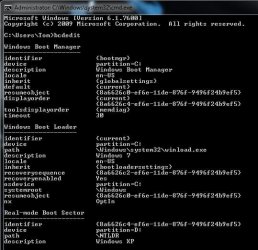
Tom
 

Attachments

  • Capture1.JPG
    Capture1.JPG
    47.9 KB · Views: 483

My Computer My Computer

At a glance

Windows 7
OS
Windows 7
thanks for the links. it all makes my head hurt, but I'm trying to understand. being a brand new 'puter, should I really try all the anti-virus stuff? re: device driver issues - I have a TSST corp CDDVDW TS-L633C which is (near as I can tell) blessed by microsoft for XP. read some about 'XP set up disks' but they are only available on floppy??! getting way out of my league here and no access to floppy drives anyway

F6 does gets me to a screen, but my choices are <nothing> or 'S' (for I forgot what), or ESC, all of which get me nowhere ...

the CD's I'm using are 'Microsoft Windows XP Proffessional with Service Pack2' dated November 2004. I have been able to use them on multipal computers as each time one dies and is replaced, I reuse the the operating system (and serial number) from the dead one.

I know that I'm wandering, but I buy these things to use, not to work on, and am thus pretty well lost. btw the freaking thing cannot find the internet thru the wireless router but can access my other computers. the wired connection works when forced to (not very windows7 friendly). My girls walk in here and their Apples connect effortlessly first time, every time..... Yes, my real problem is getting XP installed.
 

My Computer My Computer

At a glance

windows 7 & XP pro
OS
windows 7 & XP pro
Hi Tom ,

Ntldr would have been on C.

Download Easybcd 2.0

Click Add/Remove Entries.

Delete the XP entry.

Add a new XP entry (it will automatically point at C ) and let Easy2.0 autoconfigure when it asks.

Hope it helps.
 

My Computers My Computers

  • At a glance

    7 X64i5 84002x8gb 3200mhz
    Computer type
    PC/Desktop
    OS
    7 X64
    CPU
    i5 8400
    Motherboard
    gigabyte b365m ds3h
    Memory
    2x8gb 3200mhz
    Hard Drives
    various
    PSU
    pure power 11 400w cm
    Case
    Coolermaster
    Cooling
    cryorig m9i
  • At a glance

    7x64g54008gb ddr4 2400
    Computer type
    PC/Desktop
    OS
    7x64
    CPU
    g5400
    Motherboard
    ga b365m ds3h
    Memory
    8gb ddr4 2400
    PSU
    xfx pro 450w
Hi people,

First I would like to thank you for this clear tutorial.

I followed the second method and did everything you wrote.
If I boot my pc I can choose two OS. My Xp works perfect, but if I hit windows 7, it asks me to run the repair mode. I did this once, but it didnt work out. When I choose to run windows normally I still can run windows 7.

My question is: whats wrong? why does it detect a problem with starting up windows 7?

Ps: sorry for my english, I am Dutch
 

My Computer My Computer

At a glance

windows 7
OS
windows 7
Help! After pursuing a lot of rabbit trails using Method 2 I have now completed step 6 and finally gotten XP up and running--only now I can't get online or use my LAN because the Device Manager tells me that the drivers for the Ethernet Controller and all the "Other Devices" are not installed. Also I don't see any evidence that there is any life left in Windows 7--the computer now boots to XP only. As a reminder this is a new desktop HP Intel Quad 2.5 GHz computer with 8 GB SATA Ram and two hard drives: a 750 GB (now the I: drive) and a 1 TB with XP installed. I thought the drivers would be in the I:\windows\system32\drivers folder but I get the following error message {The location you specified does not contain any device information files}. I'm sending this message on my old computer (an ancient Dell Dimension desktop).

Where are the drivers and how do navigate to them from the Device Manager device Properties screen where I am invited to Reinstall Driver? Or is there another way to get them back?
 

My Computer My Computer

At a glance

Windows 7 HomeIntel Q83008 GB
Computer Manufacturer/Model Number
HP/p6267c
OS
Windows 7 Home
CPU
Intel Q8300
Memory
8 GB
Back
Top