
Download Multiple Email Attachments at the Same Time
Information
Mail Attachment Downloader by GearMage is a FREE 3rd party download client that allows you to connect to your mail account and download multiple mail attachments at the same time. The program supports Live, Hotmail, Gmail, AOL, Y!Mail Plus and other mail providers. It has several search filters that can be used download only specific attachments. In cases where attachments have the same name, an on-the-fly renaming feature can be used to avoid file name collisions. I have used this application to download in excess of 4,500 attachments at once, without any trouble whatsoever.
:note: Requirements:
Download the programme here, and then install it as you would any other application.
:note: Steps:
Follow the steps as shown in my worked example below, in order to setup and use the program.
In this example, I have several hundred .TXT file attachements that are sent to my Gmail account on a daily basis, and I wish to download all these attachments to a local folder on my computer, at the same time.
1. Run Mail Attachment Downloader, and then specifiy the email account, email account password and download save location as shown below.
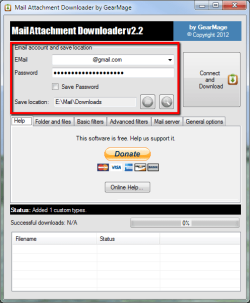
Note
In order to access my Gmail account, IMAP must be enabled as shown below.
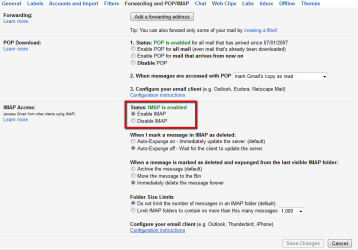 Refer to this in order to enable IMAP if you use Gmail.
2. Click on the Folder and files tab. I wish to search my Inbox only.

3. Click on the Basic filters tab. I wish to search all my mail, but only for attachments that end with a .TXT file extension.

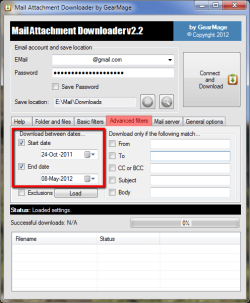
4. Click on the Advanced filters tab. I wish to search for attachments dated between 24 October 2011 and 8 May 2012.
5. Click on the Mail server tab. In my case all I need to do is confirm that GMail is selected.
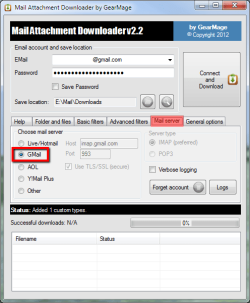
If you use a mail provider not listed, then click on Other, and then specifiy the Host, Port, whether to use TLS/SSL, and also whether the mail protocol is IMAP or POP3.
6. The General options tab includes settings such as timeout and whether to schedule downloads. I have not selected any of these options so have used the default settings.
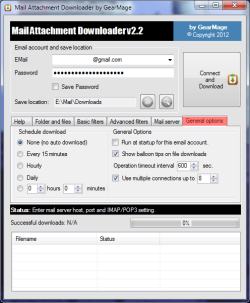
7. Click the Connect and Download button to connect to your mail account and to start downloading attachments to your specified save location.
Note
ONLY attachments can be downloaded - actual emails and header information cannot be downloaded.
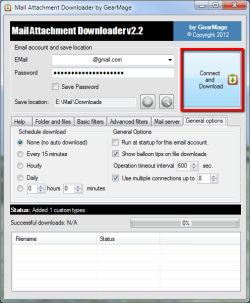
The attachments that meet your selection criteria will now be downloaded. Once complete, a summary will be shown.
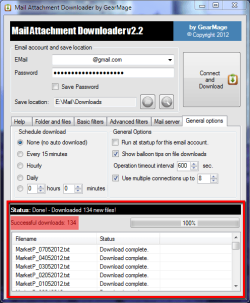
Tip
Attachments with the same name will conflict with one another. A useful trick is to use the Prepend functions in the Folder and files tab to overcome this. This option can be used to prefix either of the following, or combinations of these, to the download file name:
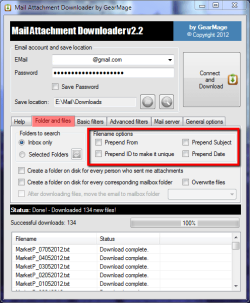
Here are some examples of the output using this prepend functionality.
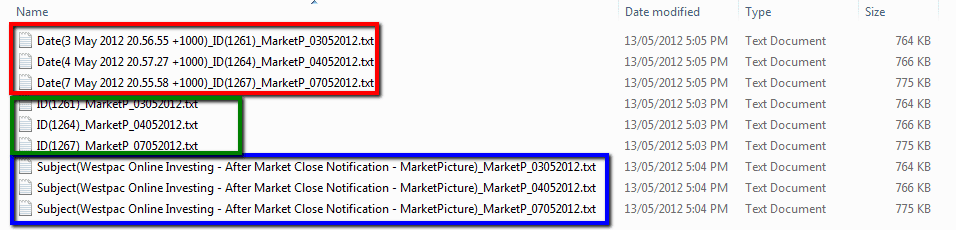
Red = combination of data and unique number
Green = unique number
Blue = subject
- Senders from address, or
- A unique number, or
- Email Subject,
- Date received
Here are some examples of the output using this prepend functionality.
Red = combination of data and unique number
Green = unique number
Blue = subject
Regards,
Golden
Last edited by a moderator:


