A long detailed response to Megahertz07 for such great advice I hope I
Yes! I'm replying to Megahertz07 first before I catch up on others.....
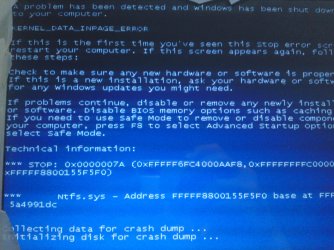
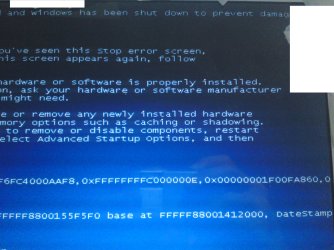
I had another crash (see at end I'll attach BSOD screens when I have a free moment--typing this out fast)
Posted whole quote to ask questions and explain your questions to me as well...
So I can take the next step(s) whatever they may be....
Megahertz07 wrote:
Repair install will reinstall Win 7 and keep all your data, programs and trash. A new Win installation (repair or clean install) has to be updated. Instead of installing by WU (about 200+) you can use the offline SP2. Then I suggest to install the Security ONLY updates to avoid the telemetry etc.
Set Windows updates to manual under services and never check on WU page. Periodically run WU manually to see if there is any updates for Office etc.
Good points all.. I have it set to "manual" But certain WU's (Windows Updates I assume) FORCE it to go back to automatic....but I get a notification that my preferences have "changed" and I go look and sure enough its on automatic! So that you know when it says "the computer will restart" "and if you don't press button in 10 minutes computer will automatically restart to finish the installing of WU items....
Please save your work
Well I live hectic life and I can't be starting at the screen 100% of the time....
So I've had and experienced the diasterous forced restarts like those
And
serious losses of unsaved word documents as crazy enough as it is (see my 100's of postings on the Microsoft community pages before I came here for level-headed advice).... it seems when you lose the "last" version of a bunch of saves in a row for the same item... you don't revert back to the last saved good copy... they all vanish.
Its a defect in Word, Office, WordPad and NotePad! (so I use other word professors to do most of my draft and saving work for this web site (I'm up to 130 pages for this thread alone!----screenshots are not included in page count as they do not show except as the "[.ATTACH.]4036700[./ATTACH.]" line.
Oh and I did not pay for update for my Office 2007 or 2010
So I'm frozen into 25 "instances" only and only way I use it is to erase the contents of one of the 25 and put new stuff in it as old one vanishes (I'm not totally stupid I managed to copy and paste it in another word processor but if I search for the item I end up with multiple instances that go "no where" so its very complicated.....
And why I keep taking the optional ONLY for Office 2007 and 2010 (hoping one day I have funds to actually purchase the license and then use it ike it should be and re-load back all the damaged files and fix them up so I can access them again... WHEW! I'm certain this was off topic
I'm certain this should be posted in another section of WindowsSeven Forum
But its clearer why I have a messy HDD... and I needed to save all of these items.... Yet get a clean Windows OS in that wont destroy all of my "proprietary" programs and cost me more funds..
Now off to the improvements that I can only dream of...but with your and others help maybe make a reality here and fix the Laptop to work for next two years or so until 2020 forces me to get Windows 11 or 12 or whatever comes next...
Your computer seems to have all Win 7 updates. And some "optional update" can be causing trouble. That is why I suggest to install security only updates.
Why you need to buy a new HDD? Is yours failing?
My suggestion is to replace with a SSD. You have no idea what a SSD can do for your computer. There are two options:
- Replace the HDD with same size SSD.
- Replace the HDD with a small SSD (for Windows and programs) and replace the ODD with a HDD for data.
Any way, a Clean install is ALWAYS the best solution (not the easiest) as you start from scratch and get rid of all trash you accumulated over the years.
* * * *
Your computer seems to have all Win 7 updates. And some "optional update" can be causing trouble. That is why I suggest to install security only updates.
Why you need to buy a new HDD? Is yours failing?
If you read this thread and my prior one or two.. Note title "Excessive Read Write overloading HDD" is why I need a new one... just two bad sectors.. but there are plenty of other signs...
I mentioned "slow" typing earlier see Post #1 for the other example... I wish I could post a "video" here to prove to you guys what I'm talking about... its like proving ghosts exist as I don't know of anyone else having
s
lo
w
[space]
ty
p
i
n
g
like I do when I'm in regular mode. I'm in Safe Mode after two BSOD s in a row and I don't know what's wrong this time so typing fast and its working....
BUT
The orange light is on 90% of the time steady
and occasionally the screen of word processor freezes and then releases the letters that I typed in but did not see appear on the keyboard so I stopped typing...
Its hard to follow one's thoughts doing it that way...
You'll find I'm BSOD far too often to operate computer
I had one today...
After I put in the updated 4 screenshots to the thread..
Safe mode to the rescue?
But it was not to be.. It did not show my edited version of Post #40...
So I spent past two hours re-writing what I have from my notes on computer file to post it in again...
Then When I tried to post it... I checked the attachments and it was full of screenshots!
When I said paste them... the whole page re loaded (I had already tried F5 but in Safe Mode who knows what happens?)
and then I got everything back I had posted and saved too! before the BSOD ended my session earlier today.
Right now the Orange HDD light is back on again.
The problem has returned
HDD is over running too much
One more important reason...
Microsoft fans you can skip this Apple conversation and not lose anything of the reasons so jump over this until I say "Ok I'm Done" with the digression below . Thanks!
New iPad... Old iPad died. New IPad is 6 OS's higher and I don't know how to use it yet... so not able to go to Windows Seven and do "anything" other than read stuff... so I'm still learning
Old iPad is using Laptop as Storage backup location as NO OTHER computer device I have will work with the iPads....too old computers.....
And so I ran out of space on the Laptop had only 30 GB free out of 489 GB or so
So I need new HDD that will not only hold the old iPad memory (long story 7 months to get it transferred to a duplicate one gen 1)
And now I have one that is 512 GB potential space... I don't' have 512 GB of course...but since I use it for graphics work I don't do on the Windows computers.... It can fill up fast
I'm forced to pay for the "iCloud" They force you to do that....
I'm faced with having only one location : iCloud to store backup... So I have to have a second one... (That is what destroyed the first iPad not having more than one backup location and the program that does the backup in Apple Land is called "sync"
and as I've complained here before
How do you know when you've successfully saved a backup? The little box says "success!"
Nope! It lied!
They were all bad back a whole year or more! Which I saved and that is why the external drives have AOMEI and Macrium programs on it as they saved the WHOLE HDD including the important (more impotent as there was no iCloud back then) one location only saved backups for the old iPad!
I found ONE that was not "corrupted" saved backup from March of 2016 and just spent two months slowly upgrading that old one through the cloud to the new IOS 11 with al the data saved.
Now I have to double save it.... iCloud for which I have to pay monthly
and backup inside the Laptop! under iTunes (NO I can't save iTunes backups to an external drive...I asked and because I still have the "old" one there I can't do that...
New one maybe.. but I have to "divorce" the two units when I finish copying off all the data item by item...
Now you know why I work very slow on detail stuff.... it takes me forever... All of you could have done this in one day... I am taking months to do it....accurately or at least as accurately as I can
So this is WHY I need a "new" HDD
Hope I made some sense here what the "emergency" is... (i.e. have to divorce the old iPad from the new one as its dragging down the abilities of the iCloud as I can't launch iCloud "Drive" its called with the old iPad IOS5 OS in it... as it can't take the iCloud Drive and operate backups to that one! Whew!
(See below where I do explain to everyone my need for a larger internal HDD for the existing Laptop!)
Ok
I'm "DONE" with digression
My suggestion is to replace with a SSD. You have no idea what a SSD can do for your computer. There are two options:
- Replace the HDD with same size SSD.
- Replace the HDD with a small SSD (for Windows and programs) and replace the ODD with a HDD for data.
QUESTION: What is
ODD? Outside DD? External DD?? OLED? HDD? IS there such a thing? Reference is not clear and Google it made no sense of results.
- Replace the HDD with same size SSD.
No sorry! (for those who skipped the Apple digression above) I now require inside the laptp at least 1.5 to 2 GB HDD to store "everything " now and into the next 2 years until Widows 7 dies with no more updates from Microsoft...
- Replace the HDD with a small SSD (for Windows and programs) and replace the ODD with a HDD for data.
LOVELY Idea! But can you tell me "today" before I purchase everything and go through the process
which ones of my FREE (paid programs provided to me free of charge for which I do not own the CD or Product key one time only install from a master CD for 1000's of people, get it? I'm sure you're familiar with whatever that is)
so Please tell me in advance "today" which ones of those program will permanently "fail" when I tell them the "data" is now installed in an outside HDD and they can't access it as their programming was never designed to access outside HDD's
(iTunes has the same program with Apples....I can't use an External HDD to store 512 GB of data several times to save space inside the Laptop's HDD)
Love to get a SSD... but they don't have them in the size I want and read reports (I can show them to you!) warning of the flash nature of the storage is "less" reliable than the DD's with moving parts over the long term. [I.e. article made it clear that if a sector of the DD fails... it can go over it or skip it or say its "bad" but according to the c. 2014? 2016 article unless improvements were made...since then.... that the whole SSD as nice and quiet and not hot as it runs.... will totally STOP and you need the same $$$$ for data recovery!
It IS RARE! the article said! But its MORE common than allowing bad sectors to be blocked out or skipped over by a HDD that is failing ... like mine is...
I wish I had copied the article then I could share it and see if I am quoting it right in my memory.
Not to disagree with you.
I like SSD's (iPads/tablets have them).... But that is why I always make now TWO locations for backups as I realize the iPads can be easily "stolen" and easily broken as described in the article....

Which brings me back to Windows 7 and I'm familiar with it.. Don't need to learn IT just to run Windows 10 (as someone said in another thread which I'm going to reply back to them later on so I can paste the link when I do that to them here... (link to "update Windows 10" thread here in Windows Seven Forum
OP banned spammer
Any way, a Clean install is ALWAYS the best solution (not the easiest) as you start from scratch and get rid of all trash you accumulated over the years.
YES Thanks .... I know its not the easiest... worst problem is that I need to spend more unknown money when I have no clear source of income...
So my biggest worry. is that I'm not a 100% accurate guy.
I can type in a series of Command prompt codes (image I'm typing 20 + instructions to get the windows to load and not erase data) and one line says Input 34%655_mGe Lk Something like that and you can't use cut and paste as you are NOT in the GUI environment when doing that... and so I type Input 34%65_5mGe Lk and wonder WHY the computer has locked up and totally failed and I have to go back into the registry and find the old one and copy it all over and begin those 10-20 instructions all over again!
See I've been here before with someone giving me the list of instructions how to do this a number of years ago...
so making a one digit error is terrible
and doing it again somewhere else in the 20 + instructions
and doing it in another place...
Yes I'm making a bad case for me to not even attempt this process at all..
Sorry to break the news.... You have to be 100% accurate when doing these things or else you can ruin everything (even if you have backups... you still have to restore the backup and not make another error in doing that!)
* * *
----I gave a long look at:
Repair Install - Windows 7 Help Forums
ITEMS THAT WILL BE RESET TO DEFAULT OR AFFECTED:
Sounds
Services
Visual Effects Settings
Device Drivers - Be sure to have these handy to reinstall. They do not always remain after the repair (upgrade) install.
You may lose the ability to sign on to MSN Messenger, to solve this problem have a look at this thread Unable to sign in to WLM.
You may lose your custom themes due to not having permissions set on the old themes. Go to the hidden themes folder at C:/Users/(User-Name)/AppData/Local/Microsoft/Windows/Themes, then Take Ownership of the themes folder and you will now have all your themes back.
It has been reported that you may also lose your Media Center gadget after doing the repair install.
Windows Updates will need to be checked and reinstalled again.
Some comments (sorry to be negative about it...then maybe I get simple solutions if I'm negative? I don't mean to be I'm grateful for advice and really appreciate your knowledge Megahertz07 {Wonder what happens if I dial that up on my old (non-working I'm afraid) ham radio ARRL member once )
Sounds? I use the computer with 1000000's of .Wav & MP3 . etc. types of sound files made by various digital devices and programs.
Services (yes I know see Marie SWE's impressive detailed list of services I should take care of but as you see I may have 130 + services running (and that doesn't include any that do not appear as they do not turn on automatically until I use the program!
Visual Effects Settings (I'm of poor vision and make errors... I hated the AERO theme... so I've used a "Windows XP " theme yes.. the old blue screen background only....
Device Drivers (again I'm sorry I'm sooooo sloppy! I've had/have 7 printers available on this Laptop for various purposes and ALL of them have Drivers and ALL of them took hours to load in with phone call help when I purchased the printers...
Now that they are older I'm certain asking for "driver help" (unless I go to the HP Community pages and ask for free help there) I may end up with ZERO working printers or other devices that need drivers (flatbed scanner too) and struggling to find out the magic recipe that someone installed the drivers years ago correctly for me....
Custom themes (Yes is Windows XP but I have background not set to the regular one but one I've had on all my computers for years. I don't know if its "custom" but its certainly not the standard set of wallpaper etc themes) So I lose that and whatever time and effort to figure out how to get it back...
It has been reported that you may also lose your Media Center gadget after doing the repair install
My Media Center Gadgets?? This Sony VAIO is a "media center" Version. I use the HD plug to run to a large screen TV I got in 2010.. all old purchases no more money today like there was back then... So my media "center" is tied up in computer It has old TiVo stuff too.. Do I lose access to that? Is that what it means?
So I repeat what the thread said :
Note
Do a Repair installation if:
A System Restore did not help fix your Windows 7.
There is no other easier option left that can fix your Windows 7.
You DO NOT want to do a Clean reinstall of Windows 7.
You DO want to preserve your user accounts, data, programs, and system drivers.
---and after a successful install... If I follow everything ok (I don't understand why it says "upgrade windows"? I don't want to have to purchase the Ultimate version as I don't' need everything it had to offer just the Professional one with VM was good enough.....
I copied these sections (for example, not all of my questions but at the end I'd better know what trouble I'm getting into for having repaired (not clean installed) my Windows 7 OS:
22. Check to see if you are missing any user files. If you are, then you can copy them from the C:\Windows.old or the hidden protected operating system C:\$INPLACE.~TR and C:\WINDOWS.~Q backup folders. (see screenshot below)
Repair Install-old_install.jpg
23. If everything checks out in step 21, then you can run Disk Cleanup (step 5 at this link). You will need to click on the Clean up system files button first, and then could check the Files discarded by Windows upgrade, Previous Windows installations, and Windows upgrade log files boxes. (see screenshot below)
NOTE: This will delete the C:\Windows.old, C:\$INPLACE.~TR and C:\WINDOWS.~Q folders from step 21 above.
Repair Install-disk_cleanup.jpg
I might have problems!
#22 UNDERLINE user files? I have 3 million files so far.(according to Norton/Malwarebytes scans).
Which ones are lost? How do I determine what "user" files are missing??
Whew!! my head is spinning (no emojii for this one!)
#23
This says how I MUST delete the windows.old UNDER LINE file automatically during the disk clean up?? There it goes?? All the old stuff??
And Disk Cleanup automatically removes anything from desktop it doesn't like or I didn't use this week! Terrible amount of restoration of all those lost icons!
Thanks for sharing the link anyway.... Gives me a closer look at that choice if I try install over the old one without a clean install and losing everything!
(but as I explained.... I might end up with Dead HDD any moment now... and then I lose everything not saved in last January 2018 Macrium Save I did--before the new iPad was purchased while the old one was still taking up lots of space in the HDD...)
XP VM User