Solved External HD - Partition Unallocated

Aomatsu

New member
Local time
10:25 AM
Messages
18
Dear All,

I believed that I have accidentally unallocated the partition of my 1TB external hard drive.

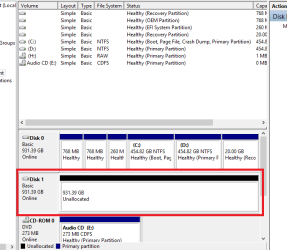
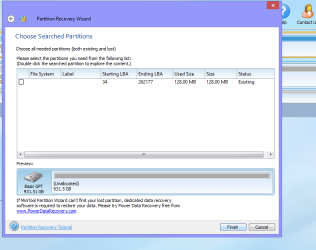
Not sure if this was the cause, but a day ago, I intended to migrate my existing data in 1TB external hard disk to another 4TB external hard disk. Then, I came across the Computer Management by chance, and had decided to appropriate my 4TB hard disk into 2 partitions. However, I have accidentally named the newly created partition's drive letter to the same drive letter as my 1TB hard drive. After which, I could not access to my data in 1TB hard disk, and my disk becomes Unallocated as shown below. :cry:


In attempting to recover my data, I have read a couple of web articles and forum threads with regards to this issue, and it seems that the only recommended course of actions for me is to use Partition Wizard - Partition Recovery Wizard. I have chosen the 'Quick' Method.


Is this correctly done? Do I have to do anything else?

Please do kindly advise.

Much appreciated. Thank you so much for reading my thread.

Best Regards,
 
Last edited by a moderator:

My Computer

Computer type
Laptop
Computer Manufacturer/Model Number
Fujitsu
OS
Windows 8.1 Pro 64-bit
CPU
Intel(R) Core(TM) i7-3632QM CPU
Memory
8GB
Hi and welcome to Seven Forums. Your system spec says Windows 8.1 64 bit. You could have posted your query in Eight Forums. Never mind. We shall deal with it here.

First and foremost without seeing the screenshot showing how your 1TB external drive looks like in MiniTools Partition Wizard we cannot give any further instructions. I also see that Brink has removed the broken images in your post.

So you must first learn how to take the screenshots and upload it to Seven Forums.

Give these two tutorials a good reading. 1. https://www.vistax64.com/tutorials/148532-how-use-snipping-tool-vista.html 2. Screenshots and Files - Upload and Post in Seven Forums

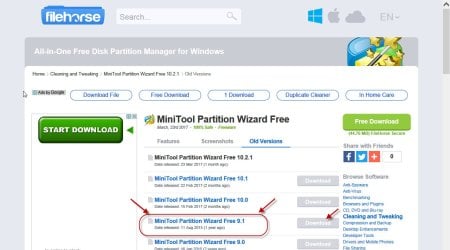
Next if you had downloaded Minitools Partition Wizard version 10/10.1/10.2.1 and above , uninstall it and install version 9.1 which you can download from here http://www.filehorse.com/download-partition-wizard-home/old-versions/

10-05-2017 18-40-00.jpg

Safely remove all external drives/Flash drives and plug in only your faulty 1TB external drive.

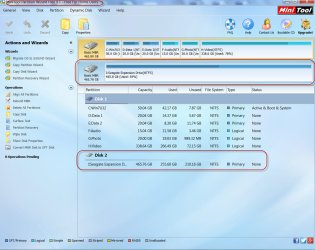
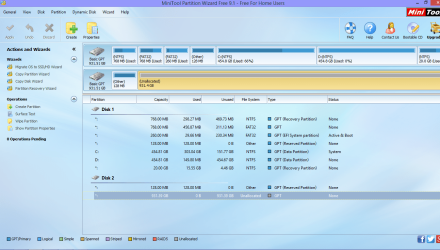
Run Partition Wizard 9.1 ( Say NO to new version) and post a screenshot - the very first screen after you launch PW showing your drives. It should look like the one below basically - of course your external drive may show differently and that is what I want to see.

11-05-2017 21-53-26.jpg

After you have inserted the image/s in your post, click on "Preview Post" and check everything is fine. Then click on " Submit Reply" ( I invariably preview all my posts before I submit.)
 

My Computer

OS
Windows 7 Home Premium 32 bit
Thanks for the response.

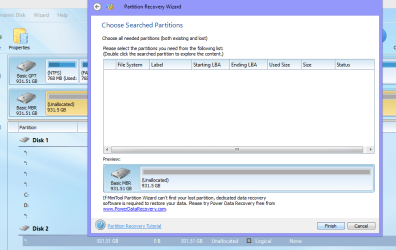
I have installed the V10. I will uninstall V10 and get V9 later on. Anyway, in the attachments, you can find the screenshots to my issue.
 

Attachments

  • Unallocated.png
    Unallocated.png
    12.7 KB · Views: 33
  • Unallocated 2.png
    Unallocated 2.png
    18.9 KB · Views: 2

My Computer

Computer type
Laptop
Computer Manufacturer/Model Number
Fujitsu
OS
Windows 8.1 Pro 64-bit
CPU
Intel(R) Core(TM) i7-3632QM CPU
Memory
8GB
Here you go:

Unallocated 3.png

Do I click on Partition Recovery Wizard?

Unallocated 4.png
 

My Computer

Computer type
Laptop
Computer Manufacturer/Model Number
Fujitsu
OS
Windows 8.1 Pro 64-bit
CPU
Intel(R) Core(TM) i7-3632QM CPU
Memory
8GB
You seem to have deleted the single volume on your 1TB drive and initialised it as a GPT drive. I have to workout a solution for this which may take sometime. So please wait . (Do not do anything other than what is asked for now.)

In the meantime. please do this and post a screenshot.

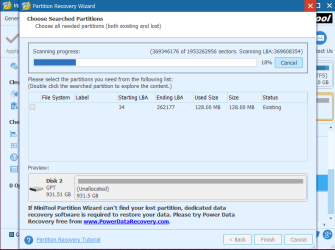
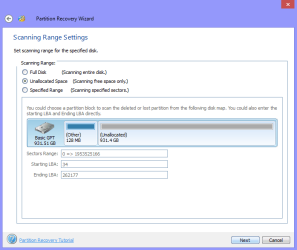
Partition Wizard 9.1. Only your 1TB external drive plugged in. Run PW. On the left pane click on Partition Recovery Wizard > Next > select your 1TB drive > Next > Full Disk > Next > Full Scan > Next. Allow full scan to complete which may take quite sometime. On completion take a screenshot of " Choose Searched Partitions Window" showing all the found partitions. After taking the screenshot, click on "Cancel" on the right hand side bottom Corner and then close PW. ( Do not click on "Finish")

Post the screenshot. I shall return after doing some experiments. So be patient and do not try anything on the 1TB drive.
 

My Computer

OS
Windows 7 Home Premium 32 bit
Going forward, in the future, give each of your hard-drives unique names; give each of your created by man partitions unique names. That way, you always know what any particular utility is "aiming" at. Jumanji wants the other good HD disconnected so it is not accidentally "aimed at" and acted upon.
 

My Computer

Computer type
PC/Desktop
Computer Manufacturer/Model Number
Antec desktop; Acer Aspire laptops
OS
Windows 7 Professional 64-bit
CPU
Desktop i5; Acers i5 & i7
Memory
desktop 16GB; 1 Acer 8GB & 1 Acer 16GB
Hard Drives
1TB split into 2 equal partitions [OS and data] usable by RJS
Internet Speed
AT&T DSL
Browser
FF, GChrome, msIE
Other Info
Windows 7 Firewall, Emsisoft AM/AV, MSE [scan-only], SpywareBlaster, Ruiware/BillP combine
You seem to have deleted the single volume on your 1TB drive and initialised it as a GPT drive. I have to workout a solution for this which may take sometime. So please wait . (Do not do anything other than what is asked for now.)

In the meantime. please do this and post a screenshot.

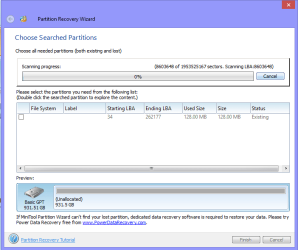
Partition Wizard 9.1. Only your 1TB external drive plugged in. Run PW. On the left pane click on Partition Recovery Wizard > Next > select your 1TB drive > Next > Full Disk > Next > Full Scan > Next. Allow full scan to complete which may take quite sometime. On completion take a screenshot of " Choose Searched Partitions Window" showing all the found partitions. After taking the screenshot, click on "Cancel" on the right hand side bottom Corner and then close PW. ( Do not click on "Finish")

Post the screenshot. I shall return after doing some experiments. So be patient and do not try anything on the 1TB drive.

Thank you so much for the help! :D This is the current screen. I will post it again once it is done with scanning.
Unallocated 5.png

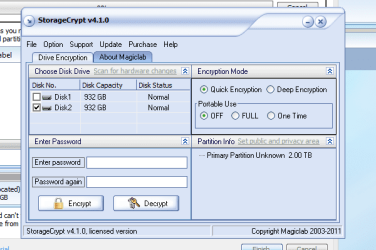
Anyway, just a FYI, not sure if this was partly the cause. My Disk 2, which is the HD-in-question, was previously encrypted when the unallocated results. Now it seems like I couldn't decrypt it as well. :X

Encypted.png

Thanks for the help again! :)
 

My Computer

Computer type
Laptop
Computer Manufacturer/Model Number
Fujitsu
OS
Windows 8.1 Pro 64-bit
CPU
Intel(R) Core(TM) i7-3632QM CPU
Memory
8GB
Going forward, in the future, give each of your hard-drives unique names; give each of your created by man partitions unique names. That way, you always know what any particular utility is "aiming" at. Jumanji wants the other good HD disconnected so it is not accidentally "aimed at" and acted upon.

Yeah. I have painfully learned my lessons now. :cry:

I shouldn't have played with "Disk Management".
 

My Computer

Computer type
Laptop
Computer Manufacturer/Model Number
Fujitsu
OS
Windows 8.1 Pro 64-bit
CPU
Intel(R) Core(TM) i7-3632QM CPU
Memory
8GB
Hi Aomatsu, I had completed my experiments.

Please post a screenshot when Full Scan is completed just for record. ( I repeat again do not click on Finish but only Cancel)

I said just for Record for it is no longer required. Since you had started it let it complete)

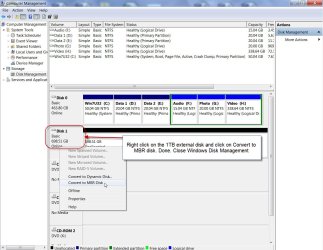
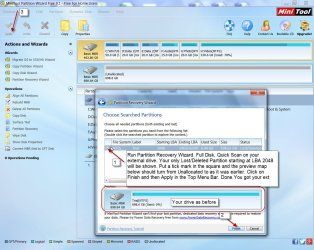
Now the solution to bring your 1TB drive back to it earlier MBR state.

12-05-2017 13-22-15.jpg

12-05-2017 13-31-47.jpg

I have confirmed that this works.

(If you get any other screen showing any other partitions apart from the one starting at LBA 2048 then take a screenshot and again Cancel Partition Recovery Wizard and close PW. Post the screenshot and wait for further instructions. I only hope that this does not happen.)

If your drive is restored to the original state do not get alarmed if it does not show up in My computer/ Windows Explorer. You may need to give it a drive letter which you may do in Windows Disk Management or even Partition Wizard. In Partition Wizard right click on the partition, click on Change Drive letter, select a drive letter and click on OK. After that, click on Apply in the top menu bar.. Now you may be able to see and access the drive.

After everything becomes normal try to decrypt. ( I do not know how your encrypt/decrypt works and I may not be able to resolve any problem with it. If there is a problem you have to seek other experts' help. )
 

My Computer

OS
Windows 7 Home Premium 32 bit
The first full run is done. Here ya go:

Unallocated 6.png

I have also changed my External HD by 'Covert to MBR' in my Disk Management.

Restarted my PW, it now shows 'Logical' instead of 'GPT'; running full disk and quick scan now. Here's the screenshot:

Unallocated 8.png

Will update you again once the scan is fully completed.

Thanks a lot mate!
 

My Computer

Computer type
Laptop
Computer Manufacturer/Model Number
Fujitsu
OS
Windows 8.1 Pro 64-bit
CPU
Intel(R) Core(TM) i7-3632QM CPU
Memory
8GB
I am keeping my fingers crossed. :). The scan has gone past sector 2048 and there is no trace of the VBR at sector 2048.

In my experiment too it was shown as logical after GPT to MBR conversion. On quickscan with PW, it almost instantaneousy showed the volume boot record at LBA 2048 and wrote the Partition table to sector 0 making the drive and data accessible as before.

Converting from GPT to MBR or MBR to GPT does not change the volume boot record at 2048 or the data.

Let us see what brings in your case.
 

My Computer

OS
Windows 7 Home Premium 32 bit
I am keeping my fingers crossed. :). The scan has gone past sector 2048 and there is no trace of the VBR at sector 2048.

In my experiment too it was shown as logical after GPT to MBR conversion. On quickscan with PW, it almost instantaneousy showed the volume boot record at LBA 2048 and wrote the Partition table to sector 0 making the drive and data accessible as before.

Converting from GPT to MBR or MBR to GPT does not change the volume boot record at 2048 or the data.

Let us see what brings in your case.

Unallocated 9.png

It gives the same result (no LBA 2048) as earlier run.

Do I still click on finish still?
 

My Computer

Computer type
Laptop
Computer Manufacturer/Model Number
Fujitsu
OS
Windows 8.1 Pro 64-bit
CPU
Intel(R) Core(TM) i7-3632QM CPU
Memory
8GB
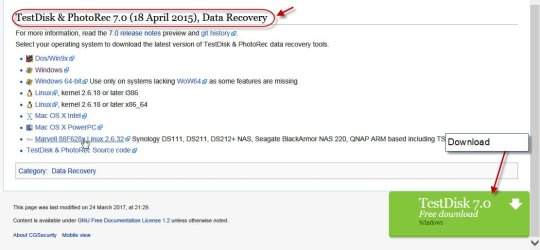
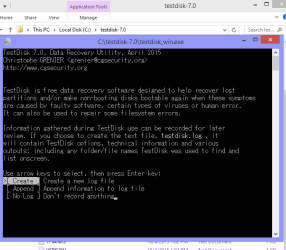
No, Cancel. We shall now use TestDisk and check whether we can find the backup of the bootsector to restore the drive. Download TestDisk 7.0 from http://www.cgsecurity.org/wiki/TestDisk_Download

13-05-2017 06-54-10.jpg

It will be a 11.8MB testdisk-7.0.win.zip file. Extract it to the root of your C drive. In the testdisk-7.0 folder you will find testdisk_win.exe which you will run.

Further instructions will follow.
 

My Computer

OS
Windows 7 Home Premium 32 bit
No, Cancel. We shall now use TestDisk and check whether we can find the backup of the bootsector to restore the drive. Download TestDisk 7.0 from http://www.cgsecurity.org/wiki/TestDisk_Download

View attachment 398672

It will be a 11.8MB testdisk-7.0.win.zip file. Extract it to the root of your C drive. In the testdisk-7.0 folder you will find testdisk_win.exe which you will run.

Further instructions will follow.

Done.

Unallocated 9.png

Downloaded and extracted to the root of C Drive.
 

My Computer

Computer type
Laptop
Computer Manufacturer/Model Number
Fujitsu
OS
Windows 8.1 Pro 64-bit
CPU
Intel(R) Core(TM) i7-3632QM CPU
Memory
8GB
Wrong. You downloaded the beta version 7.1. Delete that folder, download 7.0 as indicated in my screenshot. The zip file will be 11.8 MB.
 

My Computer

OS
Windows 7 Home Premium 32 bit
Wrong. You downloaded the beta version 7.1. Delete that folder, download 7.0 as indicated in my screenshot. The zip file will be 11.8 MB.

Unallocated 11.png

Opps. My bad. :eek:
 

My Computer

Computer type
Laptop
Computer Manufacturer/Model Number
Fujitsu
OS
Windows 8.1 Pro 64-bit
CPU
Intel(R) Core(TM) i7-3632QM CPU
Memory
8GB
OK. Give me sometime to breathe. I have to take my shower and then breakfast. Right now it is fast :D. I shall return after refreshing my self. Warning: Do not try anything on your own with TestDisk. Wait for my instructions.
 

My Computer

OS
Windows 7 Home Premium 32 bit
OK. Give me sometime to breathe. I have to take my shower and then breakfast. Right now it is fast :D. I shall return after refreshing my self. Warning: Do not try anything on your own with TestDisk. Wait for my instructions.

Noted. No rush man, take your time! :D

Very grateful for your support. ;)
 

My Computer

Computer type
Laptop
Computer Manufacturer/Model Number
Fujitsu
OS
Windows 8.1 Pro 64-bit
CPU
Intel(R) Core(TM) i7-3632QM CPU
Memory
8GB
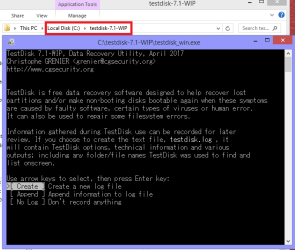
OK, here we go
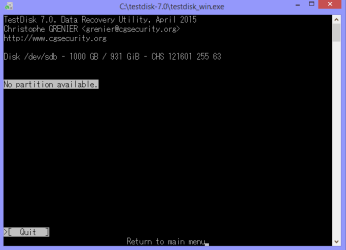
Screen 1 : Select No log - Enter

Screen 2 : Select your External Drive > Proceed Enter

Screen 3: Select Intel Enter

screen 4: Advanced File System Utilities - Enter

Sample screenshots taken in my system


If during this procedure you get any screen different from this, post a screenshot and then quit TestDisk by clicking on X in the top Menu Bar.

If you have any doubts ask. I shall be online the rest of the day
 

My Computer

OS
Windows 7 Home Premium 32 bit
Unallocated 12.png

Here ya go.
 

My Computer

Computer type
Laptop
Computer Manufacturer/Model Number
Fujitsu
OS
Windows 8.1 Pro 64-bit
CPU
Intel(R) Core(TM) i7-3632QM CPU
Memory
8GB
Back
Top