Folder Icon - Change Windows 7 Default Folder Icon

How to Change the Windows 7 Default Folder Icon

   Information
This will show you how to change all of the default yellow folder icons in Windows Explorer to any custom icon that you want instead in Windows 7.

User Folder icons will not be affected by this.
   Note
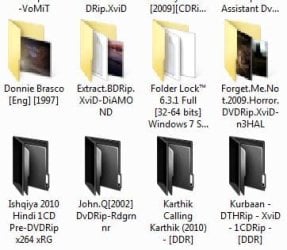
If you have thumbnails turned on, then only empty folders will have the new icon displayed in Windows Explorer when the folder view is set to anything other than Small icons, Details, or List. Otherwise the folders will have a thumbnail preview icon when the folder is not empty instead. When the folder view is set to Small icons, Details, or List, then all folders will display the new icon since they are small icons.
Thumbnails_On.jpg
If you have thumbnails turned off, then all folders will have the new icon display no matter what the folder view is set to in Windows Explorer.
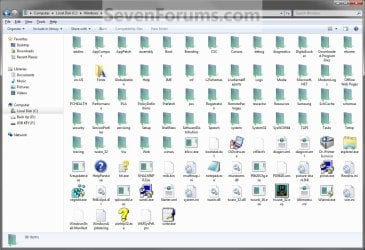
Thumbnails_Off.jpg

   Warning

  • You can only do this while logged in to a administrator account.
  • This will affect all user account's folder icons on the computer.
EXAMPLE: Folder Icon
NOTE: This is Windows Explorer with the default folder icon (left screenshot) and a custom folder icon (right screenshot). This is with the folder view is set to Details.
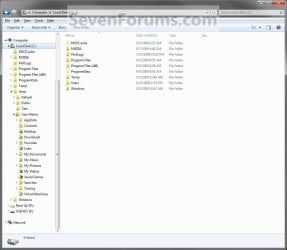
Default.jpg

After.jpg


OPTION ONE

Change the Default Folder Icon


1. Open the Start Menu, then type regedit in the search line and press Enter.

2. If prompted by UAC, then click on Yes.

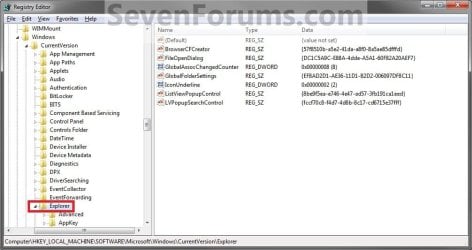
3. In regedit, navigate to: (See screenshot below)
HKEY_LOCAL_MACHINE\SOFTWARE\Microsoft\Windows\CurrentVersion\Explorer
Reg1.jpg
4. In the left pane, right click on the Explorer key, and click on New and Key in the context menu. (See screenshot above)

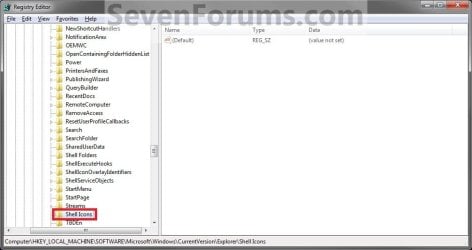
5. Type Shell Icons and press Enter. (See screenshot below)
NOTE: If Shell Icons is already here, then you can skip steps 4 and 5.
Reg2.jpg
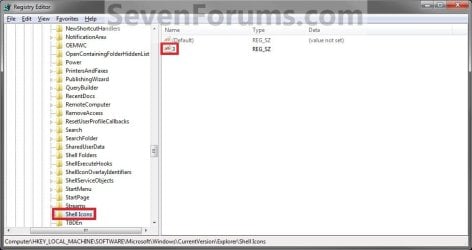
6. In the right pane of Shell Icons, right click on a empty space, and click on New and String Value. Type 3 and press enter. (See screenshot below)
Reg3B.jpg
7. Right click on the number for the folder type, and click on Modify. (See screenshot above)

8. To Use a Custom Icon of Your Own


   Note

  • Be sure to unblock the icon file.
  • Be sure save the icon file in a location that all user account's can access (ex: c:\Users\Public\My Pictures) so the icon will be able to be viewed in their account as well.
  • You must use a 256x256 pixel icon .ico file for it to display properly in all icon sizes in Windows Explorer.
A) In the Modify window, type in the full path of the icon that you want to use within quotes and click on OK. (see screenshot below step 9E)
NOTE: If you change the icon's location (path), then you must also change the location here in step 8 as well for the folder to still display that icon in Windows Explorer.
"full path of the icon file with file extension"
FOR EXAMPLE:
"G:\Windows 7 PNG Files\My_Folder.ico"
B) Go to step 10.
9. To Use another Icon Included in Windows 7
A) Download and install the free program IconViewer for your 32-bit or 64-bit Windows 7.
NOTE: This program will add a Icons tab to files (ex: imageres.dll) that contain a icon library in them so you can see the icons available in it.

B) In Windows Explorer, navigate to C:\Windows\System32\imageres.dll and right click on imageres.dll, click on Properties, and click on the Icons tab.
NOTE: You can use any of the Windows 7 files that include icons in them that you want though. This is just the most common one.

C) Scroll through the icons and make note of the icon number of the one you want to use to replace the default folder icon with, then close the properties window. (see screenshot below)
NOTE: For example, icon number 190 for the green folder icon.
Icon_Viewer.jpg
D) In the Modify window, type in the location below, and click on OK. (see screenshot below)
(full path of the Windows 7 file with file extension),-####
FOR EXAMPLE:
C:\Windows\System32\imageres.dll,-190
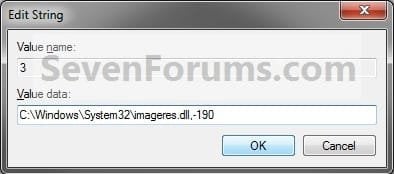
Modify.jpg
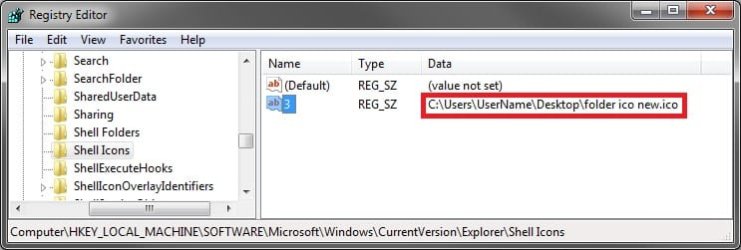
10. The registry will now look similar to this with your icon path under the Data column in the right pane instead. (See screenshot below)
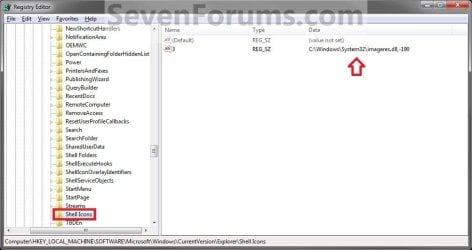
Reg4.jpg
11. If you have 64-bit Windows 7 Installed
   Note
To also change the default folder icon in the "Open" and "Save as" type dialog windows as well in 64-bit Windows 7, you will also need to do this step.

If you have a 32-bit Windows 7 installed, then skip this step and continue on to step 12 instead.

A) In Regedit, go to the location below:
HKEY_LOCAL_MACHINE\SOFTWARE\Wow6432Node\Microsoft\Windows\CurrentVersion\explorer
B) Repeat steps 4 to 10 above using the same settings you used with the location from step 3.
12. Close Regedit.

13. Log off and Log on, or restart the computer to apply the new folder icon.
NOTE: Since you changed the default Folder icon, you might would like to change the Open Folder icon as well in the navigation pane to have them all changed.


OPTION TWO

To Restore the Default Folder Icon


NOTE: This option assumes that you did OPTION ONE above to change the default folder icon.
1. Open the Start Menu, then type regedit in the search line and press Enter.

2. If prompted by UAC, then click on Yes.

3. In regedit, navigate to: (see screenshot below)
HKEY_LOCAL_MACHINE\SOFTWARE\Microsoft\Windows\CurrentVersion\Explorer\Shell Icons
4. In the right pane of Shell Icons, right click on 3 and click on Delete. (see screenshot below)
Reg4.jpg
5. Click on Yes. (see screenshot below)
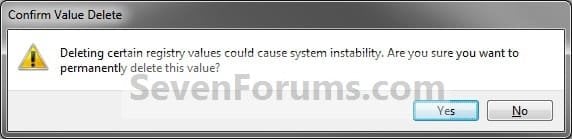
Confirm.jpg
6. If you have 64-bit Windows 7 Installed
   Note
To also restore the default folder icon in the "Open" and "Save as" type dialog windows as well in 64-bit Windows 7, you will also need to do this step.

If you have a 32-bit Windows 7 installed, then skip this step and continue on to step 7 instead.

A) In Regedit, go to the location below:
HKEY_LOCAL_MACHINE\SOFTWARE\Wow6432Node\Microsoft\Windows\CurrentVersion\explorer\Shell Icons
B) Repeat steps 4 and 5 above.
7. Close Regedit.

8. Log off and Log on, or restart the computer to restore the default yellow folder icon.
That's it,
Shawn


Last edited:
thanks..this is really work..:)
but can you show how to make thumbnails shown in default folder icon after we change default folder icon with custom folder icon??
 

My Computer

Computer Manufacturer/Model Number
GantZ™
OS
Windows 7 Eternity™ 2009
CPU
Boing-boing Inside™
Hello Hill, and welcome to Seven Forums.

Sorry , but it's either the custom folder icon, or a plain plain yellow folder icon with the thumbnail previews. :(
 

My Computer

Computer type
PC/Desktop
Computer Manufacturer/Model Number
Self built custom
OS
64-bit Windows 11 Pro for Workstations
CPU
Intel i7-8700K OC'd to 5 GHz
Motherboard
ASUS ROG Maximus XI Formula Z390
Memory
64 GB (4x16GB) G.SKILL TridentZ RGB DDR4 3600 MHz
Graphics Card(s)
ASUS ROG-STRIX-GTX1080TI-O11G-GAMING
Sound Card
Integrated
Monitor(s) Displays
2 x Samsung Odyssey G7 27"
Screen Resolution
2560x1440
Hard Drives
1TB Samsung 990 PRO M.2,
4TB Samsung 990 PRO PRO M.2,
TerraMaster F8 SSD Plus NAS
PSU
Seasonic Prime Titanium 850W
Case
Thermaltake Core P3
Cooling
Corsair Hydro H115i
Keyboard
Logitech wireless K800
Mouse
Logitech MX Master 4
Internet Speed
2 Gb/s Download and 100 Mb/s Upload
Antivirus
Malwarebyte Anti-Malware Premium
Browser
Google Chrome
Other Info
Logitech Z625 speaker system,
Logitech BRIO 4K Pro webcam,
HP Color LaserJet Pro MFP M477fdn,
APC SMART-UPS RT 1000 XL - SURT1000XLI,
Galaxy S23 Plus phone
Is there any known way to have my custom folder icon in every folder (without showing the contents) with thumbnails in files (eg. photos)?
 

My Computer

OS
Windows 7
Hello Adiq, and welcome to Seven Forums.

Maybe with using a 3rd party program to change the default folder icon with instead, but I do not know of any yet for Windows 7. :(
 

My Computer

Computer type
PC/Desktop
Computer Manufacturer/Model Number
Self built custom
OS
64-bit Windows 11 Pro for Workstations
CPU
Intel i7-8700K OC'd to 5 GHz
Motherboard
ASUS ROG Maximus XI Formula Z390
Memory
64 GB (4x16GB) G.SKILL TridentZ RGB DDR4 3600 MHz
Graphics Card(s)
ASUS ROG-STRIX-GTX1080TI-O11G-GAMING
Sound Card
Integrated
Monitor(s) Displays
2 x Samsung Odyssey G7 27"
Screen Resolution
2560x1440
Hard Drives
1TB Samsung 990 PRO M.2,
4TB Samsung 990 PRO PRO M.2,
TerraMaster F8 SSD Plus NAS
PSU
Seasonic Prime Titanium 850W
Case
Thermaltake Core P3
Cooling
Corsair Hydro H115i
Keyboard
Logitech wireless K800
Mouse
Logitech MX Master 4
Internet Speed
2 Gb/s Download and 100 Mb/s Upload
Antivirus
Malwarebyte Anti-Malware Premium
Browser
Google Chrome
Other Info
Logitech Z625 speaker system,
Logitech BRIO 4K Pro webcam,
HP Color LaserJet Pro MFP M477fdn,
APC SMART-UPS RT 1000 XL - SURT1000XLI,
Galaxy S23 Plus phone
Hi all, i tried it word for word but my new icons do not display. do i have to use a .ico or use a .dll file? i can't see where im going wrong, any help would be great, thanks.

Edit

How dumb am i..... i typed c:\windows\system32\icon67

instead of c:\windows\system32\icon67.ico

i forgot to add the file extension, feel so noobish. thanks for the guide.
 

My Computer

OS
windows 7
Hello Andrew, and welcome to Seven Forums.

I'm happy to hear that you got it sorted. Thank you for posting back with what the problem was. :)
 

My Computer

Computer type
PC/Desktop
Computer Manufacturer/Model Number
Self built custom
OS
64-bit Windows 11 Pro for Workstations
CPU
Intel i7-8700K OC'd to 5 GHz
Motherboard
ASUS ROG Maximus XI Formula Z390
Memory
64 GB (4x16GB) G.SKILL TridentZ RGB DDR4 3600 MHz
Graphics Card(s)
ASUS ROG-STRIX-GTX1080TI-O11G-GAMING
Sound Card
Integrated
Monitor(s) Displays
2 x Samsung Odyssey G7 27"
Screen Resolution
2560x1440
Hard Drives
1TB Samsung 990 PRO M.2,
4TB Samsung 990 PRO PRO M.2,
TerraMaster F8 SSD Plus NAS
PSU
Seasonic Prime Titanium 850W
Case
Thermaltake Core P3
Cooling
Corsair Hydro H115i
Keyboard
Logitech wireless K800
Mouse
Logitech MX Master 4
Internet Speed
2 Gb/s Download and 100 Mb/s Upload
Antivirus
Malwarebyte Anti-Malware Premium
Browser
Google Chrome
Other Info
Logitech Z625 speaker system,
Logitech BRIO 4K Pro webcam,
HP Color LaserJet Pro MFP M477fdn,
APC SMART-UPS RT 1000 XL - SURT1000XLI,
Galaxy S23 Plus phone
I've tried so hard to change the default folder icon, but it won't work. This is a great thread, but I need some more help. Brink, can you help me?

Thanks.

YES I MADE IT :D Thanks for great post!
 

My Computer

OS
Windows 7
You're welcome Knirb, and welcome to Seven Forums. :)
 

My Computer

Computer type
PC/Desktop
Computer Manufacturer/Model Number
Self built custom
OS
64-bit Windows 11 Pro for Workstations
CPU
Intel i7-8700K OC'd to 5 GHz
Motherboard
ASUS ROG Maximus XI Formula Z390
Memory
64 GB (4x16GB) G.SKILL TridentZ RGB DDR4 3600 MHz
Graphics Card(s)
ASUS ROG-STRIX-GTX1080TI-O11G-GAMING
Sound Card
Integrated
Monitor(s) Displays
2 x Samsung Odyssey G7 27"
Screen Resolution
2560x1440
Hard Drives
1TB Samsung 990 PRO M.2,
4TB Samsung 990 PRO PRO M.2,
TerraMaster F8 SSD Plus NAS
PSU
Seasonic Prime Titanium 850W
Case
Thermaltake Core P3
Cooling
Corsair Hydro H115i
Keyboard
Logitech wireless K800
Mouse
Logitech MX Master 4
Internet Speed
2 Gb/s Download and 100 Mb/s Upload
Antivirus
Malwarebyte Anti-Malware Premium
Browser
Google Chrome
Other Info
Logitech Z625 speaker system,
Logitech BRIO 4K Pro webcam,
HP Color LaserJet Pro MFP M477fdn,
APC SMART-UPS RT 1000 XL - SURT1000XLI,
Galaxy S23 Plus phone
Hey Brink.. good guides you have in this place. I applied this tip successfully but still there is a remaining default open folder icon.. so now: how to change that generic (open) folder icon?
 

My Computer

OS
windows 7

My Computer

Computer type
PC/Desktop
Computer Manufacturer/Model Number
Self built custom
OS
64-bit Windows 11 Pro for Workstations
CPU
Intel i7-8700K OC'd to 5 GHz
Motherboard
ASUS ROG Maximus XI Formula Z390
Memory
64 GB (4x16GB) G.SKILL TridentZ RGB DDR4 3600 MHz
Graphics Card(s)
ASUS ROG-STRIX-GTX1080TI-O11G-GAMING
Sound Card
Integrated
Monitor(s) Displays
2 x Samsung Odyssey G7 27"
Screen Resolution
2560x1440
Hard Drives
1TB Samsung 990 PRO M.2,
4TB Samsung 990 PRO PRO M.2,
TerraMaster F8 SSD Plus NAS
PSU
Seasonic Prime Titanium 850W
Case
Thermaltake Core P3
Cooling
Corsair Hydro H115i
Keyboard
Logitech wireless K800
Mouse
Logitech MX Master 4
Internet Speed
2 Gb/s Download and 100 Mb/s Upload
Antivirus
Malwarebyte Anti-Malware Premium
Browser
Google Chrome
Other Info
Logitech Z625 speaker system,
Logitech BRIO 4K Pro webcam,
HP Color LaserJet Pro MFP M477fdn,
APC SMART-UPS RT 1000 XL - SURT1000XLI,
Galaxy S23 Plus phone
You're most welcome. I added a note to the tutorial so everyone will know about it. :)
 

My Computer

Computer type
PC/Desktop
Computer Manufacturer/Model Number
Self built custom
OS
64-bit Windows 11 Pro for Workstations
CPU
Intel i7-8700K OC'd to 5 GHz
Motherboard
ASUS ROG Maximus XI Formula Z390
Memory
64 GB (4x16GB) G.SKILL TridentZ RGB DDR4 3600 MHz
Graphics Card(s)
ASUS ROG-STRIX-GTX1080TI-O11G-GAMING
Sound Card
Integrated
Monitor(s) Displays
2 x Samsung Odyssey G7 27"
Screen Resolution
2560x1440
Hard Drives
1TB Samsung 990 PRO M.2,
4TB Samsung 990 PRO PRO M.2,
TerraMaster F8 SSD Plus NAS
PSU
Seasonic Prime Titanium 850W
Case
Thermaltake Core P3
Cooling
Corsair Hydro H115i
Keyboard
Logitech wireless K800
Mouse
Logitech MX Master 4
Internet Speed
2 Gb/s Download and 100 Mb/s Upload
Antivirus
Malwarebyte Anti-Malware Premium
Browser
Google Chrome
Other Info
Logitech Z625 speaker system,
Logitech BRIO 4K Pro webcam,
HP Color LaserJet Pro MFP M477fdn,
APC SMART-UPS RT 1000 XL - SURT1000XLI,
Galaxy S23 Plus phone
registry values already in place

Hi everyone I'm brand new to the site.
I've been trying to change these default folder icons and having a problem. Basically I already seem to have a ton of numbered registry values including 3 and 4 already in the specified site. I tried changing number 3 to my own (correct sized) .ico file but when I reload I just get a missing icon picture. Any help would be greatly appreciated because I'm still learning about the registry and I've heard about what can happen if you mess it up!

Not in any particular hurry but its the last thing I need to do to finish of my Theme.

Thanks

Rag

(included screenie of my reg)
 

Attachments

  • reg screenie.png
    reg screenie.png
    38.3 KB · Views: 1,130

My Computer

OS
Windows 7
Hello Rag, and welcome to Seven Forums.

To be safe you can create a restore point so that you can do a system restore to that restore point in case you do make mistake that cannot be undone normally.


Could you upload your icon in a ZIP file, and I'll test it to see what may be wrong?


Hope this helps,
Shawn
 

My Computer

Computer type
PC/Desktop
Computer Manufacturer/Model Number
Self built custom
OS
64-bit Windows 11 Pro for Workstations
CPU
Intel i7-8700K OC'd to 5 GHz
Motherboard
ASUS ROG Maximus XI Formula Z390
Memory
64 GB (4x16GB) G.SKILL TridentZ RGB DDR4 3600 MHz
Graphics Card(s)
ASUS ROG-STRIX-GTX1080TI-O11G-GAMING
Sound Card
Integrated
Monitor(s) Displays
2 x Samsung Odyssey G7 27"
Screen Resolution
2560x1440
Hard Drives
1TB Samsung 990 PRO M.2,
4TB Samsung 990 PRO PRO M.2,
TerraMaster F8 SSD Plus NAS
PSU
Seasonic Prime Titanium 850W
Case
Thermaltake Core P3
Cooling
Corsair Hydro H115i
Keyboard
Logitech wireless K800
Mouse
Logitech MX Master 4
Internet Speed
2 Gb/s Download and 100 Mb/s Upload
Antivirus
Malwarebyte Anti-Malware Premium
Browser
Google Chrome
Other Info
Logitech Z625 speaker system,
Logitech BRIO 4K Pro webcam,
HP Color LaserJet Pro MFP M477fdn,
APC SMART-UPS RT 1000 XL - SURT1000XLI,
Galaxy S23 Plus phone
Hello Shawn,

I follow this and changed the folder icon but by some reason not all the icons has changed any ideas. I followed the Tutorial for both Open folder and Close

Capture.JPG

- Captain
 

My Computer

Computer Manufacturer/Model Number
Samsung NP550P5C-S02IN
OS
Windows 7 Ultimate - 64-bit | Windows 8 Pro - 64-bit
CPU
Intel® Core™ i7 Processor 3,610QM (2.30Hz, 6MB L3 Cach
Memory
8 GB
Graphics Card(s)
NVIDIA® GeForce® GT 650M 2GB Graphics, Optimus™ techno
Sound Card
SoundAlive™ JBL 3 Speakers (With sub-Woofer)
Monitor(s) Displays
39.62cm (15.6) SuperBright 300nit HD+ LED Display
Screen Resolution
1,600 x 900, Anti-Reflective
Hard Drives
1TB S-ATA II Hard Drive (5,400RPM)
Zipped ico file

Hi again, thanks Brink for the help
here is the zip file!

Also Brink where you say you need to change the file path I assume you just mean in the path box e.g. to the correct c/...../..../ area of my new icon file? it doesn't matter what file path is does it?

Cpt. Jack it might be your .ico file size. the size specified in the tutorial is needed I think. It does say somewhere it has to be a certain size or not all of the folders will change! might not be that but its worth a try!

Also your screenie shows picture files in the viewer, are you on thumbnails where its showing open folders which you have to change in a different registry entry, number 4 i think. I think Brink posted another tutorial on that in on of the comments above!


Ps Cpt could I grab a copy of those folder icos as there just what iv been looking for!
 

Attachments

Last edited:

My Computer

OS
Windows 7
Ragnorok,

Strange, your icon seems to be working fine for me. Here is how I have it in the registry with the icon located on my dekstop.

reg.jpg
 

My Computer

Computer type
PC/Desktop
Computer Manufacturer/Model Number
Self built custom
OS
64-bit Windows 11 Pro for Workstations
CPU
Intel i7-8700K OC'd to 5 GHz
Motherboard
ASUS ROG Maximus XI Formula Z390
Memory
64 GB (4x16GB) G.SKILL TridentZ RGB DDR4 3600 MHz
Graphics Card(s)
ASUS ROG-STRIX-GTX1080TI-O11G-GAMING
Sound Card
Integrated
Monitor(s) Displays
2 x Samsung Odyssey G7 27"
Screen Resolution
2560x1440
Hard Drives
1TB Samsung 990 PRO M.2,
4TB Samsung 990 PRO PRO M.2,
TerraMaster F8 SSD Plus NAS
PSU
Seasonic Prime Titanium 850W
Case
Thermaltake Core P3
Cooling
Corsair Hydro H115i
Keyboard
Logitech wireless K800
Mouse
Logitech MX Master 4
Internet Speed
2 Gb/s Download and 100 Mb/s Upload
Antivirus
Malwarebyte Anti-Malware Premium
Browser
Google Chrome
Other Info
Logitech Z625 speaker system,
Logitech BRIO 4K Pro webcam,
HP Color LaserJet Pro MFP M477fdn,
APC SMART-UPS RT 1000 XL - SURT1000XLI,
Galaxy S23 Plus phone
Hello Shawn,

I follow this and changed the folder icon but by some reason not all the icons has changed any ideas. I followed the Tutorial for both Open folder and Close

View attachment 55502

- Captain

Hello Shyam,

See the blue NOTE box at the top of the tutorial to see if that may be the issue. It looks like it may be since only the folders with thumbnail previews do not have the new icon.

Hope this helps,
Shawn
 

My Computer

Computer type
PC/Desktop
Computer Manufacturer/Model Number
Self built custom
OS
64-bit Windows 11 Pro for Workstations
CPU
Intel i7-8700K OC'd to 5 GHz
Motherboard
ASUS ROG Maximus XI Formula Z390
Memory
64 GB (4x16GB) G.SKILL TridentZ RGB DDR4 3600 MHz
Graphics Card(s)
ASUS ROG-STRIX-GTX1080TI-O11G-GAMING
Sound Card
Integrated
Monitor(s) Displays
2 x Samsung Odyssey G7 27"
Screen Resolution
2560x1440
Hard Drives
1TB Samsung 990 PRO M.2,
4TB Samsung 990 PRO PRO M.2,
TerraMaster F8 SSD Plus NAS
PSU
Seasonic Prime Titanium 850W
Case
Thermaltake Core P3
Cooling
Corsair Hydro H115i
Keyboard
Logitech wireless K800
Mouse
Logitech MX Master 4
Internet Speed
2 Gb/s Download and 100 Mb/s Upload
Antivirus
Malwarebyte Anti-Malware Premium
Browser
Google Chrome
Other Info
Logitech Z625 speaker system,
Logitech BRIO 4K Pro webcam,
HP Color LaserJet Pro MFP M477fdn,
APC SMART-UPS RT 1000 XL - SURT1000XLI,
Galaxy S23 Plus phone
Ah I'm sorry Shawn i didn't realize that in fact i didn't read the Note :(
Small folders are showing up.

Thank You Mate,
Captain
 

My Computer

Computer Manufacturer/Model Number
Samsung NP550P5C-S02IN
OS
Windows 7 Ultimate - 64-bit | Windows 8 Pro - 64-bit
CPU
Intel® Core™ i7 Processor 3,610QM (2.30Hz, 6MB L3 Cach
Memory
8 GB
Graphics Card(s)
NVIDIA® GeForce® GT 650M 2GB Graphics, Optimus™ techno
Sound Card
SoundAlive™ JBL 3 Speakers (With sub-Woofer)
Monitor(s) Displays
39.62cm (15.6) SuperBright 300nit HD+ LED Display
Screen Resolution
1,600 x 900, Anti-Reflective
Hard Drives
1TB S-ATA II Hard Drive (5,400RPM)
Back
Top