Folder settings

1976kjell

New member
Local time
6:26 AM
Messages
65
Location
Norway
I have a folder for my pictures and this folder has many subfolders

When I open one subfolder, it shows details, I know its many ways to change how to view it for one subfolder, f.ex by using folder options or by one of the buttons up in the right corner. This will change the settings for just this subfolder. I changed one subfolder to view big icons, but all the other subfolders show details

Is it possibillity to change the settings for each subfolder in a folder so this setting is common for each subfolder?

If there isnt, it is not a big problem

But its good to know if it is possible to change each subfolder once instead of doing it for each folder
 

My Computer

Computer type
PC/Desktop
Computer Manufacturer/Model Number
Unknown
OS
Windows 7 Home Premium 64bit, service pack 1
CPU
Intel(R) Core(TM) i5 760
Memory
4,00 GB
Open Windows Explorer.

Click on (select) the desired top level directory (folder).

Right click on the selected directory (folder) then click on Properties.

Click on the Customize tab.

From the Optimize this folder for: droplist, select to desired type.

Select (check) the box Also apply this template to all subfolders.

Click the Apply button.

Click the OK button.

Regards,
GEWB
 

My Computer

Computer type
PC/Desktop
Computer Manufacturer/Model Number
(7 different computers booting up to 10 systems)
OS
Linux Mint / XP / Win7 Home, Pro, Ultimate / Win8.1 / Win10
Other Info
Four desktops, two laptops, one notebook and one tablet
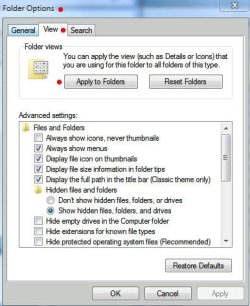
GEWB's method is correct for setting folders to default types (i.e., pictures, which defaults to the 'Large icons' view). If you wish to make a 'custom' change (i.e., a column or view that doesn't normally appear for that folder type), you must use the 'Apply to Folders' option in Folder Options 'View' tab (see screenshot). This will apply the change you made to all folders of that 'Type' (i.e., Pictures).

Note that the Apply to Folders option will apply itself system wide, but still leave you the ability to modify individual folders.

James

Applytoallfolders.JPG
 

My Computer

OS
Win7U 64 RTM
CPU
Q9550
Motherboard
GA-EP45-UD3R
Memory
8GB Gskill
Graphics Card(s)
ASUS|EAH4850/HTDI/1GD3/A
Sound Card
xfi Plat
Monitor(s) Displays
Dell 2405fpw
Screen Resolution
1920x1200
Hard Drives
Seagate & WD sata Drives
PSU
Antec
Case
Antec
Keyboard
MS Natural Ergonomic 4000
Mouse
Logitech MX610 USB Cordless
GEWB's method is correct for setting folders to default types (i.e., pictures, which defaults to the 'Large icons' view). If you wish to make a 'custom' change (i.e., a column or view that doesn't normally appear for that folder type), you must use the 'Apply to Folders' option in Folder Options 'View' tab (see screenshot). This will apply the change you made to all folders of that 'Type' (i.e., Pictures).

Note that the Apply to Folders option will apply itself system wide, but still leave you the ability to modify individual folders.

James

Thanks James, I was afraid I might forget something. :o

Regards,
GEWB
 
Last edited:

My Computer

Computer type
PC/Desktop
Computer Manufacturer/Model Number
(7 different computers booting up to 10 systems)
OS
Linux Mint / XP / Win7 Home, Pro, Ultimate / Win8.1 / Win10
Other Info
Four desktops, two laptops, one notebook and one tablet
Ill try to do it
 

My Computer

Computer type
PC/Desktop
Computer Manufacturer/Model Number
Unknown
OS
Windows 7 Home Premium 64bit, service pack 1
CPU
Intel(R) Core(TM) i5 760
Memory
4,00 GB
Thanks James, I was afraid I mihgt forget something.

Regards,
GEWB

I just added to your entirely correct and well stated post, GEWB :geek:.
 

My Computer

OS
Win7U 64 RTM
CPU
Q9550
Motherboard
GA-EP45-UD3R
Memory
8GB Gskill
Graphics Card(s)
ASUS|EAH4850/HTDI/1GD3/A
Sound Card
xfi Plat
Monitor(s) Displays
Dell 2405fpw
Screen Resolution
1920x1200
Hard Drives
Seagate & WD sata Drives
PSU
Antec
Case
Antec
Keyboard
MS Natural Ergonomic 4000
Mouse
Logitech MX610 USB Cordless
It became worse

When I used the custom-button and choosed "pictures", both the folder and subfolder were showing details

Maybe the pictures alternative in the droplist includes to view detail in windows 7, not big icons, but its not practical when working with images :)

Changed the pictures-folder to big icons manually before I tried the custom-method, and after that, it showed details

The "apply to folders"-button isnt possibel to use, its "empty", only the "reset settings"-button is possibel to "push down"

Not necessary to make a big problem out of this, but its interesting if it is possibel to change the folder including the subfolders
 

My Computer

Computer type
PC/Desktop
Computer Manufacturer/Model Number
Unknown
OS
Windows 7 Home Premium 64bit, service pack 1
CPU
Intel(R) Core(TM) i5 760
Memory
4,00 GB
Well, I got it to work :).

Its important to use "apply to all folders" from the folder which has to be changed, not from the control panel (as the described in Brinks "apply to all folders"-guide) . Then the "apply to all folders"- button is possible to "push down"

Thanks
 

My Computer

Computer type
PC/Desktop
Computer Manufacturer/Model Number
Unknown
OS
Windows 7 Home Premium 64bit, service pack 1
CPU
Intel(R) Core(TM) i5 760
Memory
4,00 GB
Well, I got it to work :).

Its important to use "apply to all folders" from the folder which has to be changed, not from the control panel (as the described in Brinks "apply to all folders"-guide) . Then the "apply to all folders"- button is possible to "push down"

Thanks

Makes sense, since you would usually apply it when changing a specific folder. Glad you got it sorted, and forgot to say "welcome to the forums". :geek:

James
 

My Computer

OS
Win7U 64 RTM
CPU
Q9550
Motherboard
GA-EP45-UD3R
Memory
8GB Gskill
Graphics Card(s)
ASUS|EAH4850/HTDI/1GD3/A
Sound Card
xfi Plat
Monitor(s) Displays
Dell 2405fpw
Screen Resolution
1920x1200
Hard Drives
Seagate & WD sata Drives
PSU
Antec
Case
Antec
Keyboard
MS Natural Ergonomic 4000
Mouse
Logitech MX610 USB Cordless
Back
Top