Force lock windows after set time

galili

New member
Local time
6:54 AM
Messages
13
Hi,

I looking for a way to limit time on the PC - auto lock Windows after 30 minutes, even (and especially) when the computer is not idle.
When the user will log back into Windows by entering the Windows password, the counter will start again from 30 minutes.

The app should start automatically and silent with Windows, and the user should not be able to stop this app without a password.

Thanks, Nir.
 

My Computer

Computer type
PC/Desktop
OS
7 64 ultimate
Use parental controls. Only works on user accts, not admins.
 

My Computer

Computer type
PC/Desktop
OS
win10 64 bit
Thanks, but user accounts, from what I saw, can only limit certain hours of the day, and not number of minutes since login. I want the system to lock 30 minutes after login.
 

My Computer

Computer type
PC/Desktop
OS
7 64 ultimate
Hey Nir,
I don't know a program that offers what you are asking but maybe I can throw some ideas at you to try out.

I know Windows 7 has Parental Controls that offer time limits which may be similar to what you are asking for. You also might be able to configure a batch script that starts every time a user logs into the computer. This would be configured with task scheduler and in the batch script the command to lock the computer would be:

Code:
%windir%\System32\rundll32.exe user32.dll, LockWorkStation

To make a countdown in batch you could use the timeout /t command in CMD which counts down before the next command is executed.
In the end the batch script would look something like this,
Code:
timeout /t 1800
%windir%\System32\rundll32.exe user32.dll, LockWorkStation

Hope this Helps,
Ryan
 

My Computer

Computer Manufacturer/Model Number
HP Pavilion dv5 Notebook PC
OS
Windows Seven x64
CPU
2.2 GHz Dual Core
Motherboard
Quanta 3600
Memory
4GB
Graphics Card(s)
ATI Mobility RADEON HD 3470
Sound Card
ATI
Monitor(s) Displays
Laptop
Hard Drives
ATA Hitachi HTS543215 (5400RPM)
Case
Laptop
Cooling
Fan
Internet Speed
Basic DSL 1.5 up and Down
Task Scheduler is one option. For what the OP wants, two tasks are needed: one to be executed 30 minutes after log on, another to be executed 30 minutes after each consecutive unlock.

Here's how:
  1. In Task Scheduler, select Create Task:

    2014-09-27_23h33_06.png
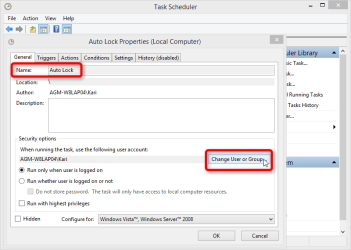
  2. Name the task, click Change User or Group:

    2014-09-28_13h15_09.png
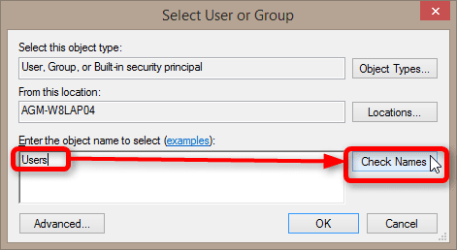
  3. Type the group name Users to Enter the object name to select, click Check Names:

    2014-09-28_13h16_19.png
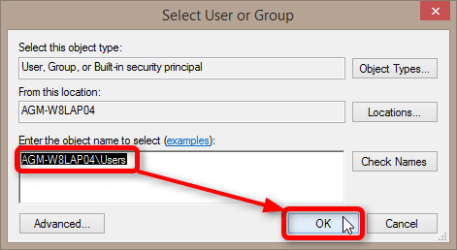
  4. Select the group YOUR_COMPUTERNAME\Users, click OK:

    2014-09-28_13h17_38.png
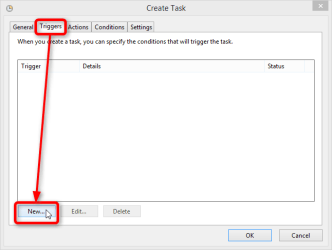
  5. Switch to Triggers tab, click New:

    2014-09-27_23h38_21.png
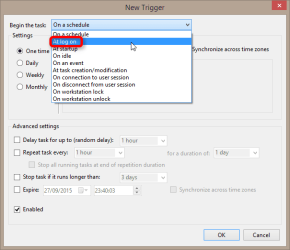
  6. Select Begin the task: At logon

    2014-09-27_23h40_12.png
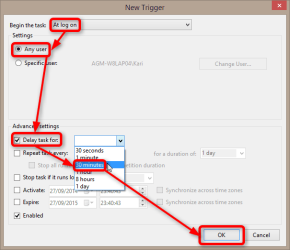
  7. Select Any user, select Delay task for and select 30 minutes from the drop down list, click OK:

    2014-09-27_23h41_13.png
  8. Switch to Actions tab, click New:

    2014-09-27_23h43_42.png
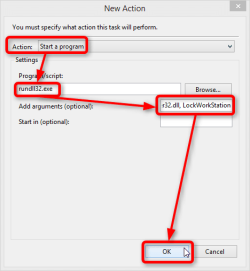
  9. Select Action: Start a program, type the command rundll32.exe to Program/script field, type the command arguments user32.dll, LockWorkStation to Add arguments, click OK:

    2014-09-27_23h45_11.png
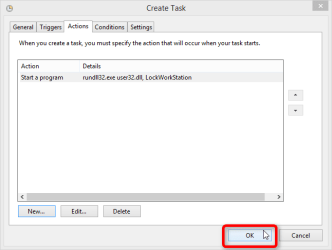
  10. Click OK to save the task:

    2014-09-27_23h48_53.png

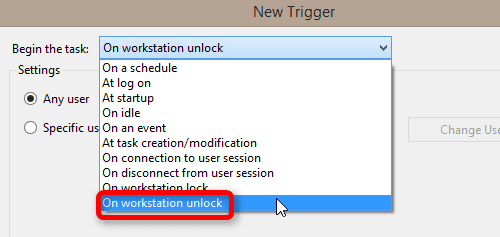
This task will lock the computer 30 minutes after any user logs in but thereafter when user unlocks the computer, task will no longer work. For this we need a second task. Repeat the above task creation process, create a similar task except at step 7 change the Begin the task to On workstation unlock:

2014-09-27_23h54_29.png

This second task will take care of locking the computer 30 minutes after each unlock after the initial locking 30 minutes after the log in.

Should work :).

Kari
 
Last edited:

My Computer

Computer type
Laptop
Computer Manufacturer/Model Number
HP ENVY 17-1150eg
OS
Windows 10 Pro x64 EN-GB
CPU
1.6 GHz Intel Core i7-720QM Processor
Memory
6 GB
Graphics Card(s)
ATI Mobility Radeon HD 5850 Graphics
Sound Card
Beats sound system with integrated subwoofer
Monitor(s) Displays
17" laptop display, 22" LED and 32" Full HD TV through HDMI
Screen Resolution
1600*900 (1), 1920*1080 (2&3)
Hard Drives
Internal: 2 x 500 GB SATA Hard Disk Drive 7200 rpm
External: 2TB for backups, 3TB USB3 network drive for media
Cooling
As Envy runs a bit warm, I have it on a Cooler Master pad
Keyboard
Logitech diNovo Media Desktop Laser (bluetooth)
Mouse
Logitech Performance Mouse MX
Internet Speed
50/10 Mbps VDSL
Antivirus
Windows Defender 4.3.9431.0
Browser
Maxthon 3.5.2., IE11
Kari, another great tutorial. Should be added to the tutorials section.
 

My Computer

Computer type
PC/Desktop
Computer Manufacturer/Model Number
Lenovo IdeaCenter 450
OS
Windows 10 Pro X64
CPU
Intel Quad Core i7-4770 @ 3.4Ghz
Memory
16.0GB PC3-12800 DDR3 SDRAM 1600 MHz
Graphics Card(s)
Intel Integrated HD Graphics
Sound Card
Realtek HD Audio
Monitor(s) Displays
HP 22" LCD
Screen Resolution
1680 x 1050
Hard Drives
250GB Samsung EVO SATA-3 SSD
2TB Seagate ST2000DM001 SATA-2
1.5TB Seagate ST3150041AS SATA
Keyboard
Dell USB
Mouse
Lenovo USB
Internet Speed
Cable via Road Runner 3MB Upload, 30MB Download
Antivirus
Windows Defender, MBAM Pro, MBAE
Browser
Seamonkey
Other Info
UEFI/GPT
PLDS DVD-RW DH16AERSH
Nice

Kari, another great tutorial. Should be added to the tutorials section.
Agreed.

Sorry Kari, I'm not allowed to Rep you. :(
 

My Computer

Computer type
PC/Desktop
Computer Manufacturer/Model Number
n/a
OS
W7 Ultimate SP1, LM19.2 MATE, W10 Home 1703, W10 Pro 1703 VM, #All 64 bit
CPU
AMD Phenom II x6 1100T, 3.3 GHz
Motherboard
ASUS M4A88T-M/USB3 (AM3)
Memory
12GB DDR3 1333 G-Skill (4GB x 2), G-Skill (2GB x 2)
Graphics Card(s)
NVIDIA GeForce GTX 660
Sound Card
Realtek?
Monitor(s) Displays
Samsung S23B350
Screen Resolution
1920x1080
Hard Drives
WD Green 2TB (SATA), WD Green 3TB (SATA), WD Blue 4TB (SATA), WD Blue 6TB (SATA)
PSU
Cooler Master
Case
Antec GX300 Tower
Cooling
3x Antec TRICOOL 120mm Fans
Mouse
Wired Optical
Internet Speed
DSL
Antivirus
Avast
Browser
Pale Moon (64 bit)
Other Info
2018-12-27 Upgraded HDDs
2015-12-10 Upgraded case, graphics card, storage
2015-08-15 Upgraded motherboard & RAM
2015-07-15 Upgraded LM17.1 to LM17.2
Thanks a lot, Kari & Ryan2320, I'll try this and update if it works as I wanted.

Another question, if I may - how do I add a message to the user 1 minute before lock, to let him know that the system will lock in 1 minute?
 

My Computer

Computer type
PC/Desktop
OS
7 64 ultimate
   Note
Please notice that I have edited my previous post; in my tests the tasks did not run every time for every user.

I have changed the Step 2 to use a group (Users) instead of individual admin user. As this change requires two additional steps, the steps 3 and 4 were added.

The tasks will now run every time for every user.


Thanks a lot, Kari & Ryan2320, I'll try this and update if it works as I wanted.

Another question, if I may - how do I add a message to the user 1 minute before lock, to let him know that the system will lock in 1 minute?

OK, then the message. One solution would be to create two additional tasks to display a message every time one of the two tasks we created will be run. However, this would not be very practical. A simpler solution is to use batch files. The below examples will show a message to the user 30 seconds before locking the computer. You can change the time value to whatever you want to.

A simple but not so elegant solution:
  • Run Notepad as administrator to be able to save directly to protected system folders
  • Create a simple batch file to be saved in the ProgramData folder:
    Code:
    @echo off
    echo The computer will be locked in 30 seconds.
    timeout /t 30
    %windir%\System32\rundll32.exe user32.dll, LockWorkStation
  • In Notepad, select Save As
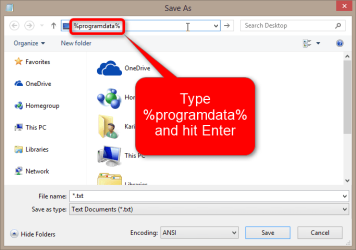
  • Type %programdata% in Save As dialog's addressbar, hit Enter to access hidden and protected system folder ProgramData:

    2014-09-28_13h53_27.png
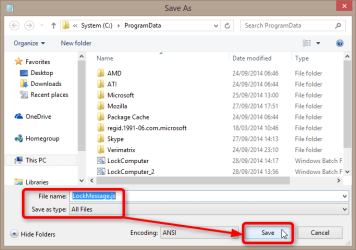
  • Name your batch file, add the .bat extension, select Save as type: All files, click Save:

    2014-09-28_13h56_03.png
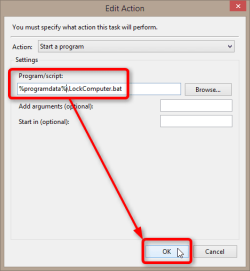
  • Open Task Scheduler and edit both the tasks you created here (in my previous post). Change the Step 9 by changing the Program/Script to %programdata%\LockComputer.bat (or whatever name you gave to batch file), leave the Add arguments field empty, click OK:

    2014-09-28_14h09_19.png
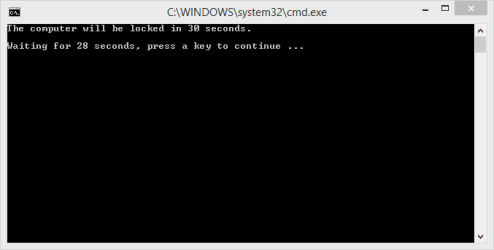
  • Now when the tasks are run, the user will see a message in Command Prompt and Windows will be locked 30 seconds after the message has been shown:

    2014-09-28_13h48_49.png

A bit more elegant solution:
  • Run Notepad as administrator to be able to save directly to protected system folders (we will save all three files below to ProgramData folder)
  • Create a script file:
    PHP:
    message = "";
      for (i = 0; i < WScript.Arguments.length; i++) 
      {message = message + WScript.Arguments.Item(i) + " ";}
    WScript.Echo(message);
  • In Notepad, select Save As
  • Type %programdata% in Save As dialog's addressbar, hit Enter to access hidden and protected system folder ProgramData:

    2014-09-28_13h53_27.png
  • Name your script file as LockMessage, add the .js (Java Script) extension, select Save as type: All files, click Save:

    2014-09-28_14h23_13.png
  • Still using Notepad as administrator, create a simple two line batch file as follows and save it as LockComputer.bat:
    Code:
    timeout /t 30
    %windir%\System32\rundll32.exe user32.dll, LockWorkStation
  • One more batch: Still using Notepad as administrator, create a simple batch file as follows and save it as RunLockComputer.bat (Red italics = the message text shown to users, edit as you wish):
    Code:
    start /min wscript %programdata%\LockMessage.js [COLOR="Red"][I]Windows will be locked in 30 seconds. All your open applications will remain open, you can unlock the computer with your password and continue working for another 30 minutes.[/I][/COLOR]
    start /min %programdata%\LockComputer.bat ^& exit
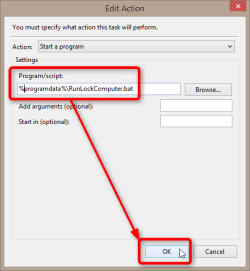
  • Open Task Scheduler and edit both the tasks you created here (in my previous post). Change the Step 9 by changing the Program/Script to %programdata%\RunLockComputer.bat (or whatever name you gave to batch file), leave the Add arguments field empty, click OK:

    2014-09-28_15h07_40.png
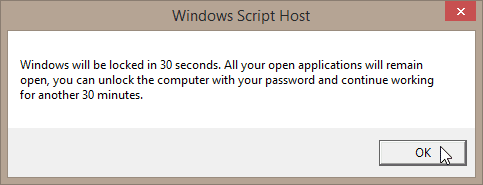
  • Now when the tasks are run, the user will see a message and Windows will be locked 30 seconds after the message has been shown:

    2014-09-28_14h32_50.png
The above script and batch files explained:
  • The script to show message (LockMessage.js) will take any text sent to it with wscript command (which we have in RunLockComputer.bat batch file), and display it on a message window. Command syntax for wscript command is:
    Code:
    [COLOR="Blue"]wscript[/COLOR] [COLOR="DarkRed"]Script_Name[/COLOR] [COLOR="Green"]Text to be sent to that script[/COLOR]
  • The first batch file (LockComputer.bat) is the one that executes the Lock Computer command after a 30 second timeout
  • The second batch file (RunLockComputer.bat) is the one we call from the Task Scheduler
    • First it tells to system to run Command Prompt minimized and execute the wscript command to run the message script (lockMessage.js), passing the given text to it as the message which we want to display
    • Then it tells the system to run our first batch file (LockComputer.bat) to lock the computer, also minimized, so the user does not see any open Command Prompt windows but only the message box
    • The ^& exit at the end of the second command closes the minimized Command Prompt when both commands have been executed

Should run without issues :).

Kari
 
Last edited:

My Computer

Computer type
Laptop
Computer Manufacturer/Model Number
HP ENVY 17-1150eg
OS
Windows 10 Pro x64 EN-GB
CPU
1.6 GHz Intel Core i7-720QM Processor
Memory
6 GB
Graphics Card(s)
ATI Mobility Radeon HD 5850 Graphics
Sound Card
Beats sound system with integrated subwoofer
Monitor(s) Displays
17" laptop display, 22" LED and 32" Full HD TV through HDMI
Screen Resolution
1600*900 (1), 1920*1080 (2&3)
Hard Drives
Internal: 2 x 500 GB SATA Hard Disk Drive 7200 rpm
External: 2TB for backups, 3TB USB3 network drive for media
Cooling
As Envy runs a bit warm, I have it on a Cooler Master pad
Keyboard
Logitech diNovo Media Desktop Laser (bluetooth)
Mouse
Logitech Performance Mouse MX
Internet Speed
50/10 Mbps VDSL
Antivirus
Windows Defender 4.3.9431.0
Browser
Maxthon 3.5.2., IE11
Thanks a lot Kari, I couldn't have asked for a more detailed explanation! I'll try it and update you all.
 

My Computer

Computer type
PC/Desktop
OS
7 64 ultimate
You are welcome :). Waiting to hear if you got it working.
 

My Computer

Computer type
Laptop
Computer Manufacturer/Model Number
HP ENVY 17-1150eg
OS
Windows 10 Pro x64 EN-GB
CPU
1.6 GHz Intel Core i7-720QM Processor
Memory
6 GB
Graphics Card(s)
ATI Mobility Radeon HD 5850 Graphics
Sound Card
Beats sound system with integrated subwoofer
Monitor(s) Displays
17" laptop display, 22" LED and 32" Full HD TV through HDMI
Screen Resolution
1600*900 (1), 1920*1080 (2&3)
Hard Drives
Internal: 2 x 500 GB SATA Hard Disk Drive 7200 rpm
External: 2TB for backups, 3TB USB3 network drive for media
Cooling
As Envy runs a bit warm, I have it on a Cooler Master pad
Keyboard
Logitech diNovo Media Desktop Laser (bluetooth)
Mouse
Logitech Performance Mouse MX
Internet Speed
50/10 Mbps VDSL
Antivirus
Windows Defender 4.3.9431.0
Browser
Maxthon 3.5.2., IE11
Hey, would anyone know the argument for adding an exception to take into account programs or video or whatever it is that prevents sleep while active? Would REALLY be appreciated. Thanks in advance!
 

My Computer

Computer type
PC/Desktop
Computer Manufacturer/Model Number
Custom Build
OS
Windows 10 Pro [x64]
Back
Top