Free disk space does not increase after deleting files

Jack101

New member
Local time
2:49 AM
Messages
6
Recently I made a few videos with fraps that took up around 110 gigs of space, so I decided to compress all that and upload to youtube, the amount of space the videos are taking up are now down to 70, but my free disk space hasn't increased, in fact it's decreasing as if I never deleted the videos, it isn't decreasing on it's own only if I make files, so basically it'll take up space and it just stays that way for some reason.

I've looked around the internet for a solution, I have tried:
  • Disabling automatic backup, that didn't do anything.
  • Scanned my computer with malwarebytes to make sure it isn't some worm, nothing found.
  • Used disk cleanup, cleared up 900 MB but the free space still didn't change.
  • Used CCleaner, cleared up 500 MB but the free space still didn't change.
  • Used disk check, nothing bad was found.
  • Used WinDirStat, everything seems fine as it should be, but theres 100 gigs of <unknown>, and I have no freaking clue what it is.
  • Used SpaceSniffer, found absolutely nothing that would take up that much space

I would use defraggler, but it will take WAAAAAAAAAAAAAAAAAAAAAY too long so I'd use it when I have no other option, there's gotta be another way other than literally waiting over a day for defraggler to finish, and chances are that it wouldn't change anything as well meaning I would have wasted a bunch of time, if defraggler doesn't help I'll just reformat the whole thing.

Any suggestions?

Additional information:

Specs:
298 GB HDD
4 GB RAM
Windows 7 Home Premium 64bit
 

My Computer My Computer

OS
Windows 7 64bit
Welcome to the Seven Forums Jack101.

I suggest that instead of using Defraggler you use Puran Defrag and carry out a boot-time defrag.

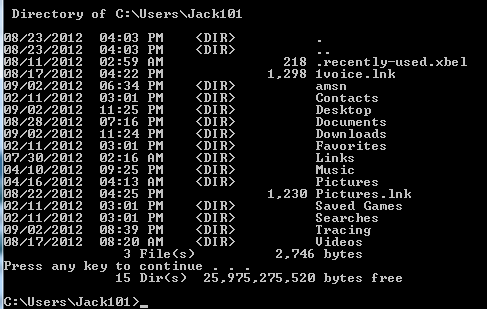
Now about free disk space. Sometimes the correct free disk space shows up after a reboot. However from your message it would appear that you have already tried that but without success. Another way to find out how much free space exists is to open the Command Prompt and use the "dir/p" command. Please try that and check if the free space shown is identical with what you see with your method and report back with the command prompt screen shot after dir/p has been executed.

Good luck.
 

My Computer My Computer

Computer Manufacturer/Model Number
Custom Built
OS
Windows 7 Pro with SP1 32bit
Motherboard
Intel D845GVS1 X86-based PC
Memory
2 gigs of RAM
Graphics Card(s)
Intel(R) 82845G/GL/GE/PE/GV Graphics Controller
Sound Card
Realtek AC'97 Audio
Monitor(s) Displays
Samsung SyncMaster 931BF Black 19" LCD Monitor
Screen Resolution
1280X960
Hard Drives
1. SAMSUNG SP0822N ATA Device ~ 80 GigaBytes

2. Seagate FreeAgent Go USB Device ~ 500 GigaBytes
Keyboard
COMPAQ Standard PS/2 Keyboard
Mouse
iBall Laser Precise Speedster
Internet Speed
4 mb/sec
Did you empty the Recycle Bin?
 

My Computer My Computer

Computer type
PC/Desktop
Computer Manufacturer/Model Number
Home Built desktop, Dell G15 5511 Gaming laptop,MS Surface Pro 7 tablet
OS
W10 Pro desktop, W11 laptop, W11 Pro tablet (all 64-bit)
CPU
3.7Ghz 8700K i7, i7-11800H, i7-1065G7
Motherboard
ASUS TUF Z370-Pro Gaming in desktop
Memory
16G desktop, 16G laptop, 4G tablet
Graphics Card(s)
AMD Radeon RX580, RTX 3060, Intel Iris Plus
Sound Card
High Definition Audio (Built-in to mobo)
Monitor(s) Displays
Samsung U32J59 32" (2x), 15.6", 12"
Screen Resolution
3840x2160, 3840x2160, 1920x1080, 2160x1440
Hard Drives
500G SSD for OS; 2T, 10T & 15T HDDs for Data on Desktop, 1TB SSD laptop, 128G SSD tablet.
PSU
Corsair CX 750M
Case
Antec 100
Cooling
CM 212+
Keyboard
IBM Model M - used continuously since 1986
Mouse
Microsoft Pro IntelliMouse
Internet Speed
400M down 8M up
Antivirus
Windows Defender
Browser
FireFox
Other Info
Built my first computer (8Mhz 8088cpu, 640K RAM, 20MB HDD, 2 360K floppy drives) in 1985 and have been building them for myself, relatives and friends ever since.
Did you empty the Recycle Bin?

Yes, numerous times, disk cleanup did that as well.

Another way to find out how much free space exists is to open the Command Prompt and use the "dir/p" command. Please try that and check if the free space shown is identical with what you see with your method and report back with the command prompt screen shot after dir/p has been executed.

Good luck.

G7ihm.png


I'll get to boot-time defrag, I'll come back with the results. :)
 

My Computer My Computer

OS
Windows 7 64bit
It appears that you get the same amount of disk space by both methods. Please confirm.

You may be having a large number of System Restore Points that may be hogging too much space. Please turn off System Restore and check if that shows an increase in the free space. Please be warned that if you turn off the System Restore you shall not be able to restore your computer to any previous state.
 

My Computer My Computer

Computer Manufacturer/Model Number
Custom Built
OS
Windows 7 Pro with SP1 32bit
Motherboard
Intel D845GVS1 X86-based PC
Memory
2 gigs of RAM
Graphics Card(s)
Intel(R) 82845G/GL/GE/PE/GV Graphics Controller
Sound Card
Realtek AC'97 Audio
Monitor(s) Displays
Samsung SyncMaster 931BF Black 19" LCD Monitor
Screen Resolution
1280X960
Hard Drives
1. SAMSUNG SP0822N ATA Device ~ 80 GigaBytes

2. Seagate FreeAgent Go USB Device ~ 500 GigaBytes
Keyboard
COMPAQ Standard PS/2 Keyboard
Mouse
iBall Laser Precise Speedster
Internet Speed
4 mb/sec
You may be having a large number of System Restore Points that may be hogging too much space. Please turn off System Restore and check if that shows an increase in the free space. Please be warned that if you turn off the System Restore you shall not be able to restore your computer to any previous state.

It is disabled, it never was enabled. There is approximately 0 bytes of space being taken up by it. :confused:

Anyways, I did the boot-time defrag and nothing has changed
 

My Computer My Computer

OS
Windows 7 64bit
Sounds like "previous versions" may be the culprit. That's also stored in "System Volume Information", where it would typically report as 0 bytes even though data is stored there. You should see the WinDirStat "unknown" category has grown to reflect what is really stored in "System Volume Information".
 

My Computer My Computer

OS
Windows 7 Ultimate x64
What should I do? I'm pretty much stumped up to this point
 

My Computer My Computer

OS
Windows 7 64bit
Tuts To Read

This command will clean out your logs and will yield some space. This came from Win7 Forums and is safe. But you will no longer have old logs to refer to. If you are not having any problems the logs are probably not needed. You will begin to accumulate some new ones.

1. Run PowerShell as administrator
2. Paste (or type-in) this line:
Get-WinEvent -ListLog * -Force |% { $_.logname;Wevtutil.exe cl $_.logname };Wevtutil.exe cl system
3. hit Enter

Another ploy is in an elevated command prompt type "vssadmin /?" and look at the options You can delete your shadow copies if you want.

http://www.sevenforums.com/tutorials/166102-shadow-copies-delete.html

http://www.sevenforums.com/tutorials/336-system-protection-restore-points-delete.html
 

My Computer My Computer

Computer Manufacturer/Model Number
BGC (Bob's Garage Crew)
OS
win 7 X64 Ultimate SP1
CPU
I3770K
Motherboard
Asus P8Z77-V Deluxe
Memory
G Skill F3-14900CL9-4GBXL x 4
Graphics Card(s)
NVIDIA GeForce GTX670 + Intel 4000
Sound Card
Realtek HD 5.1 (MOB)
Monitor(s) Displays
Asus VW224T (1)
Screen Resolution
1920 x 1080
Hard Drives
SATA Corsair Force GT 2.5" 180GB (System) Sata 3
OCZ Vertex3 120GB
OCZ Vertex 2 120GB 2.5" SATA II
ST31000524AS 1000.2GB
WD15EARS (External)
PSU
CoolerMaster 1000 Watt
Case
CoolerMaster HAF X
Cooling
CPU -- CoolerMaster 520N
Keyboard
MS Wireless 3000 V2
Mouse
MS Wireless 3000 V2
Internet Speed
Cable
Antivirus
Norton Internet Security
Browser
IE9
Other Info
AMI Bios 1805
OC'd 3%
Tried the shadow copies one, that didn't do anything

Did the system protection restore points deletion, nothing
 

My Computer My Computer

OS
Windows 7 64bit
Can you post a screenshot of WinDirStat, making sure all of the "Show" items are selected under the Options dropdown menu?
 

My Computer My Computer

OS
Windows 7 Ultimate x64
You stated in your first post that you uploaded videos to youtube. You did not say you removed the videos from your computer. Their is a chance you still have a copy on your computer. Do a search for those videos on your computer. Defragging doesn't give you space it arranges things so they work faster.
Ccleaner also has a nice little goodie for cleaning free space. Lower left corner of the front page is wipe free space. Make sure you indicate free space only. I use it when I'm done cleaning up a mess and want it completely gone.
You could also do a search using Windows Explorer for unknown. Sometimes Windows calls them that when it doesn't know what else to do. Also do a search using Windows Explorer for compressed.
 

My Computer My Computer

Computer type
PC/Desktop
Computer Manufacturer/Model Number
Home made Desktop
OS
Windows 10 Pro. 64/ version 1709 Windows 7 Pro/64
CPU
Intel i7-6800K @ 4.3
Motherboard
ASUS X-99 Deluxe II
Memory
Corsair Platinum 16 gig @2400
Graphics Card(s)
EVGA GTX 1070 OC
Monitor(s) Displays
Asus 27" LED LCD/VE278Q
Screen Resolution
1920-1080 or 1280-720 HDMI
Hard Drives
INTEL SSD 730-240 Gb Sata 3.0/
PSU
EVGA Platium 1200W
Case
Phanteks Luxe Tempered Glass 8 fans/ one radiator
Cooling
XSPC/ Water Cooled CPU
Keyboard
Das 4 Professional
Mouse
Logitech M705/MX Anywhere 2-S
Internet Speed
100 mbits
Antivirus
Microsoft Security Essentials/ Malwarebytes Premium 3.0/ SAS
Browser
I.E. 11 default/Firefox/ ISP Time Warner Cable/Spectrum
Other Info
LG BluRay Burner/
Sound system-KLipsch-THX/
Icy Dock ssd Hot Swap bays.
Sorry for the lack of response, was at job and tired as heck.

Can you post a screenshot of WinDirStat, making sure all of the "Show" items are selected under the Options dropdown menu?

tAlwv.jpg


Edit: Also, ignore the "last changed: 2018", it's one single file claiming that and its one of my doom mods, I assume its some weird glitch


You stated in your first post that you uploaded videos to youtube. You did not say you removed the videos from your computer. Their is a chance you still have a copy on your computer. Do a search for those videos on your computer. Defragging doesn't give you space it arranges things so they work faster.
Ccleaner also has a nice little goodie for cleaning free space. Lower left corner of the front page is wipe free space. Make sure you indicate free space only. I use it when I'm done cleaning up a mess and want it completely gone.
You could also do a search using Windows Explorer for unknown. Sometimes Windows calls them that when it doesn't know what else to do. Also do a search using Windows Explorer for compressed.

I did remove the videos, not all of them because it takes a while to compress this stuff, but notice in the screenshot that the <unknown> is the problem, I know where I put the fraps videos, and when i do search for the videos anyways, nothing shows up. I tried CCleaner like I said and nothing changed, searching compressed brought nothing useful even when I showed hidden files.
 

My Computer My Computer

OS
Windows 7 64bit
You're right, it's all in "unknown" (43% of the volume). This is where it places space for data that it has no access to, usually what would be found in System Volume Information. You may be able to clear it with a disk cleanup using the steps outlined in this tutorial:

http://www.sevenforums.com/tutorials/76383-disk-cleanup-extended.html

I'm somewhat surprised HammerHead's suggestions didn't help.

You might also check out this software to see if old copies of those files are being stored in System Volume Information:

ShadowExplorer.com - Manual

And a video tutorial on its use:

http://www.sevenforums.com/tutorials/132087-shadowexplorer-recover-lost-files-folders.html
 

My Computer My Computer

OS
Windows 7 Ultimate x64
Disk Indexes

I think cross linked files could lead to incorrect disk usage reports. To correct this you will have to run chkdsk. There is a way to run this from within Win but I prefer to run from a elevated command prompt. Or you can even boot from a Win PE disk and run with out your OS.
The command would be "chkdsk X: /f". The x is the disk letter in question. If you add the slash /r parameter it will also check the unused clusters. This can take considerable time on a large disk.

You can add a command to create a text file that you can save and do what ever with. If that is what you want append this string "> C:\path\filename.txt" to your chkdsk command. That command is not needed within Win because the report will go to Event Viewer under Applications. It will be one of your recent events.

Here is a couple more fine turorials from Win 7 Forums fine library of tuts.

http://www.sevenforums.com/tutorials/96938-check-disk-chkdsk-read-event-viewer-log.html

http://www.sevenforums.com/tutorials/433-disk-check.html
 

My Computer My Computer

Computer Manufacturer/Model Number
BGC (Bob's Garage Crew)
OS
win 7 X64 Ultimate SP1
CPU
I3770K
Motherboard
Asus P8Z77-V Deluxe
Memory
G Skill F3-14900CL9-4GBXL x 4
Graphics Card(s)
NVIDIA GeForce GTX670 + Intel 4000
Sound Card
Realtek HD 5.1 (MOB)
Monitor(s) Displays
Asus VW224T (1)
Screen Resolution
1920 x 1080
Hard Drives
SATA Corsair Force GT 2.5" 180GB (System) Sata 3
OCZ Vertex3 120GB
OCZ Vertex 2 120GB 2.5" SATA II
ST31000524AS 1000.2GB
WD15EARS (External)
PSU
CoolerMaster 1000 Watt
Case
CoolerMaster HAF X
Cooling
CPU -- CoolerMaster 520N
Keyboard
MS Wireless 3000 V2
Mouse
MS Wireless 3000 V2
Internet Speed
Cable
Antivirus
Norton Internet Security
Browser
IE9
Other Info
AMI Bios 1805
OC'd 3%
Back
Top