
How to Apply Local Group Policies to Specific User or Group in Windows
Information
Windows has three layers of local GPOs:
This tutorial will show you how to apply local group policies to only a specific user or group instead of all users in Vista, Windows 7, Windows 8, and Windows 10.
You must be logged in as an administrator to be able to do this tutorial.
- Local Group Policy Local Group Policy is the only local GPO that allows both computer configuration and user configuration settings to be applied to all users of the computer.
- Administrators and Non-Administrators local Group Policy Administrators and Non-Administrators local Group Policy contains only user configuration settings. This policy is applied based on whether the user account being used is a member of the local Administrators group.
- User-specific local Group Policy User-specific local Group Policy contains only user configuration settings. This policy is applied to individual users and groups.
This tutorial will show you how to apply local group policies to only a specific user or group instead of all users in Vista, Windows 7, Windows 8, and Windows 10.
You must be logged in as an administrator to be able to do this tutorial.
Note
A computer running Windows can have one or more local policy objects associated with it. Local Group Policy is managed through the local Group Policy object (GPO).
The local GPO is stored on individual computers in the hidden C:\Windows\System32\GroupPolicy system folder.
User-specific and group-specific local GPOs are stored in the hidden C:\Windows\System32\GroupPolicyUsers system folder.
The local GPO is stored on individual computers in the hidden C:\Windows\System32\GroupPolicy system folder.
User-specific and group-specific local GPOs are stored in the hidden C:\Windows\System32\GroupPolicyUsers system folder.
Warning
The Local Group Policy Editor will only be available in:
- Vista Business, Ultimate, and Enterprise editions.
- Windows 7 Professional, Ultimate, and Enterprise editions
- Windows 8/8.1 Pro and Enterprise editions.
- Windows 10 Pro and Enterprise editions.
Here's How:1. Open the Start Menu, then type mmc.exe in the search box and press Enter.
NOTE: In Windows 8, you could press Windows+R keys to open the Run dialog, then type mmc.exe, and click/tap on OK instead.
2. If prompted by UAC, then click on Yes (Windows 7/8) or Continue (Vista).
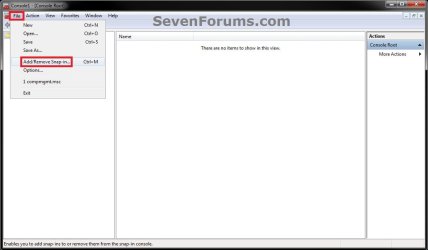
3. In the MMC Console window, click on File (Menu bar) and Add/Remove Snap-in. (see screenshot below)
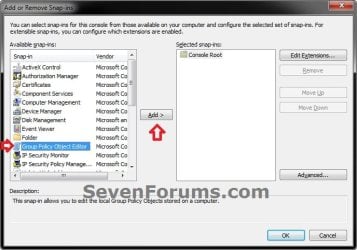
4. In the left pane, select Group Policy Object Editor, and click on the Add button. (see screenshot below)
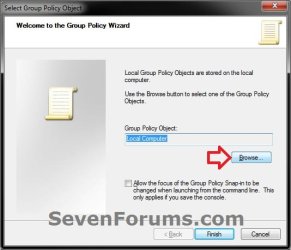
5. Click on the Browse button. (see screenshot below)
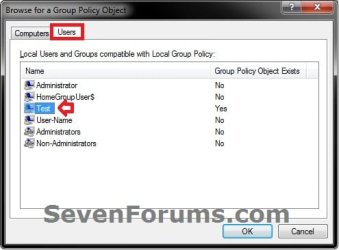
6. Click on the Users tab, select an available user account (ex: Test) or a group from the list that you want to only have group policy applied to, and click on OK. (see screenshot and table below)
Note
The other names (Test and User-name) listed are user accounts on my computer. You will have your own user account names listed instead.
| Group Name | Description |
| Administrator | Name of Built-in Administrator account user |
| HomeGroupUser$ | All HomeGroup Users group |
| Administrators | All Users in the administrators group |
| Non-Administrators | All users except administrators group |
7. Click on the Finish button. (see screenshot below)
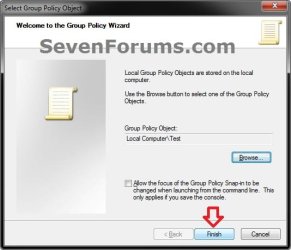
8. Click on OK. (see screenshot below)
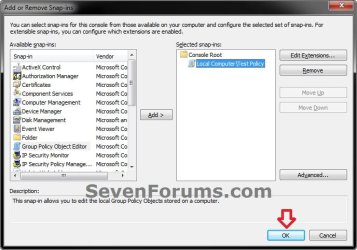
9. In the MMC Console window, click on File (Menu bar) and Save As. (see screenshot below)
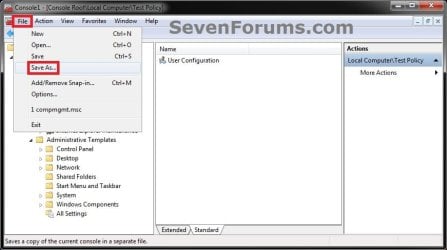
10. Select to save to your Desktop, type in a name (ex: Test_Group_Policy) that you would like to have for this "specific" group policy MSC file, then click on the Save button. (see screenshot below)
NOTE: You can use any name you like, but it would make it easier for you to know what user (ex: Test) or group this "specific" group policy MMC console was for later if you included the user or group name.

11. Move the MSC file (ex: Test_Group_Policy.msc) for the specific user or group to where you would to keep it saved at. (see screenshot below)
NOTE: You can also Pin to Taskbar or Pin to Start Menu this MSC file.
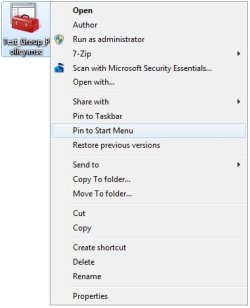
12. Whenever you open this MSC file (ex: Test_Group_Policy.msc), you will be able to apply group policies to only this specific user (ex: Test) or group. (see screenshot below)

13. Repeat the above steps if you wish to create a new MSC group policy file for a different specific user or group.
That's it,
Shawn Brink
Related Tutorials
- How to Open the Local Group Policy Editor in Windows
- How to Apply Local Group Policies to All Users Except Administrators
- How to Back Up and Restore Local Group Policy in Windows
- How to Reset Local Group Policy to Default in Vista, Windows 7, and Windows 8
- How to Quickly View Enabled Group Policies in Windows
- How to Force Group Policy Updates to be Applied Instantly in Windows
Last edited:


