Having a Taskbar app start up in 7?

Noels

New member
Local time
3:56 PM
Messages
57
Location
Solomons, MD
Hi all,

I'm stumped on a small problem...

I have a small taskbar app that I would like to start up on boot and show up in the taskbar area. It does reside in the Notification area, and even though I have selected "Show Icon and Notifications," it still won't start and show after boot. I have to manually start it each time.

In XP, I can open the taskbar utility on the Start menu and add the app so it will start up in the taskbar area on boot. But I can't figure out how to do that in Windows 7... I have even tried pinning it to the start menu, but still have to start it up each time - it won't start automatically on boot.

BTW, the app is called Moon Phase...

Can someone give me a heads-up on this seemingly simple problem?

Thanks, Noels
 

My Computer

Computer Manufacturer/Model Number
Self built
OS
PC, Windows 7 32 bit
CPU
Intel E8400
Motherboard
Gigabyte GA-EPP45-UD3R
Memory
4GB Mushkin DDR2
Graphics Card(s)
Nvidia GeForce 8800GTS
Sound Card
on Motherboard
Monitor(s) Displays
Dell 1907FP (19" LCD)
Screen Resolution
1024x768
Hard Drives
OCZ Vertex 30GB for OS
WD 320GB for programs and WD 500GB for pictures and music and WD 1.5 TB for backup
PSU
Ultra X3 600 W Modular
Case
Cooler Master HAF 922
Cooling
Fans: 200MM on front, top and side, 120mm rear
Keyboard
Saitek Eclipse II
Mouse
Logitech Wireless
I have never tried this before, but you can try dragging the program into C:\ProgramData\Microsoft\Windows\Start Menu\Programs\Startup.

You could also open up a copy of regedit, and navigate to HKCU\Software\Microsoft\Windows\CurrentVersion\Run.

Right click in an empty space in the right pane, and select Create New>String Value. Name it what you want, and then right-click on it and select Modify. Then point it to the path.

For example, to run a program from my desktop, I would try "C:\Users\Jonathan\Desktop\programname.exe". Include the quotes.

Disclaimer: I have not tried either of these. I have no idea if they will work or not.
 

My Computer

Computer Manufacturer/Model Number
Custom
OS
Windows 7 Professional x64
CPU
Intel i7 2600K OC'd @ 4620 MHz
Motherboard
Asus P8Z68-V Pro
Memory
16GB GSkill Sniper 2133 Mhz (4x4GB)
Graphics Card(s)
EVGA GeForce GTX 480 SuperClocked+
Sound Card
Realtek High Definition Audio
Monitor(s) Displays
2x Acer S273HLbmii 27"
Screen Resolution
2 x 1920x1080
Hard Drives
64GB Crucial M4 SSD

Storage: Hitachi 1TB 5400RPM, Samsung 1.5TB 5400RPM
PSU
Corsair HW Series 750w (modular)
Case
Cooler Master HAF 932 Advanced Blue Edition
Cooling
CM Hyper 212+ CPU cooler, 3x 230mm + 1x 140mm case fans
Keyboard
Logitech MK320 (wireless)
Mouse
Logitech MK320 (wireless)
Internet Speed
30 Mb/s : 2 Mb/s
The easiest way to do this is to copy and paste a Moon Phase shortcut into the startup folder in the Start Menu on your account. Any application (or shortcut to an application) is automatically opened after login when it is in this folder.

Oli

EDIT: Jonathon's way to quick for me, good work. :)
 

My Computer

Computer Manufacturer/Model Number
Apple MacBook 5,1
OS
Windows 7 Profesional x86, Mac OS X 10.6 Snow Leopard
CPU
Intel Core 2 Duo 2.4Ghz
Memory
4GB DDR3
Graphics Card(s)
Nvidia 9400m
Monitor(s) Displays
13.3" Internal + 22" DVI + 21.5" USB
Screen Resolution
1280x800 + 1920x1080 + 1920x1080
Hard Drives
Internal SATA 2.5" 500GB (395GB Mac HFS+, 105GB Windows NTFS)
2.48TB RAID consisting of 5 disks (HFS+)
Case
Aluminium Unibody
Keyboard
Apple Late 2009 Wireless Keyboard (US)
Mouse
Apple Magic Mouse
Internet Speed
6.33Mb/s up. 0.36Mb/s down.
Other Info
Harman Kardon Soundsticks II Speakers
The startup folder you find if you type shell:startup into Start/search and hit Enter. Then drag the shortcut into the folder as they said and close the folder.
 

My Computer

Computer Manufacturer/Model Number
HP, Dell, Gateway, Toshiba - 4 laptops and 2 desktops
OS
Vista, Windows7, Mint Mate, Zorin, Windows 8
CPU
from 1.6GHz Duo to i7
Monitor(s) Displays
2x HP w2207
Hard Drives
5x HDD, 7x SSD, 12x Externals
Keyboard
with trackball - no mices
Mouse
Trackball mice
Internet Speed
DSL 6000

My Computer

Computer Manufacturer/Model Number
Hera
OS
Windows 7 Ultimate x64, Mint 9
CPU
Intel i5-2500k
Motherboard
ASUS P8P67 Pro
Memory
2x 4Gb Corsair VENGEANCE DDR3-1600
Graphics Card(s)
NVidia GeForce N260GTX Twin Frozr
Sound Card
Realtek HD OnBoard Audio
Monitor(s) Displays
ASUS 24" Monitor
Screen Resolution
1920x1080
Hard Drives
G.SKILL Phoenix Series 60GB SATA II MLC Internal Solid State Drive (SSD)
SAMSUNG Spinpoint F3R 1TB 7200 RPM 32MB Cache SATA II
PSU
Cooler Master Real Power Pro 750W
Case
Cooler Master Haf 932
Cooling
Fans
Keyboard
Razer Tarantula
Mouse
Razer Lachesis
Internet Speed
not fast enough
Hi Folks,

Sorry to take so long responding - my wife has been sick and I had to shut down...

After several attempts, I finally was able to get the Moon Phase shortcut into the start up folder and set Properties/Compatibility as Windows 95. I checked msconfig, and it is there and apparently starting up, BUT, after several restarts, it still will not show up in the taskbar area. Turns out there are 2 Moon Phase icons in the notification area and I can't seem to get rid of one - so there may be a conflict there...

I think I'll try removing all instances of the app and start all over. I'll keep you up on the results, but it may be later today - we're off to the Doctor's office.

Thanks so much to all of you and for bearing with my dragging this out. I thought I would be finished by now :(

Noels
 

My Computer

Computer Manufacturer/Model Number
Self built
OS
PC, Windows 7 32 bit
CPU
Intel E8400
Motherboard
Gigabyte GA-EPP45-UD3R
Memory
4GB Mushkin DDR2
Graphics Card(s)
Nvidia GeForce 8800GTS
Sound Card
on Motherboard
Monitor(s) Displays
Dell 1907FP (19" LCD)
Screen Resolution
1024x768
Hard Drives
OCZ Vertex 30GB for OS
WD 320GB for programs and WD 500GB for pictures and music and WD 1.5 TB for backup
PSU
Ultra X3 600 W Modular
Case
Cooler Master HAF 922
Cooling
Fans: 200MM on front, top and side, 120mm rear
Keyboard
Saitek Eclipse II
Mouse
Logitech Wireless
try removing it from the taskbar and then letting it start on boot, once its started pin the running instance to the taskbar, it sounds like 7 is treating them as seperate instances of the application
 

My Computer

Computer type
PC/Desktop
Computer Manufacturer/Model Number
Medion Erazer (note to self: insert model number) - with custom additions
OS
Windows 10 Pro x64
CPU
Intel Core i5 7400 @ 3.00GHz
Motherboard
OEM supllied with PC
Memory
8GB 2133Mhz DDR4 (OEM supplied)
Graphics Card(s)
Gygabyte Windforce GTX 1050Ti (Factory Overclocked)
Sound Card
Realtek
Monitor(s) Displays
Acer Al1980 + HKC
Screen Resolution
1360*768(HKC) / 1280*1024(Acer)
Hard Drives
1TB Toshiba
1TB WD Caviar Green
120GB Samsung Evo 840
PSU
OEM supplied (no power rating on case)
Case
OEM Supplied
Cooling
Stock
Keyboard
Logitech Wireless
Mouse
Logitect Wireless
Internet Speed
40Mb/s Down 10Mb/s Up
Antivirus
Defender
Browser
Firefox
severedsolo,

How do I remove the icons from the taskbar? The 2 Moon icons are selected as "Show icons and notification" but still they don't show up, and I can't figure out how to delete them...

Thanks for your help, Noels
 

My Computer

Computer Manufacturer/Model Number
Self built
OS
PC, Windows 7 32 bit
CPU
Intel E8400
Motherboard
Gigabyte GA-EPP45-UD3R
Memory
4GB Mushkin DDR2
Graphics Card(s)
Nvidia GeForce 8800GTS
Sound Card
on Motherboard
Monitor(s) Displays
Dell 1907FP (19" LCD)
Screen Resolution
1024x768
Hard Drives
OCZ Vertex 30GB for OS
WD 320GB for programs and WD 500GB for pictures and music and WD 1.5 TB for backup
PSU
Ultra X3 600 W Modular
Case
Cooler Master HAF 922
Cooling
Fans: 200MM on front, top and side, 120mm rear
Keyboard
Saitek Eclipse II
Mouse
Logitech Wireless
by taskbar... do you mean the notification area? (the bit you see when you click the ringed bit on my screenshot) or the taskbar? which is where your pinned/running apps go. because it sounds to me like your describing the notification area, perhaps it would be easier if you screenshot what you mean
 

Attachments

  • notification.PNG
    notification.PNG
    6.9 KB · Views: 3

My Computer

Computer type
PC/Desktop
Computer Manufacturer/Model Number
Medion Erazer (note to self: insert model number) - with custom additions
OS
Windows 10 Pro x64
CPU
Intel Core i5 7400 @ 3.00GHz
Motherboard
OEM supllied with PC
Memory
8GB 2133Mhz DDR4 (OEM supplied)
Graphics Card(s)
Gygabyte Windforce GTX 1050Ti (Factory Overclocked)
Sound Card
Realtek
Monitor(s) Displays
Acer Al1980 + HKC
Screen Resolution
1360*768(HKC) / 1280*1024(Acer)
Hard Drives
1TB Toshiba
1TB WD Caviar Green
120GB Samsung Evo 840
PSU
OEM supplied (no power rating on case)
Case
OEM Supplied
Cooling
Stock
Keyboard
Logitech Wireless
Mouse
Logitect Wireless
Internet Speed
40Mb/s Down 10Mb/s Up
Antivirus
Defender
Browser
Firefox
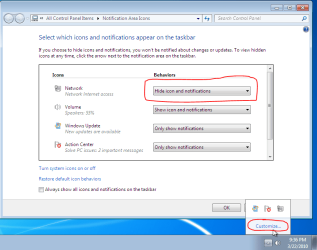
What you could do is hide the icon.

It won't get rid of it completely, but you would have to click the arrow to show it.

Capture.PNG
 

My Computer

Computer Manufacturer/Model Number
Custom
OS
Windows 7 Professional x64
CPU
Intel i7 2600K OC'd @ 4620 MHz
Motherboard
Asus P8Z68-V Pro
Memory
16GB GSkill Sniper 2133 Mhz (4x4GB)
Graphics Card(s)
EVGA GeForce GTX 480 SuperClocked+
Sound Card
Realtek High Definition Audio
Monitor(s) Displays
2x Acer S273HLbmii 27"
Screen Resolution
2 x 1920x1080
Hard Drives
64GB Crucial M4 SSD

Storage: Hitachi 1TB 5400RPM, Samsung 1.5TB 5400RPM
PSU
Corsair HW Series 750w (modular)
Case
Cooler Master HAF 932 Advanced Blue Edition
Cooling
CM Hyper 212+ CPU cooler, 3x 230mm + 1x 140mm case fans
Keyboard
Logitech MK320 (wireless)
Mouse
Logitech MK320 (wireless)
Internet Speed
30 Mb/s : 2 Mb/s
severedsolo, Sorry - yes, I do mean the notification area (used to be Taskbar in XP, on right side); there are 2 Moon Phase icons in it and I see no way to delete them - the program doesn't reside in either the Control Panel's Add/Remove applet nor the Registry... I have otherwise removed the program from the computer altogether, but those icons remain...:p

Jonathan, I have already disabled them (selected "Only show notifications" in the customize box), so they won't show, but I was concerned that since there were 2 of them, they were creating a conflict together, and that's why the program wouldn't work properly before...

Seems to me there should be some way to remove unwanted icons from the notification area (especially dupes) - or am I wrong about that?

I may just go ahead and re-install the program and try again. If it doesn't work then, I'll abandon it.

Thanks again, Noel
 

My Computer

Computer Manufacturer/Model Number
Self built
OS
PC, Windows 7 32 bit
CPU
Intel E8400
Motherboard
Gigabyte GA-EPP45-UD3R
Memory
4GB Mushkin DDR2
Graphics Card(s)
Nvidia GeForce 8800GTS
Sound Card
on Motherboard
Monitor(s) Displays
Dell 1907FP (19" LCD)
Screen Resolution
1024x768
Hard Drives
OCZ Vertex 30GB for OS
WD 320GB for programs and WD 500GB for pictures and music and WD 1.5 TB for backup
PSU
Ultra X3 600 W Modular
Case
Cooler Master HAF 922
Cooling
Fans: 200MM on front, top and side, 120mm rear
Keyboard
Saitek Eclipse II
Mouse
Logitech Wireless

My Computer

Computer Manufacturer/Model Number
Custom
OS
Windows 7 Professional x64
CPU
Intel i7 2600K OC'd @ 4620 MHz
Motherboard
Asus P8Z68-V Pro
Memory
16GB GSkill Sniper 2133 Mhz (4x4GB)
Graphics Card(s)
EVGA GeForce GTX 480 SuperClocked+
Sound Card
Realtek High Definition Audio
Monitor(s) Displays
2x Acer S273HLbmii 27"
Screen Resolution
2 x 1920x1080
Hard Drives
64GB Crucial M4 SSD

Storage: Hitachi 1TB 5400RPM, Samsung 1.5TB 5400RPM
PSU
Corsair HW Series 750w (modular)
Case
Cooler Master HAF 932 Advanced Blue Edition
Cooling
CM Hyper 212+ CPU cooler, 3x 230mm + 1x 140mm case fans
Keyboard
Logitech MK320 (wireless)
Mouse
Logitech MK320 (wireless)
Internet Speed
30 Mb/s : 2 Mb/s
Martin, yes, sorry, I did mean the Notification area... In any case, there are still 2 of the icons there, even after all other traces of the program are gone - nothing to remove in Control Panel/Add & Remove and nothing in the registry, just those 2 icons in the Notification area. I figured there should be some way to remove them, but I guess not...

Jonathan, I did change the Notification area so the icons won't show up, but they never did show up anyhow, even with the "show" option, which was my original problem :confused:

I'll try to re-install the program to see if it will work, and if not, I'll abandon it for the time being...

Thanks for all your help again, Noels
 

My Computer

Computer Manufacturer/Model Number
Self built
OS
PC, Windows 7 32 bit
CPU
Intel E8400
Motherboard
Gigabyte GA-EPP45-UD3R
Memory
4GB Mushkin DDR2
Graphics Card(s)
Nvidia GeForce 8800GTS
Sound Card
on Motherboard
Monitor(s) Displays
Dell 1907FP (19" LCD)
Screen Resolution
1024x768
Hard Drives
OCZ Vertex 30GB for OS
WD 320GB for programs and WD 500GB for pictures and music and WD 1.5 TB for backup
PSU
Ultra X3 600 W Modular
Case
Cooler Master HAF 922
Cooling
Fans: 200MM on front, top and side, 120mm rear
Keyboard
Saitek Eclipse II
Mouse
Logitech Wireless
Jonathan,

Thanks for the Notification Area reset program - that did the trick!! Those icons are gone. And I'll store that app away for possible future use...

BTW, sorry for the double posting, didn't realize my post went to Page #2 - I feel silly for that to happen!

Anyhow, now I'll try to re-install the Moon Phase program and see what happens...

Noels
 

My Computer

Computer Manufacturer/Model Number
Self built
OS
PC, Windows 7 32 bit
CPU
Intel E8400
Motherboard
Gigabyte GA-EPP45-UD3R
Memory
4GB Mushkin DDR2
Graphics Card(s)
Nvidia GeForce 8800GTS
Sound Card
on Motherboard
Monitor(s) Displays
Dell 1907FP (19" LCD)
Screen Resolution
1024x768
Hard Drives
OCZ Vertex 30GB for OS
WD 320GB for programs and WD 500GB for pictures and music and WD 1.5 TB for backup
PSU
Ultra X3 600 W Modular
Case
Cooler Master HAF 922
Cooling
Fans: 200MM on front, top and side, 120mm rear
Keyboard
Saitek Eclipse II
Mouse
Logitech Wireless
Great, I'm glad that tutorial helped you. Credit goes to our resident tutorial writer Brink.
 

My Computer

Computer Manufacturer/Model Number
Custom
OS
Windows 7 Professional x64
CPU
Intel i7 2600K OC'd @ 4620 MHz
Motherboard
Asus P8Z68-V Pro
Memory
16GB GSkill Sniper 2133 Mhz (4x4GB)
Graphics Card(s)
EVGA GeForce GTX 480 SuperClocked+
Sound Card
Realtek High Definition Audio
Monitor(s) Displays
2x Acer S273HLbmii 27"
Screen Resolution
2 x 1920x1080
Hard Drives
64GB Crucial M4 SSD

Storage: Hitachi 1TB 5400RPM, Samsung 1.5TB 5400RPM
PSU
Corsair HW Series 750w (modular)
Case
Cooler Master HAF 932 Advanced Blue Edition
Cooling
CM Hyper 212+ CPU cooler, 3x 230mm + 1x 140mm case fans
Keyboard
Logitech MK320 (wireless)
Mouse
Logitech MK320 (wireless)
Internet Speed
30 Mb/s : 2 Mb/s
Thanks Jonathan and thanks Brink. I appreciate your help.

I did re-install the program and it's still being contrary, so I guess if I want to use it, I'll have to manually start it each time I boot up. I pinned a copy to the Start menu, so it's in a convenient place. I think the trouble is that it's a Windows 95 app, and even though I've set the compatibility in each location, Windows 7 doesn't seem to like it. :)

Enough time for this small problem, eh?

And thanks again to each and every one who has helped me . This forum has a great group of members!!!

Noels
 

My Computer

Computer Manufacturer/Model Number
Self built
OS
PC, Windows 7 32 bit
CPU
Intel E8400
Motherboard
Gigabyte GA-EPP45-UD3R
Memory
4GB Mushkin DDR2
Graphics Card(s)
Nvidia GeForce 8800GTS
Sound Card
on Motherboard
Monitor(s) Displays
Dell 1907FP (19" LCD)
Screen Resolution
1024x768
Hard Drives
OCZ Vertex 30GB for OS
WD 320GB for programs and WD 500GB for pictures and music and WD 1.5 TB for backup
PSU
Ultra X3 600 W Modular
Case
Cooler Master HAF 922
Cooling
Fans: 200MM on front, top and side, 120mm rear
Keyboard
Saitek Eclipse II
Mouse
Logitech Wireless
Back
Top