Hdd partition hidden/not showing in windows 7

ryan4646

New member
Local time
3:47 AM
Messages
5
Hi all,

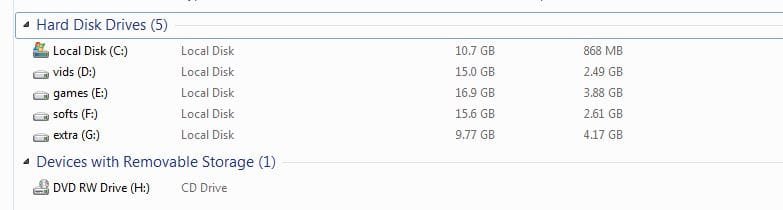
i just converted from win xp to win7. For certain reason i am late to install. After installing the OS, i found one my partition is still missing. The partition was formerly used to be the C: in the intial time. But after finding the Bad sector over there, i have seperated some cluster in to another drive. Now every time i am installing win 7, that specific drive is not showing as it is still thinking as system drive. i have 80GB hard drive. can any one help me out how to get back that drive. i really need this. My memory running out fast.

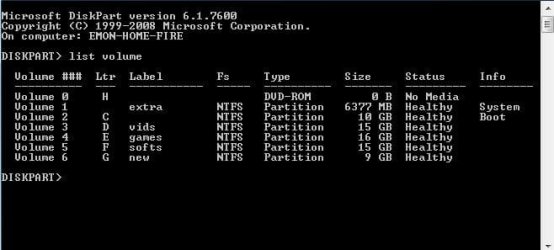
Diskpart is showing 6 drives that i used to have, but win 7 is showing only 5. the volume 1, which is named extra is missing, but the name is interchanged with another drive which is volume 6 now. Diskpart image is from current win 7.:confused:

attaching files to easy understand.
 

Attachments
  • diskpart 1.JPG
    diskpart 1.JPG
    30.5 KB · Views: 23
  • hdd 2.JPG
    hdd 2.JPG
    22.2 KB · Views: 1

My Computer My Computer

At a glance

windows 7dual core1GBBUILTIN 256MB
Computer type
PC/Desktop
Computer Manufacturer/Model Number
unkown
OS
windows 7
CPU
dual core
Motherboard
MSI
Memory
1GB
Graphics Card(s)
BUILTIN 256MB
Hard Drives
SATA 80GB
Antivirus
WINDOWS DEFFENDER
Browser
FIREFOX
Follow this :
Part 1:
Windows will be aware your new HDD exists as a piece of hardware, BUT it still will not show up in My Computer. You need to use Windows Disk Management to do two jobs: Partition and Format that new unit. Click on Start at bottom left and in the menu RIGHT-click on My Computer and choose "Manage" from the mini-menu to open a new window. On its left click to expand "Storage" if necessary and choose "Disk Management". This will open two panes on the right, each of them scrolling to reveal their whole contents. The upper one shows you only the devices Windows already knows how to use. The lower one also shows you the hardware Windows can see, including some devices Windows does not yet understand. Each device is represented by a large horizontal block. On its left end is a smaller label block with things like "DISK_0", a size, and a few other bits of info. To the right will be one or more large sub-blocks representing Partitions already defined. Each of these will have a letter name like your C: drive, its size and File System, and a bit more. If there is some space not yet assigned to a Partition, it will be a block further to the right called "Unallocated Space". The main block representing your optical drive will not have all this stuff because you cannot define a Partition on such a device.
 
Last edited:

My Computer My Computer

At a glance

windows 7 32 bit
Computer type
PC/Desktop
OS
windows 7 32 bit
Part 2:
Now, your disk should be here with no letter name and no info beyond its basic label on the left end. RIGHT-click on its Unallocated Space and, from the menu, choose to Create a Partition on the drive. You'll have a choice of how big it should be and most likely want to use all the drive in one volume. (You can use only part of the space. If you do, when you are finished come back here and find the remainder shown as "Unallocated Space". You can create a second Partition or more in it if you want.) For this first Partition, make it the Primary or Active Partition, and NOT bootable because this drive is for data only - you already have a boot drive. What you do next depends on which Windows you have. If there are no other options to choose in the menus, go ahead with the Partition operation. BUT some systems will have popped up a Wizard when you started to Create the Partition, and you will still have places to set options for the second step, Format. Choose the NTFS File System option. A Quick Format will do the job in 5 to 15 minutes. A Full Format will do a Quick Format, then go though every sector of the drive and test it, marking off any faulty ones (very rare) so they won't be used. Full Format takes many hours!

Now, if you were NOT inside a Wizard and the Partition Creation stage did not include Format options, that stage is done separately. In that case, once the Partition has been created you RIGHT-click again on the new Partition and choose to Format it. Set the options as above and run it.

When you are done, exit out of Disk Management, reboot and your newly prepared hard drive should show up in My Computer as an empty unit ready for use.
 

My Computer My Computer

At a glance

windows 7 32 bit
Computer type
PC/Desktop
OS
windows 7 32 bit
thank you julia
 

My Computer My Computer

At a glance

windows 7dual core1GBBUILTIN 256MB
Computer type
PC/Desktop
Computer Manufacturer/Model Number
unkown
OS
windows 7
CPU
dual core
Motherboard
MSI
Memory
1GB
Graphics Card(s)
BUILTIN 256MB
Hard Drives
SATA 80GB
Antivirus
WINDOWS DEFFENDER
Browser
FIREFOX
Back
Top