Homegroup issues

RogerR have u tried setting up a HomeGroup without selecting to share documents first of all ?

I have no idea why but when I didn't select to share documents it worked and I could then go back and enable document sharing once set up.
 

My Computer

Computer Manufacturer/Model Number
HP Pavillion Desktop & HP Mini 2133 Notebook
OS
Windows 7 32-bit
CPU
AMD Phenom 9500 Quad & VIA C7-M
Memory
3GB (Desktop) & 2GB (Notebook)
Graphics Card(s)
nVidia GeForce 8500 GT (Desktop)
Sound Card
Bose Acoutimas Sound Module
Monitor(s) Displays
HP w2009v
1. If your can't set up a Homegroup or if file sharing with Homegroups is inconsistant follow these instructions. First you will need to uninstall completely which ever A/V software or third party firewall you have installed. Or you can try going to your A/V's software forum and attempt to configure your A/V's for sharing with Homegroups. This problem is listed first for a good reason simply because it's the most likely cause of set up or sharing problems with Homegroups.

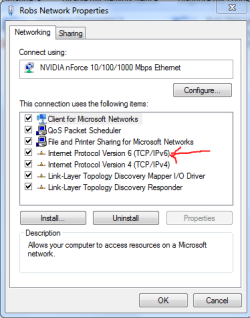
It might also be helpful to reset your router. Be sure that IPv6 is enabled in your network connections properties window "picture below". Enable DHCP in your routers set up page and make sure that all your machines are using the same default gateway and subnet mask and that all the intended Homegroup machines can successfully connect to the internet.

2. After performing those tasks use the link below to help you fix the most likely problems encountered when setting up a Homegroup network. Pay close attention that the Time/Date settings are in sync on all machines and also that the bios clock is in sync. Also notice the registry adjustment which is sometimes required to fix certain types of Homegroup set up problems.

Homegroup trouble shooter walkthrough in the link below.
http://helpdeskgeek.com/windows-7/wi...-to-homegroup/

Other relivant links below about Homegroup connection problems.

Windows 7 Homegroup Invalid Passwords Because of Date and Time Settings - Resolve the issue with a simple workaround - Softpedia

Cannot leave Homegroup

Windows 7 HomeGroup: Walkthrough

Homegroup Password is incorrect?

Cannot change active network from public to home in Windows 7

HomeGroup get an error of must have IPv6 enabled

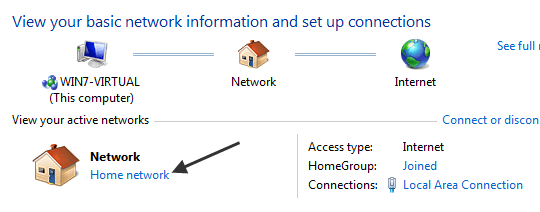
Set Network Location to Home

Another reason why you can’t access your HomeGroup is because it only works for home networks where you trust all the computers. If, for some reason, you chose Work, Public, or Domain, then HomeGroups will not work.
Click this bar to view the full image.


3. There are several reasons why you can’t access your HomeGroup. Here are the most popular reasons for not being able to connect to your HomeGroup.
If none of these troubleshooting tips work, try restarting your computer, or leave and then re-join the HomeGroup.

4. Other times there is a rogue file causing problems with Homegroups.

Open Windows explorer and navigate to the following file.

C:\Windows\ServiceProfiles\LocalService\AppData\Roaming\PeerNetworking and delete all of the files in this folder. Now restart the computer.

Go to Services again and you should be able to start 'Peer Networking Grouping' and 'Peer Name Resolution Protocol'. Restart the computer again.

When you log on this time, check the event log again, to ensure no errors concerning the two services are present and also check Services to ensure the two services concerned are running.

You should now have full functionality restored to your homegroup.


5. There are a few more things you can do if it's still not working.

Open up a command prompt and type "regedit" without the quotes then hit enter. Navigate to the following key.
[HKEY_LOCAL_MACHINE\SYSTEM\CurrentControlSet\Services\Tcpip6\Parameters]

You have to set the DisabledComponents Dword to 0

Very important> If there isn't a disabled components dword you have to create one and then set it to zero. To do this follow the next step while you are still at the same spot in the registry.

In the right pane, right-click and select New – DWORD (32-bit value) and type in it's name as> “DisabledComponents” and set its value to 0.
“0″ = Enable All IPv6 Interfaces (Default)
After that reboot your machine and see if the problem is fixed.

6. The following services need to be started for Homegroup networking to function properly. It sometimes helps to change them from Manual to Automatic.

First open a command prompt and type in services.msc then hit enter. Scroll down the list and locate the following services. Make sure that the service is started then right click on the service and choose properties, set the service to Automatic rather than Manual.

Right click the sevice, go to properties, make sure that all these services are started then Set to Automatic> DNS Client, Function Discovery Resource Publication, SSDP Discovery, Peer Networking Grouping,Peer Name Resolution Protocol, UPnP Device Host services, Homegroup listener, Homegroup provider.

For wireless connectivity with Windows 7, you need to run the network setup wizard for everything to work correctly.

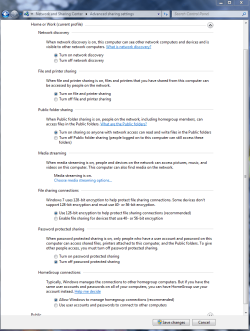
You should also make sure that your Advanced sharing settings are set like the pictures below. The public sharing window may not matter with Homegroups but it sometimes helps to set them up accordingly.

Here are a few tutorials from Brink to help you navigate though the Homegroup set up procedure.
http://www.sevenforums.com/tutorials/43961-homegroup-create.html?filter
http://www.sevenforums.com/tutorials/43972-homegroup-add-computer-join.html?filter
http://www.sevenforums.com/tutorials/43980-homegroup-leave.html?filter
 

Attachments

  • Home or work homegroup enable.PNG
    Home or work homegroup enable.PNG
    45 KB · Views: 225
  • public sharing enabled all.PNG
    public sharing enabled all.PNG
    39.7 KB · Views: 170
  • IPv6 unchecking.PNG
    IPv6 unchecking.PNG
    13.4 KB · Views: 101
Last edited:

My Computer

Computer type
PC/Desktop
Computer Manufacturer/Model Number
Home built
OS
Windows 7 Ult, Windows 8.1 Pro,
CPU
Q9650-4.275GHz, E8600 4.5GHz, E6750-3.8GHz
Motherboard
Evga 780i FTW
Memory
G.Skill PC2 9600 1200Mhz 5 5 5 15 2T
Graphics Card(s)
GTX480
Sound Card
Asus Xonar D2
Monitor(s) Displays
HannsG
Screen Resolution
1680X1050
Hard Drives
GSkill Phoenix Pro 120GB SSD
PSU
ThermalTake Toughpower 1000Watt modular
Case
ThermalTake XaserV
Cooling
Xigmatek S1283
Keyboard
Logitech G15
Mouse
Logitech G9
Internet Speed
T1
Went through it all again.

Canceled the homegroup on Comp1 and created new one. Comp2 was asked to join. After the password was entered, windows said Comp2 was unable to join the homegroup. Start troubleshooter; it is recommended that the problems are network related and I should run the network troubleshooter. Network troubleshooter is unable to detect any problems. If I run the homegroup troubleshooter anyway, its say check the time (which I have just synchro'd with time.windows).

I think that pretty much duplicates my previous experiences.
 

My Computer

Computer type
PC/Desktop
Computer Manufacturer/Model Number
Custom
OS
7 x64 Ultimate
CPU
AMD Ryzen 5
Motherboard
Gigabyte GA-AB350-Gaming
Memory
16GB DDR4
Graphics Card(s)
Radeon R7 360
Monitor(s) Displays
2 x Dell U2518D
Screen Resolution
2560x1440 2560x1440
Hard Drives
WD 500GB x2
Samsung SSD 128MB (OS)
XPG SX8200 Pro M.2 2280 1TB
PSU
Antec 500
Cooling
Hyper 212 EVO
Keyboard
Logitech cordless K800
Mouse
Logitech M510
Antivirus
Avira
solved

thanks, i finaly found that homegroup services were disabled, when reactiveted throught msconfig evrything works...
 

My Computer

OS
windows 7
CPU
intel e8500
Motherboard
gigabyte
Memory
2 Go
Graphics Card(s)
9600gt
Hard Drives
200go
2x750 go
1 To
Case
antec
Cooling
air
thanks, i finaly found that homegroup services were disabled, when reactiveted throught msconfig evrything works...


I'am not sure why some of those services seem to be disabled by default on certain machines....strange. Maybe an upgrade problem. Looks like some of what I posted actually helped someone anyway LOL>
 
Last edited:

My Computer

Computer type
PC/Desktop
Computer Manufacturer/Model Number
Home built
OS
Windows 7 Ult, Windows 8.1 Pro,
CPU
Q9650-4.275GHz, E8600 4.5GHz, E6750-3.8GHz
Motherboard
Evga 780i FTW
Memory
G.Skill PC2 9600 1200Mhz 5 5 5 15 2T
Graphics Card(s)
GTX480
Sound Card
Asus Xonar D2
Monitor(s) Displays
HannsG
Screen Resolution
1680X1050
Hard Drives
GSkill Phoenix Pro 120GB SSD
PSU
ThermalTake Toughpower 1000Watt modular
Case
ThermalTake XaserV
Cooling
Xigmatek S1283
Keyboard
Logitech G15
Mouse
Logitech G9
Internet Speed
T1
Problem solved!

Hi, I'm sure this will help many of you as I was getting exactly the same problems as a lot of you.

Firstly, I decided to address the problem when my computer was constantly resetting itself and the problem seemed to be getting more frequent.

So, I checked my event log (Computer(rightclick) > Manage > Event Viewer > Windows Logs > System). It showed me a whole bunch of errors containing two services. Either Peer Networking Grouping or Peer Name Resolution Protocol. I checked out Services (type services in the search bar on start) and found that I could not start these two services manually either. I disabled them which stopped my computer restarting itself and cleared the event log of any errors I was receiving before.

I now, however, couldn't see any other computers in my Homegroup and couldn't leave it, change what I was sharing or view the password, which are many of the symptoms you guys were receiving.

How I fixed the problem

Go to C:\Windows\ServiceProfiles\LocalService\AppData\Roaming\PeerNetworking and delete all of the files in this folder. Now restart the computer.

Go to Services again and you should be able to start 'Peer Networking Grouping' and 'Peer Name Resolution Protocol'. Restart the computer again.

When you log on this time, check the event log again, to ensure no errors concerning the two services are present and also check Services to ensure the two services concerned are running.

You should now have full functionality restored to your homegroup.

I hope this helps, let me know if it works.

Nick
 

My Computer

OS
Windows 7 x64
HERE is a very interesting solution to this age old issue............

Not withstanding ALL of the above requirements and fixes - there is one last thing that MUST be done to make HOMEGROUPS work..............

You MUST share some FOLDERS. IF there are no FOLDERS shared the system tells u there is no HOMEGROUP...................

u can not just share a DRIVE - u MUST share a folder in the drive. ANY root folder will do and it will share all the subs also.

I would like someone to figure a workaround so that I don't have to go thru ALL my root folders on a drive to share the whole drive --- what a PITA.
I guess I could make a folder "A" and put all the root folders under it. But that will require and extra click to navigate each time the drive is opened - then I could create a special shortcut to open the drive below that folder. ooohhhhhhhhhh meeeeeee
 

My Computer

OS
windows 7
HERE is a very interesting solution to this age old issue............

Not withstanding ALL of the above requirements and fixes - there is one last thing that MUST be done to make HOMEGROUPS work..............

You MUST share some FOLDERS. IF there are no FOLDERS shared the system tells u there is no HOMEGROUP...................

u can not just share a DRIVE - u MUST share a folder in the drive. ANY root folder will do and it will share all the subs also.

I would like someone to figure a workaround so that I don't have to go thru ALL my root folders on a drive to share the whole drive --- what a PITA.
I guess I could make a folder "A" and put all the root folders under it. But that will require and extra click to navigate each time the drive is opened - then I could create a special shortcut to open the drive below that folder. ooohhhhhhhhhh meeeeeee

Rather than sharing each folder from the root of the drive it's easier to just share the entire drive instead. Although this is not a good idea from a security standpoint it can be done but is more difficult because it's considered a security risk. You would be far better served by sharing the entire User folder instead of sharing the entire drive. Here is how you share the entire drive. This is sometimes required to save back ups to a particular drive.

To share the entire drive:
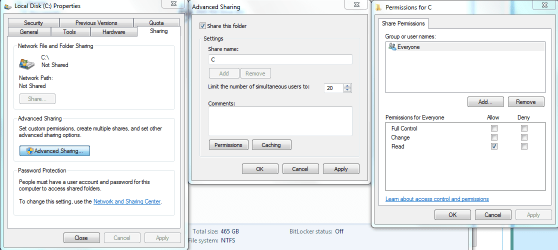
Open My Computer -> right click Local Disk D or which ever drive letter your drive is using -> select Properties -> select Security tab -> click Edit button -> click Add button -> enter the name of the User you want to set Security permissions (it is the same user name you've set the sharing permissions for, ex. Everyone will set the read permissions to every user. Put check marks in the boxes for full access and control -> click OK hit apply-> select the desired permissions -> click OK -> wait while permissions are set -> and your Done.

You will also need to use the Advanced sharing tab Sharing tab>Advanced Sharing, put a check in the box to share this folder, then click on the permissions button, then the add button, which will get you to the next page, type "Everyone" in the box, then click "ok" then use the check boxes to allow Everyone full access. Hit the apply button on both windows. The pictures below shows where you should be for this.

Everything else you are complaining about is by design and it's there for good reason. If the security wasn't as tight as it is then there would be far more complaints that it wasn't secure enough. Sharing the entire drive works fine as long as you give the sharing and security permissions to Everyone. ;)
 

Attachments

  • Advanced sharing C drive permissions.PNG
    Advanced sharing C drive permissions.PNG
    32.8 KB · Views: 55
Last edited:

My Computer

Computer type
PC/Desktop
Computer Manufacturer/Model Number
Home built
OS
Windows 7 Ult, Windows 8.1 Pro,
CPU
Q9650-4.275GHz, E8600 4.5GHz, E6750-3.8GHz
Motherboard
Evga 780i FTW
Memory
G.Skill PC2 9600 1200Mhz 5 5 5 15 2T
Graphics Card(s)
GTX480
Sound Card
Asus Xonar D2
Monitor(s) Displays
HannsG
Screen Resolution
1680X1050
Hard Drives
GSkill Phoenix Pro 120GB SSD
PSU
ThermalTake Toughpower 1000Watt modular
Case
ThermalTake XaserV
Cooling
Xigmatek S1283
Keyboard
Logitech G15
Mouse
Logitech G9
Internet Speed
T1
CHEV65
Unless u are running a different W7 than the rest of us - the point made is that if all one does is to share the drive NO one can see that drive until one ALSO shares at least ONE FOLDER. ANY OTHER folder u want to share must ALSO be shared - doing that will allow access to ALL sub-folders under that the shared folder.

IT USED TO work by just sharing a drive in older OSs. It SHOULD still work that way but it does not.
M$ infinite wisdom - They have definitely lost some.

WHATEVER I share on my system should share everything under it unless I specifically unshare a sub-folder.

Maybe some EX M$ wiz will create a startup to fix all M$ wisdom.
 

My Computer

OS
windows 7
Just wanted to reply to say I was having this issue as well. I fixed it by looking at the DHCP table on the router and discovered that the old computer which created the homegroup was for some reason still in the client list. I removed it, along with some other things that shouldn't be there, refreshed everyone's connection and problem solved. :cool:
 

My Computer

Computer Manufacturer/Model Number
Home Made
OS
Windows XP/Windows 7/Ubuntu
CPU
Intel Q6600
Motherboard
ABIT IP95-E
Memory
2GB ADATA PC2300
Graphics Card(s)
nVidia GeForce 8800GTS
Sound Card
Realtek HD Audio
Monitor(s) Displays
21'' LCD
Hard Drives
1x 250GB Internal SATA (Seagate Barracuda)
PSU
450w
Case
POS
Cooling
Next to none
Some more Ideas to solve this prob

This firewall issue is commonly found on vista and windows 7 (64 BIT OS)
This is symptom for rootkit on 64 bit systems
if you find a folder called system64
C:/WINDOWS/SYSTEM64(not the sysWOW64)
and a file called consrv.dll
C:/WINDOWS/SYSTEM32/CONSRV.DLL
You're infected by zero access rootkit.It is recommended to contact malware removal forums to remove it first and try the fix
Download both the registry files
Windows firewall - Firewall
Base filtering engine - BFE
Launch them,You should get a UAC prompt now
Click YES & Restart your PC

Now,Press Windows+ R key and type

regedit and click ok

go to

HKEY_LOCAL_MACHINE\SYSTEM\CurrentControlSet\services\BFE

Right click on it-permissions

Click on ADD and type

Everyone and click ok

Now Click on Everyone

Below you have permission for users

Select full control and click ok

Now,open RUN and type

services.msc and click ok

start base filtering engine service and then windows firewall service

You may also be missing security center and windows defender services
Download
Security center -wscsvc
Windows defender - windefend
Launch them and click YES when you get a UAC prompt
Good luck

All credit goes to the below post, NanduPradeep Kumar.

Trying to turn on Windows firewall, getting Error code 0x6D9 - Microsoft Answers
 

My Computer

OS
Windows 7 Home Premium 64bit
Back
Top