How to configure Windows 7 Explorer

PT39

New member
Local time
3:09 AM
Messages
1
How to configure Windows 7 Explorer


I moved my store of files contained in the My Documents folder from a Windows XP Home to a Windows 7 Home Premium computer.

The resulting settings of the Windows Explorer on the two computers now produce very different results for My Documents as follows


Windows XP

Opens a split screen: on each side is displayed the folder tree of files contained in My Documents. The left window has a small + next to each of the contained folders, indicating the presence of sub folders.

By repeatedly clicking on the plus signs I can drill down to display the entire contained tree of subfolders, which are sometimes four layers deep.

This permits a quick and easy way to get to a specific desired file in one of the sub-folders.


Windows 7


Opens a split screen: on the left is a top down tree of the entire computer, with “Computer highlighted, and the tree of contained folders in My Documents on the right pane. However there’s no indication that any of these folders includes sub-folders. Moreover, if I click on one of these folders, while it takes me down a level, all higher level folders are no longer visible.

The Windows XP Folder options include “Windows Classic Folders”. I'm hoping there’s an easy way to configure Windows 7 Explorer so that it behaves as earlier.
 

My Computer

OS
OS
However there’s no indication that any of these folders includes sub-folders. Moreover, if I click on one of these folders, while it takes me down a level, all higher level folders are no longer visible.

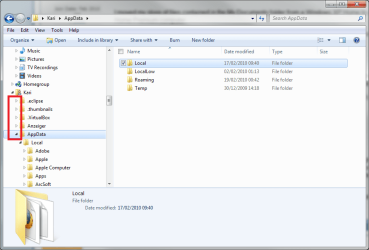
It all depends which part of the Explorer window has focus. In Seven, the + sign to tell a folder has subfolders is replaced with a small arrowhead symbols. They are visible only when mouse is hovered over the folder tree, or focus is on it.
Pics show it better:

Focus on the right pane, subfolder arrowhead symbols not shown:

Explorer_focus_right.PNG

Focus on the left pane, subfolder arrowhead symbols are shown:

Explorer_focus_left.PNG

Kari
 

My Computer

Computer type
Laptop
Computer Manufacturer/Model Number
HP ENVY 17-1150eg
OS
Windows 10 Pro x64 EN-GB
CPU
1.6 GHz Intel Core i7-720QM Processor
Memory
6 GB
Graphics Card(s)
ATI Mobility Radeon HD 5850 Graphics
Sound Card
Beats sound system with integrated subwoofer
Monitor(s) Displays
17" laptop display, 22" LED and 32" Full HD TV through HDMI
Screen Resolution
1600*900 (1), 1920*1080 (2&3)
Hard Drives
Internal: 2 x 500 GB SATA Hard Disk Drive 7200 rpm
External: 2TB for backups, 3TB USB3 network drive for media
Cooling
As Envy runs a bit warm, I have it on a Cooler Master pad
Keyboard
Logitech diNovo Media Desktop Laser (bluetooth)
Mouse
Logitech Performance Mouse MX
Internet Speed
50/10 Mbps VDSL
Antivirus
Windows Defender 4.3.9431.0
Browser
Maxthon 3.5.2., IE11
How to configure Windows 7 Explorer

Windows XP

Opens a split screen: on each side is displayed the folder tree of files contained in My Documents. The left window has a small + next to each of the contained folders, indicating the presence of sub folders.

By repeatedly clicking on the plus signs I can drill down to display the entire contained tree of subfolders, which are sometimes four layers deep.

This permits a quick and easy way to get to a specific desired file in one of the sub-folders.

I believe the only way to configure Windows 7 Explorer to look like XP's Explorer is to use the program "Classic Shell"

Welcome to Classic Shell

With this program you have a choice to install Classic Explorer, Classic Start Menu, or both. If you do not need the Classic Start Menu, like myself, just install Classic Explorer when installing the program. This will give Windows 7 Explorer the XP Explorer behavior you desire.

Steve
 

My Computer

Computer Manufacturer/Model Number
HP dv3510nr
OS
Windows 7 Professional x64
CPU
Intel Core 2 Duo P7350 2GHz (1066MHz FSB, 3MB Cache)
Memory
4GB DDR2
Graphics Card(s)
Nvidia GeForce 9300M GS with 512MB
Sound Card
IDT High Definition Audio
Monitor(s) Displays
13.3" WXGA High-Definition HP LED BrightView Widescreen
Screen Resolution
1280 x 800
Hard Drives
320GB 5400RPM SATA
==================================================
Explorer view setting
==================================================
By default, Windows Explorer opens showing the My
Documents folder. To change the default setting so
that all top-level drives and folders are shown,
follow these steps:
Click Start, point to Programs, then Accessories, then
right-click Windows Explorer, and click Properties.
Under Target field, which reads
%SystemRoot%\explorer.exe, add to make the line read
%SystemRoot%\explorer.exe /n, /e, /select, C:\
Click OK.
I love that little trick. Now when you open Windows
Explorer you get to choose from all the folders and
drives, not just My Documents.
 

My Computer

OS
win7 64
Just installed it, looks great so far!
 

My Computer

Computer Manufacturer/Model Number
Dell Latitude E6410
OS
Windows 7 Professional 64-bit
CPU
Intel Core i5 2.67 GHz
Memory
8 GB
==================================================
Explorer view setting
==================================================
By default, Windows Explorer opens showing the My
Documents folder. To change the default setting so
that all top-level drives and folders are shown,
follow these steps:
Click Start, point to Programs, then Accessories, then
right-click Windows Explorer, and click Properties.
Under Target field, which reads
%SystemRoot%\explorer.exe, add to make the line read
%SystemRoot%\explorer.exe /n, /e, /select, C:\
Click OK.
I love that little trick. Now when you open Windows
Explorer you get to choose from all the folders and
drives, not just My Documents.

Interesting except for 2 things; -1- In my case I see absolutely no difference at all and -2- I see no entry that says, "%SystemRoot%\explorer.exe," but rather what it says in my case is: %windir%\explorer.exe. I guess not all windows are built alike (I don't know if it makes a difference but mine is 64 bit)
 

My Computer

Computer type
PC/Desktop
Computer Manufacturer/Model Number
OEM Designed by me :-)
OS
Windows 7 Home Premium 64
CPU
Intel Core i5 760 @ 2800MHz
Motherboard
Asus P7P55D-E LX
Memory
12288MB
Graphics Card(s)
AMD Radeon HD 7800 Series
Sound Card
ASUS Xonar DG
Monitor(s) Displays
ViewSonic VX2453 Series, HDMI 1080p Full HD
Screen Resolution
1920X1080
Hard Drives
Samsung SSD 840 EVO 250GB& two others
PSU
Tagan BZ Series, TG800-BZ 800W
Keyboard
Logitech MK250
Mouse
Logitech M310
Internet Speed
toppest, mostest :-) <-- bad, but fun English
Browser
Firefox, Crrome, IE
Back
Top