
How to copy folder as administrator

river251

New member
Local time
8:58 PM
Messages
29
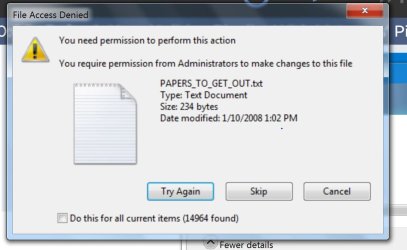
I am trying to copy a ~500gb folder from my C:/ drive to my backup E:/ drive. Most of it copies, but I ge the following error dialogue. I don't know how to copy as administrator. I causes me to lose 1400 files in the copy.
Can anybody tell me how to do this as administrator?

Thanks. Hope my attachment works.

I should add that I have given full control to all users (ADMINISTRATOR, Jim, Users, etc.).
 

Attachments
  • copy_error.JPG
    copy_error.JPG
    58.6 KB · Views: 1

My Computer

Computer type
PC/Desktop
Computer Manufacturer/Model Number
Dell Optiplex 780
OS
Microsoft Windows 7 Professional 64-bit 7601 Multiprocessor Free Service Pack 1
CPU
Intel(R) Core(TM)2 Duo CPU E8400 @ 3.00GHz
Motherboard
Dell Inc. 0C27VV
Memory
16.00 GB
Graphics Card(s)
ATI Radeon HD 5450
Sound Card
(1) AMD High Definition Audio Device (2) High Definition A
Screen Resolution
1920 x 1200 x 32 bits (4294967296 colors) @ 60 Hz
Hard Drives
(1) ST2000DM001-1CH164 (2) ST31000528AS (3) WD My Book 1130 USB Device
Try with this:

Right click on folder > Properties > Security > Advanced > Owner > Edit. Now make yourself a owner and apply.

Keep in mind that it will take time for Windows to apply this, it's all depending on how much files you have in the folder.
 
Last edited:

My Computer

Computer type
PC/Desktop
Computer Manufacturer/Model Number
Home made Desktop
OS
Windows 10 Pro. 64/ version 1709 Windows 7 Pro/64
CPU
Intel i7-6800K @ 4.3
Motherboard
ASUS X-99 Deluxe II
Memory
Corsair Platinum 16 gig @2400
Graphics Card(s)
EVGA GTX 1070 OC
Monitor(s) Displays
Asus 27" LED LCD/VE278Q
Screen Resolution
1920-1080 or 1280-720 HDMI
Hard Drives
INTEL SSD 730-240 Gb Sata 3.0/
PSU
EVGA Platium 1200W
Case
Phanteks Luxe Tempered Glass 8 fans/ one radiator
Cooling
XSPC/ Water Cooled CPU
Keyboard
Das 4 Professional
Mouse
Logitech M705/MX Anywhere 2-S
Internet Speed
100 mbits
Antivirus
Microsoft Security Essentials/ Malwarebytes Premium 3.0/ SAS
Browser
I.E. 11 default/Firefox/ ISP Time Warner Cable/Spectrum
Other Info
LG BluRay Burner/
Sound system-KLipsch-THX/
Icy Dock ssd Hot Swap bays.
Try with this:

Right click on folder > Properties > Security > Advanced > Owner > Edit. Now make yourself a owner and apply. Keep in mind that it will take time for Windows to apply this, it's all depending on the size of the folder.
That's my ideal answer , thanks
 

My Computer

Computer type
PC/Desktop
Computer Manufacturer/Model Number
Dell
OS
Windows 7 Ultimate x64
Try with this:

Right click on folder > Properties > Security > Advanced > Owner > Edit. Now make yourself a owner and apply.

Keep in mind that it will take time for Windows to apply this, it's all depending on how much files you have in the folder.

Thanks. That worked for one file. But when it's copying it says 1400 other files have the same problem. The folder security is already set to full control for all users. How can I make this change for all 1400 files?

Thanks!
Jim
 

My Computer

Computer type
PC/Desktop
Computer Manufacturer/Model Number
Dell Optiplex 780
OS
Microsoft Windows 7 Professional 64-bit 7601 Multiprocessor Free Service Pack 1
CPU
Intel(R) Core(TM)2 Duo CPU E8400 @ 3.00GHz
Motherboard
Dell Inc. 0C27VV
Memory
16.00 GB
Graphics Card(s)
ATI Radeon HD 5450
Sound Card
(1) AMD High Definition Audio Device (2) High Definition A
Screen Resolution
1920 x 1200 x 32 bits (4294967296 colors) @ 60 Hz
Hard Drives
(1) ST2000DM001-1CH164 (2) ST31000528AS (3) WD My Book 1130 USB Device
Try with this:

Right click on folder > Properties > Security > Advanced > Owner > Edit. Now make yourself a owner and apply.

Keep in mind that it will take time for Windows to apply this, it's all depending on how much files you have in the folder.


OK, maybe I didn't quite do that. I went to properties for the folder and the security tab, then edit, and for each user (User, Administrator, etc.) clicked on full control. So all users have full control. But I will try making myself the owner of the folder.

Thanks.
 

My Computer

Computer type
PC/Desktop
Computer Manufacturer/Model Number
Dell Optiplex 780
OS
Microsoft Windows 7 Professional 64-bit 7601 Multiprocessor Free Service Pack 1
CPU
Intel(R) Core(TM)2 Duo CPU E8400 @ 3.00GHz
Motherboard
Dell Inc. 0C27VV
Memory
16.00 GB
Graphics Card(s)
ATI Radeon HD 5450
Sound Card
(1) AMD High Definition Audio Device (2) High Definition A
Screen Resolution
1920 x 1200 x 32 bits (4294967296 colors) @ 60 Hz
Hard Drives
(1) ST2000DM001-1CH164 (2) ST31000528AS (3) WD My Book 1130 USB Device
You must be logged in as Administrator.

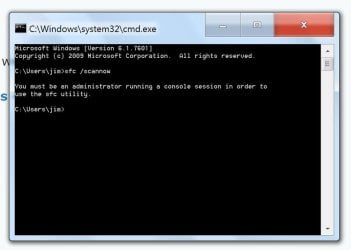
Can you open the CMD prompt and run 'sfc /scannow'?

Does the scan complete?

Please complete this tutorial by Brink so we can see your system specs.

System Info - See Your System Specs - Windows 7 Help Forums


Jack

Will do Jack, thanks much!

I'm always a bit confused by the administrator stuff. I am the only user of my PC and my user account is the administrator account (or AN administrator account, I think there is still an Administrator accouont even if it doesn't show on log in). So it never makes sense that if I am the administrator and I do something it tells me I need administrator priveledges. Makes me want to shoot my computer.

Thanks!
 

My Computer

Computer type
PC/Desktop
Computer Manufacturer/Model Number
Dell Optiplex 780
OS
Microsoft Windows 7 Professional 64-bit 7601 Multiprocessor Free Service Pack 1
CPU
Intel(R) Core(TM)2 Duo CPU E8400 @ 3.00GHz
Motherboard
Dell Inc. 0C27VV
Memory
16.00 GB
Graphics Card(s)
ATI Radeon HD 5450
Sound Card
(1) AMD High Definition Audio Device (2) High Definition A
Screen Resolution
1920 x 1200 x 32 bits (4294967296 colors) @ 60 Hz
Hard Drives
(1) ST2000DM001-1CH164 (2) ST31000528AS (3) WD My Book 1130 USB Device
If you can run sfc /scannow successfully that tells me you do have Admin privileges.

It will also tell you if your system has any System File problems.

It's a win, win.

Jack
 

My Computer

Computer type
PC/Desktop
Computer Manufacturer/Model Number
Home made Desktop
OS
Windows 10 Pro. 64/ version 1709 Windows 7 Pro/64
CPU
Intel i7-6800K @ 4.3
Motherboard
ASUS X-99 Deluxe II
Memory
Corsair Platinum 16 gig @2400
Graphics Card(s)
EVGA GTX 1070 OC
Monitor(s) Displays
Asus 27" LED LCD/VE278Q
Screen Resolution
1920-1080 or 1280-720 HDMI
Hard Drives
INTEL SSD 730-240 Gb Sata 3.0/
PSU
EVGA Platium 1200W
Case
Phanteks Luxe Tempered Glass 8 fans/ one radiator
Cooling
XSPC/ Water Cooled CPU
Keyboard
Das 4 Professional
Mouse
Logitech M705/MX Anywhere 2-S
Internet Speed
100 mbits
Antivirus
Microsoft Security Essentials/ Malwarebytes Premium 3.0/ SAS
Browser
I.E. 11 default/Firefox/ ISP Time Warner Cable/Spectrum
Other Info
LG BluRay Burner/
Sound system-KLipsch-THX/
Icy Dock ssd Hot Swap bays.
Thanks. That worked for one file. But when it's copying it says 1400 other files have the same problem. The folder security is already set to full control for all users. How can I make this change for all 1400 files?

Thanks!
Jim

Uhm, it should apply to every file in the folder (if you are setting yourself as owner in the folder settings, of course). :huh:

Anyway, if you really want a easy way to "take ownership" of folder or file, then download the .reg file below. It will add a entry in your context menu for "Take Ownership".

EDIT: I see now you posted 2 answers, the second indicating that you didn't follow the step as you should... Don't post like this, just edit your main post if you want to say something you missed to do.
 

Attachments

If you can run sfc /scannow successfully that tells me you do have Admin privileges.

It will also tell you if your system has any System File problems.

It's a win, win.

Jack

Will do thanks. Didn't have time last night but will tonight.
 

My Computer

Computer type
PC/Desktop
Computer Manufacturer/Model Number
Dell Optiplex 780
OS
Microsoft Windows 7 Professional 64-bit 7601 Multiprocessor Free Service Pack 1
CPU
Intel(R) Core(TM)2 Duo CPU E8400 @ 3.00GHz
Motherboard
Dell Inc. 0C27VV
Memory
16.00 GB
Graphics Card(s)
ATI Radeon HD 5450
Sound Card
(1) AMD High Definition Audio Device (2) High Definition A
Screen Resolution
1920 x 1200 x 32 bits (4294967296 colors) @ 60 Hz
Hard Drives
(1) ST2000DM001-1CH164 (2) ST31000528AS (3) WD My Book 1130 USB Device
Uhm, it should apply to every file in the folder (if you are setting yourself as owner in the folder settings, of course). :huh:

Anyway, if you really want a easy way to "take ownership" of folder or file, then download the .reg file below. It will add a entry in your context menu for "Take Ownership".

EDIT: I see now you posted 2 answers, the second indicating that you didn't follow the step as you should... Don't post like this, just edit your main post if you want to say something you missed to do.

Good point, will do, thank you.
 

My Computer

Computer type
PC/Desktop
Computer Manufacturer/Model Number
Dell Optiplex 780
OS
Microsoft Windows 7 Professional 64-bit 7601 Multiprocessor Free Service Pack 1
CPU
Intel(R) Core(TM)2 Duo CPU E8400 @ 3.00GHz
Motherboard
Dell Inc. 0C27VV
Memory
16.00 GB
Graphics Card(s)
ATI Radeon HD 5450
Sound Card
(1) AMD High Definition Audio Device (2) High Definition A
Screen Resolution
1920 x 1200 x 32 bits (4294967296 colors) @ 60 Hz
Hard Drives
(1) ST2000DM001-1CH164 (2) ST31000528AS (3) WD My Book 1130 USB Device
First off, Laybear, 'sfc /scannow' ONLY CHECKS WINDOWS FILES FOR ERRORS, AND WILL NOT STOP A FILE FROM BEING COPIED. That has to do with SECURITY SETTINGS.

THE MESSAGE SAYS, "YOU NEED PERMISSION TO PERFORM THIS ACTION." NOW, BY DEFAULT, DEPENDING ON THE FILE AND LOCATION, SOME FILES CAN'T BE MOVED BECAUSE SYSTEM (YOUR COMPUETER) HAS LOCKED THEM FROM BEING EDITED OR MOVED. HE WILL HAVE TO FOLLOW WEMSERT'S INSTRUCTIONS.

TO "SEE" IF HE'S ADMIN, WHY NOT JUST CLICK ON THE WINDOWS ICON ON THE BOTTOM LEFT, AND IN THE SEARCH BOX, TYPE IN USER ACC? IT WILL USER ACCOUNTS, SELECT IT, AND IT WILL TAKE YOU DIRECTLY THERE. IT WILL SAY ADMINISTRATOR RIGHT BELOW HIS USER NAME AND PICTURE. YOU ARE MAKING IT HARDER THAN IT NEEDS TO BE, RIVER. AND BESIDES, IF HE'S USING HIS "OWN" COMPUTER, OF COURSE HE'S GOING TO BE THE ADMIN. DUH.
 

My Computer

Computer type
PC/Desktop
Computer Manufacturer/Model Number
Custom built
OS
windows 7
CPU
intel core i3 4150 @ 3.5GHZ
Motherboard
Gigabyte H81M-S2PV
Memory
16GB
Graphics Card(s)
nvidia Geforce GT 730
Hard Drives
1TB WD SATA Internal, 500GB My Book, & 2TB Passport
Antivirus
AVG, AVAST, Microsoft Security Essentials
Browser
Internet Explorer, Firefox, Google Chrome
When I see this under the OP's systems specs

OS reephee was

I have to presume that the OP is not a computer professor and needs guidance.
I'm here to give guidance and using a tutorial in most cases is easier for new persons to computers.
I don't have a problem with your method, I just chose a different way. Plus we get a sfc /scannow completed if the OP is the Admin.

I know sfc checks for Windows 7 system file errors and repairs them if possible.

Sorry river251. I should of give you the tutorial by Brink to do the sfc /scannow.
Here you go.

SFC /SCANNOW Command - System File Checker - Windows 7 Help Forums

@ behutchins

Neither of us know who the computer is owned by. I try not to assume things.
While I typing this post, you do not know who owns the computer I'm using.

Also your Caps Lock button seems to be stuck on Caps.
Please check.

Jack
 

My Computer

Computer type
PC/Desktop
Computer Manufacturer/Model Number
Home made Desktop
OS
Windows 10 Pro. 64/ version 1709 Windows 7 Pro/64
CPU
Intel i7-6800K @ 4.3
Motherboard
ASUS X-99 Deluxe II
Memory
Corsair Platinum 16 gig @2400
Graphics Card(s)
EVGA GTX 1070 OC
Monitor(s) Displays
Asus 27" LED LCD/VE278Q
Screen Resolution
1920-1080 or 1280-720 HDMI
Hard Drives
INTEL SSD 730-240 Gb Sata 3.0/
PSU
EVGA Platium 1200W
Case
Phanteks Luxe Tempered Glass 8 fans/ one radiator
Cooling
XSPC/ Water Cooled CPU
Keyboard
Das 4 Professional
Mouse
Logitech M705/MX Anywhere 2-S
Internet Speed
100 mbits
Antivirus
Microsoft Security Essentials/ Malwarebytes Premium 3.0/ SAS
Browser
I.E. 11 default/Firefox/ ISP Time Warner Cable/Spectrum
Other Info
LG BluRay Burner/
Sound system-KLipsch-THX/
Icy Dock ssd Hot Swap bays.

Attachments

  • 111.JPG
    111.JPG
    43.2 KB · Views: 1

My Computer

Computer type
PC/Desktop
Computer Manufacturer/Model Number
Dell Optiplex 780
OS
Microsoft Windows 7 Professional 64-bit 7601 Multiprocessor Free Service Pack 1
CPU
Intel(R) Core(TM)2 Duo CPU E8400 @ 3.00GHz
Motherboard
Dell Inc. 0C27VV
Memory
16.00 GB
Graphics Card(s)
ATI Radeon HD 5450
Sound Card
(1) AMD High Definition Audio Device (2) High Definition A
Screen Resolution
1920 x 1200 x 32 bits (4294967296 colors) @ 60 Hz
Hard Drives
(1) ST2000DM001-1CH164 (2) ST31000528AS (3) WD My Book 1130 USB Device
Thanks. I tried making myself owner of all the folders involved that I could think of, but I still get the same error I posted in the original link.


Try with this:

Right click on folder > Properties > Security > Advanced > Owner > Edit. Now make yourself a owner and apply.

Keep in mind that it will take time for Windows to apply this, it's all depending on how much files you have in the folder.
 

My Computer

Computer type
PC/Desktop
Computer Manufacturer/Model Number
Dell Optiplex 780
OS
Microsoft Windows 7 Professional 64-bit 7601 Multiprocessor Free Service Pack 1
CPU
Intel(R) Core(TM)2 Duo CPU E8400 @ 3.00GHz
Motherboard
Dell Inc. 0C27VV
Memory
16.00 GB
Graphics Card(s)
ATI Radeon HD 5450
Sound Card
(1) AMD High Definition Audio Device (2) High Definition A
Screen Resolution
1920 x 1200 x 32 bits (4294967296 colors) @ 60 Hz
Hard Drives
(1) ST2000DM001-1CH164 (2) ST31000528AS (3) WD My Book 1130 USB Device
Hi, I did download and run this. Do I have to reboot to see the new "take ownership" in the context menu (I am trying to take ownership of a folder "MyStuff" that holds almost everything, and is on the C: drive, and everything in it). I am trying to copy these 14000 files before shutting down, my computer is having serious issues and I don't trust it to start back up. If I can get these files then I can reinstall the OS. But right now I'm stuck and looking at the prospect of losing 14000 files that I don't know what are.

Any suggestions welcome.


Uhm, it should apply to every file in the folder (if you are setting yourself as owner in the folder settings, of course). :huh:

Anyway, if you really want a easy way to "take ownership" of folder or file, then download the .reg file below. It will add a entry in your context menu for "Take Ownership".

EDIT: I see now you posted 2 answers, the second indicating that you didn't follow the step as you should... Don't post like this, just edit your main post if you want to say something you missed to do.
 

My Computer

Computer type
PC/Desktop
Computer Manufacturer/Model Number
Dell Optiplex 780
OS
Microsoft Windows 7 Professional 64-bit 7601 Multiprocessor Free Service Pack 1
CPU
Intel(R) Core(TM)2 Duo CPU E8400 @ 3.00GHz
Motherboard
Dell Inc. 0C27VV
Memory
16.00 GB
Graphics Card(s)
ATI Radeon HD 5450
Sound Card
(1) AMD High Definition Audio Device (2) High Definition A
Screen Resolution
1920 x 1200 x 32 bits (4294967296 colors) @ 60 Hz
Hard Drives
(1) ST2000DM001-1CH164 (2) ST31000528AS (3) WD My Book 1130 USB Device
Not sure I understand what you are suggesting I should do here?

First off, Laybear, 'sfc /scannow' ONLY CHECKS WINDOWS FILES FOR ERRORS, AND WILL NOT STOP A FILE FROM BEING COPIED. That has to do with SECURITY SETTINGS.

THE MESSAGE SAYS, "YOU NEED PERMISSION TO PERFORM THIS ACTION." NOW, BY DEFAULT, DEPENDING ON THE FILE AND LOCATION, SOME FILES CAN'T BE MOVED BECAUSE SYSTEM (YOUR COMPUETER) HAS LOCKED THEM FROM BEING EDITED OR MOVED. HE WILL HAVE TO FOLLOW WEMSERT'S INSTRUCTIONS.

TO "SEE" IF HE'S ADMIN, WHY NOT JUST CLICK ON THE WINDOWS ICON ON THE BOTTOM LEFT, AND IN THE SEARCH BOX, TYPE IN USER ACC? IT WILL USER ACCOUNTS, SELECT IT, AND IT WILL TAKE YOU DIRECTLY THERE. IT WILL SAY ADMINISTRATOR RIGHT BELOW HIS USER NAME AND PICTURE. YOU ARE MAKING IT HARDER THAN IT NEEDS TO BE, RIVER. AND BESIDES, IF HE'S USING HIS "OWN" COMPUTER, OF COURSE HE'S GOING TO BE THE ADMIN. DUH.
 

My Computer

Computer type
PC/Desktop
Computer Manufacturer/Model Number
Dell Optiplex 780
OS
Microsoft Windows 7 Professional 64-bit 7601 Multiprocessor Free Service Pack 1
CPU
Intel(R) Core(TM)2 Duo CPU E8400 @ 3.00GHz
Motherboard
Dell Inc. 0C27VV
Memory
16.00 GB
Graphics Card(s)
ATI Radeon HD 5450
Sound Card
(1) AMD High Definition Audio Device (2) High Definition A
Screen Resolution
1920 x 1200 x 32 bits (4294967296 colors) @ 60 Hz
Hard Drives
(1) ST2000DM001-1CH164 (2) ST31000528AS (3) WD My Book 1130 USB Device
Hi Jack, sfw /scannow did not run, saying I need to be admin. I will try your tutorial now, thanks again for your help.


When I see this under the OP's systems specs


I have to presume that the OP is not a computer professor and needs guidance.
I'm here to give guidance and using a tutorial in most cases is easier for new persons to computers.
I don't have a problem with your method, I just chose a different way. Plus we get a sfc /scannow completed if the OP is the Admin.

I know sfc checks for Windows 7 system file errors and repairs them if possible.

Sorry river251. I should of give you the tutorial by Brink to do the sfc /scannow.
Here you go.

SFC /SCANNOW Command - System File Checker - Windows 7 Help Forums

@ behutchins

Neither of us know who the computer is owned by. I try not to assume things.
While I typing this post, you do not know who owns the computer I'm using.

Also your Caps Lock button seems to be stuck on Caps.
Please check.

Jack
 

My Computer

Computer type
PC/Desktop
Computer Manufacturer/Model Number
Dell Optiplex 780
OS
Microsoft Windows 7 Professional 64-bit 7601 Multiprocessor Free Service Pack 1
CPU
Intel(R) Core(TM)2 Duo CPU E8400 @ 3.00GHz
Motherboard
Dell Inc. 0C27VV
Memory
16.00 GB
Graphics Card(s)
ATI Radeon HD 5450
Sound Card
(1) AMD High Definition Audio Device (2) High Definition A
Screen Resolution
1920 x 1200 x 32 bits (4294967296 colors) @ 60 Hz
Hard Drives
(1) ST2000DM001-1CH164 (2) ST31000528AS (3) WD My Book 1130 USB Device
River251
The bit you seemed to have missed in running sfc /scannow is you need to hit the Windows key then type cmd in the search box then right click "cmd.exe" in the context window that opens and choose "run as administrator". Then type sfc /scannow and hit Enter and the command will run.
 

My Computer

Computer type
PC/Desktop
OS
Microsoft Windows 7 Home Premium 64-bit 7601 Multiprocessor Free Service Pack 1
CPU
Intel(R) Core(TM) i7-3770 CPU @ 3.40GHz
Motherboard
ASUSTeK COMPUTER INC. P8H77-M
Memory
8.00 GB
Graphics Card(s)
Intel(R) HD Graphics 4000
Sound Card
On Board
Monitor(s) Displays
Dell 24"
Screen Resolution
1920 x 1080
Hard Drives
(1) INTEL SSDSC2CT180A3 ATA Device (2) ST500DM002-1BD142 ATA Device (3) WDC WD3200AAKS-75L9A0 ATA Device (4) Generic- Compact Flash USB Device (5) Generic- MS/MS-Pro USB Device (6) Generic- SD/MMC USB Device (7) Generic- SM/xD-Picture USB
PSU
500w Corsair
Case
Cooler Master
Cooling
3 Fans
Keyboard
Logitech MK300
Mouse
Logitech WOM
Internet Speed
75Mb
Antivirus
Norton 360
Browser
Firefox, Opera, IE
As mitchell65 said, don't forget that you need to right click CMD and choose "Run as administrator" to execute most commands.

By the way, did I understand that you've messed with the permissions of system folders? I need to know this so that I can show you how to restore the permissions...
 
Back
Top