I just don't understand why even suggest using a bunch of third party apps to do a job that is incredibly simple to do with Windows' own features?
George, here's how. Just type the search parameters as described below to
Explorer's search field.
1. If you know the exact date you downloaded the file:
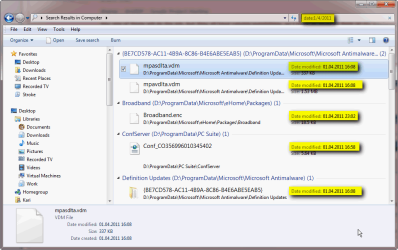
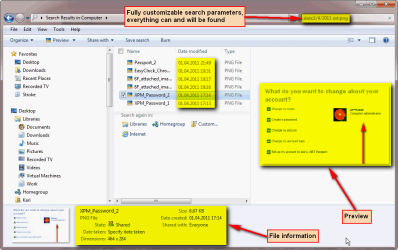
This would find all files saved or modified yesterday, April 1st. Please notice the date format must be the same used by your computer, in my case European D/M/Y, in USA for instance it would be M/D/Y so instead 1/4/2011 you would need 4/1/2011.
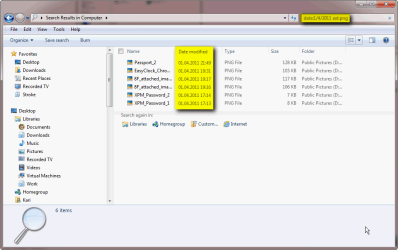
The more information you give to the search, the more you can narrow the search. For instance you can add file type to search parameters; the following would find all PNG image files saved or modified yesterday (add ext:XXX to search where XXX is the file extension you are looking for):
 2.
2. If you do not know the exact date but you know the time frame:
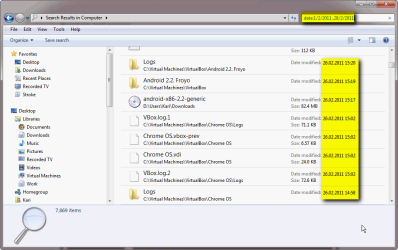
This would find all files saved or modified between 1st and 28th of February this year, both dates
included. You can also exclude dates:
This would find all files saved or modified between 1st and 28th of February this year, both dates
excluded.
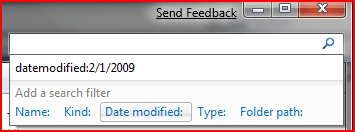
3. Using search parameter
datemodified: you can select time frame with mouse using a calendar:
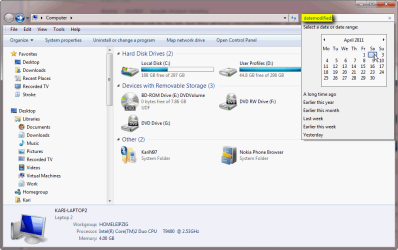
Please notice that Windows searches on that location where you are and downwards i.e. if you open
Users folder and do a search, the search looks only the
Users folder and its subfolders, or if you open drive
D: and do a search, it looks only the drive
D: and its subfolders. Therefore, if you want to search whole computer, you need to open
Computer in Explorer.
Also worth to notice is that searching from Start Menu > Search only searches indexed locations, whereas Explorer search also searches non-indexed locations.
There really is no need to use any third party search tools in Seven, although I have to admit that using this extremely simple and powerful tool (Windows Search) seems to be too difficult to some

More about Windows Search:
Kari



 Kari
Kari


