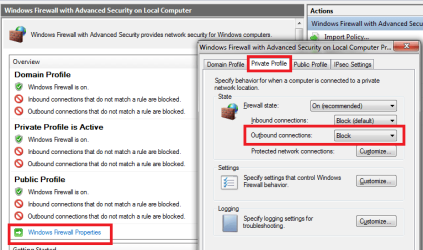
My original plan involved electronically searching the exported text/CSV info.
Since there are no IP addresses (or range of addresses), I'm not sure what to look for next.
You might have to:
...disable one rule
...test surfing to speedtest.net
...re-enable that one rule
Repeat until you find the culprit(s).
Yeah was really confusing to see nothing

, but with your other info im not really sure how to do the test surfing/disable one rule. Youll have to put it in baby terms/steps, as it is my first time lol.
Sorry - I was not in a place where I could easily post images and I was in a rush. Also, I'm not an expert on the Windows Firewall. The info that you seeing me post is just what comes to mind. It is probably not the most efficient way to search for the rule that is blocking you from getting to sppedtest.net. But like I said, it is just what came to my mind. I'm learning about this right along with you. So don't be surprised if some of the stuff that I post is wrong and makes no sense at all

As I recall, when you turned off the entire Windows firewall, you could surf to speedtest.net. So, my thinking is: you must turn the Windows firewall back on and then work thru each rule that could be blocking you from getting to speedtest.net.
You could use the half-splitting principle to find the offending rule (e.g. disable half of the rules that were enabled to see if the offending rule is in that half). But it is too easy to lose track of which rules should be disabled by default; thus, my suggestion that you work thru each applicable rule one at a time.
1) Open the MMC applet that lets you see the
Windows Firewall with Advanced Security.
2) Sort the
Outgoing Rules by the column named
Action.
3) Look thru all of the rules for ones that say
Block as the
Action.
4) If there are no rules that say
Block as the
Action, then I'm not sure what to do next. You can stop doing these steps at this point. If there are "blocking" rules, then go on to step 5.
5) When firewall rules are enabled, they should have a green icon to the left of the rule in the center pane of the
Windows Firewall with Advanced Security MMC. Locate the first enabled "blocking"
Outgoing Rule, right click on that rule and select
Disable from the context menu.
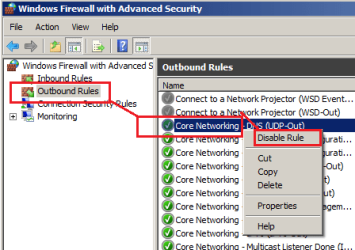
6) Open up any browser and try to surf to speedtest.net.
6a) If you can get to speedtest.net, then the rule that you just disabled is the one that is blocking your connection to speedtest.net. Please let us know what rule that is.
6b) If you can NOT get to speedtest.net, then the rule that you just disabled is the NOT one that is blocking your connection to speedtest.net.
7) Re-enable the rule that was disabled in step 5. Even if it is the one that is blocking you from getting to speedtes.net. We want to talk about that rule before you leave it disabled.
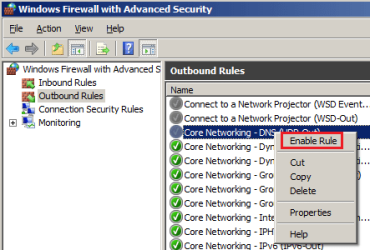
8) Repeat steps 5, 6 and 7 for each "blocking" rule that is enabled.