I have Dual Boot problems (Win 7 & XP)

Don69

New member
Local time
7:55 AM
Messages
19
I have one hard drive. It's divided in 4 partitions (I did 3, Windows did 1). First I installed Win 7 RC 64-bit, which ended up on partition 2 as Windows created a 100 MB System Reserved as partition 1. Then I installed Win 7 64-bit again on the third partition. I managed to use BCDEDIT to change boot order and names of the two OS's. Everything worked fine.

Then I installed Windows XP 32-bit on the last partition. When booting, I could no longer choose the Windows 7 installation. I saw that Windows XP now had copied a boot.ini file to the C:\ drive (now the System Reserve Drive in XP). I tried to fiddle with that file bit to no avail. I then renamed the file so Win wouldn't see it, and rebooted, in hopes that the lack of boot.ini would trigger Win 7 boot system instead.

Well, I was wrong (you can laugh). Now when I boot it says "Windows could not start because the following file is missing or corrupt: <Windows root>\system32\hal.dll. Please re-install a copy of that above file.

If someone could help me get back, I would greatly appreciate it.

Things I'm thinking:
Maybe delete the XP partition in the Win 7 install menu, but I'm thinking XP may have put more files on the C:\ drive that needs to be removed anyway.

Run repair from the Win 7 install DVD?

Run a DOS prompt so I can rename boot.ini again so I at least can get back into XP and go from there. How do you start a DOS prompt? I have Win XP and Win 7 install DVDs.

Thanks,
Don
 

My Computer

OS
Windows 7 RC
First off you came to the right place namely the Se7enforums!

The problem from the start is trying to edit the boot loader for the older version of Windows in order to see the newer version load as well. It won't work!

If you had originally installed XP on the first primary and later 7 on one of the others the new 7 boot loader would have seen XP as the "previous version of Windows" option when first starting up. Fortunately there is a way to see the 7 boot entries restored and add XP into the 7 boot loader the way it is. http://www.sevenforums.com/tutorials/8057-dual-boot-installation-windows-7-xp.html

Method #2 is the one you want to review there along with downloading the free BCD editing tool from the link included in the tutorial. That will get things corrected for you rather fast if done correctly. :D
 

My Computers

System One System Two

  • Computer type
    PC/Desktop
    Computer Manufacturer/Model Number
    Custom builds = 2
    OS
    W7 Ultimate x64/W10 Pro x64/W11 Pro Triple Boot - Main PC W7 Remote PC Micro ATX W7 Pro x64/W11 Pro
    CPU
    AMD Phenom II X4 975 Deneb 3.6ghz - 965 2nd remote pc
    Motherboard
    Gigabyte GA-790XTA-UD4-Gigabyte GA-880GM-D2H remote pc
    Memory
    Kingston Hyper X DDR3 1600 1.5v 16gb - Hyper X Fury 8gb 2nd
    Graphics Card(s)
    MSI HD Radeon 5750 1gb - MSI HD Radeon 6450 on mini tower
    Sound Card
    Creative Labs X-Fi Xtreme Audio P - Realtek onooard 2nd case
    Monitor(s) Displays
    ASUS VW199T-P 19" HP 2082a Main-HP 2082a 20" remote pc
    Screen Resolution
    Asus 1440x900 - HP 1600x900
    Hard Drives
    WD Black 1TB HD per OS W7, W10, and pending W11 presently on 500gb OS Drive - Pending Triple 1TB HDs for Spanned Storage/backup volume
    Single 2TB external USB enclosure, single 1TB System 7 Host/Boot drive, Pending 8TB external HD for system image b
    PSU
    Corsair 750TX - primary / Corsair CX600 - second
    Case
    Antec 900-2 - SSD compatible / NZXT Vulcan mini tower
    Cooling
    Zalman CNPS9900A
    Keyboard
    AZIO L70 Backlit Letters Gaming - ONN Cordless/USB
    Mouse
    MSI DS200 Programmable, Logitech Cordless
    Internet Speed
    30mbps upgrade - primary hard wired - mini tower usb WiFi
    Antivirus
    GFI VIPRE Internet Security 2014 on W7 2016 beta on W10,
    Browser
    Cyberfox, WaterFox 64bit FF variants, FireFox x64, Pale Moon
    Other Info
    Accomdata fan cooled usb 2.0 PIDE/Sata II, III external enclosure.
    Sambient usb/eSata PATA/Sata II, III external enclosure.
  • Computer type
    PC/Desktop
    System Manufacturer/Model Number
    CUSTOM ASSEMBLY
    OS
    W7 Pro x64/W11 Pro
    CPU
    AMD Deneb 3.6ghz - 965
    Motherboard
    Gigabyte GA-880GM-D2H remote pc
    Memory
    Kingston Hyper X Fury 8gb
    Graphics Card(s)
    MSI HD Radeon 6450 DVI Output
    Sound Card
    Realtek onooard Creative or Other separate PENDING
    Monitor(s) Displays
    VIZIO 32" LCD TV Separate LCD Pending
    Screen Resolution
    1600x1080
    Hard Drives
    WD 500GB OS Host/Boot WD Green 1TB Storage/Backup
    PSU
    Corsair 600W - THERMALTAKE 600W spare case
    Case
    NZXT Vulcan mini tower
    Cooling
    Twin 120mm Top Fans - 240mm Side Cover
    Keyboard
    ONN Cordless/USB Logitech Cordless
    Mouse
    ONN USB/Cordless - Logitech Cordless
    Internet Speed
    DSL 5G
    Browser
    MS Edge, FireFox, WaterFox x64, FireFox Nightly
    Other Info
    OS Testing-Remote Access to Main TeamViewer
Thanks Night Hawk for you quick reply. I had already found that tutorial. However, I can't boot to any OS because I renamed the boot.ini file to boot.ini.old. I only get the error message as in my last post.

What can I do to get XP to boot, so that I may follow the steps in Method 2 that you gave me. Can I somehow get in to a command prompt and change the name back to boot.ini? Or do you have a better suggestion?

Also, what would happen if I simply deleted the XP partition (partition 4)? I'm however afraid that the XP installation has already contaminated the System Reserved partition (partition 1) as it put boot.ini there and possibly other files as well.

What cause of action should I take if I simply want the Windows 7 boot loader to load instead of the XP one?
 

My Computer

OS
Windows 7 RC
Also, what would happen to Windows 7 if I reformatted partition 1, the 100 MB System Reserved partition (as XP put boot.ini etc. here)? Would Win 7 recreate it or would it cause Windows 7 not to work?

If I reformatted this partition and the XP partition, just leaving my two Windows 7 partitions, would Windows 7 boot then as before?
 

My Computer

OS
Windows 7 RC
Why don't you start everything from scratch? (Backup your important files first) First boot into the XP cd and re-format all your partitions, and install XP on 1 of the partitions. Then boot into the 7 dvd and install it on the other partition. Simple as it can be. ;)
 

My Computer

Computer type
Laptop
Computer Manufacturer/Model Number
Samsung
OS
Windows 8 x64
CPU
Intel Core i7 3630QM
Motherboard
Intel HM76
Memory
Samsung 8 GB DDR3 800 Mhz
Graphics Card(s)
ATI Radeon HD Graphics 7670M + Intel HD Graphics 4000
Screen Resolution
1366x768
Hard Drives
SAMSUNG Spinpoint M8 1TB
Internet Speed
4 Mb/sDownload Speed, 2 Mb/s Upload Speed
Antivirus
avast!
The first step now even if you hadn't renamed the boot.ini file is to boot from the 7 dvd you burned if you used that method to install 7 from the start. Right when reaching the Install Now screen with the button seen there when booted from the dvd look down below that for the repair tools.

When clicking on that the 7 installer will search for any 7 installations and list those. From there you click the next button and look at the top of the next screen to select the startup repair option. That will rewrite the 7 mbr entries.

Once 7 boots up normally again you can simply rename the boot.ini back and copy it to the root of C. You'll need to do that anyways in order to use the EasyBCD tool in order to add the new XP entry into the boot options for 7.

Your other option would invlove nuking the first two primaries with a drive tool like GParted live to see one single larger primary created for 7 and not even touching the XP primary. A new clean install of 7 would automatically see XP added into the 7 loader. From there you simply rename the boot.ini back the way it should be before trying to boot into XP again.

To go one step further provided you first back anything you want from the drive would be nuking all but the first primary C and then proceed to reformat that one as well as creating a brand new second primary this time for 7. You first install XP according to method #1 onto the first now larger C primary followed by seeing 7 go on last.

With both seeing fresh installs you can then rename the "previous versions of Windows" entry in the 7 boot menu to Windows XP Home or Pro or simply Windows XP once the EasyBCD tool is on. To preserve the new boot screen for 7 however you wouldn't install the EasyBCD tool since that wouldn't be needed already seeing XP added into the boot loader but download the BCD editor tool for the 64bit Vista that will work on the 64bit RC as well.

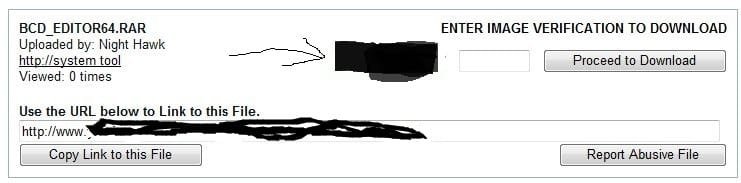
Since I couldn't relocate the site that carried both the 32bit and 64bit versions of the BCD Editor I uploaded the 64bit to a free file sharing host. YourFileHost.com - Free hosting for ALL your files -S

The screenshots for the 32bit version however still show how that works. System Tools - BCD Editor

Once 7 is up and running you simply double click on the BCD Editor file itself. Once you highlight the preversion version entry click on the "set description" button to rename that to Windows XP. Meanwhile I'll test the link here to see how that went.

You have to enter whatever characters are seen in the small box and then click the download button. Ignore the ads and other lame stuff on the page once you get there! :rolleyes:
 

Attachments

  • BCD64 DOWNLOAD.jpg
    BCD64 DOWNLOAD.jpg
    26.4 KB · Views: 40

My Computers

System One System Two

  • Computer type
    PC/Desktop
    Computer Manufacturer/Model Number
    Custom builds = 2
    OS
    W7 Ultimate x64/W10 Pro x64/W11 Pro Triple Boot - Main PC W7 Remote PC Micro ATX W7 Pro x64/W11 Pro
    CPU
    AMD Phenom II X4 975 Deneb 3.6ghz - 965 2nd remote pc
    Motherboard
    Gigabyte GA-790XTA-UD4-Gigabyte GA-880GM-D2H remote pc
    Memory
    Kingston Hyper X DDR3 1600 1.5v 16gb - Hyper X Fury 8gb 2nd
    Graphics Card(s)
    MSI HD Radeon 5750 1gb - MSI HD Radeon 6450 on mini tower
    Sound Card
    Creative Labs X-Fi Xtreme Audio P - Realtek onooard 2nd case
    Monitor(s) Displays
    ASUS VW199T-P 19" HP 2082a Main-HP 2082a 20" remote pc
    Screen Resolution
    Asus 1440x900 - HP 1600x900
    Hard Drives
    WD Black 1TB HD per OS W7, W10, and pending W11 presently on 500gb OS Drive - Pending Triple 1TB HDs for Spanned Storage/backup volume
    Single 2TB external USB enclosure, single 1TB System 7 Host/Boot drive, Pending 8TB external HD for system image b
    PSU
    Corsair 750TX - primary / Corsair CX600 - second
    Case
    Antec 900-2 - SSD compatible / NZXT Vulcan mini tower
    Cooling
    Zalman CNPS9900A
    Keyboard
    AZIO L70 Backlit Letters Gaming - ONN Cordless/USB
    Mouse
    MSI DS200 Programmable, Logitech Cordless
    Internet Speed
    30mbps upgrade - primary hard wired - mini tower usb WiFi
    Antivirus
    GFI VIPRE Internet Security 2014 on W7 2016 beta on W10,
    Browser
    Cyberfox, WaterFox 64bit FF variants, FireFox x64, Pale Moon
    Other Info
    Accomdata fan cooled usb 2.0 PIDE/Sata II, III external enclosure.
    Sambient usb/eSata PATA/Sata II, III external enclosure.
  • Computer type
    PC/Desktop
    System Manufacturer/Model Number
    CUSTOM ASSEMBLY
    OS
    W7 Pro x64/W11 Pro
    CPU
    AMD Deneb 3.6ghz - 965
    Motherboard
    Gigabyte GA-880GM-D2H remote pc
    Memory
    Kingston Hyper X Fury 8gb
    Graphics Card(s)
    MSI HD Radeon 6450 DVI Output
    Sound Card
    Realtek onooard Creative or Other separate PENDING
    Monitor(s) Displays
    VIZIO 32" LCD TV Separate LCD Pending
    Screen Resolution
    1600x1080
    Hard Drives
    WD 500GB OS Host/Boot WD Green 1TB Storage/Backup
    PSU
    Corsair 600W - THERMALTAKE 600W spare case
    Case
    NZXT Vulcan mini tower
    Cooling
    Twin 120mm Top Fans - 240mm Side Cover
    Keyboard
    ONN Cordless/USB Logitech Cordless
    Mouse
    ONN USB/Cordless - Logitech Cordless
    Internet Speed
    DSL 5G
    Browser
    MS Edge, FireFox, WaterFox x64, FireFox Nightly
    Other Info
    OS Testing-Remote Access to Main TeamViewer
While not disagreeing with anything Night Hawk says above, (very useful, and true)... I always opt for the simplest solution:

I hope you kept your XP installation in tact, I se you may have deleted it. After installing the DownLevel OS (XP), you can get Win7 back on the OS boot list by simply running Win7 Setup, and launching the repair consol. This will automatically setup dual/tri booting for all configured OS's installed.

Hope this helps, and let us know how it's going.

-D
 

My Computer

Computer Manufacturer/Model Number
Myself
OS
Windows 7 64bit Ultimate Build 7268.0.090701-1900
CPU
Quad CPU Q6600 @ 2.4GHz
Memory
4GB 6400 Dual Channel
Graphics Card(s)
1GB DDR3 x16 + 512mb ddr2 x1
Sound Card
I dunno, but it puts out a good 7.1 sur through the fiber :D
Monitor(s) Displays
Quad-Monitor display (check out the photo)
Screen Resolution
1200x1600
Hard Drives
(2 x 1TB) + (1 x 500Gb)

tip: Always run your OS on a small Disk with away from your large storage files, and make sure theirs plenty of Cache (32mb recommnded).
PSU
1000w
Case
a block of wood
Cooling
Intel Standard. tip: Dont overclock with beta win7...
Internet Speed
15meg
Thank guys, the repair trick worked and I got my two Win 7 installations back. However, the XP install, which I did not delete, does not show up in the boot list.

I can't find a way to access and rename the boot.ini file. When I installed XP, the boot.ini was put on partition 1, the 100 MB System Reserved partition, which XP saw as C:\. I have not found a way to access this partition from within Win 7. "Explore" is grayed out when I right-click on that partition in Disk Management. I've also tried to pull up a command prompt, but the System Reserve Partition doesn't seem to have been assigned a drive letter in Win 7, as it had in Win XP.

Any ideas where to go from here?
 

My Computer

OS
Windows 7 RC
copy from your xp this three to the seven-bootpartition: ntldr & ntdetect.com & boot.ini
i.e.: xp on first part.:
[boot loader]
default=multi(0)disk(0)rdisk(0)partition(1)\WINDOWS
[operating systems]
multi(0)disk(0)rdisk(0)partition(1)\WINDOWS="XP (Partition 1)"

then download "EasyBCD 1.7.2" , install and add .... easy by doing

mfg
eduardo
 

My Computer

OS
XP-prof & windows7 & suse
Hi Don,

If you assign a drive letter to the System partition , you should be able to access boot.ini.

Try rt click it in Disk Management an assign the next available drive letter.

Or open an elevated cmd and type:

C:\Windows\system32>DISKPART {enter}

DISKPART> SEL DISK 0 {enter}

Disk 0 is now the selected disk.

DISKPART> SEL PAR 1 {enter}

Partition 1 is now the selected partition.

DISKPART>ASS {enter}

DISKPART>EXI {enter}

leaving Diskpart...

Close cmd prompt

You will probably find it says something like this:

;
;Warning: Boot.ini is used on Windows XP and earlier operating systems.
;Warning: Use BCDEDIT.exe to modify Windows 7 boot options.
;
[boot loader]
timeout=30
default=multi(0)disk(0)rdisk(0)partition(4)\WINDOWS
[operating systems]
multi(0)disk(0)rdisk(0)partition(4)\WINDOWS="Windows XP" /FASTDETECT /NOEXECUTE=OPTIN

There is one here if you need it :

View attachment BOOT.INI.zip
 

My Computers

System One System Two

  • Computer type
    PC/Desktop
    OS
    7 X64
    CPU
    i5 8400
    Motherboard
    gigabyte b365m ds3h
    Memory
    2x8gb 3200mhz
    Hard Drives
    various
    PSU
    pure power 11 400w cm
    Case
    Coolermaster
    Cooling
    cryorig m9i
  • Computer type
    PC/Desktop
    OS
    7x64
    CPU
    g5400
    Motherboard
    ga b365m ds3h
    Memory
    8gb ddr4 2400
    PSU
    xfx pro 450w
It's working now. After assigning a drive letter to the System partition I could change back the name of boot.ini file. Then I ran EasyBCD on Win 7 and was able to add the XP boot from there. Thanks guys for amazing help.
 

My Computer

OS
Windows 7 RC
You're welcome Don - glad it's working for you.:D
 

My Computers

System One System Two

  • Computer type
    PC/Desktop
    OS
    7 X64
    CPU
    i5 8400
    Motherboard
    gigabyte b365m ds3h
    Memory
    2x8gb 3200mhz
    Hard Drives
    various
    PSU
    pure power 11 400w cm
    Case
    Coolermaster
    Cooling
    cryorig m9i
  • Computer type
    PC/Desktop
    OS
    7x64
    CPU
    g5400
    Motherboard
    ga b365m ds3h
    Memory
    8gb ddr4 2400
    PSU
    xfx pro 450w
Always glad to hear the good news! :D It generally goes well with a few basic items.

When first setting up the 32bit 7 beta in a dual boot on the former XP drive here the XP primary being the first partition was simply seen as the boot sector until seeing that partition mounted in 7 and assigned the D drive letter.

When booted in XP the 7 primary was designated as the D drive there. This is one common recommendation for dual booting on the same drive it seems.

The boot screen problem seems to be a NetFramework 4.0 issue while running a NetFramework 2.0 program namely the EasyBCD tool. You may be able to restore the 7 boot screen by using the startup repair tool in the 7 dvd repair tools section. You should have noticed the Vista scroll bar splash screen by now.
 

My Computers

System One System Two

  • Computer type
    PC/Desktop
    Computer Manufacturer/Model Number
    Custom builds = 2
    OS
    W7 Ultimate x64/W10 Pro x64/W11 Pro Triple Boot - Main PC W7 Remote PC Micro ATX W7 Pro x64/W11 Pro
    CPU
    AMD Phenom II X4 975 Deneb 3.6ghz - 965 2nd remote pc
    Motherboard
    Gigabyte GA-790XTA-UD4-Gigabyte GA-880GM-D2H remote pc
    Memory
    Kingston Hyper X DDR3 1600 1.5v 16gb - Hyper X Fury 8gb 2nd
    Graphics Card(s)
    MSI HD Radeon 5750 1gb - MSI HD Radeon 6450 on mini tower
    Sound Card
    Creative Labs X-Fi Xtreme Audio P - Realtek onooard 2nd case
    Monitor(s) Displays
    ASUS VW199T-P 19" HP 2082a Main-HP 2082a 20" remote pc
    Screen Resolution
    Asus 1440x900 - HP 1600x900
    Hard Drives
    WD Black 1TB HD per OS W7, W10, and pending W11 presently on 500gb OS Drive - Pending Triple 1TB HDs for Spanned Storage/backup volume
    Single 2TB external USB enclosure, single 1TB System 7 Host/Boot drive, Pending 8TB external HD for system image b
    PSU
    Corsair 750TX - primary / Corsair CX600 - second
    Case
    Antec 900-2 - SSD compatible / NZXT Vulcan mini tower
    Cooling
    Zalman CNPS9900A
    Keyboard
    AZIO L70 Backlit Letters Gaming - ONN Cordless/USB
    Mouse
    MSI DS200 Programmable, Logitech Cordless
    Internet Speed
    30mbps upgrade - primary hard wired - mini tower usb WiFi
    Antivirus
    GFI VIPRE Internet Security 2014 on W7 2016 beta on W10,
    Browser
    Cyberfox, WaterFox 64bit FF variants, FireFox x64, Pale Moon
    Other Info
    Accomdata fan cooled usb 2.0 PIDE/Sata II, III external enclosure.
    Sambient usb/eSata PATA/Sata II, III external enclosure.
  • Computer type
    PC/Desktop
    System Manufacturer/Model Number
    CUSTOM ASSEMBLY
    OS
    W7 Pro x64/W11 Pro
    CPU
    AMD Deneb 3.6ghz - 965
    Motherboard
    Gigabyte GA-880GM-D2H remote pc
    Memory
    Kingston Hyper X Fury 8gb
    Graphics Card(s)
    MSI HD Radeon 6450 DVI Output
    Sound Card
    Realtek onooard Creative or Other separate PENDING
    Monitor(s) Displays
    VIZIO 32" LCD TV Separate LCD Pending
    Screen Resolution
    1600x1080
    Hard Drives
    WD 500GB OS Host/Boot WD Green 1TB Storage/Backup
    PSU
    Corsair 600W - THERMALTAKE 600W spare case
    Case
    NZXT Vulcan mini tower
    Cooling
    Twin 120mm Top Fans - 240mm Side Cover
    Keyboard
    ONN Cordless/USB Logitech Cordless
    Mouse
    ONN USB/Cordless - Logitech Cordless
    Internet Speed
    DSL 5G
    Browser
    MS Edge, FireFox, WaterFox x64, FireFox Nightly
    Other Info
    OS Testing-Remote Access to Main TeamViewer
Back
Top