Installation problem

First of all, let me thank you guys for all the help so far. Also thanks for the tutorials and the youtube link. Those are very informative.
I want to assure you that I am reading and studying for all I am worth, not just leaning on you guys.
Also, I shall stay with this project until it succeeds or the computer bursts into flames.

Greg,
fwiw, the win xp partitions look normal to me, and the xp boot files are present in the OS partition. Does the C: partition look normal to you?
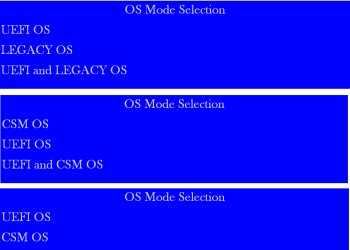
As to installation, I think that the installation from the factory disks is pretty much automatic, and no option is offered for UEFI or Legacy.

Theog,
This BIOS is a UEFI type, but that Secure Boot screen in post 19 is not available.
On the HP page cited in post 19, go to: Security Menu > Secure Boot Configuration
There is a note that says:
NOTE: This option is available only with BIOS 8 and on computers with Windows 8 installed.

Also, The only thing I don't remember on the win 7 disk is that 128 mb partition called "Other". It may be normal, I don't know and don't remember seeing it before. I don't have a screenshot of the HDD before this problem started.

I have a tentative plan. Let me know what you guys think, especially if there are any bombs I have overlooked.

Before starting, though, one question: Can you guys think of any reason why creating those new partitions on the win xp HDD would cause the win 7 computer to go to it first, and apparently mess up the win 7 boot manager? Remember that it was not attached to the win 7 computer when the partitioning was done. And that is the only change I have made to either HDD.

OK, heres the plan:
1st, use Partwiz to combine the 3 new partitions on the win xp hdd into one extended partition formatted NTFS. Leave the C: partition alone.
- try to boot from the boot menu. If no go,
2nd, restore this BIOS to defaults using the available screens in the BIOS itself. AN HP helper said that that option restores the BIOS to its original state. That state worked with both win 7 and win xp from the one time boot menu.
- try to boot from the boot menu. If no go,
3rd, if these efforts fail, reinstall win 7 from the factory disks, then reinstall win xp from the .iso disk I used initially. Greg, I read your tutorials and they are really good. However, I am content to just reinstall from the factory disks and endure the HP bloatware. Its just quicker/easier, is all.
 

My Computer

OS
Windows 7 Home Premium
Can you take a screenshot of CSM in the BIOS.
 

My Computer

OS
ME/XP/Vista/Win7
There is no screen nor setting in this BIOS that will give me anything that says CSM.
There is this screen, called "Boot Order" which can be accessed thru the BIOS or thru f10. Looks like it shows what devices boot in which mode. Could this be the HP equivalent of the CSM?

This is what the boot order (f10) looked like in 2012. This is identical to one of those pictures on the HP page.

.

This is what it looks like now. As you can see, it has changed since that first picture.

. .
 
Last edited:

My Computer

OS
Windows 7 Home Premium
Well, not really work. . . : - ) I was getting that picture loaded up to photobucket.
 

My Computer

OS
Windows 7 Home Premium
And you cannot get XP HD to boot choosing Legacy HD,

or Win7 HD to boot using Windows Boot Manager?

Are they plugged in exactly as they were when it worked before, and could you then let one boot by default but trigger the other using the Boot Menu key?

If it`s Win7 that won´t boot correctly after repartitioning XP it makes me think there´s a BIOS setting problem since nothing on the XP HD was involved in booting Win7. It could also be a cable.

You don´t need to waste time with Photobucket - just use the paper clip in reply box to attach.
 
And you cannot get XP HD to boot choosing Legacy HD,

or Win7 HD to boot using Windows Boot Manager?

Are they plugged in exactly as they were when it worked before, and could you then let one boot by default but trigger the other using the Boot Menu key?

If it`s Win7 that won´t boot correctly after repartitioning XP it makes me think there´s a BIOS setting problem since nothing on the XP HD was involved in booting Win7. It could also be a cable.

You don´t need to waste time with Photobucket - just use the paper clip in reply box to attach.

- And you cannot get XP HD to boot choosing Legacy HD
If the xp HD is plugged in it is the only thing that will boot except for the DVD drive, which can be selected from the boot menu.

- or Win7 HD to boot using Windows Boot Manager?
The win 7 hd will not boot from any of the choices shown in any of the screens if the win xp hd is plugged in.

- Are they plugged in exactly as they were when it worked before
Yep, I made a diagram when everything still worked. . . still plugged same way

- and could you then let one boot by default but trigger the other using the Boot Menu key?
Now, if the win xp hd is plugged in, none of the choices on either screen will boot win 7.
Before, I could select either HDD from the boot menu.

- If it`s Win7 that won´t boot correctly after repartitioning XP it makes me think there´s a BIOS setting problem since nothing on the XP HD was involved in booting Win7.
I think so too, but have made no changes to the BIOS settings.

edit: That, I guess, is the essence of my question. How could creating partitions using a different computer have affected the boot procedures on the win 7 computer?

- It could also be a cable.
I checked them, they work. One is not very secure, but if its plugged in it works. I have a new one, have not yet replaced the OEM one.

- OK, no more photobucket, didn't want to slow the page load times.

 
Last edited:

My Computer

OS
Windows 7 Home Premium
We sometimes see boot code interfere with another HD´s boot. The way to troubleshoot this is to unplug the suspect HD. If the HD will boot, or can be made to boot via repairs, then the solution in that case is to wipe the blocking HD with Diskpart Clean Command to clear the boot sector. This will wipe everything off, though, requiring reinstall.

Repartioning the XP HD can sometimes scramble the boot sector if the resizing is done on it´s area. So its possible this is the problem.

But a more likely cause is the strange Dual Legacy/UEFI boot and priority menus which I´ve not seen before. Something in one of the settings may be awry. Did you try resetting to Defaults? Note all settings first.
 
We sometimes see boot code interfere with another HD´s boot. The way to troubleshoot this is to unplug the suspect HD. If the HD will boot, or can be made to boot via repairs, then the solution in that case is to wipe the blocking HD with Diskpart Clean Command to clear the boot sector. This will wipe everything off, though, requiring reinstall.

Repartioning the XP HD can sometimes scramble the boot sector if the resizing is done on it´s area. So its possible this is the problem.

But a more likely cause is the strange Dual Legacy/UEFI boot and priority menus which I´ve not seen before. Something in one of the settings may be awry. Did you try resetting to Defaults? Note all settings first.

- The way to troubleshoot this is to unplug the suspect HD.
If I unplug the win xp hd, then perform startup repairs, the win 7 hd will boot OK, just a bit slower, until the next time I plug in the win xp hd, after that I must perform startup repair again to get to win 7.

- But a more likely cause is the strange Dual Legacy/UEFI boot and priority menus which I´ve not seen before. . . . Did you try resetting to Defaults? . . .
No, have not tried resetting yet.
Strange indeed. Copyrighted by HP and American Megatrends, so it's proprietary, and really ornery.

What do you think of the plan in post #22?
 

My Computer

OS
Windows 7 Home Premium
Theog, the only thing I don't remember on the win 7 disk is that 128 mb partition called "Other".
Does that look normal to you?
It may be normal, I don't know, but I don't remember seeing it before.
I don't have a screenshot of the HDD before this problem started.
 

My Computer

OS
Windows 7 Home Premium
What setting do you in BIOS?
Capture CSM.PNG


Can you post a screenshot of One Time Boot Menu.
 

My Computer

OS
ME/XP/Vista/Win7
That picture in my post 17 shows a 100 mb "System" partition and a 128 mb "other" partition.
That picture in your post 21 shows only a single 200 mb EFI partition.
Mine doesn't look right and I don't know enough about it to be sure.
Is it maybe because of the GPT formatting?
 

My Computer

OS
Windows 7 Home Premium
Question: What setting do you have in BIOS
Answer: I don't have any screen or choice that looks like yours. I must assume that this BIOS will accommodate UEFI or Legacy, since it did before.
How it is set now is shown in the pictures in post #24. I think that's what that shows.

Question: Can you post a screenshot of One Time Boot Menu.
Answer: The top 2 pictures in post 5 are the boot menu as it was in 2012, working fine.
The next picture in post 5 is the boot menu as it is now. Works, but buggy.
If you navigate through the BIOS screens to "Boot Menu" those are what you get. I just assume it is the "one time boot menu". Is it?
 

My Computer

OS
Windows 7 Home Premium
that picture in my post 17 shows a 100 mb "system" partition and a 128 mb "other" partition.
That picture in your post 21 shows only a single 200 mb efi partition.
Mine doesn't look right and i don't know enough about it to be sure.
is it maybe because of the gpt formatting?

yes.

uEFI 010-111111.PNG
 

My Computer

OS
ME/XP/Vista/Win7
OK, got it. Thanks.
If those pictures already posted up don't answer the questions, I don't know how to answer them. Those are all there is, afaik.
 

My Computer

OS
Windows 7 Home Premium
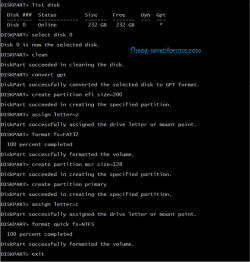
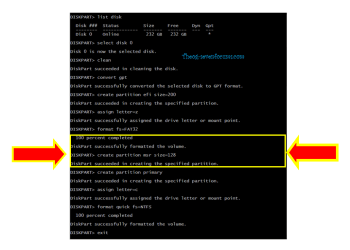
I think what I'd do is reinstall Win7 in Legacy mode to an MBR formatted disk. These are normally preset in BIOS but if you cannot find the related settings then boot the Win7 installer in Legacy mode, delete all partitions during install, see if it will create and format NTFS primary partition(s) for you.

Everything needed is here for a perfect Clean Reinstall OEM

If you leave the XP HD plugged in it should configure a Windows Dual Boot menu, or you can unplug it to keep using the BIOS to choose HD to boot.
 
Thanks a million for all the help so far. I do not underestimate the effort involved.
Will check here daily for new suggestions. Will post back whatever develops.

Am now weighing options.
 

My Computer

OS
Windows 7 Home Premium
I finally got the machine to boot into win 7 even with the win xp drive plugged in. Like before.
What I did was repartition the win xp drive as shown, then run startup repair 3 times.
Also restored the BIOS to default.

Thought it was fixed, but it will only do that until the first time I force it (from the boot menu) to boot into win xp.
After that, it will only boot win xp, regardless of which drive you select in the boot menu.
Then if you run startup repair again, it will boot into win 7 OK until the next time you boot win xp.

Fwiw, the win xp drive always did show up in the windows 7 explorer as drive F:

Diskmgmt and Windows 7 explorer screenshots.

. . .

Any of that provide any clues?
 
Last edited:

My Computer

OS
Windows 7 Home Premium
Back
Top