
Hi guys
I have searched various places for a solution but not quite getting a complete answer for my problem or perhaps I'm just lacking the understanding.
I have an Acer Aspire s3 391 , preinstalled with windows 8. I used a bootable usb with windows 7 64 bit to try an install windows 7 instead. I initially tried to run the setup from my desktop and somehow I messed up the installation. I can now no longer start windows and get back to my desktop.
I am now trying to reinstall windows 7 again from my bootable usb which I now made using RUFUS from a tutorial on this website.
I have tried using the UEFI Boot mode.
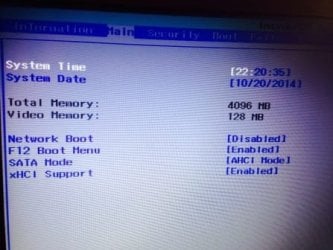
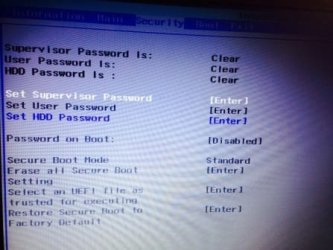
This is my bios when using it

this takes me as far as the windows loading screen
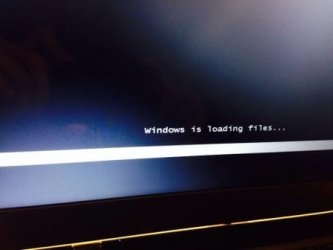
thereafter windows starting and freezes.

I then tried using the Legacy boot mode using another usb made using RUFUS.
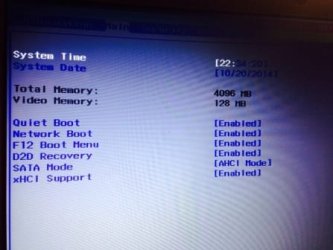
My bios was now

After going through the initial installation set up screens, I select custom install, and it his takes me as far as the step where you choose disk partition to install, but there are several disk partitions
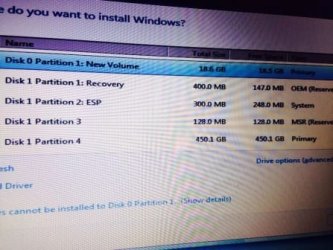

and a message says that the main 450GB partition is of GPT style which doesn't allow.
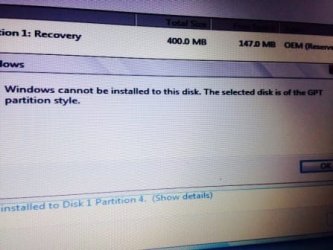
I am unsure how to go about installing windows now, which method to choose, and which disk partitions to use as there are several.
Any advice would be much appreciated. Sorry about the long post just wanted to be absolutely clear!
Thank you
I have searched various places for a solution but not quite getting a complete answer for my problem or perhaps I'm just lacking the understanding.
I have an Acer Aspire s3 391 , preinstalled with windows 8. I used a bootable usb with windows 7 64 bit to try an install windows 7 instead. I initially tried to run the setup from my desktop and somehow I messed up the installation. I can now no longer start windows and get back to my desktop.
I am now trying to reinstall windows 7 again from my bootable usb which I now made using RUFUS from a tutorial on this website.
I have tried using the UEFI Boot mode.
This is my bios when using it
this takes me as far as the windows loading screen
thereafter windows starting and freezes.
I then tried using the Legacy boot mode using another usb made using RUFUS.
My bios was now
After going through the initial installation set up screens, I select custom install, and it his takes me as far as the step where you choose disk partition to install, but there are several disk partitions
and a message says that the main 450GB partition is of GPT style which doesn't allow.
I am unsure how to go about installing windows now, which method to choose, and which disk partitions to use as there are several.
Any advice would be much appreciated. Sorry about the long post just wanted to be absolutely clear!
Thank you
My Computer
At a glance
Windows 7 Ultimate 32bit
- OS
- Windows 7 Ultimate 32bit


